Skip to content
Baseline Knowledge Base
  • All products
  • Baseline
/

Status, Graphs & Reports

  • Overview of Status, Graphs, & Reports
  • Viewing Details
  • Viewing Graphs & Reports
  • Viewing Messages
  • Viewing Status
  • Viewing Water Flow
Baseline / Status, Graphs & Reports

Viewing Water Flow

Updated May 1, 2026 1 min read

Viewing Water Flow

In PipeView position the hydraulic system diagram so you can see the components that you are interested in (refer to Using PipeView).

When water is moving through the hydraulic system, the lines between the boxes are blue. Gray lines indicate that water is not flowing.
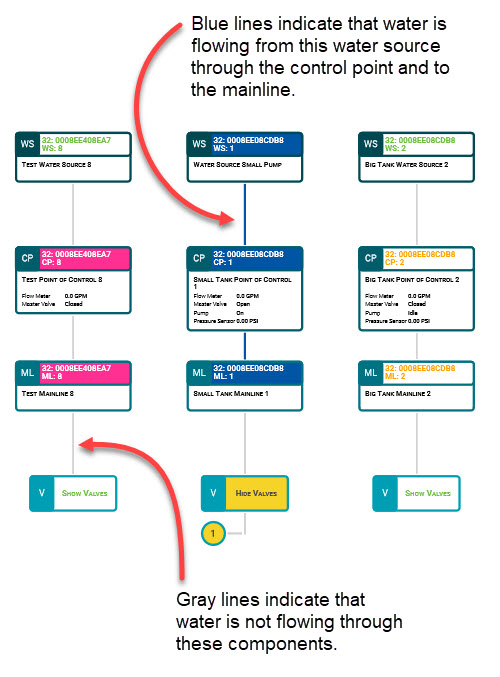
The status of the hydraulic components is represented by color. Refer to Viewing Status.

Was this article helpful?

Related in Status, Graphs & Reports.

  1. Viewing Details In PipeView position the hydraulic system diagram so you can see the components that you are interested in (refer to
  2. Viewing Graphs & Reports In PipeView, position the hydraulic system diagram so you can see the components that you are interested in (refer to
  3. Viewing Messages In PipeView, position the hydraulic system diagram so you can see the components that you are interested in (refer to
  4. Viewing Status In PipeView position the hydraulic system diagram so you can see the components that you are interested in (refer to
HydroPoint

Water management intelligence.

  • Sign up

© 2026 HydroPoint Data Systems. Built on HydroPoint.