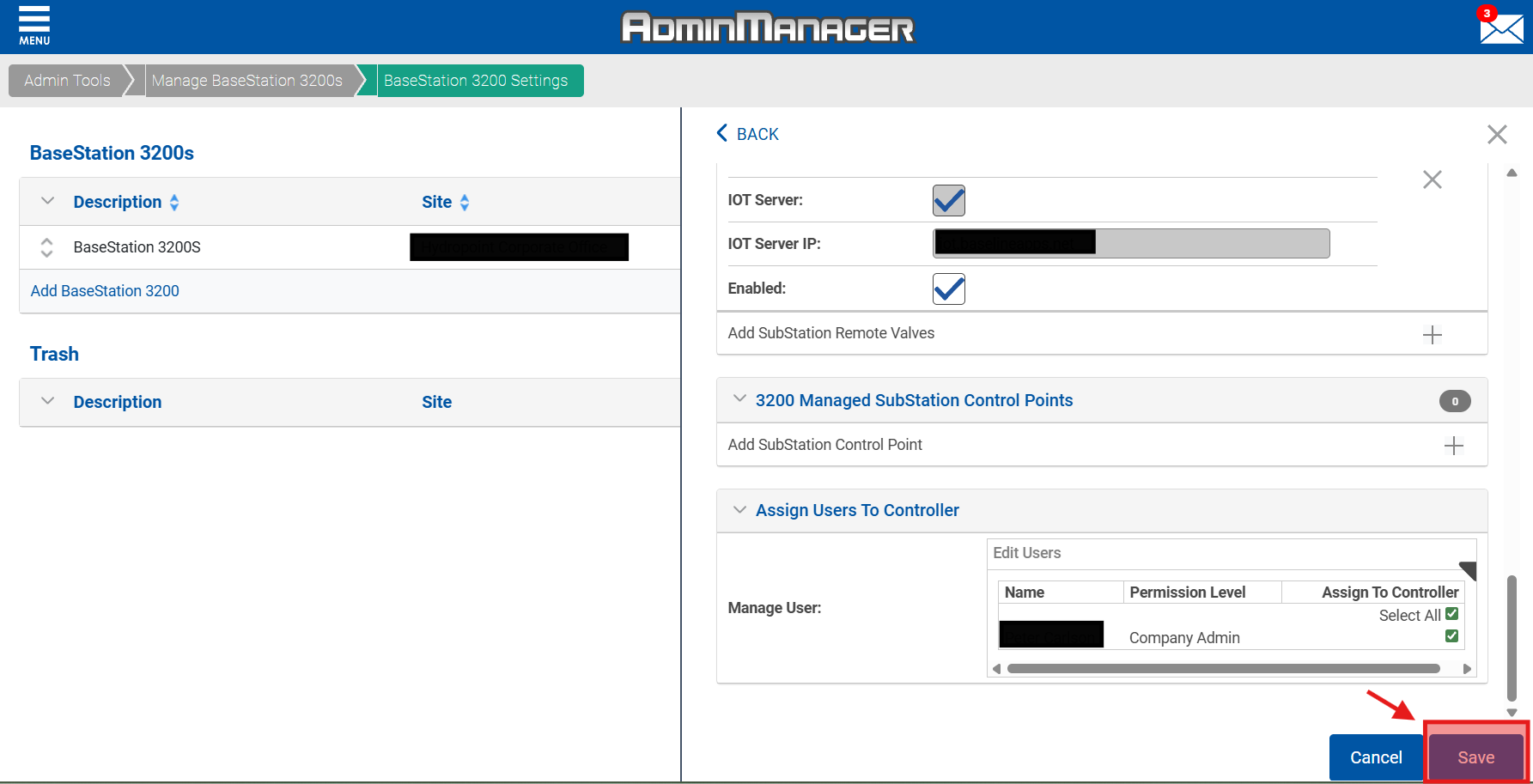
BaseManager users with Company Admin privileges can access the AppManager Admin tab and change user access settings, or grant controller access.
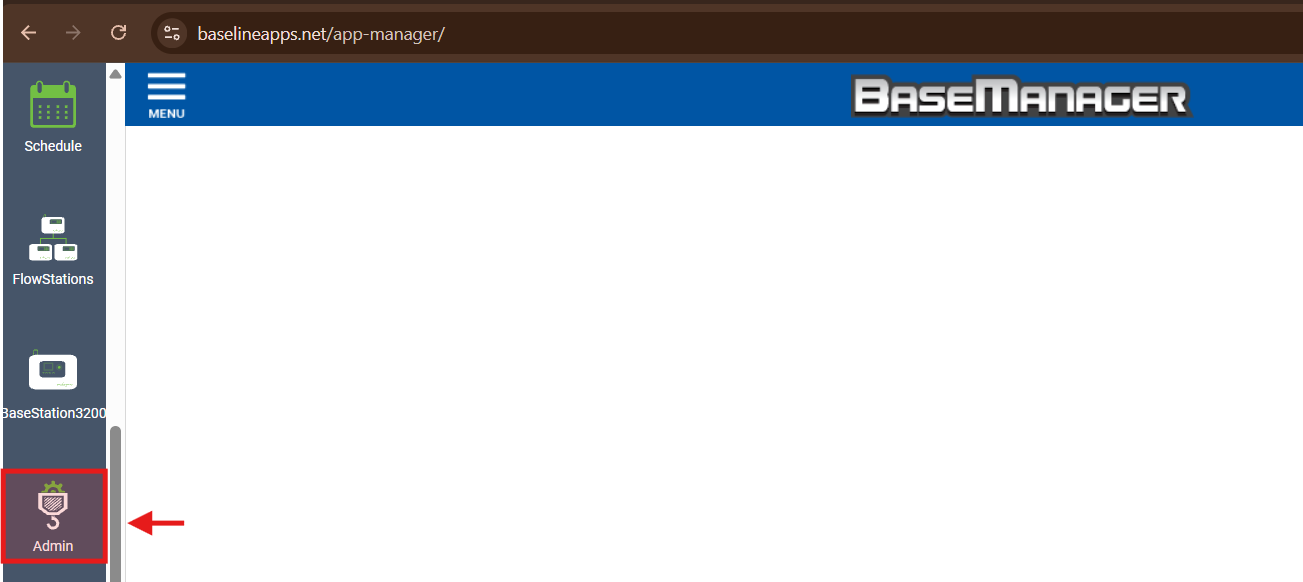
- After you have logged into BaseManager, click the Admin on the bottom left side bar
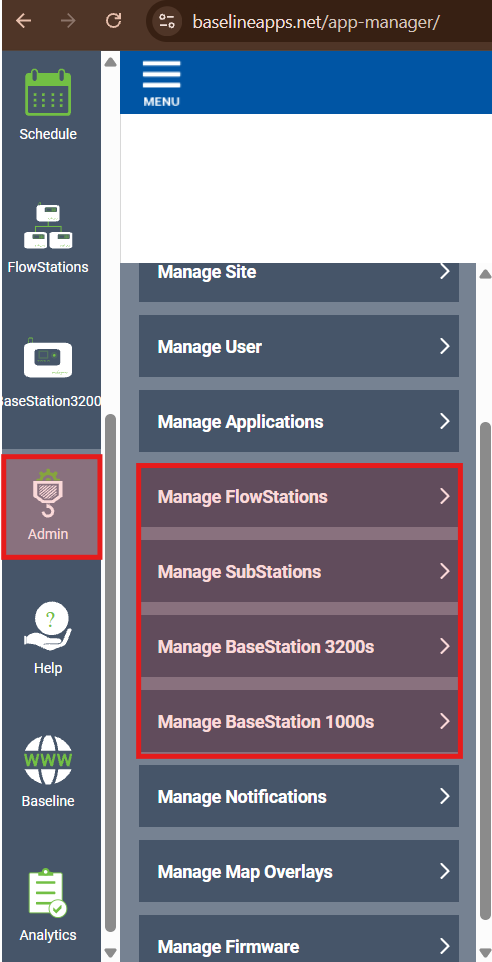
- In the sub menu select which type of device you wish to grant them access to.
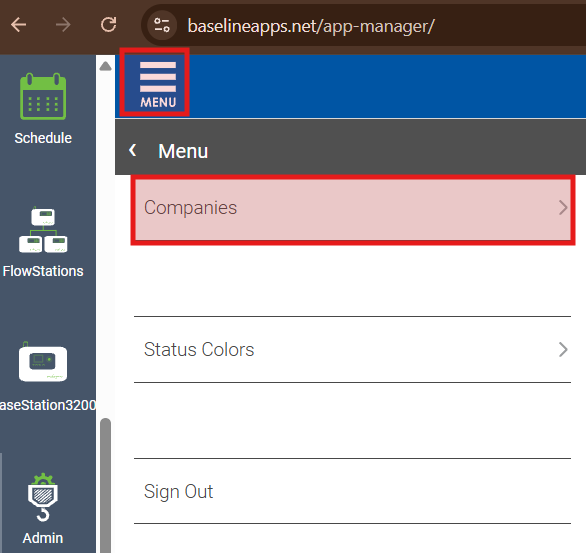
- Once the controller type has been selected, click on the Menu button to select the company the controller is activated under.
- Then, select the controller that you wish to grant the user access to.
- In the bottom right corner select the Edit button.
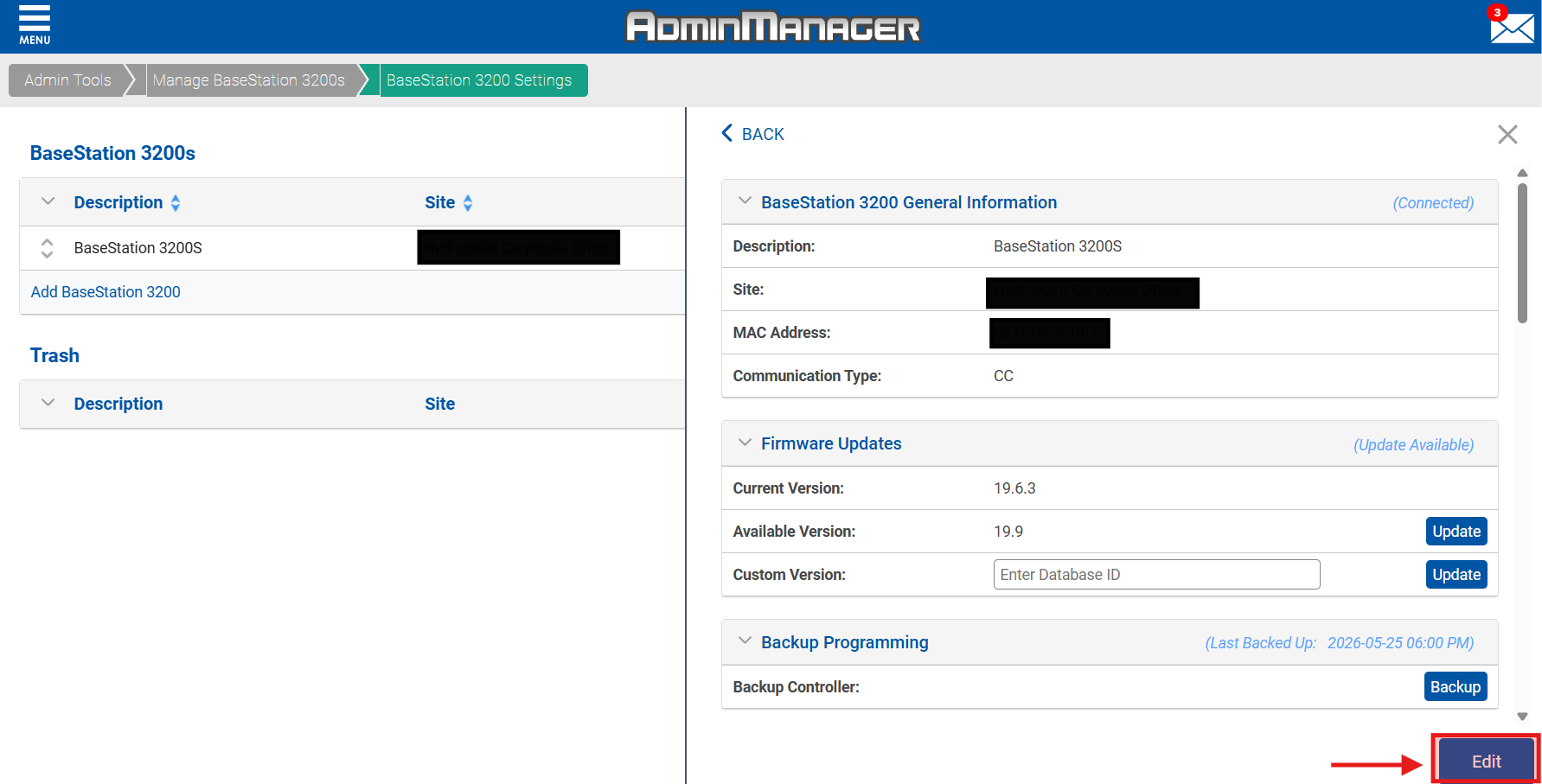
- Scroll down the bottom of the page, then select the check box next to the user you wish to grant access to.
- Then in the bottom right corner please select Save.