
Note: This process has been up to date as of Dec 2023. Latest Order Entry Process Found in Company Wide Policies
A sales order is a document generated (in NetSuite by HydroPoint) upon receiving a purchase order from a customer that specifies the details about the products or services. These details include the price and quantity, and other buyer details like the shipping address, billing address, mode of payment, and terms and conditions.
Standard Sales Orders for products and services should be processed in NetSuite in a consistent manner to maintain data integrity.
The process for sales orders is outlined below. The process applies to all sales orders created in NetSuite (with or without dollars attached). This includes:
- Direct sales
- Distribution sales
- Internal requests
- Replacement products without an RMA
- RMA orders (originating in NetSuite, not Salesforce)
- Safety Stock
Order Definitions
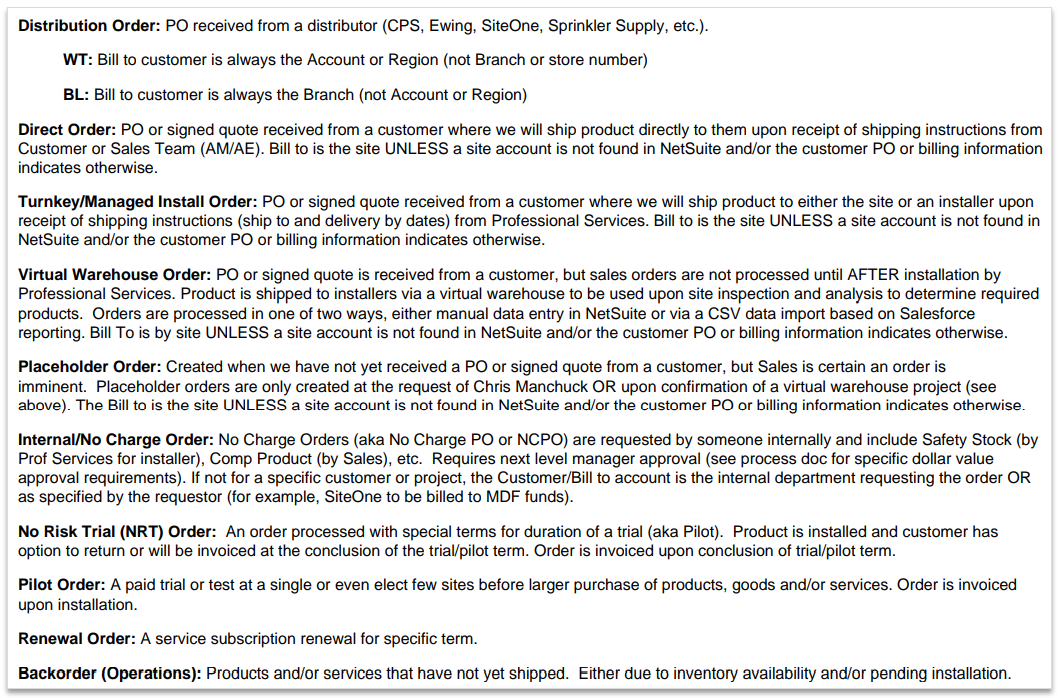
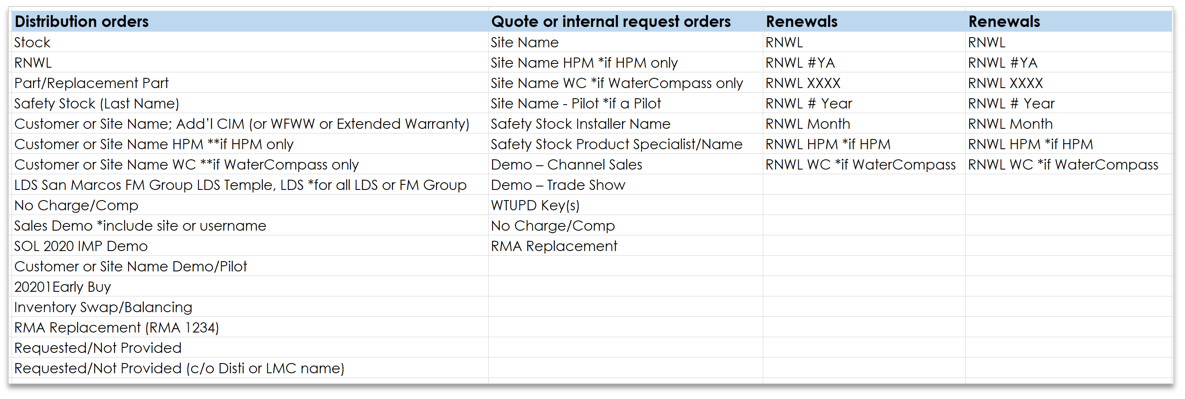
Source: Order Entry Definitions, Order Entry Job Naming
Sales Order Process
Before creating a new order, you must validate NetSuite Account Information is accurate including default rep, sales tax status (incl sales exemption), payment terms, billing address, etc. and matches the information on the PO. A copy of the PO is required. The PO number alone is not sufficient.
See: Sales Tax Requirements Policy & Process
- If account information is incorrect, corrections must be made to the Customer Account record before a sales order is created.
- Changes made to account information during sales order entry will not update the customer account record.
- NetSuite account data and updates are owned by Sales / Orders.
Receiving & Confirming Orders
Upon receipt all orders should be reviewed prior to order entry to validate customer information, terms, products order, pricing. It is required for the order to be received and accepted.
All orders received electronically shall be confirmed by reply email and include the related HydroPoint Sales Order document number, along with any other order-specific acknowledgements including lead time, back orders, expedited shipping method (if requested), etc.
An actual copy of a Purchase Order/PO, Contract, Service Agreement or signed Quote (including all pages) is required. A “verbal” approval, email thread and/or PO number only is not sufficient. All Quotes, POs, etc., must be direct billed to the approving company/contact and company/contact is responsible for payment as the only contact who may approve or sign a quote. We cannot invoice a third party or another customer on someone else’s behalf (i.e., landscape contractor or property manager cannot sign or approve for homeowner, HOA, or another business with request for invoice to be sent to someone else).
Upon receipt of POs from customer/distributor:
Review PO before order entry to confirm all required information is included and validate against NetSuite account information:
- Bill to
- Ship to
- Payment Terms
- Ship Via
- Product and pricing: Check Item SKUs and confirm that pricing is accurate. See the current Distribution Sales Information workbook for customer information, discounts, etc. (owned and maintained by Sales Ops).
After Order Entry and Review completed:
- send confirmation email via “Reply”.
- If job name provided: “Thank you for the PO. Sales Order ###### has been processed.
- If job name NOT provided: “Thank you for the PO. Sales Order ###### has been processed. Do you have the job name for this order?”
- cc:
- If over $10K, Account Executive on confirmations and job name requests
- If For SiteOne, always cc: poupdates@siteone.com
- For Smith Turf, always cc: stipurchasing@smithturf.com
- For Watersavers Irrigation, always cc: <city>store@watersaversinc.com, (location as listed on PO Ship To)
- If any information or pricing is incorrect, send email with request for revised PO. Include correct pricing for reference. Upon receipt of revised PO, confirm by return email and provide the Sales Order number as described above.
- Email Text:Thank you for the PO. Please note the following pricing <or terms, ship via, SKU, etc. > requires correction. Upon revision, please direct the revised PO to orders@hydropoint.com for processing. <Item SKU/Part ID> <Description> 2023 List: $<___> Cost: $<___>
- Flag the email for follow up. Reach out at end of day and then daily as needed.
Read Receiving & Confirming Orders for more information receiving orders from Contracts, Service Agreements, Signed Quotes or Site One Approver Policies
Saving Order in NetSuite
After a sales order is processed, the sales order must be saved (PDF) in NetSuite. Sales orders without the appropriate information and attachments will not be approved.
Other NetSuite Sales Order Entry Process
- For HPDS Sales use WeatherTRAK Pays
- For Installation Partners using on-hand inventory use Virtual Warehouse
- After saving a sales order, scan or save document(s) in PDF format. Save the scan under the sales order number, for example, 123456.
- Include PO, contract, work order, etc.
- Include back-up email, fax cover and communication, etc.
- Include executive or management written approval (required for all $0 orders and/or orders with expedited shipping not generated by an RMA).
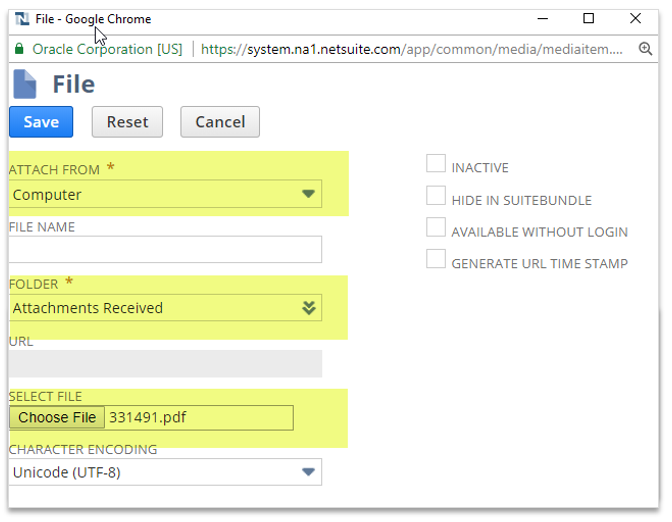
In the pop-up window, Select Computer (Attached From) → select folder Attachments Received → Select File/ Choose File (choose save/scanned Sales Order) → Click the blue Save button to upload the attachment.
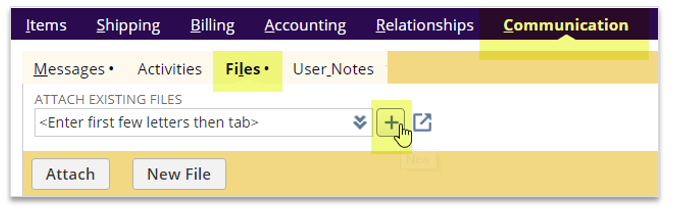
Attach the file to the NetSuite Sales Order: Communications tab → select Files → Click + next to the ATTACH EXISTING FILES field
For Distributor/ Direct/ Turnkey
(Actual copy of a PO is required – a PO number alone is not sufficient).
- NetSuite → Type CU: Number in the search bar to select customer.
- NetSuite → Type CU: Customer Name identifies the customer # and verify account information.
- For Distributors, always use the parent account for distributors and confirm the account naming and relationships are correct before processing any new order.
- For all Other Customers, always use the site-specific child account. If a site account does not exist in NetSuite, then use the related Parent Account
- Sample Order for Reference: Sales Order 368813
- Click the Customer to view the Customer Account.
- Click the Actions drop-down menu and select Sales Order:
- Mandatory Sales Order Fields:
- PO # field: Must be one of the following formats.
- "PO <Customer PO #>",
- "Signed Quote <Quote #>",
- "Work Order <work order #>",
- if RMA or Service/Case "SF Case <SF case#>",
- "Internal Request <MMDDYY - ###>,
- include 'Pilot' or 'NRT' if necessary, if Placeholder then Do Not Approve
- The NetSuite PO Field cannot exceed 25 characters due to FedEx shipping limitations. The transaction will fail and create additional work for mfg. PO field exclusively for Customer PO/ Order Info, do not include internal identifiers (Quote #, RMA #, etc. - put in user notes). Exception is if order is on hold.
- Ordered By: Your initials and name of the person placing the order (AZ/John Smith)
- Job Name: Job information as provided by the customer (Not the ship to or branch name)
- Sales Order Type select from drop-down menu:
- Standard Order: Default type to be selected for most orders
- Paid Pilot: Pilots to be billed once the installation is complete.
- NRT Pilot: No Risk Trials (NRT) or Special Term Pilots for a specific term to be billed once the customer indicates they are satisfied with the product during the trial period.
- PO # field: Must be one of the following formats.
- Enter items. Products must match PO or quote, verify line pricing is correct. Click Add to enter the next line
- If item includes service, appropriate service line item must be included and applied properly
- If any OptiFlow products, WTS-OPT must be included 1:1 (pricing may vary)
- If installation services, must sync with controller station counts, flow sizes, etc.
- If HPM, PSPM- [Set Up], [-CTRL-#Y] and [-SITE-#Y] must be included.
- HPM Asset quantity must equal PSPM-SITE-#Y quantity
- Subscription Line (Sequence #)for PSPM-SITE-#Y must be linked on/to the HPM Asset line
- If an RMA Order (PO = RMA-1#####), verify pricing is a $0 / No Charge
- See below for instructions related to HPM, WFWW, Item Groups (WaterCompass and AX).
- Enter Service Subscription for each line of controller (CIM-1Y, CIMXL-1Y, OFS-1Y, CIM+OFS-1Y etc.) For additional CIM purchases use TOTAL YEARS OF SERVICE SKU (CIM-5YA = CIM-6Y).
- Enter Subscription Line ID on the corresponding controller line(s) to link CIM. ALL CONTROLLERS & OPTIFLOW KEYS INCLUDE 1 Year of Service
- Click on Shipping tab. Update the following:
- Update Ship to address (select from drop down OR edit Custom – do not create “New”)
- see Order Entry Shipping information
- If the ship to is a residence, the Residential Address box must be marked and choose a “Home Delivery” shipping method.
- Update Shipping Method (select from drop down; FedEx Ground, 2nd Day Air, LTL Freight, etc.)
- All SPH, SPT, STW controllers and all flow items over 3” must ship LTL Freight and cannot be expedited.
- Any expedited shipping method must be listed on the actual PO (required)
- If not charging for freight, a prepaid shipping method must be selected
- Update Shipping Cost (click calculator to calculate shipping/freight cost)
- Note: For Preferred Distributors only, prepaid freight on all orders over $5,000.
- Type the Deliver By Date if a specific date has been requested (direct/turnkey orders only)
- Type in Ship to phone number in the Ship To Phone field (this is required by the freight carrier)
- Update Ship to address (select from drop down OR edit Custom – do not create “New”)
- Click on Billing Tab. confirm or update bill to address.
- Click on Communication tab→ Message and add to the Customer Account box
- Enter any special handling or shipping instructions (Delivery by, Label package(s), etc.)
- Enter contact’s email for tracking information
- This is a customer facing field. any internal information add to user notes
- Click on Communication tab→ Files and add to the Customer Account box and add appropriate back up documentation that is clear and concise in .pdf format
- Examples include customer provided PO, MSA, or Contract; SIGNED quote; email thread that provides additional information, clarifications or confirmation; shipping information; internal requests and/or approvals; documentation to back up user notes
- File Naming should be formatted as follows:
- PO, Order, Contract, etc.; 395255 PO
- Billing information email thread: 395255 – Billing Info
- Additional questions asked and clarified email thread: 395255 – Add’l Clarification
- Shipping instructions: 395255 – Shipping Info
- Virtual WH screenshot: 395255 – VHW Report
- Internal approvals, info, communication: 395255 - Internal Approval or 395255 - Internal Info
- Click on Communication tab→ User Notes and add any information required for internal users
- explain pricing discrepancy (if PO higher than actual price)
- explain why an order has been placed on hold
- explain updates to orders on hold
- ex:
- Title: Revised PO Required.
- Memo: PO does not include payment terms, revised PO request submitted to John Smith (email 12/15/2023)
- ex:
- Review Summary at top of Sales Order to confirm order subtotal is correct. The Sales Order should be the same value as the PO (may be off a bit due to decimal rounding).
- Click “SAVE” on the top left to save and print-preview sales order to review. If there are any blank or open fields, edit order to update. Save/attach appropriate backup under the Communications tab following the see NetSuite Order Entry; Paper-free Sales Order Cycle.
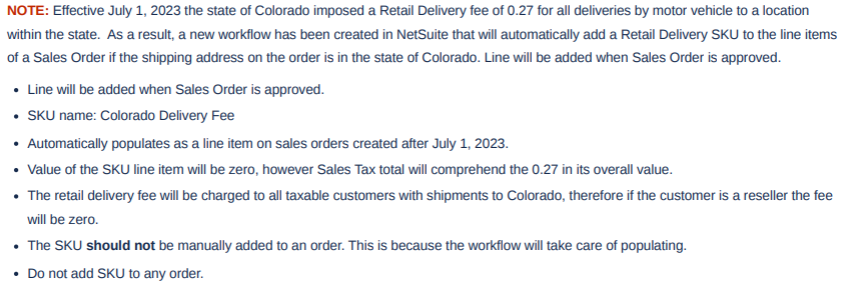
For Colorado Shipments
For No Charge Orders
All no charge/$0 orders require backup documentation with a manager’s approval prior to order entry. The appropriate backup must be attached in pdf format (no jpg, no png, no msg txt, etc.)
- The actual Customer Account should be used for the Sold To Customer (site is preferred, parent if site doesn’t exist). Internal departments (HPDS Sales, HPDS Professional Services, etc.) should only be used for internal use, safety stock, or one-off courtesy orders rather than being the default, go to sold to/bill to account.
- If a PO (purchase order, work order, etc.) is provided by the customer, then a copy of the actual PO must be attached to the sales order record.
- If a PO (purchase order, work order, etc.) is not provided by the customer, then internal backup with appropriate approvals must be attached to the sales order record.
- Internal order/shipping requests, including No Charge orders for product, new/additional subscription service, or HPM that are not related to an RMA, should be submitted to orders@hydropoint.com with Internal Order/Shipping Request (job/customer name) as the email subject.
- All internal order requests will be reviewed and processed by the Order Management Team in NetSuite.
___________________________________________________________________________________________
- Type CU: Number in the search bar to select the customer. To identify the customer number and verify account information, you can research in NetSuite by typing CU: customer name. For replacement parts, always use the account that is associated with the Asset.
- Update the PO#, Ordered By, and Job Name fields. These fields must be updated on every Sales Order.
- PO #: Enter the service or case #, serial number, etc. If a purchase order is received with an actual PO number, you only need to enter the PO number. If there is not an actual purchase order or PO number, spell out what the number is in reference to:
- SF Case-Salesforce Case
- WO-Work Order
- RMA Order
- Ordered By: Your initials and name of the person placing the order (JE/John Smith)
- Job Name: Job information as provided by the customer (not the ship-to or contact name)
- PO #: Enter the service or case #, serial number, etc. If a purchase order is received with an actual PO number, you only need to enter the PO number. If there is not an actual purchase order or PO number, spell out what the number is in reference to:
- Enter line items (can combine like product) and verify pricing is correct. Click Add to enter the next line.
- Enter Item(s) using HPDS Part # or Model #
- Change Price Level to Custom and Price field to $0
- Enter Service Subscriptionfor each line of controller
- if a controller is ordered (CIM-1Y, CIMXL-1Y, OFS-1Y, CIM+OFS1Y etc.)
- For additional CIM purchases use TOTAL YEARS OF SERVICE SKU (CIM-5YA = CIM-6Y).
- Enter Subscription Line ID on the corresponding controller line(s) to link CIM. ALL CONTROLLERS & OPTIFLOW KEYS INCLUDE 1 Year of Service.
- Click on the Shipping tab:
- Update Ship To address (select from the drop-down menu OR edit Custom. Do not create “New”)
- Enter Ship-To Phone field with customer phone number. This field is required by the freight carrier for the shipping integration to work properly.
- Update Shipping Method select from the drop-down menu
- Standard Ground
- Prepaid Shipping If we are not going to invoice the customer for shipping/freight costs,
- Customer Frt. Acct If we are using a customer freight account and include the account number with billing zip code in the Message Field.
- Back up from your Manager is required for all expedited no charge orders
- Click the Communication tab → add Customer Account Message box:
- Any special handling or shipping instructions
- The contact’s email for tracking information
- Review Summary at top of Sales Order to confirm the order. The order total should be $0.
- Click SAVE & PRINT on the top left to save and print the sales order. If there are any blank or open fields, edit the order to update. Scan and attach order packet (including backup with manager approval) to the Sales Order. See NetSuite Order Entry; Paper-free Sales Order Cycle.
Use the Actions drop-down menu to select Sales Order.
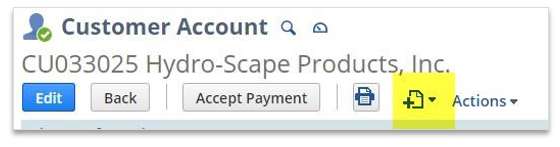
Select the customer to view the Customer Account.

For HPM
Follow the standard order entry process, adding HPM line items as follows:
- HPM Asset(this is the serialized “item” that will be considered the Asset for install base records, HPM renewals, etc.). The quantity must match the PSPM-SIte=#Y quantity
- Enter Subscription Line Id on the corresponding PSPM-SITE-#Y
- PSPM-SITE-1Y (must match quantity of HPM asset)
- PSPM-SITE-SETUP (must match quantity of HPM asset and PSPM-SITE-#Y)
- PSPM-CTRTL-#Y (quantity will vary depending on number of total controllers at site(s) where HPM service is to be provided).
For Water Compass
The customer-facing WaterCompass SKU(s) as listed on quotes does not reflect the actual product codes for order entry. WaterCompass is sold as a service, with order entry by item groups. Follow the standard order entry process, adding WaterCompass products as follows.
- SAMPLE ORDER FOR REFERENCE: Sales Order 370418
SKU/PRODUCT CODE is found in the Salesforce Quote record in either the Submission Notes and/or the Recommended Products & Services section. The item group product code will also be included in the Professional Services shipping request. The SKU on quotes is the customer-facing SKU(s) for WaterCompass as a service.
- Enter the SKU/Product code provided by Sales or Professional Services (David Taylor). The SKU(s) for order entry are an item group that will automatically populate all of the specific line items included with the bundle, group, etc.
- You must “add” line, then wait for lines to fill in before moving on to the next line item. After all line items of the item group are listed, click into the first line of the group to reorganize Sequence # lines.
- Lines include:
- WCE Item Group
- WaterCompass Device
- WaterCompass Service
- Installation
- Set-Up
- If the order is for an FM300, the data collector (DC) and data collector service will both be listed. Service must be lined to DC line item.
- After the item group populates and any service is updated,go to the device line (i.e., WCFM200V1S) and link the sequence subscription line id (be sure the sequence lines have updated/re-numbered and the correct line is linked). Repeat this step for each item group and any data collector and data collector service, if applicable
- If quoted years of service is greater than 1Y, revise line item to reflect total duration and price quoted.
- Revise line item pricing to match quoted Item value (bundle rolls up to quoted line item price).
All Inclusive (AX) Item Groups
Follow the standard order entry process, add All-Inclusive products as follows:
- Enter the SKU/Product code as listed on the PO or Quote. This is an item group that will automatically populate all of the specific line items included with the bundle, group, etc. You must “add” line, then wait for lines to fill in before moving on to the next line item. After all line items of the item group are listed, click into the first line of the group to reorganize Sequence # lines. Lines include:
- Controller SKU
- Service SKU
- Warranty SKU
- After the item group populates, go to the device line (i.e., 7524CWM) and link the sequence subscription line ID (be sure the sequence lines have updated and the correct line is linked). Change all line item price levels to AX Price Level. Line item pricing should roll up to the AX Price.
CIM Service (Add’l), HPM, and Extended Warranty Only
This process should be used for additional CIM only when controller has not yet been activated
- Search Controller SN Install Base Record(s) to confirm current status. If activated, forward PO/order on Renewal@hydropoint.com and the Renewals Coordinator for processing after confirming receipt. SAMPLE ORDER FOR REFERENCE: Sales Order 368811
- Identify the customer and verify account information. You can search for this by
- CU: (customer name)
- NetSuite Customer Name
- NetSuite CU Number
- Click the Task icon and select Sales Order. Mandatory fields must be updated for CIM or Extended Warranty Only orders include:
- PO #: Customer PO Number (or Serial #/RMA # replacement related)
- Terms: Should match IMP Terms or Net 30
- Sales Rep: HPDS Sales Rep
- Ordered By: Your initials and Name of person placing the order (JE/John Smith)
- Job Name: Job Name; Add’l CIM or Add’l Warranty
- Ship Via: Select Best Method from drop-down menu
- Shipping Address: Update to customer address as listed on PO or quote
- Enter line item/product code for CIM Service or Extended Warranty ordered, Follow the standard order entry procedure for the remainder of the sales order transaction.
- Enter quantity (quantity to match number of controllers/SN).
- Enter a note in the Description Field
- TO BE APPLIED TO SN 12345678 (List ALL SN’s)
- Change Price Level to Custom and manually enter Rate/Price
- Click “Add” Line Item, then add additional line items as needed
- Click “SAVE” on the top left to save and print the sales order. If there are any blank or open fields, edit the order to update. Save/attach appropriate backup under the Communications tab following the see NetSuite Order Entry: Paper-free Sales Order Cycle.
- PO
- Back-Up
- Update each controller/SN INSTALL BASE record (see next page)
Updating Install Base Records
CIM Service
- Search for Serial Number(s)
- Open Install Base record by selecting EDIT
- Use Custom Form: HPDS MCD Install Base Form
- Change Subscription Term to TOTAL MONTHS OF SERVICE (12 + additional months purchased) For example, CIM-4YA purchased = 60 Term
- Enter the SKU of Additional Service Purchased (CIM-#YA, CIMXL-#YA, etc.)
- Enter the Sales Order Number as Sales Order #123456 (order will appear on the drop-down menu – click to select) SAVE
- Repeat for each Controller Serial Number
Extended Warranty
- Search for Serial Number(s)
- Open Install Base record by selecting EDIT
- Use Custom Form: HPDS MCD Install Base Form
- Update Extended Warranty Term in months (5 Years = 60 months, etc.)
- Update Extended Warranty Start Date (use end date of standard warranty)
- Update Extended Warranty End Date (add the duration of extended warranty)
- Enter the SKU of Extended Warranty Item
- SAVE
- Repeat for each Controller Serial Number
WFWW Orders from Customer Engagement
Important
- A copy of a signed quote, including all pages, or a PO is required. A verbal approval, email thread and/or PO number only is not sufficient.
- All quotes and PO's must be direct billed to the approving contact. The company or person responsible for payment is the only contact who may approve or sign a quote.
- We cannot invoice a third party or another customer on someone else’s behalf (i.e., a landscape contractor cannot sign or approve for homeowner or another business with a request for an invoice to be sent to someone else)
All Quotes or POs should be submitter to orders@hydropoint.com for processing and must include:
- Contact Info: name, phone, email
- Bill To Address: the party responsible for paying the invoice
- Ship To Address: the location where hardware will be sent to
- Serial Numbers: all assets/controllers to have WFWW added-- Product ID/SKU with pricing
- Customer’s Signature
Entering the Sales Order:
- Type CU: Number in the search bar to select customer. If you need to identify the customer # and verify account information, you can research this in NetSuite by typing CU: Customer Name. Always use Parent Account
- Select the customer to view the Customer Account and click the Actions drop-down to select Sales Order
- Fields that must be updated on every Sales Order include:
- PO number: PO or quote number
- Ordered By: Your initials and the ame of the person placing the order ( ex: AZ/John Smith)
- Sales Rep: Select the sales representative from the drop-down menu (Note: orders for quotes from Sandi Scalmanini should be assigned to her)
- Job Name: WFWW; SN 09123456 (serial number or site name if mass update)
- Enter line items: items as listed on quote or PO
- Enter ID/SKU: XTDWAR-COMM-5Y
- Tab to Price Level column and select Custom from the drop-down menu if a discount has been offered
- Tab to Price column and enter quote price
- Click Add to save the line item.
- Shipping: (same as above)
- Update Ship to address to match quote (Create Custom based on quote ship to address))
- Update Ship Via method (select Beth Method from drop down)
- Enter in Ship to phone number in the Ship To Phone field (this is required by the freight carrier)
- Billing:
- Billing information: confirm the billing information is correct and update id needed
- Terms: Under Billing Tab, update the Terms field:
- Net 30 (if an invoice is to be sent)
- Due Upon Receipt (if paying by credit card – this will be noted/provided with quote)
- Click the Communication tab and add to the Customer Account Message box:
- Enter contact’s email for tracking information when hardware order is created by Support/Services.
- Review Summary at top of Sales Order to confirm order subtotal is correct. The Sales Order should be the same value as the quote or PO (may be off a bit due to sales tax or decimal rounding).
- Click SAVE & PRINT on the top left to save and print the sales order. Save/attach appropriate back up under the Communications tab following the NetSuite Order Entry; Paper-free Sales Order Cycle.
- Quote
- Sales Order
- Back Up
- Update the asset Install Base Record in NetSuite(must update each record for each Serial Number)
- Edit Install Base Record →
- Click the WFWW Customer Box →
- Enter the Additional WFWW Purchase SO (Type Sales Order #123456) →
- Update the WFWW Check Box Date (to match order date) →
- Click Push to Salesforce (JB) Box →
- Save Install Base Record
- Upload Serial Numbers in Salesforce
- Search Sales Order #
- Click on Order #
- Scroll to Notes & Attachments
- Add New Note (type in SNs) OR Upload Files (either Excel or PDF format)
Each individual asset Install Base Record must be manually updated for WFWW to be properly applied. Orders completes this step after the sales order is processed.Delete
Placeholders (Pending PO or Virtual Warehouse)
Follows the standard order entry process with a few additional steps/notations:
Placeholder Orders (pending PO, contract, signed quote, etc.)
- Orders created to get data into the system either as a booking in advance of an actual PO or signed quote OR an order has been received but we are waiting on additional information before order can be shipped (product info, shipping info, etc.)
- Can either be with products as defined on PO or signed quote or use Item #99999 Placeholder. If using the Placeholder sku, add the total order value as the item price. This line item will be removed when products are known and order is updated.
Upon receipt of shipping instructions from Professional Services, update sales order following standard order entry process.
Virtual Warehouse Orders (pending Installation by Professional Services)
- These orders are for product that is sent to installers. Professional Services manages product and will provide installed product and services information upon completion of project.
- Can either be with products as defined on PO or signed quote or use Item #99999 Placeholder. If using the Placeholder sku, add the total order value as the item price. This line item will be removed when products are known and order is updated.
- Upon installation, data is received from Professional Services. Update sales order following standard order entry process.
Ordered By field: Add special designation to identify order type
- Example: JE/Matthew Benedict (VIRTUAL WHS)
- Once PO is ready to be released, update/remove (designation)
Click on Shipping tab:
- Update Ship Method, select Virtual Warehouse Transfer from drop down
- Selecting this method will ensure the order does not slip through and is accidentally shipped
Click on Communication tab and add to the Customer Account Message box
- If Placeholder; HOLD FOR PO / HOLD FOR SHIPPING INFO
- If Virtual WHS; HOLD FOR VWS INFO FROM PROF SERVICES
Important Note: Placeholder or Virtual WHS sales orders should not be approved in NetSuite until order is ready to be shipped. Cannot “unapprove” or revert status back to Pending Approval.
Secondary Steps
Order Management will review/approve all sales Orders. If a Sales Order does not have proper attachments, it will be sent back to order creator to upload required attachments. Order Mgmt. will use ListViews to identify all orders “Pending Fulfillment" status to be processed.
- By manufacturing: A pick ticket will be printed and used to prepare the product. After an order is fulfilled, standard fulfillment steps will be followed with serial numbers attached (where applicable) → Packing slip created → Order fulfilled and shipped.
- By Finance: identify all sales orders in the "Pending Billing" status and invoice. Once invoiced, all required and related documents for each sales order will be easily accessible in NetSuite.
Source: Order Entry Paper-Free Sales Order Process
Please allow 1-2 business days for processing. All requests will be processed in the order received. No Charge orders will be processed after all orders that will be invoiced with dollars. Special exceptions will be made under specific circumstances, to be determined depending on current order volume, time of day/month/quarter, etc.
Please be aware of shipping/transit times and mindful of delivery date expectations to avoid unnecessary expedited shipping costs. Tracking information will be provided by email directly from the freight carrier once order is in transit.
Order Status & Tracking Information
Customer PO/Purchase Order number is required for look up.
- In NetSuite → in the Search bar enter the entire, complete PO number → select the Sales Order→ view the status will be listed to the right of the Order number and Customer Name:
- Pending Fulfillment = Order has been processed and in production. Operations can provide expected ship date and lead time.
- Pending Invoicing/ Billed = Order has been shipped. Scroll down to shipping section of sales order for ship date and tracking details
Order Cancellations
Order Cancellations
Objective: To maintain data integrity, sales orders should be cancelled rather t...
[insert-question 980531]
Shipping
Shipping Schedules and Transit Times
FedEx map outlines transit times for Standard Ground shipping from California. Pl...
[insert-question 981710]
Additional Notes
Credit Card information is not kept on file. Do not include or write credit card information on quotes or via email. Credit Card information must be provided directly to the Finance Team.
Incomplete requests with may be returned for additional information, back-up, required approval(s), etc.
- Department requesting product (Sales, Operations, Engineering, Marketing, etc.)
- Name of person/employee requesting product
- Reason for product and order request (training/sales demo, personal demo, comp product, etc.)
- Product information including quantity AND HPDS product or part code
- Provide SUMMARY by item/product
- Use specific part id’s or model numbers from Product or Replacement Parts catalogs
- Requests that have incomplete product information will be returned to requestor
- Ship To Address, including:
(Note that “address on file” is not sufficient)
- Onsite contact name Company (if external)
- Contact’s Phone number Contact’s Email address
- Deliver/Need by Date (date product is requested to be delivered on or by)
- Requests for expedited shipping must include manager’s approval
Department Head approval must be included or attached if order value is above $1,000 Management level approval must be included or attached if over value is above $5,000 Executive level approval must be included or attached if order value is above $10,000.
Why Have Sales Order Type
The purpose of the new Sales Order Type field is to expand the level of communication between Sales, Orders, and Finance. By having sales order flagged as Paid or NRT Pilot, Finance will have one more data point to rely on when reviewing the “Pending Billing” queue. The hope is to cut down on the overhead caused by back-and-forth communications regarding whether a sales order is ready to be billed. This is a go-forward field, meaning as new Pilot or NRT orders are entered this field must be flagged.