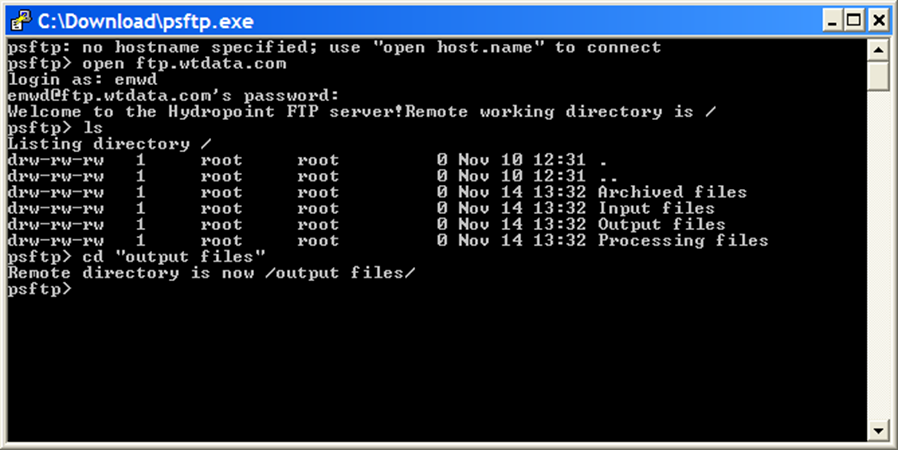
Via command line Secure FTP client (PSFTP used in example)
- Open your Secure File Transfer Protocol (SFTP) client application.
- Open a session to ftp.wtdata.com:
- Double click executable to launch.
- At the command prompt “psftp>” type “open ftp.wtdata.com”.
- At prompt “login as:” type your assigned username and press enter.
- At prompt username@ftp.wtdata.com’s password: enter your assigned password.
- To list the contents of your root directory type “ls” and hit enter.
- You will see the following directories:
- Archived
- Input
- Output
- Processing
- To retrieve your daily output:
- Type “cd Output”. Type “ls” to list the files available for download.
- To retrieve a file, type “get filename” (filename format is yearmonthdayET.csv. For example, the file for November 20, 2008 would be 20081120ET.csv)
- Once downloading is complete, logoff by typing “bye” or “quit” and hitting enter.
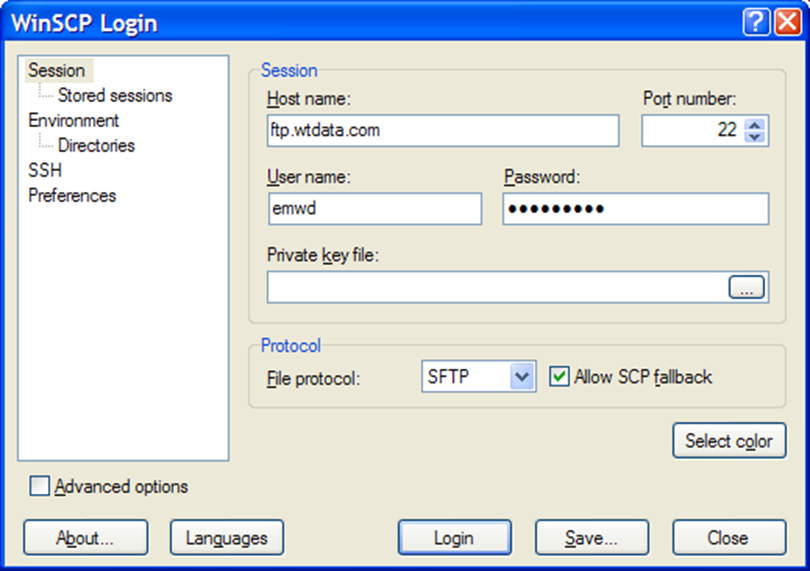
Via Windows GUI client (WinSCP used in example)
- Open your Secure File Transfer Protocol (SFTP) client application.
- Configure the SFTP session:
- For hostname enter ftp.wtdata.com.
- Port number should be 22.
- Enter assigned username and password.
- Leave Private Key File blank.
- Click Save if you wish to save the session information.
- Click login.
- You can now drag and drop files from the FTP server to your desktop PC or mapped drives.