Skip to content
WeatherTRAK Knowledge Base
  • All products
  • WeatherTRAK
/

SiteMap Setup

  • Getting Started with Site Map
  • How to enable 'No Limit' for asset icons displayed
  • Save Time with Mobile Site Map
  • Site Map Asset Import
  • Using Site Map
WeatherTRAK / SiteMap Setup

Site Map Asset Import

Updated June 25, 2021 1 min read

The Import Asset feature allows you to import assets from another platform into WeatherTRAK Central. 

1.  From the Sites tab in WeatherTRAK Central, select Site Map. 

2.  Download the sample CSV by clicking the link near the bottom of the screen. 
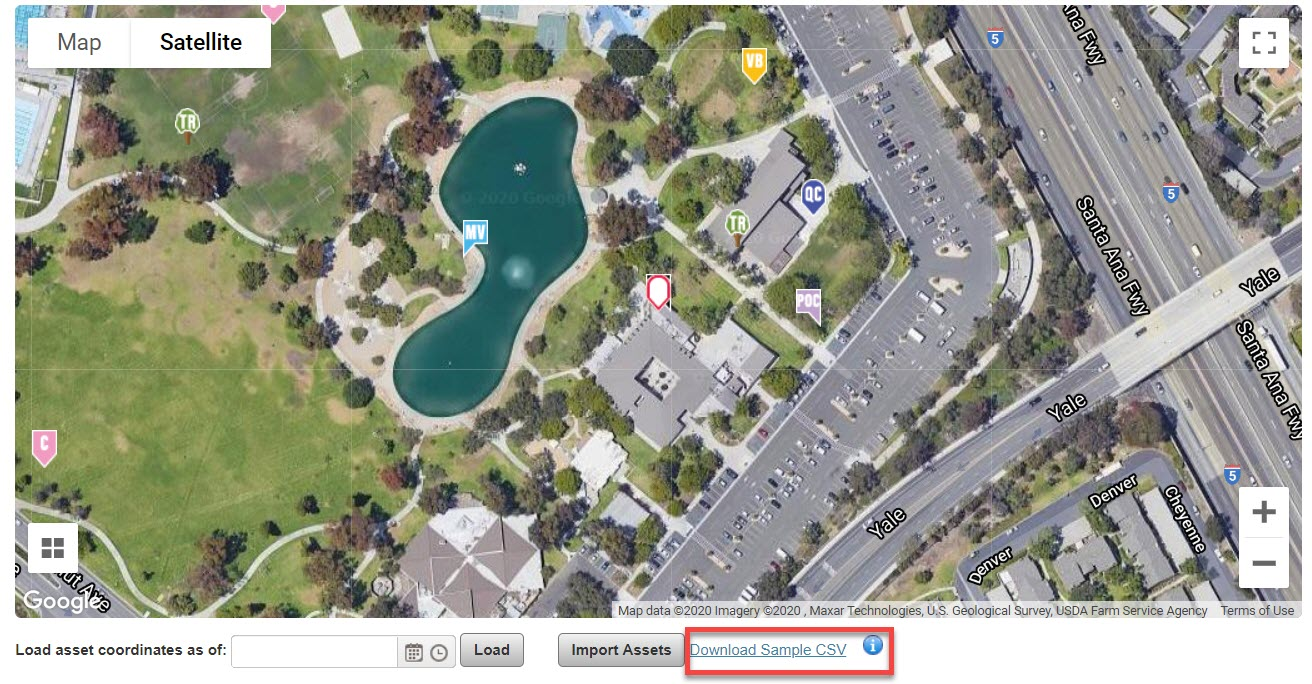

3.  Complete the sample or template CSV and save it to your computer. 

4.  Select Import Assets. A pop-up displays, directing you to find the CSV and upload it. 

Was this article helpful?

Related in SiteMap Setup.

  1. Save Time with Mobile Site Map Step-by-Step Guide Understanding the Value of Mobile Mapping Mobile mapping transforms how irrigation teams locate, document, and maintain assets across
  2. Getting Started with Site Map Table of Contents Navigating Through Site Map Adding a New AssetMoving Assets on the MapEdit Asset DetailsAssigning an AssetUnassigned AssetsImport
  3. How to enable 'No Limit' for asset icons displayed In WeatherTRAK Mobile, the global display setting for asset icons in Site Map is 500. Meaning, if a Site has
  4. Using Site Map Update Table of Contents Getting StartedHow to Add an AssetAdding PhotosHow to Move an AssetHow to Edit Asset DetailsAsset Filter
HydroPoint

Water management intelligence.

  • Sign up

© 2026 HydroPoint Data Systems. Built on HydroPoint.