
Use this quick guide to upload a customer logo so it appears in the header of that user’s WeatherTRAK reports.
The logo is applied per user account. After upload, it should appear on all reports run by that specific user.
Before you start…
- Use a PNG file only.
- Keep the file size under 100 KB.
- A logo around 200 × 100 pixels works best.
- If the customer sends a large or high-resolution image, resize and compress it first to improve display quality and avoid upload issues.
Steps
1.Get the customer’s logo file and confirm it is a .png image.
2. Verify the image is under 100 KB and ideally close to 200 × 100 pixels.
3. Open the logo upload tool in the WeatherTRAK admin workflow.
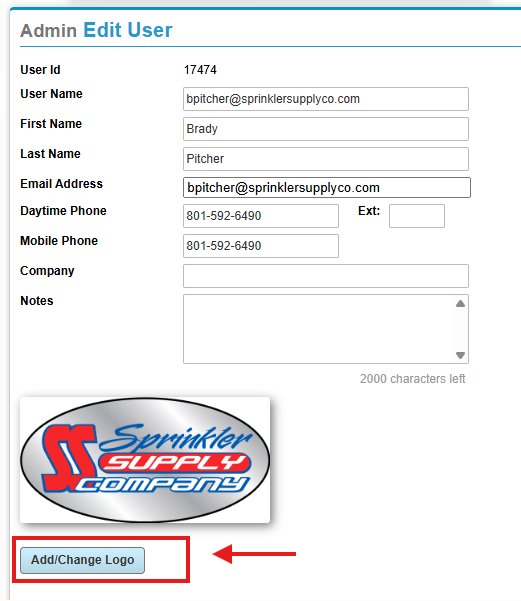
4. Select the correct user account for the customer and edit in the WeatherTRAK Central ADMIN TOOL, then push the “Add/Change Logo” button
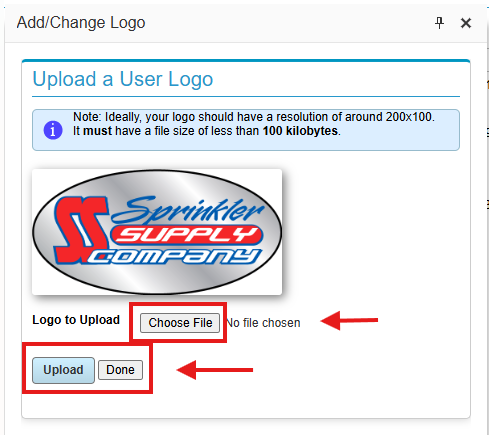
5. Press “Choose File” to select the customer's PNG file from its saved location.
6. Select “Upload” to add/change the PNG logo file and press “Done” to return to close the upload window.
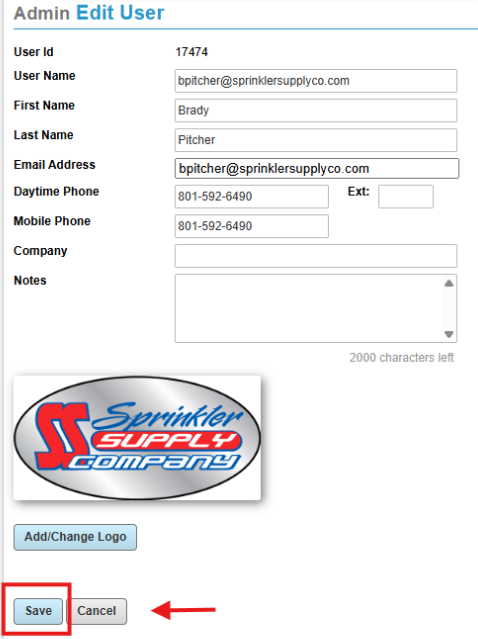
7. When back on the previous screen use the “Save” button to apply the change.
8. Finally, run a report as that user and confirm the logo appears in the report header.
How it works
WeatherTRAK reports pull the logo through the report dataset used by SSRS. Internally, the logo is retrieved through UserLogDataSet, which is included in report templates. In practice, this means once the logo is correctly uploaded to the user profile, the same logo should flow through to that user’s report output automatically.
Troubleshooting
Logo uploads but does not appear on reports:
Reconfirm the file is PNG, under 100 KB, and uploaded to the correct user.
Logo looks distorted:
Resize the image closer to the recommended dimensions before uploading.
Still not showing:
Re-run the report as the same user and verify you are testing a report generated by that account.
FAQ
Does one uploaded logo apply to the whole customer account?
No. Based on current documentation, the logo is tied to a specific user, not globally to every user in the customer account.
What file types are allowed?
Only PNG files are permitted.
What should I do if I cannot find the logo upload tool or if it is not working as expected?
Follow internal Escalation process to engage Engineering Support.