
Learn how to connect your BaseStation 3200 to the BaseManager server via Ethernet.
Step-by-Step Guide
Connection
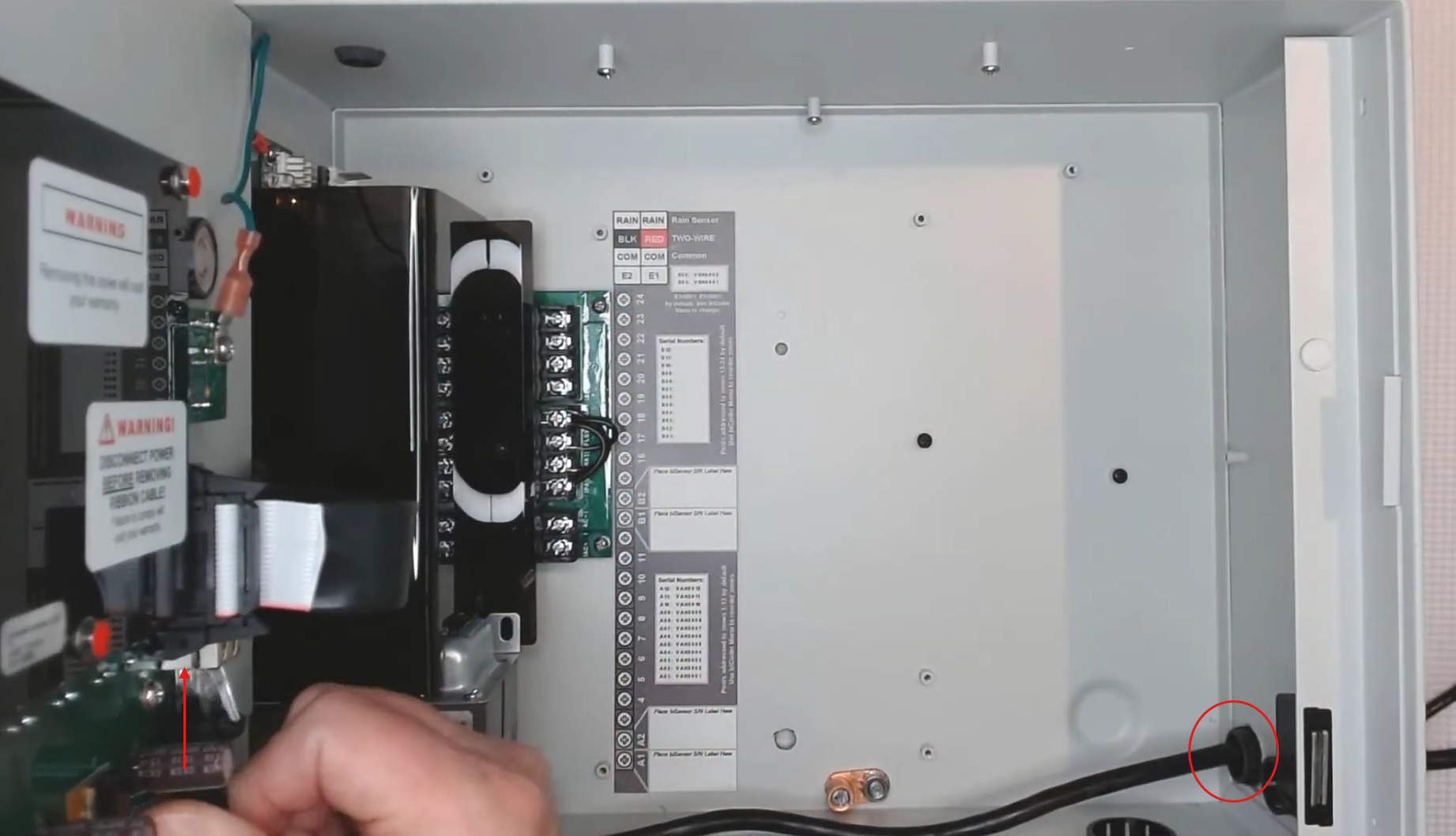
Begin by connecting a Cat 5 ethernet cable at a wall, a router, or any other connection point. Thread the cable through the hole on the bottom of the right side of your controller. Plug the other end of the cable into the port on the back of the controller, ensuring that there is enough slack to open the controller door.
At the controller turn the dial to the network position and with "Communication Setup" highlighted press enter. Ensure that the communication type is set to "ethernet", if not use the plus or minus keys to change it to ethernet.
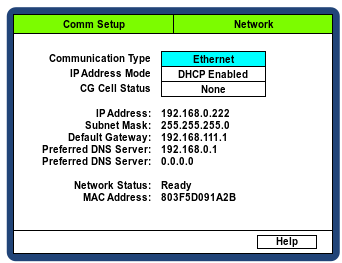
Ensure that IP address mode is set to "DHCP Enabled", which are network addresses that are created every time the controller connects to the network. You will be able to tell if the network has connected to the controller because the network will have populated some of the information on the screen.
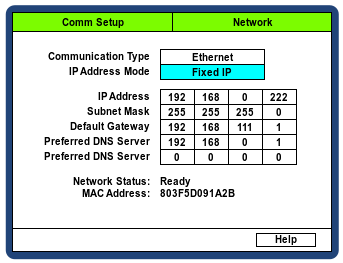
If a Fixed IP is needed, use the arrow down key to navigate to "IP Address Mode" then press plus to change the "IP Address Mode" you can then edit the IP address, Subnet Mask, Gateway and DNS server.
Press back, highlight "BaseManager Server Setup," and then press enter. Next, ensure that server url mode is set to "DNS lookup". Make sure that "Press Enter to Connect" is highlighted so that you can press enter and start the connection process.
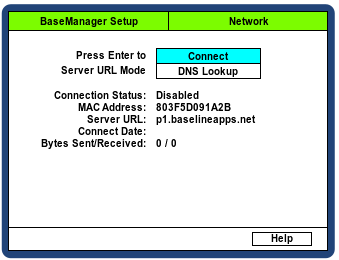
Turn the dial to the run position and watch the base manager status cycle through its process. If the connection process stalls at any point go back to "Network" then "Base Manager Server Setup" then press Enter to disconnect and then press enter again to reconnect.
If you haven’t already connected the controller to BaseManager, after selecting “Connect” in the BaseManager Server Setup screen ,you will see an authorization PIN that you will need to add a controller to an existing BaseManager account. Take a photo of this screen or write the PIN down.
Connecting to BaseManager
At baselineapps.net, login to your account and open the Appmanager app, then in the menu select Manage Basestation 3200s.
Important: Make sure that the correct account is selected under the Menu> Companies.
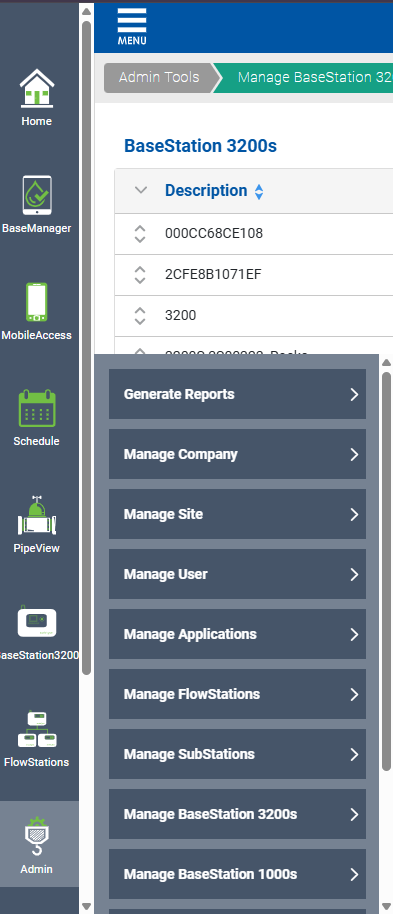
In this tab Press Add Basestation 3200 controller.
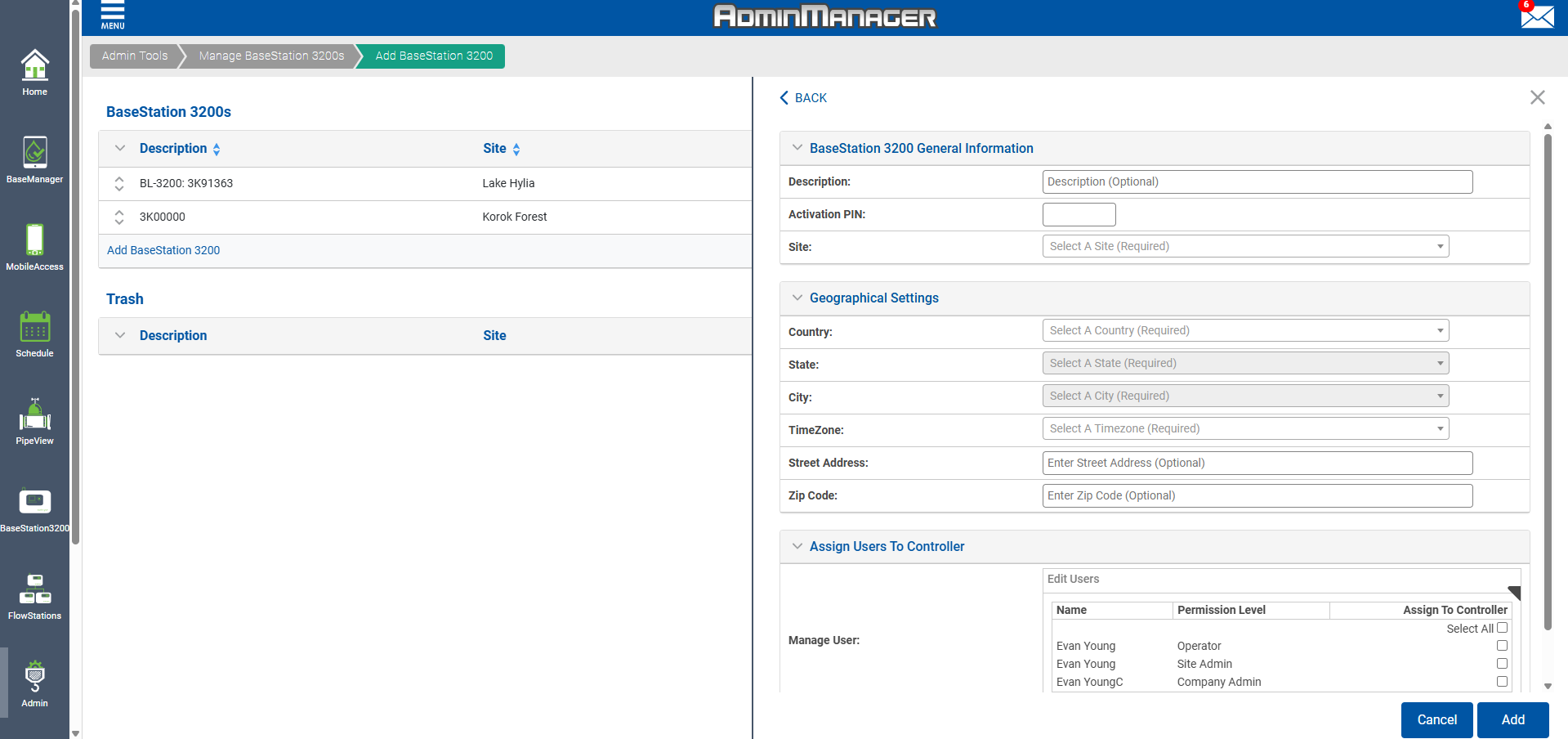
Name the controller, Enter the Authorization pin, Select the site from the drop down, and then add any additional site data to complete the activation and connection process. Make sure that the users that need access to the controller are selected then press "Add" to activate the controller.
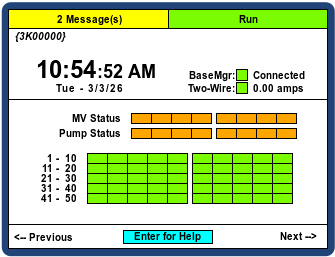
Back at the controller, set the dial to the run position. If the option for base manager is green and it says "connected", the Ethernet connection is active and connected to BaseManager.
Troubleshooting
If are you connected to a private network like a city or a school you'll want to contact your network administrator or IT support person for assistance in connecting to your network. The primary question for them is "do we have a DHCP network?" and if the answer is no the likely alternative is that your network requires a static or unchanging IP address.
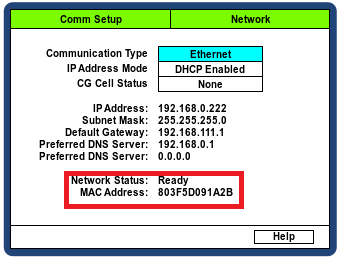
If your network uses a static IP address, your network administrator should be able to connect your controller. You may need the Baseline support team to help finalize your network connection though. You may want to get your device's MAC address prior to speaking with your IT team, which can be found at by turning the dial to "Network," then selecting "Communication Setup," and then selecting "IP Setup".
Additional Ethernet troubleshooting.
Communication Type: Ethernet
Ethernet Setting on 3200 WalkThrough When setting up an Ethernet on a controller ...
[insert-question 1176643]
Baseline support can be reached at support.baselinesystems.com or 866-294-5847