
LTE Antenna Upgrade Kits are designed to provide the customer with the latest standard for connectivity between the WeatherTRAK controller and the cloud. With the kits, controllers are upgraded from 3G (or in some cases 2G) to LTE.
Minimum Firmware Version
The customer must have the following firmware version or higher in order for the LTE Antenna Upgrade to work:
- Pro3 or LC Controllers: 7.10.4
- OptiFlow Controllers: 8.6.4
Note: All kits come with a USB stick that contains the latest firmware.
How to Order
Note: Distributor purchase orders do not include any information for controllers being upgraded, so the customer will have to pick the correct SKU for on their own. Customers may be calling in for help in selecting the correct kit to order.
1. Find out which communication the controller is using by running a Controller Hardware report or use the COMM menu from the controller.
2. Upgrade kits depend on model type. Order the correct SKU as follows:
For the OptiFlow Controller:
- Order SKU WTPRO3-LTE-UPG. Contents: LTE pancake antenna and cable, LTE modem board, installation instructions

For the WeatherTRAK ET Pro3, there are also two models that require different upgrade kits.
- ET Pro3 with 3G communications
- Order SKU WTPRO3-LTE-UPG. (see optiflow for picture)
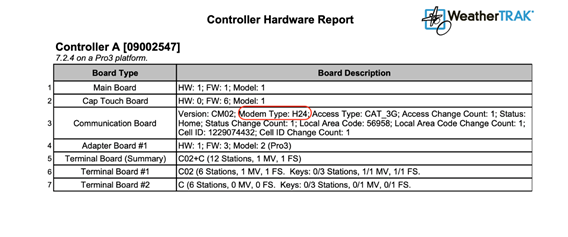
- ET Pro3 with 3G communications with H24 modem
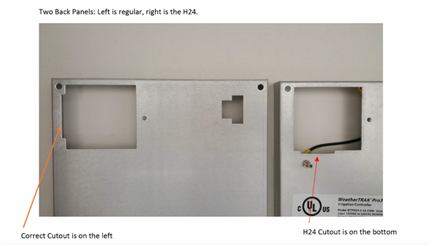
- Pro3 Controllers with H24 modem type may require a replacement of the control panel backplate in order to accommodate the LTE modem board.
- Order SKU WTPRO3-LTE-UPG-H24. Contents: LTE pancake antenna and cable, LTE modem board, control panel metal backplate, installation instructions.

For the WeatherTRAK LC, there are two models that require different upgrade kits.
- LC with 2G communications
- Order SKU WTLC-LTE-UPG-2G. Contents: LTE flex antenna, LTE modem board, LTE compatible SIM card, installation instructions
- LC with 3G communications
- Order SKU WTLC-LTE-UPG. Contents: LTE flex antenna, LTE modem board, installation instructions

Note: These upgrade kits have been added to the product catalog and price list. They are available in NetSuite and SalesForce immediately.
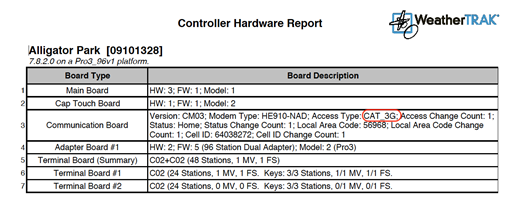
Determine Communication type by Controller Hardware Report
- Run Controller Hardware Report
- Communication type is listed in section 3, Communication Board.
Find Modem Type and Access Type, look for 3G or 2G. Examples Below:
Pro3
Pro 3 with H24
Determine Communication Type by using COMM Menu
Note: You will pass through a screen that says “Restricted Access.” This is OK, as you are just trying to determine the modem type.
If LC Controller
- Press the COMM button.
- Press à until MODEM CELL INFORMATION (COMM 28) displays.
- The communication type will be listed as 3G or 2G.
If Pro3 Controller
- Press the COMM button.
- Press à until MODEM Model ID (COMM 27) displays. Check to see if H24 is indicated.
- If H24 is indicated, and the cutout is on the bottom as shown below, you will need to order using the SKU WTPRO3-LTE-UPG-H24. Have the customer send in a picture to verify.
Worry-Free Wireless Warranty
All controllers activated after December 2017 will have Worry-Free Wireless Warranty, which means that if the cellular standard used by their controller is discontinued in their area, they can receive a free upgrade to the latest cellular standard. Customers can also purchase a Worry-Free Wireless Warranty to add to existing controllers. If a customer files a claim for the Worry-Free Wireless Warranty, use this guide to help them select the appropriate package.