
BaseManager Renewals and Updating Assets in Chargeover
1. Login to BaseManager > Menu > Administration > Manage Subscriptions
a. Export at the bottom of the screen > All Companies
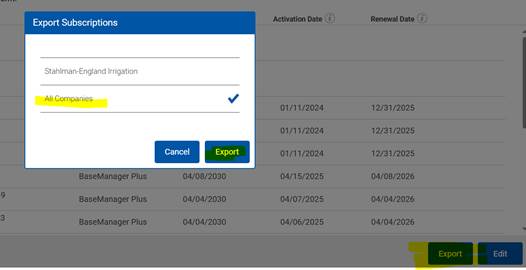
2. Filter out the BaseManager report in the Renewal dates to be the next billing period:
a. Example, 5/31/2025 if processing May billing/renewals.

b. Copy all renewal data from columns A-J and paste into “BaseManager Renewals Template” tab.
c. At the top of the report, select Data > Subtotal
i. At each change in: Company
ii. Use function: Sum
iii. Add subtotal to: Amount
iv. Check mark: Replace current subtotals and Summary below data
3. In Chargeover > Go to Report Center > Under Custom Reports, select Upcoming Invoices > Update dates to next billing period.
a. Export Everything to Excel
b. Filter out the report to the columns needed: B, J, K, P, and Q
c. Filter by alphabetical order
4. Review each customer and the renewals in BaseManager and Chargeover:
a. In your two reports, review if what’s coming due on the BaseManager report is the same as Chargeover report.
b. If in BaseManager, the customer has other assets coming due next month, pro-rate the controller to align with current billing.
i. For example, if processing May billing, and the customer has a controller due in June – we will pro-rate to end of May next year.
- (Price of controller)/12 *11
c. When Reviewing in Chargeover:
i. Review the Overview and Payment method tabs:
1. Remove any auto-saved credit card payments
d. If a subscription needs to be updated in CO:
i. Go to Subscriptions tab > select the subscription
5. If a new customer needs to be added in Chargeover:
a. Customers > Add Customer
b. Once customer has been added: Send Angel the customer information so that she can obtain the Salesforce ID.
6. When all renewals have been processed, rerun the Chargeover Upcoming Invoices report to ensure your total amount ties out.