
KoolGrid
http://10.11.12.34/KoolPHPSuite/Examples/KoolGrid/Hierarchy/Three_Levels_HierarchyQBsearch/
Information available:
· Invoice Date
· Customer Name
· Invoice Number
· Date Shipped
· Tracking number
· Carrier
· PO Date
· PO Number
· Item
· Baseline serial number
· Windows serial number
· UL serial number
· Software rev
· Firmware rev
· Control board serial number
· Display board serial number
· MAC or SOM number
· PIN
· Rboard serial number(s)
· IP address
· Miscellaneous number(s)
Available fields to search are (see orange row below):

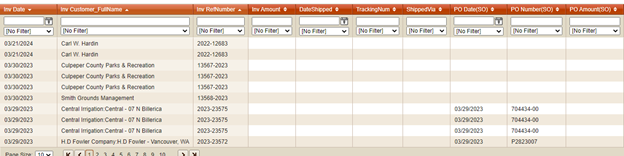
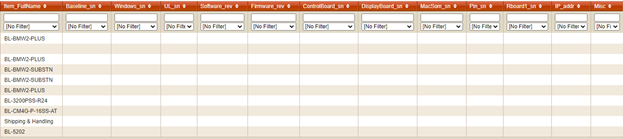
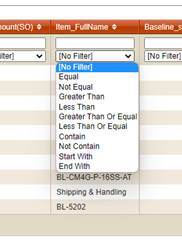
If you have a product and want to see where the serial numbers for that product are logged, then go to the Item_FullName column, type in the product, and then select the search type from the Filter dropdown. I’d recommend using “Contain” as the filter.
Below I have searched for BL-3200X with a “Contain” filter.
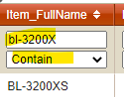
Note that recent records will be blank as we have not logged them into KoolGrid yet.
However, you can see that the controller serial number is in the “Baseline_sn” column. So, if you have a controller serial number, then you’d want to enter it in the search box at the top of the column and then search using the “Contain” filter (or other filter, as desired).
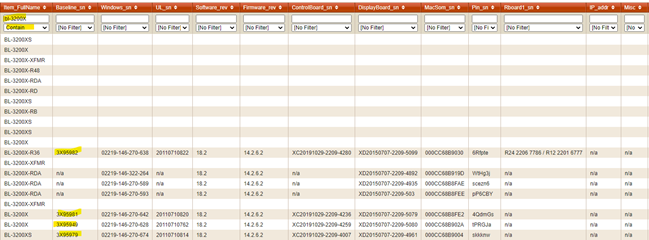
Other numbers can be searched for in their respective columns. You need to clear out prior searches if you don’t want them affecting your results.