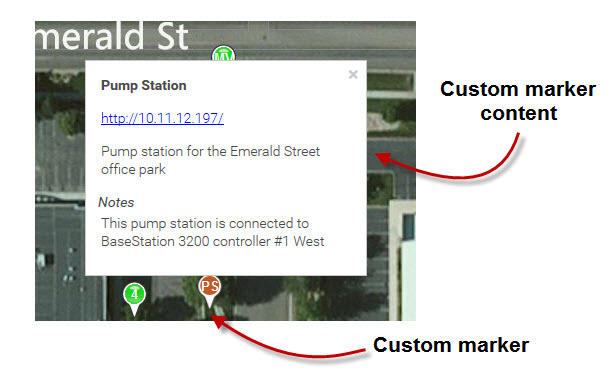
1. Determine whether the custom marker that you want to display is associated with your company, with your current site, or with a specific controller, and then perform one of the following:
- If the marker is associated with your company, click the "Maps" tab, and then click "Company". Skip to step 2.
If the marker is associated with a specific controller, make sure that controller is displayed in the BaseManager footer. To select a different controller, click the "Menu" icon

in the upper-left corner of the BaseManager page, and then click "Sites and Controllers". Continue drilling down until you can select the desired controller.
If the marker is associated with your current site, click the "Maps" tab, and then click "Current Site". To select a different site, click the "Menu" icon

in the upper-left corner of the BaseManager page, and then click "Sites and Controllers". Continue drilling down until you can select the desired site. Skip to step 2.
2. On the map, point to and then click on the Custom marker that you want to display. The content displays in a pop-up box.
3. If the custom marker content includes a URL, you can click on it to open the web page in a separate browser tab or window.
4. Close the pop-up box by clicking the "X" in the upper-right corner.