
Overview:
The WaterCompass FM200 Flow Monitor is subjected to an end of line test before the equipment can be shipped to a contractor or a product specialist for installation. After the end of line test is complete, manufacturing locks the device record in WeatherTRAK.net before shipment. NetSuite will generate a daily summary email highlighting the FM200 devices shipped out the previous day. The devices will have to be manually unlocked in WeatherTRAK.net Admin before the installation date.
Use Case:
To complete the WaterCompass installation, the contractor or product specialist will utilize the FM200 Activator App to access information relating to the FM200 Flow Monitor. The device must be unlocked in WeatherTRAK.net Admin before the installer can complete the installation setup through the Activator App.\
Step1
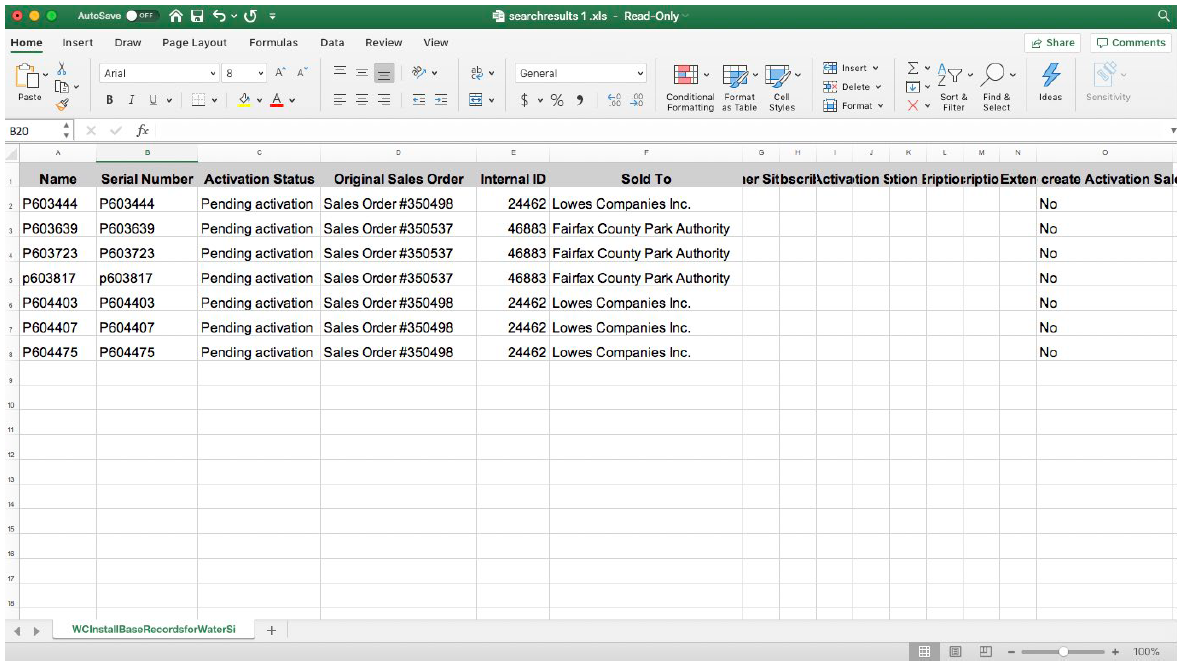
Review the Install Base Records email
NetSuite will generate the Install Base Records email each day at 6 AM PST. An Excel file will be attached to the IBR email containing a summary list of the WC devices shipped out the previous day.
If the excel file is blank and does not summarize any serial numbers, it is an indicator that no devices were shipped the previous day.
Step 2
Locate the device in WeatherTRAK.net
1. Access the FM200 Flow Monitor from the Water Signal tab.
2. Working with the Install Base Records email and WeatherTRAK.net in tandem, copy and paste the serial number from the IBR spreadsheet into the serial number search field in WT.net.
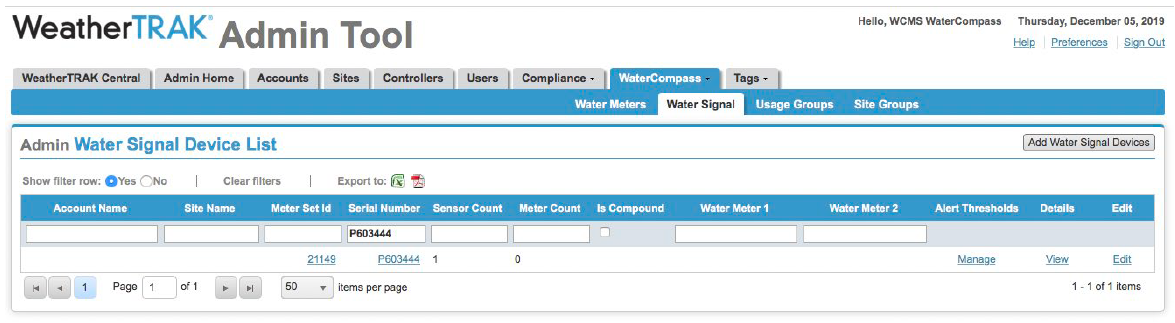
3. After the device has been located by the serial number, select Edit to the far left of the screen to edit the Water Signal device.
Note
If you are unable to locate the device serial number in WT.net Admin, then the device was never added to the system or has been deleted. You will need to add the WaterSignal device back into WT.net Admin before you can change the FM200 status. See Appendix A.
Step 3
Reassign the FM200 Flow Monitor
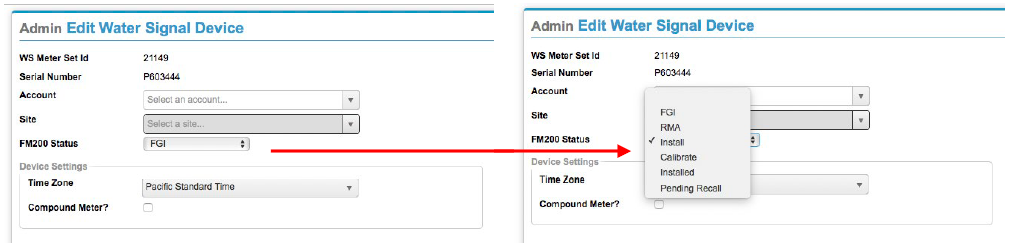
After accessing the Edit Water Signal Device in WeatherTRAK.net Admin, complete the following:
1. Re-assign the device to account 1002 HydroPoint Data Systems (system bug)
2. Re-assign the device to a site 13849 HydroPoint Data Systems (system bug)
3. Change FM200 status from “FGI” to “Install”
Note
If the FM200 status is marked as an RMA, you will have to verify the FM200 devices completed end of line testing before shipment. To verify EOL testing was complete, review the device log in WaterSignal.net. See Appendix B.
Appendix A: How to Add a WaterSignal Device
If a search of the device serial number does not locate the device record in WT.net Admin, then you will have to add the device to the system.
1. Access WaterSignal from the WeatherTRAK.net Admin tool.
2. Select Add Water Signal Devices from the top right corner of the page.
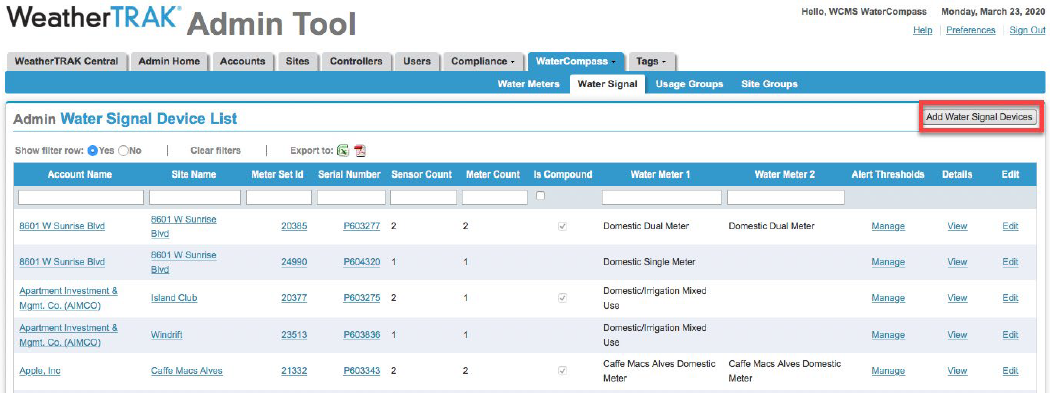
3. The Add New Water Signal Devices page displays. Input the device serial number (P6xxxxx) and select Add Devices. This will save the device serial number into the database.
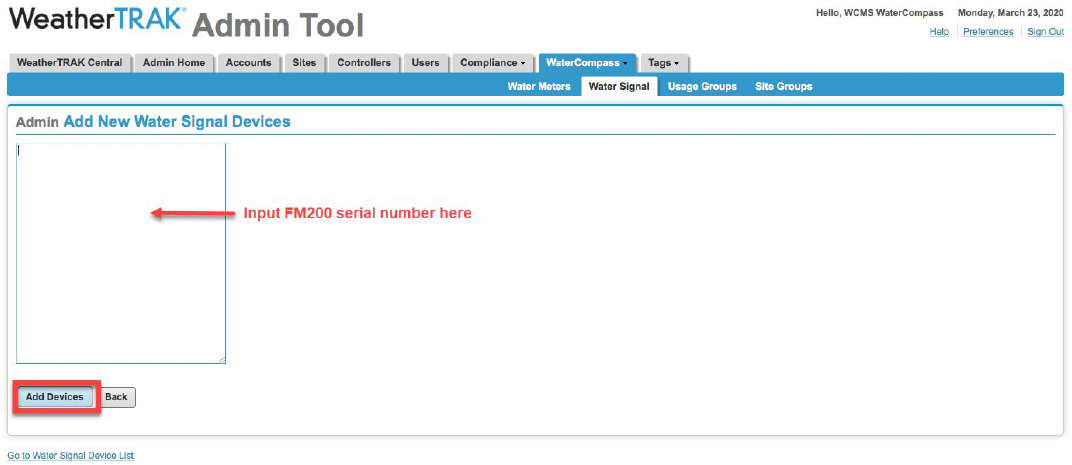
4. Check the WaterSignal device list and verify the device is accessible in WT.net admin. Now you can go in and change the FM200 status from “FGI” to “Install”.
Appendix B: Verify End of Line Testing
To verify WaterCompass end of line testing was completed, you will have to access the log of the FM200 device on the WaterSignal Admin page.
1. Locate the serial number of the device in the search field of the WaterSignal Tech Analysis page.

2. After the system locates the device serial number, select the device log icon (red icon) located under functions on the Tech Analysis page.

3. Analyze the device log for the following criteria:
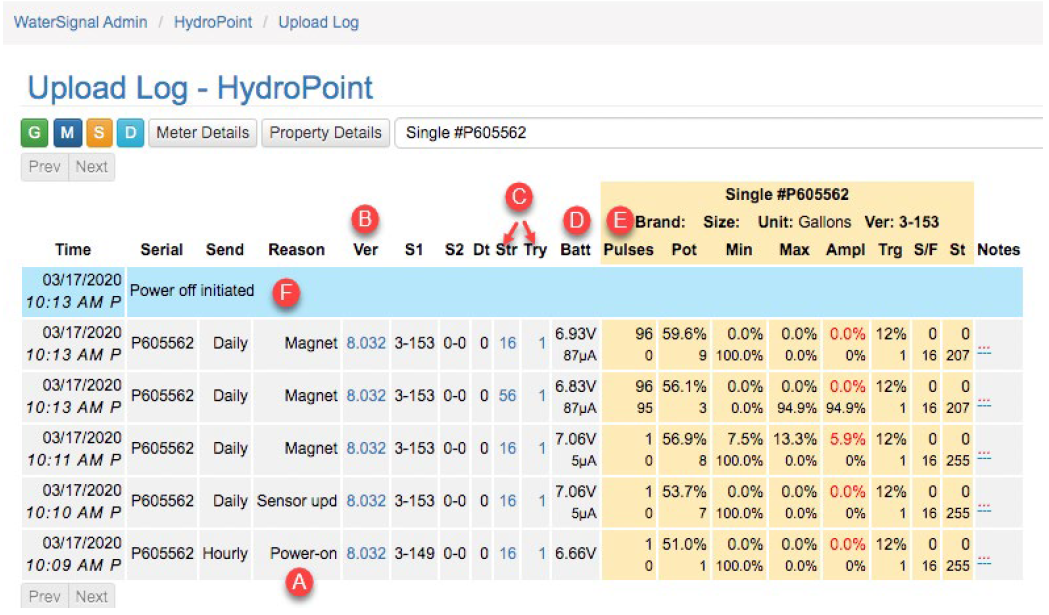
- Power On
- Firmware and Sensor is up to date
- Verify test communication – signal strength and call in attempts
- Battery voltage
- Verify test pulses
- Power Off initiated
4. The device log will indicate the date and time the end of line test was completed prior to shipment. If the EOL test was not complete on the device before it was shipped, escalate the serial number to Jenn Kohn and David Taylor for review, as the device may have issues during installation.