
Summary
After a WaterCompass device consumes its test data allocation, the SIM card should auto-activate. In rare cases, the SIM fails to activate on its own. When this happens, the Pro Services team must manually activate the SIM through the iBasis portal.
This article covers how to log in to the iBasis portal, locate a SIM card, verify its configuration, and activate it.
Prerequisites
- Access credentials for the iBasis portal
- The SIM number (ICCID) for the affected device, available from the UltraSonix dashboard or the Admin Tool
Step-by-Step Resolution
Step 1: Log In to the iBasis Portal
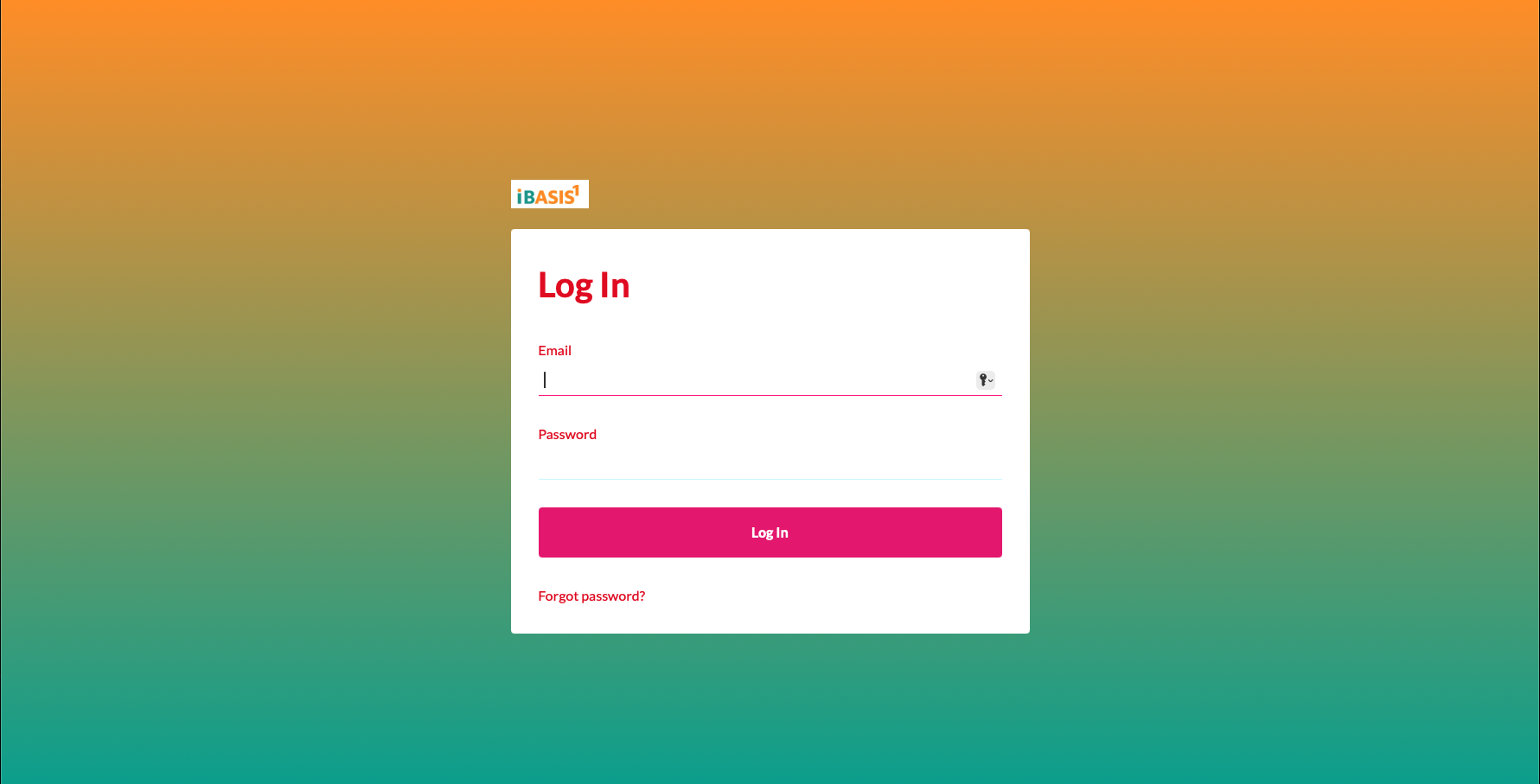
- Navigate to the iBasis portal at: https://connect.ibasis.com
- Enter your Email and Password.
- Click Log In.
Step 2: Navigate to SIM Management
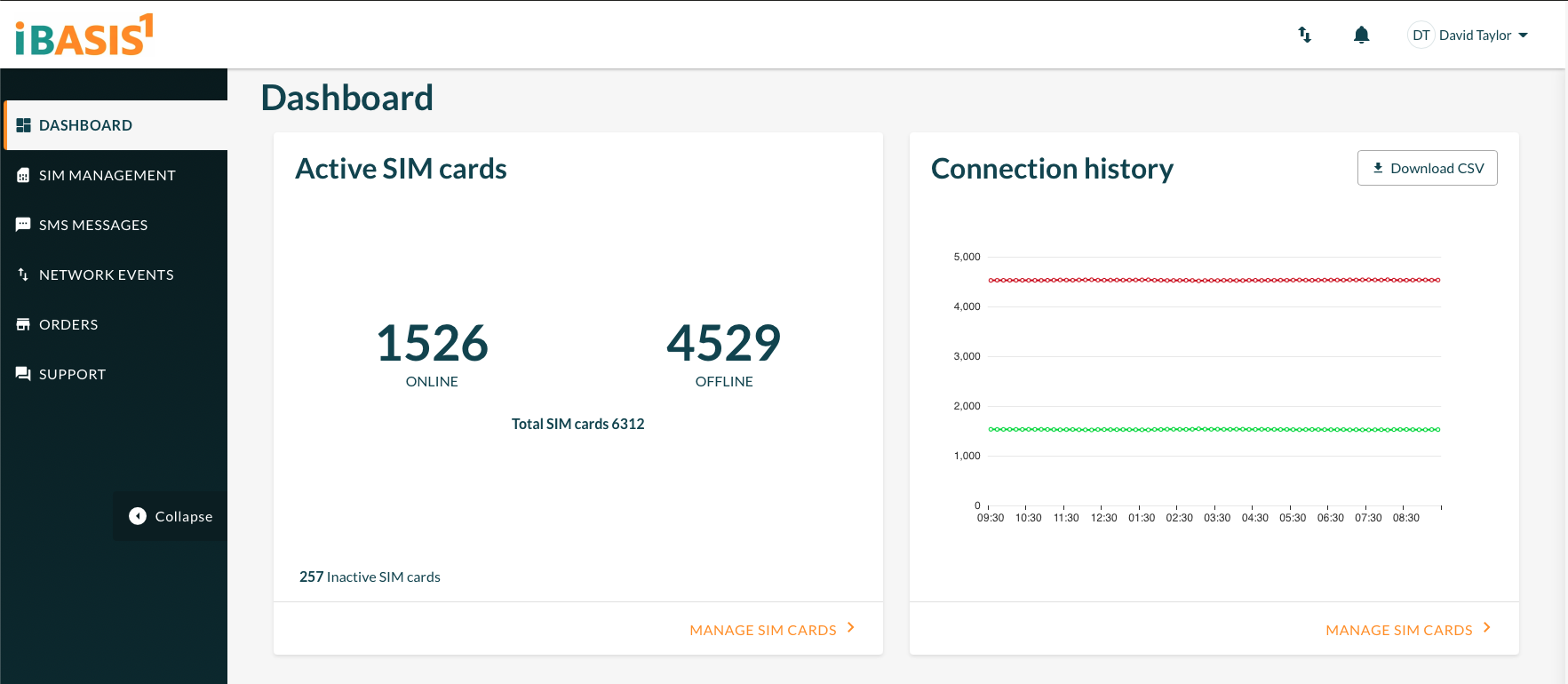
- After logging in, you will land on the Dashboard. This screen displays active SIM card counts, connection history, and offline/online status.
- In the left navigation menu, click SIM Management.
Step 3: Search for the SIM Number
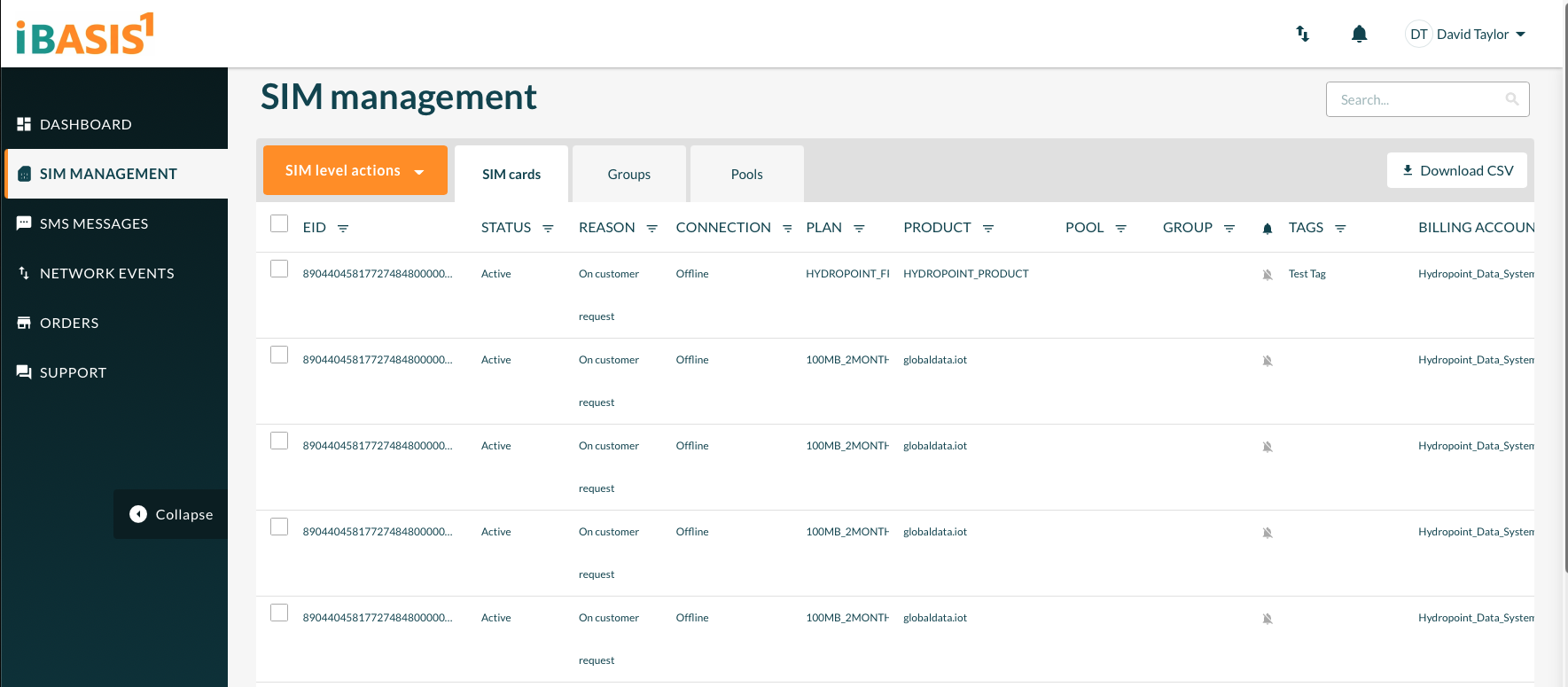
- On the SIM Management page, locate the search field in the top-right corner.
- Enter the full SIM number (ICCID) and press Enter.
Where to find the SIM number: Open the UltraSonix dashboard (recommended) and copy the ICCID from the device record. The UltraSonix dashboard links directly to the Admin Tool, which can also be used as a source. You can copy and paste the SIM number directly from either tool.
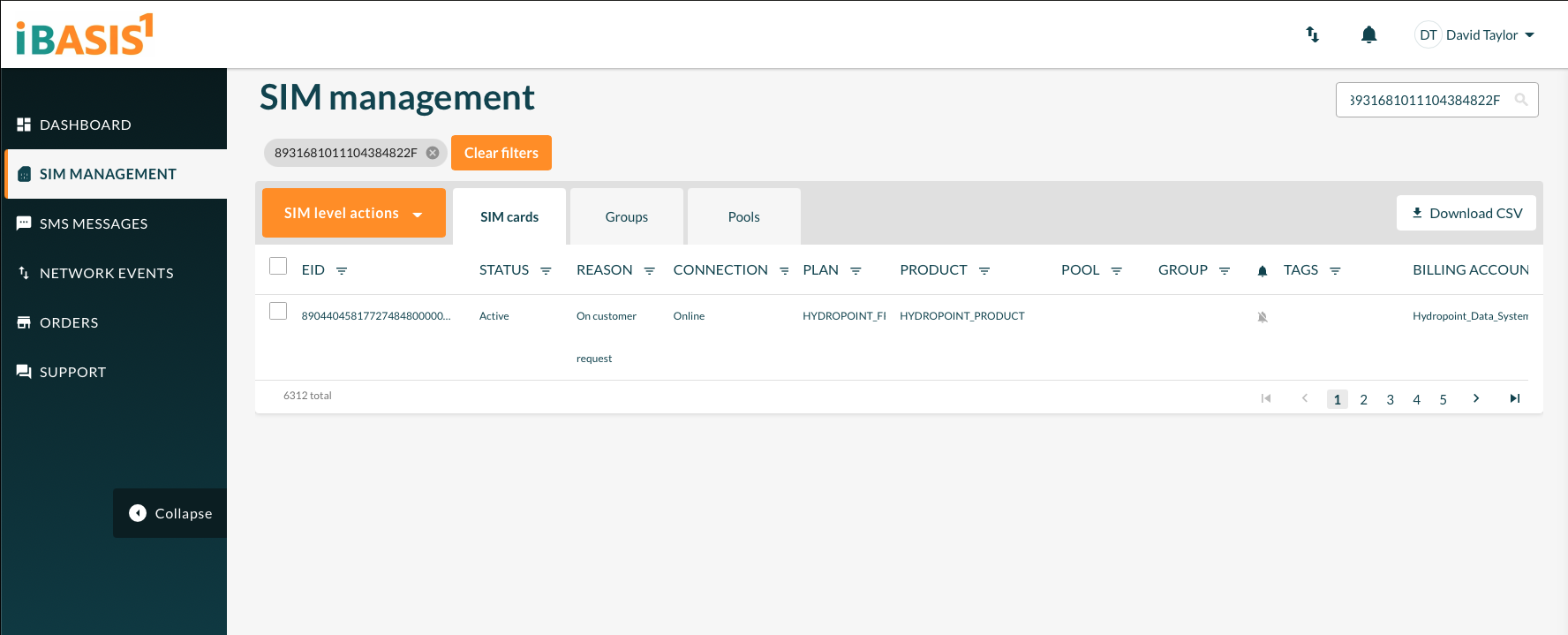
Important: iBasis appends an F to the end of the SIM number. This is expected behavior. The SIM will still match correctly when searched.
Step 4: Open the SIM Details
- Once the search results are filtered to your SIM, locate the record in the list.
- Click the EID link in the first column to open the SIM detail view.
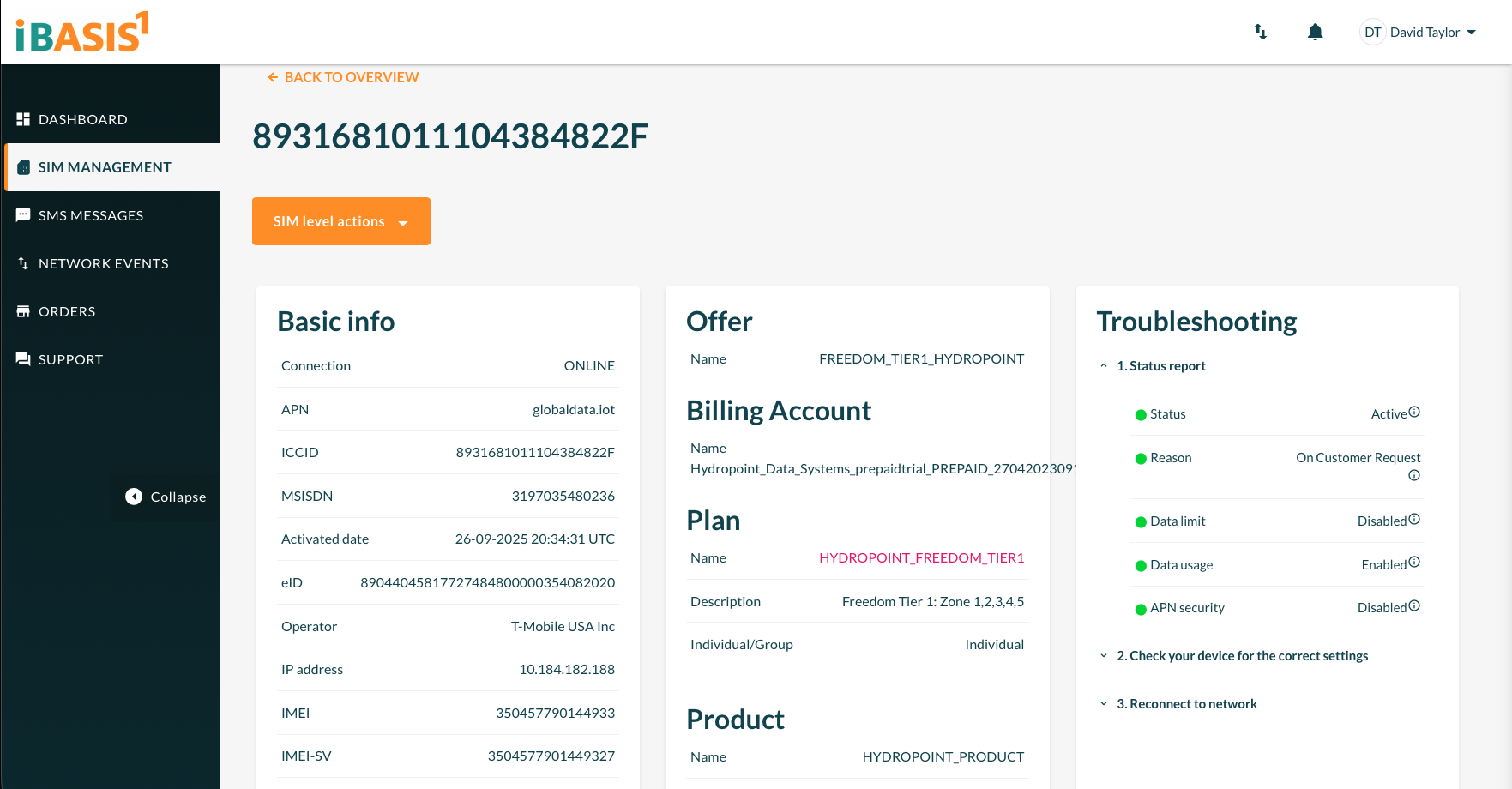
Step 5: Review the SIM Detail Page
The SIM detail page displays three sections:
- Basic Info — Connection status, APN, ICCID, MSISDN, operator, IP address, IMEI, and activation date.
- Offer / Billing / Plan — The assigned offer, billing account, and plan details.
- Troubleshooting — A status report including connection status, data limit, data usage, and APN security indicators.
Before making changes, verify the following:
- Status should show Active in the Troubleshooting panel (regardless of the Reason field).
- Plan Name should be HYDROPOINT_FREEDOM_TIER1. If the plan shows anything other than Freedom Tier 1, do not proceed. Follow your defined escalation path to report the discrepancy to engineering.
Scroll down on the SIM detail page to view Diagnostics, Network Events, and SMS Messages. These sections provide additional context if further troubleshooting is needed.
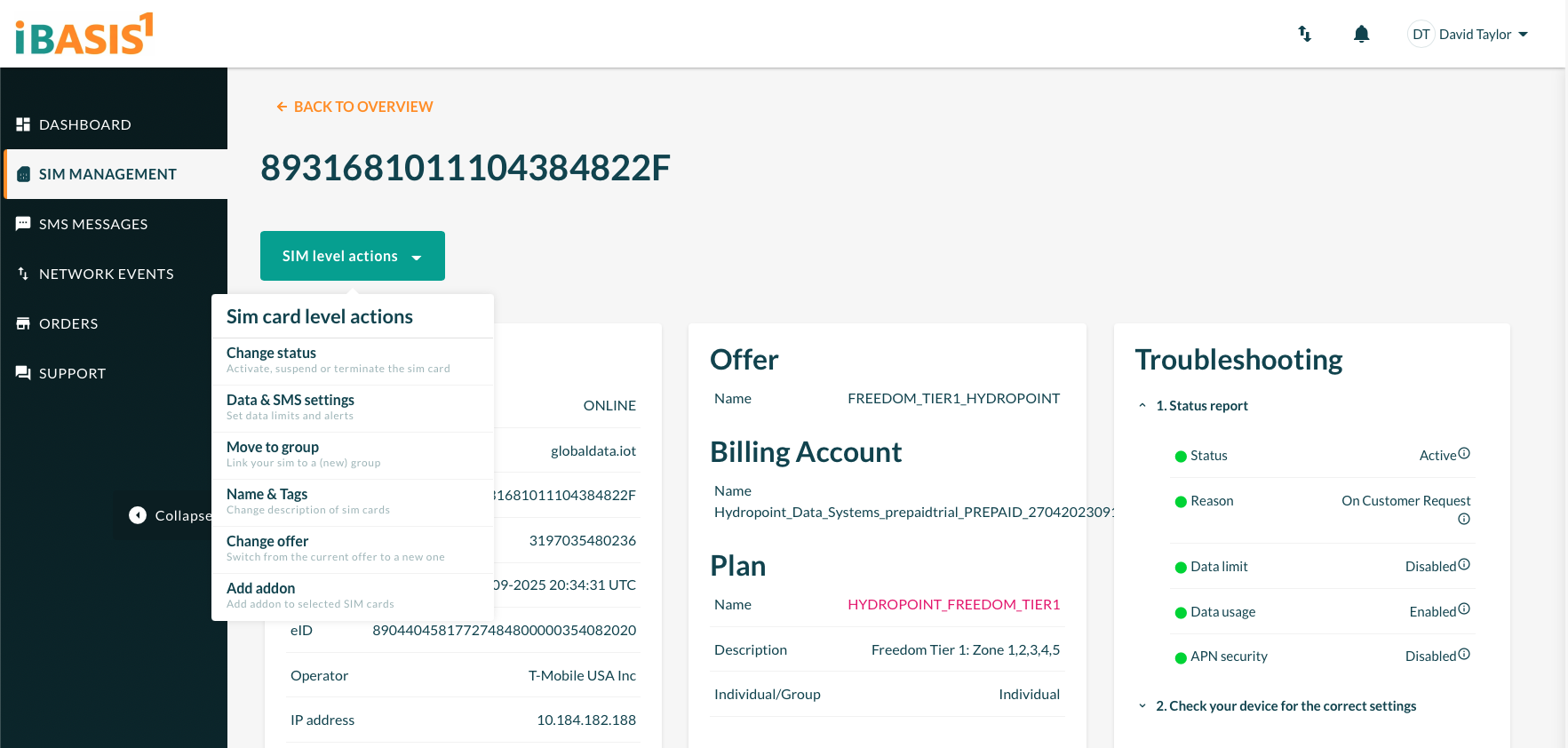
Step 6: Activate the SIM
- On the SIM detail page, click the SIM level actions button (orange dropdown).
- From the dropdown menu, select Change status.
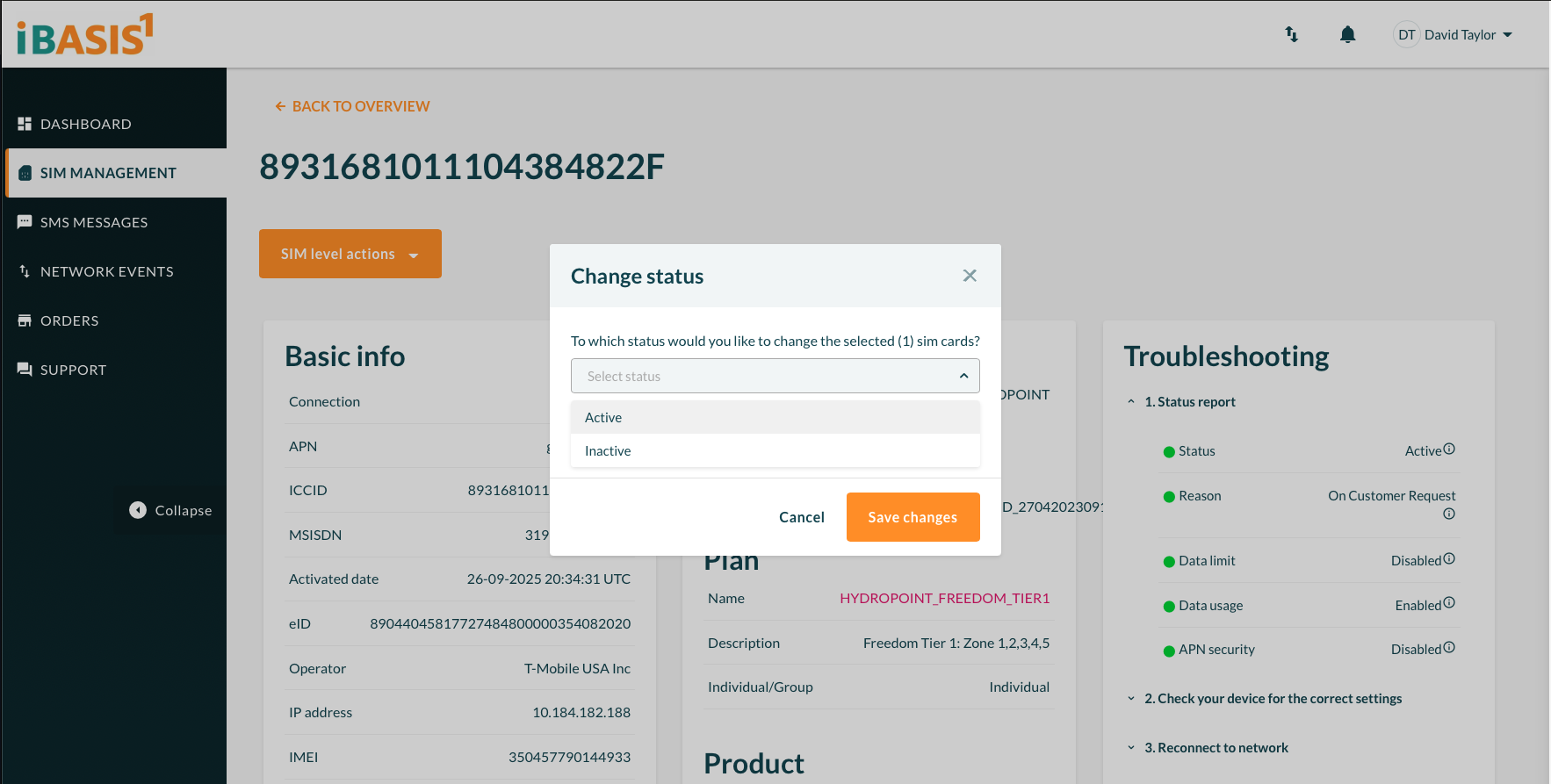
- In the Change status dialog, select Active from the status dropdown.
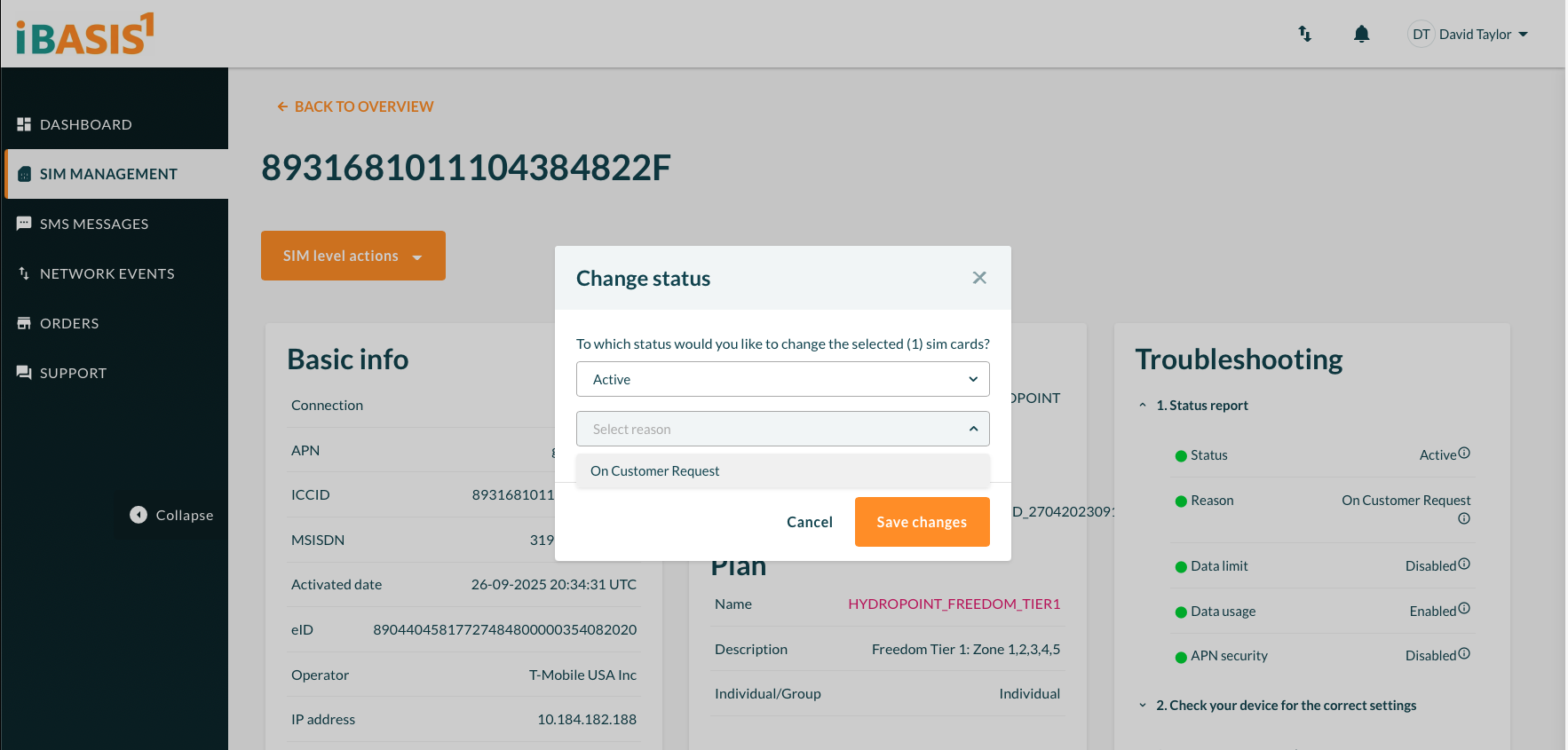
- A second dropdown will appear. Select On Customer Request as the reason.
- Click Save changes.
Expected Result
After saving, the SIM status should reflect Active with the reason On Customer Request in the Troubleshooting panel. The device should begin transmitting data to WaterCompass within a short period.
When to Escalate
If the SIM status shows Inactive and the reason is test data consumed, this indicates the device reached its data cap and did not auto-activate as expected. In this scenario:
- Manually activate the SIM.
Escalate if:
- The plan is not set to Freedom Tier 1 (HYDROPOINT_FREEDOM_TIER1).
- The SIM cannot be found in the portal after confirming the correct ICCID.
- The SIM shows Active but the device still fails to connect after a reasonable period.
Quick Reference: SIM Level Actions Available
The following actions are available from the SIM level actions dropdown on the SIM detail page. For this troubleshooting workflow, only Change status is required.
Action |
Description |
|---|---|
Change status |
Activate, suspend, or terminate the SIM card |
Data & SMS settings |
Set data limits and alerts |
Move to group |
Link the SIM to a new group |
Name & Tags |
Change the description of the SIM card |
Change offer |
Switch from the current offer to a new one |
Add addon |
Add an addon to the selected SIM card |