
Overview
The WaterCompass Installation Report (WCIR) is a PDF document that captures device installation details for a specific flow monitor or site. CSMs and Support staff use WCIRs to QA final installations, archive installations records, and assist customers with flow monitor installation details, such as location information.
WCIRs are generated through the HydroAnalytics Portal and are availble in two formats:
- Device Report - for a single flow monitor
- Site Report - for all devices at a given site
Prerequisites
Before generating a WCIR, confirm you have the following:
- Access to the HydroAnalytics Portal (contact your manager if you do not have credentials)
- For a Device Report: the device serial number
- For a Site Report: The exact site name as it appears in Watercompass
Step 1: Sign in to the HydroAnalytics Portal
- Navigate to the HydroAnalytics Portal login page. https://prod-portal.hp360.io
- Click Sign In.
- Authenticate using your HydroPoint credentials.

Step 2: Navigate to WCIR Export
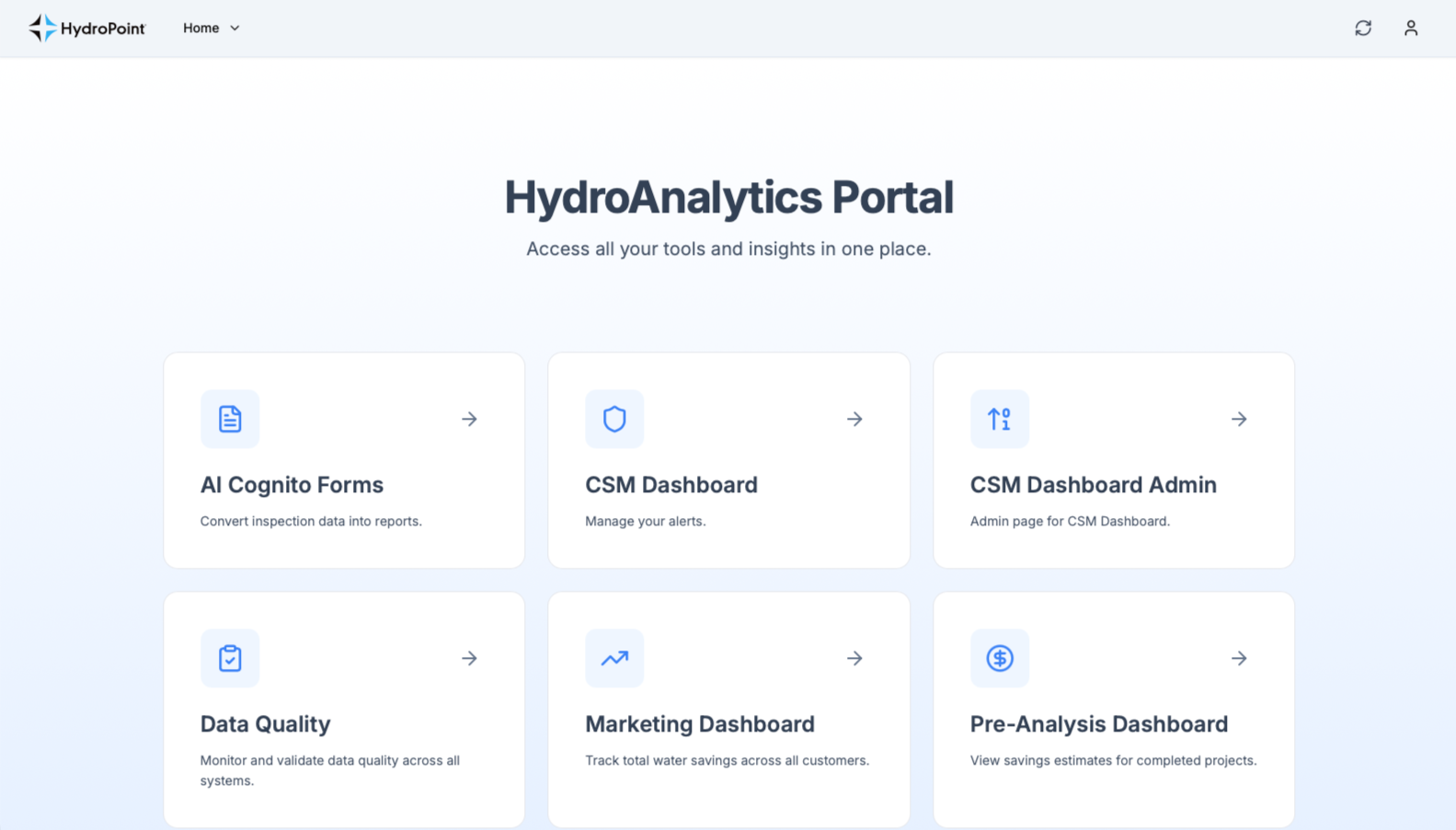
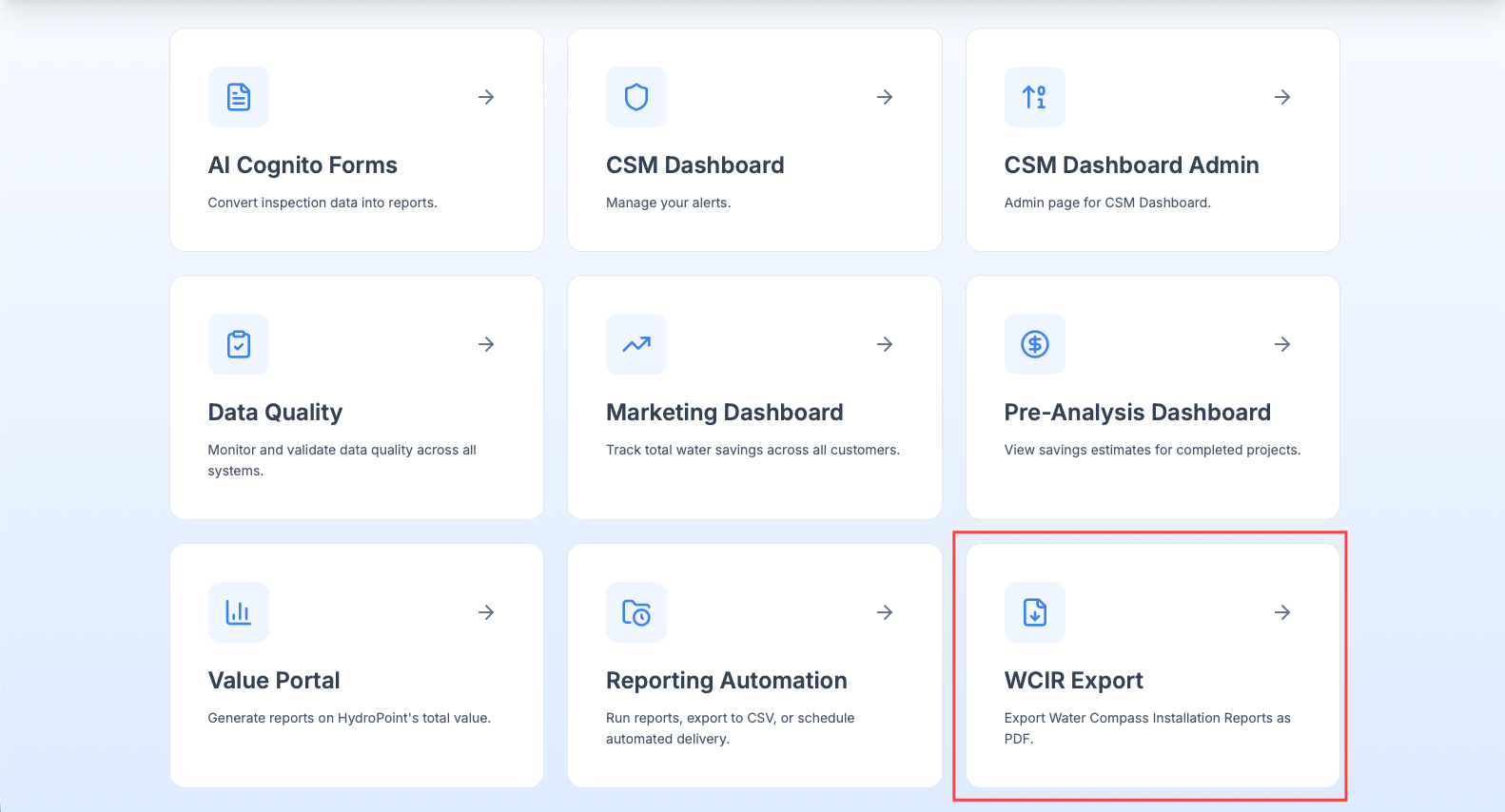
- On the HydroAnalytics Portal home page, review the availble tool tiles.
- Scroll down if need to locate the WCIR export tile.
- Tile description reads: “Export WaterCompass Installation Reports as PDF”
- Click WCIR Export.
Step 3: Select a Report Type
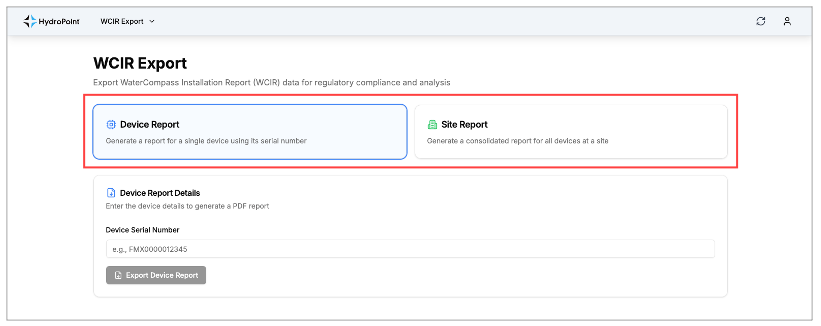
Two report types are available. Select the appropriate type based on what you need.
| Report Type | Use When… | What You Need |
| Device Report | A report is needed for a single flow monitor. | Device Serial Number |
| Site Report | A consolidated report is needed for all devices at a site. | Exact site name as it appears in WaterCompass. |
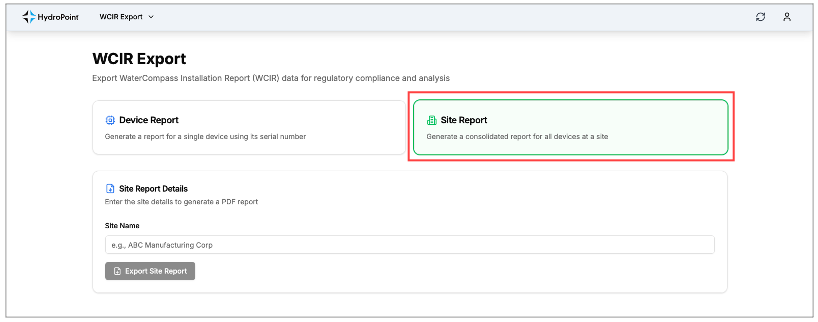
- Click either the Device Report tile or the Site Report tile.
- The selected tile higlights with a colored border and a details entry from appears below.
Step 4: Enter Report Details
Device Report
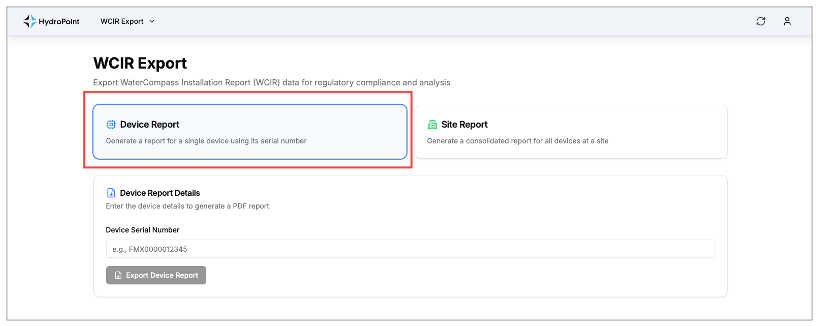
- Confirm the Device Report tile is selected (highlight with a blue border).
- In the device Report Details section, enter the device serial number in the Device Serial Number field.
- Example: FMX0000001705
- Click Export Device Report
Site Report
- Confirm the Site Report tile is selected (highlighted with a green border).
- In the Site Report Details section, enter the site name in the Site Name field.
- Example: ABC Manufacturing Corp
- Click Export Site Report
Step 5: Review Installation Photos
After submitting the report request, one of two prompts will appear depending on whether installation photos exist for the device or site.
If Installation Photos Are Found
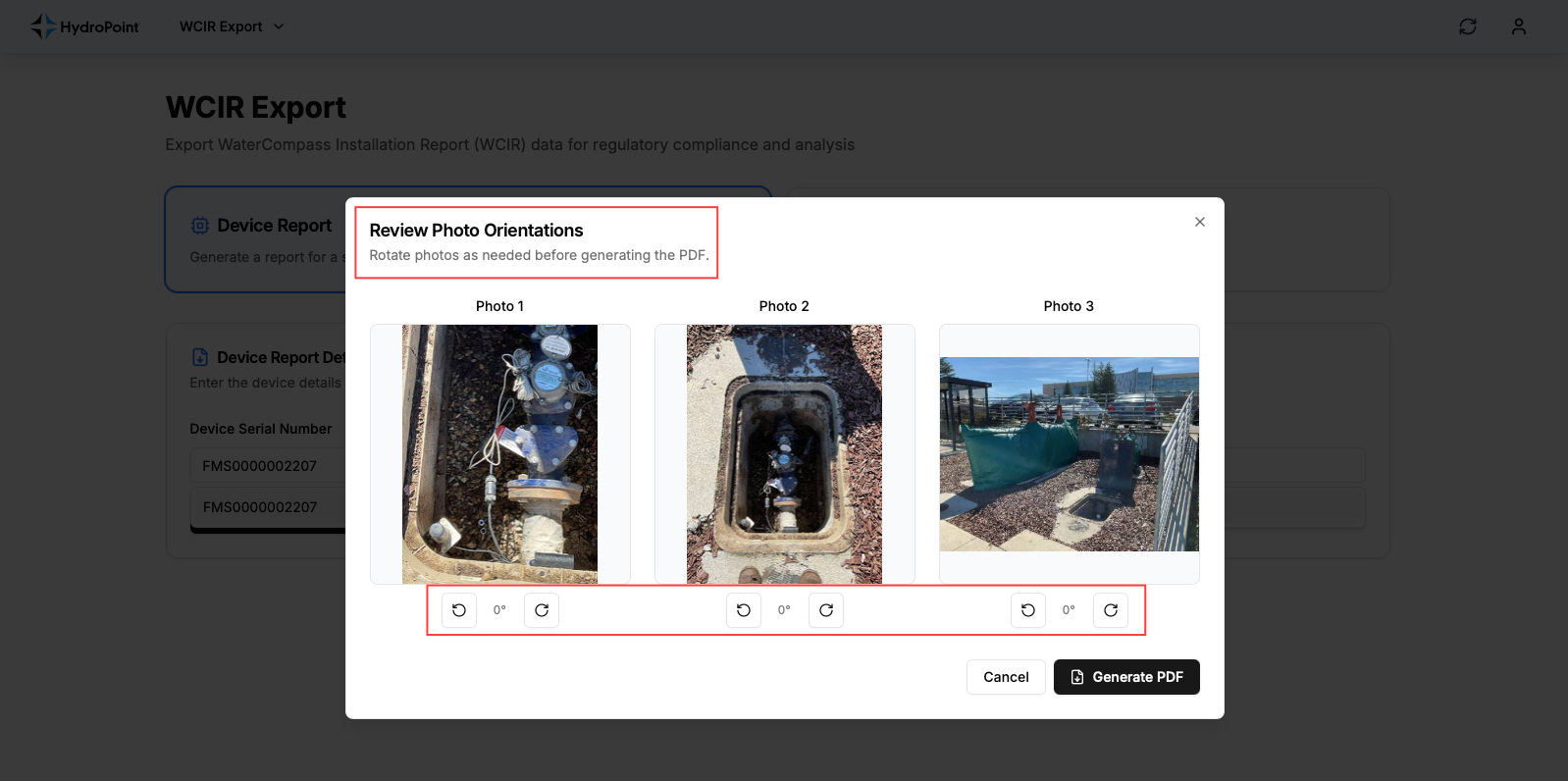
A review photo orientation dialog will appear displaying up to three installation photos.
- Review each photo for correct orientation.
- Use the rotate left or rotate right contorls beneath each photo to adjust orientation as needed.
- Once all photos are correctly oriented, click Generate PDF.
If No Installation Photos Are Found
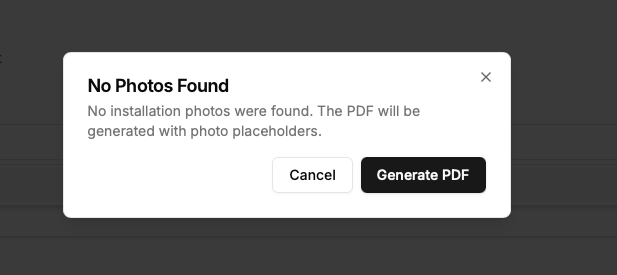
A No Photos Found dialog will appear with the following message:
Sysem Message: “No installation photos were found. The PDF will be generated with photo placeholders.”
- Click Generate PDF to proceed. The report will download with placeholder images included.
- Click Cancel to exit without generating the report.
Step 6 Download the PDF
- After clicking Generate PDF, the WCIR PDF will download automatically to your default downloads folder.
- Open the file and verify it displays correctly before sharing.
- Attach the report to the relevant customer case or share directly with the customer as appropriate.
Troubleshooting
| Issue | Resolution |
| Report does not generate after entering serial number | Verify the serial number in WaterCompass. Confirm the device is active in the HPDS Admin Tool. |
| Site Report returns no results | Confirm the site name matches exactly as it appears in WaterCompass, including capitalization and punctuation. |
| Unable to access the HydroAnalytics Portal | Contact your manager to confirm you have portal credentials. If credentials are confirmed, submit an internal support request. |
| Report generates but photos are sideways or inverted | Regenerate the report. Use the rotate controls in the Review Photo Orientation dialog to correct all photos before clicking Generate PDF. |

© Copyright 2026 HydroPoint Data Systems, Inc. All rights reserved. HydroPoint, the HydroPoint logo, and WaterCompass are either registered trademarks or trademarks of HydroPoint, Inc. Other trademarks may be held by their respective owners.