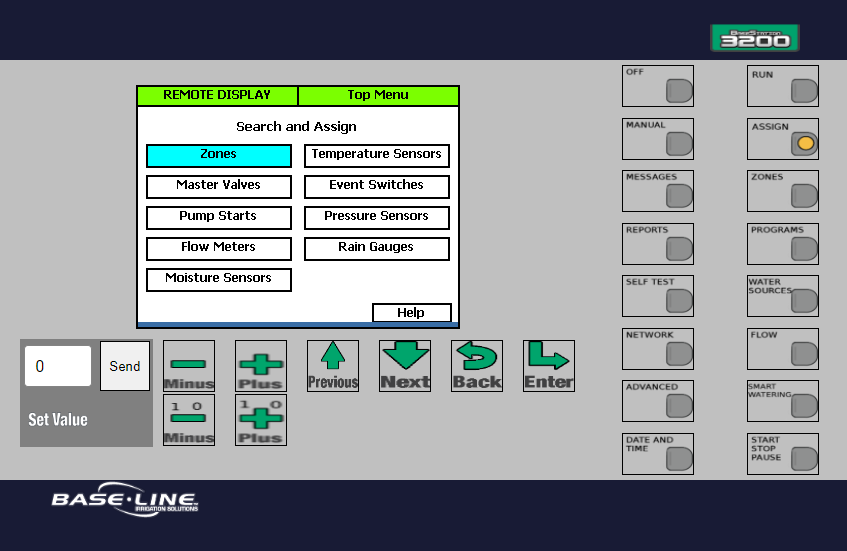
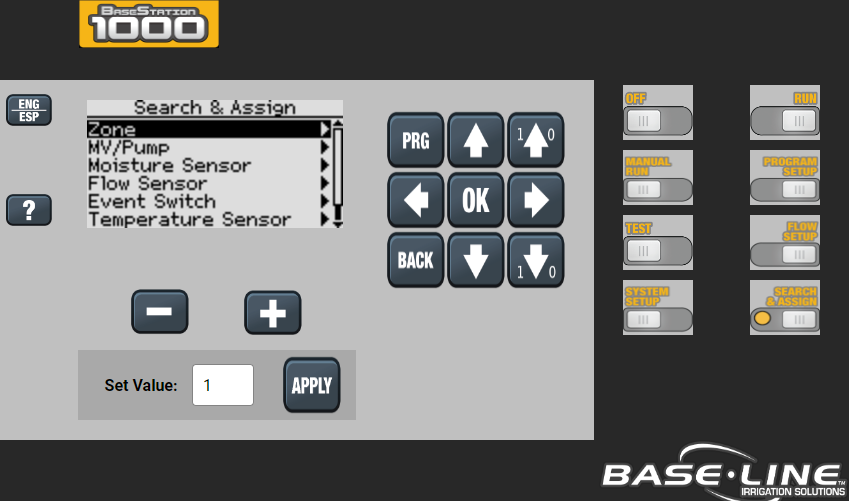
Before you can configure any devices such as biCoders or biSensors in the controller programming, the controller must find those devices and assign them to an address. These numbers are referred to as “addresses” because they tell the controller where a specific device “lives.”
You can connect the following types of biCoders and other two-wire devices directly to the two-wire path:
- Zone biCoders (valve decoders)
- Master valves
- Pump start devices
- Flow meters and sensors
- biSensors (soil moisture sensors)
- Temperature sensors
- Event switches
- Pressure sensors
Searching for and Assigning devices can be done in the following ways:
- Physically at the controller
- Remotely through BaseManager
- Remotely through Live View
Note
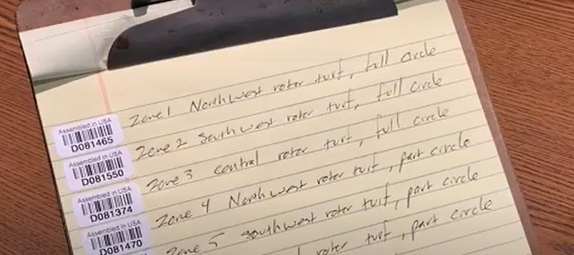
biCoder/decoders have their unique serial number on a sticker. It is recommended to notate which serial numbers correspond with which zone locations when installing the biCoders/decoders.
At the Controller
Note: Zones cannot be named when assigned at the controller.
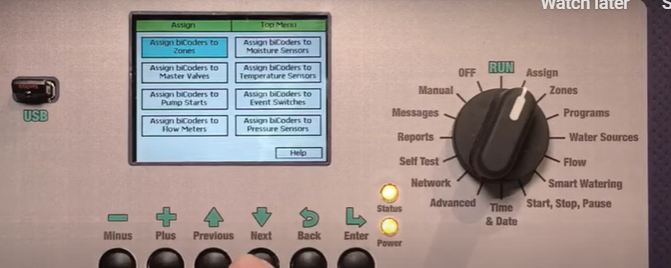
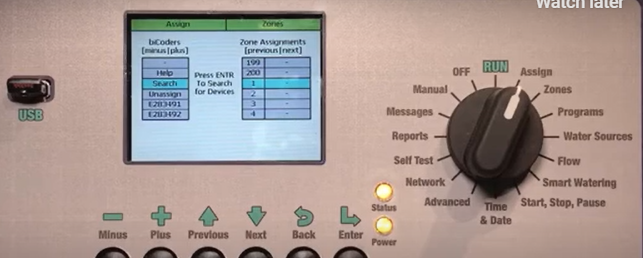
- Turn the dial to the Assign position.
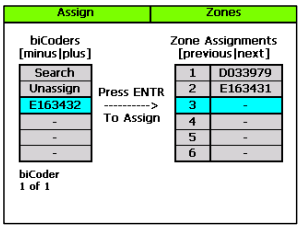
- Press the + or – button to select Search in the left column of the Assign screen
- After the search has finished and the device serial numbers display in the left column, press the + or – button to select any unassigned device serial number.
- Press the Next or Previous button to move to the Assignments column and select an available number.
When you have finished making changes, turn the dial to the RUN position. Assigning other devices is a nearly identical process. Simply choose the corresponding device menu button from the Assign dial position.
Press the Enter button to assign the selected device to that number.
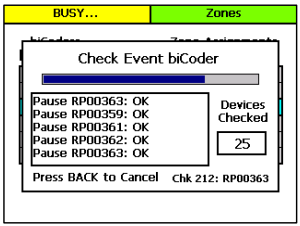
Press the Enter button to search for devices. The search may take several minutes to complete. You will see a status screen like the one shown here while the search is in progress
Press the Next or Previous button to move to the option for the type of device that you want to search for, and then press the Enter button.
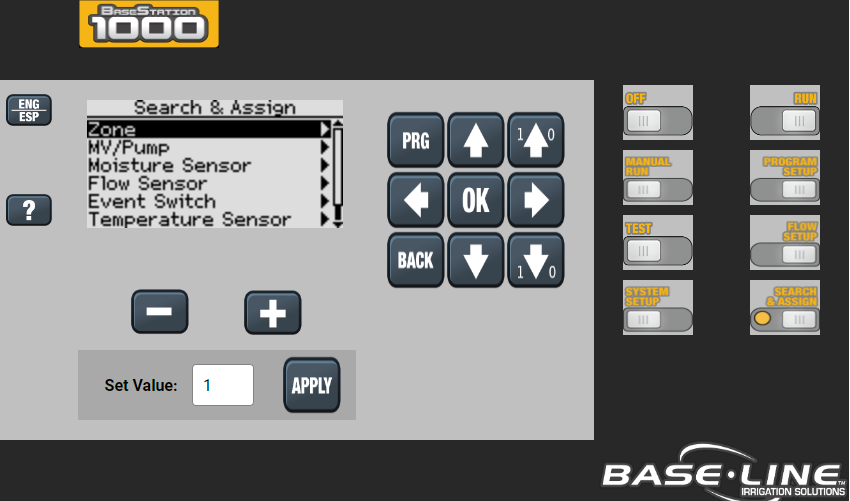
Note: These steps are very similar when using a BaseStation 1000. Choose the Search and Assign button to get started.
Through BaseManager
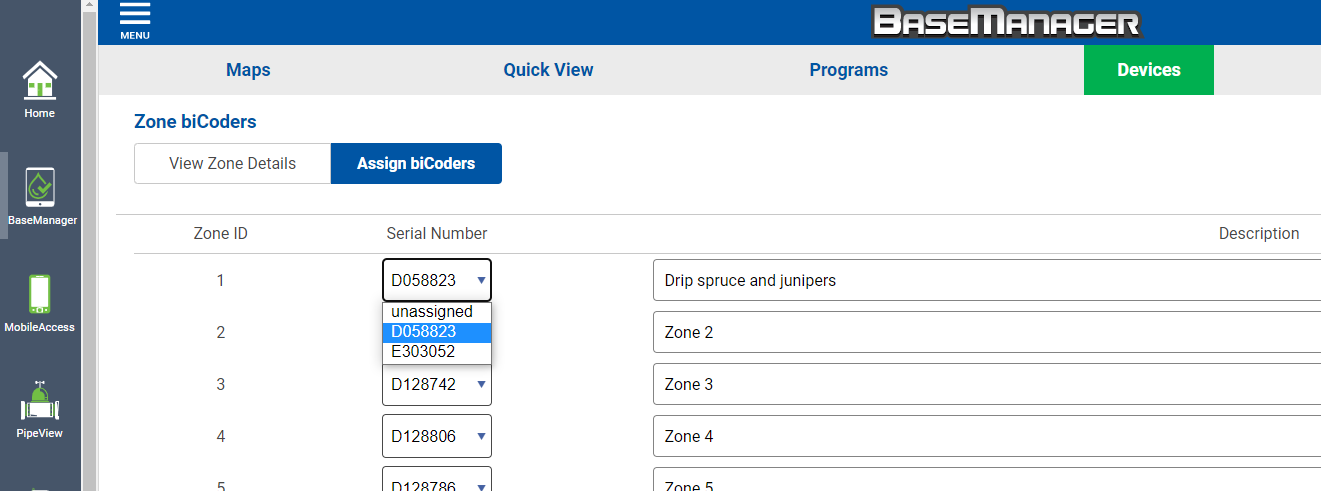
- Use the description fields so that zone biCoders can easily be identified when completing configurations. 2 and 4 zone biCoders will have only 1 serial # on their sticker however, the additional zone wires will have additional serial numbers to use when assigning. Ex: Orange wire = E044641 and Yellow wire = E044642.
- Assigning Master valves, Flow Sensors, and other "biCoder devices" involve a nearly identical process. Simply choose the device from the Device tab and complete the same steps.
Now you will have zones ready to use.
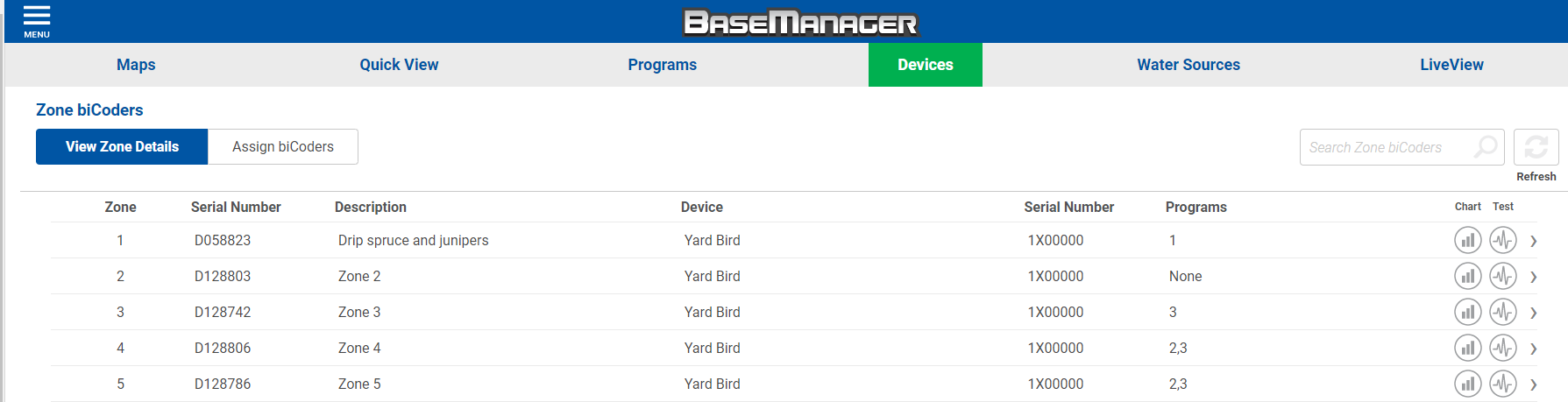
Choose "Assign biCoders", BaseManager will then search for all currently connected devices on the wire path so that we can assign them to a zone.
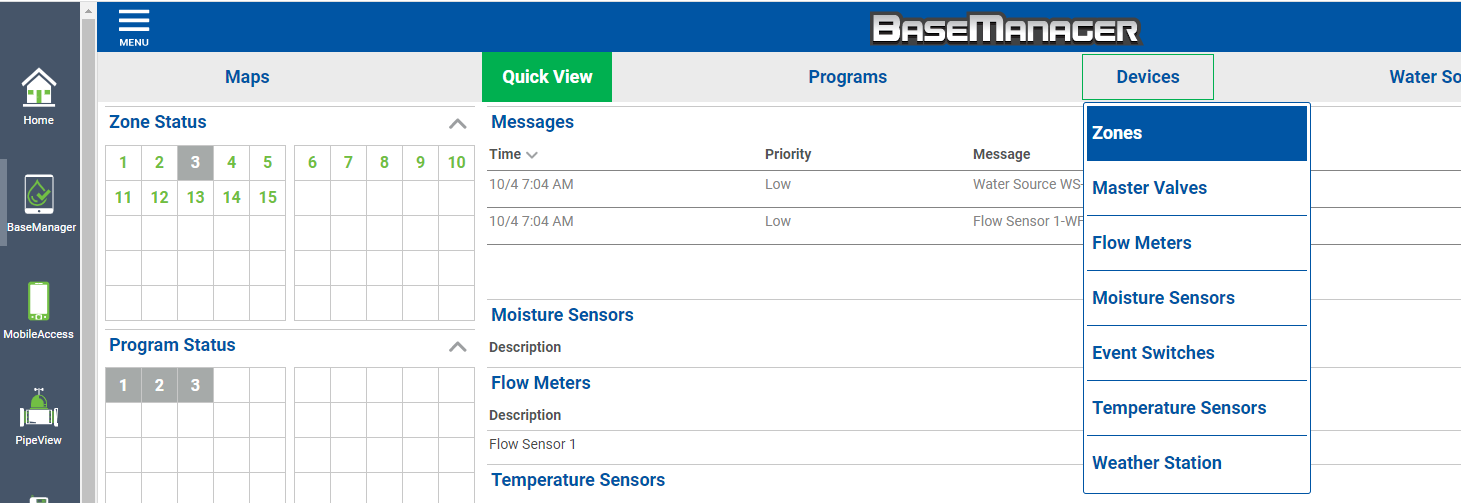
In the devices tab, choose Zones.
Log into https://baselineapps.net/app-manager/ and choose BaseManager.
Through Live View
Note: This method will be identical to the steps at the controller as Live View is a remote interface of the controller display.