
🚨IMPORTANT - Some accounts have special access requirements!
Always review the account notes & this accordion for any approval conditions. ⬇️
Do not proceed until all requirements are met.
Lowe's
If someone requests access of any kind for a Lowe's account/site/controller, you MUST get approval from Carlos Perez first. Lowe's has a training requirement before access can be granted.
Target
If someone requests access of any kind for a Target account/site/controller, you MUST get approval from Carlos Perez first. Target has a training requirement before access can be granted. Please read: Target Access Requests & Training
Walmart/Sam's Club
If someone requests access of any kind for a Walmart/Sam's Club account/site/controller, we can grant Mobile App access ONLY.
Any other type of access request must go through SCA (Steven Clark and Associates - Their Walmart contact should have this contact info and approved exceptions should be noted on the WeatherTRAK Central user profile)
Intermountain Plantings
If someone requests access of any kind for an Intermountain Plantings account/site/controller, that is NOT an Intermountain Plantings employee or is a request from Joe Jackson, access CANNOT be granted.
Church MFD - IFS
If someone requests access of any kind for a Church MFD - IFS account/site/controller, this MUST go through Mike Hales with JLL.
(Joe Jackson and Brady Pitcher have been authorized to add users by Mike Hales)
JLL Landscape Irrigation Systems Manager
Mike Hales
mike.hales@jll.com
The Church Of Jesus Christ Latter-Day Saints - ONLY in Utah
If someone requests access of any kind for a The Church Of Jesus Christ Latter-Day Saints account/site/controller ONLY in UTAH, this MUST go through Michelle Lorimer with The Church.
Michelle Lorimer
michellelorimer1@churchofjesuschrist.org
If someone requests access of any kind for a Google account/site/controller, you MUST get approval from Gavin Beach, Alfonso Aguilar and/or Rachel Nakatsu with Google.
Gavin Beach
gavinbeach@google.com
Alfonso Aguilar
aguilaralfonso@google.com
Rachel Nakatsu
rnakatsu@google.com
ET Irrigation
If someone requests access of any kind for an ET Irrigation account/site/controller, that is NOT an ET Irrigation employee, you MUST get approval from Brian Bair with ET Irrigation.
Brian Bair
brian@etirrigation.com
Smart Watering Systems
If someone request access of any kind for a Smart Watering Systems account/site/controller, you MUST direct them to Chris Le Conte for access.
Chris Le Conte
cleconte@smartwateringsystems.ca
International Environmental Corporation
If someone requests access of any kind for a International Environmental Corporation account/site/controller, you MUST get approval from Rich McCoy with International Environmental Corporation.
Rich McCoy
richard@iectrees.com
When creating a new user or updating an existing one, it’s important to understand the differences between account, site, and controller associations. Selecting the correct association helps ensure the customer receives the appropriate level of access and avoids unintended issues.
Before granting access, verify whether other users with the same email domain are already associated with the requested account, site, or controller. This helps confirm the request aligns with existing access patterns.
Example:
If a user with an @brightview.com email requests access to a controller under the HydroPoint account, and no other @brightview.com users are currently associated with HydroPoint, pause and request clarification before proceeding.
Questions you could ask:
- Are they the new maintainers taking over the account?
- What is their specific role or responsibility with this site or controller?
- Are they performing maintenance, managing the system long-term, or assisting temporarily?
- Was this access requested by the account owner, or is it an internal request from their team?
- Is there a project, contract, or upcoming event tied to their need for access?
How to create a New WT User Account
Admin Tool> User > New User> input First / Last name, Email Address and Phone Number> Send Welcome Email
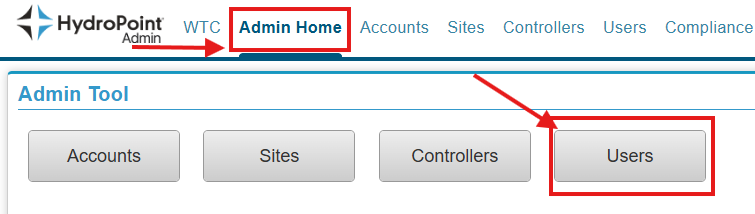

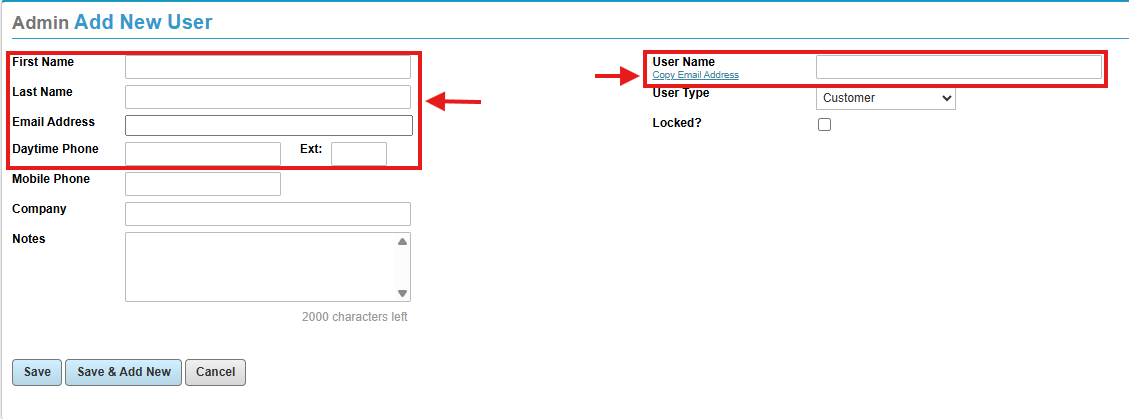
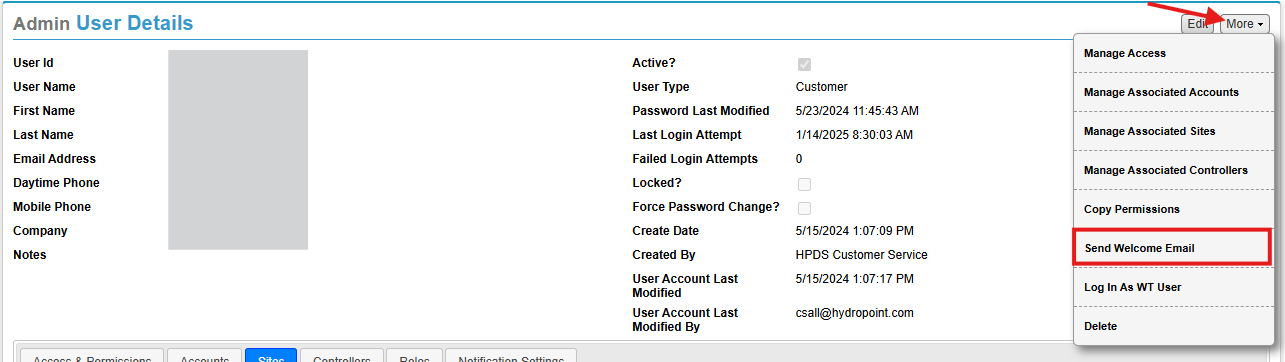
Important!
The Welcome Email contains a temporary password that expires 24 hours after being sent. Welcome emails can be redirected to junk/spam folders, please tell them to check all folders before we re-send a Welcome email.
* If a work email is being used (ex. @hydropoint.com) and we've sent them the welcome email a couple of times due to them not receiving it in their Inbox/Junk/Spam, try using a different email address. Some companies have firewalls which prevent emails coming through from outside companies.
How to grant User access to Controllers, Sites or Accounts
Granting access is done through the Admin tool on WeatherTRAK.net.
We have two ways of being able to grant access, choosing which way depends on how large the request is and what the request is for.
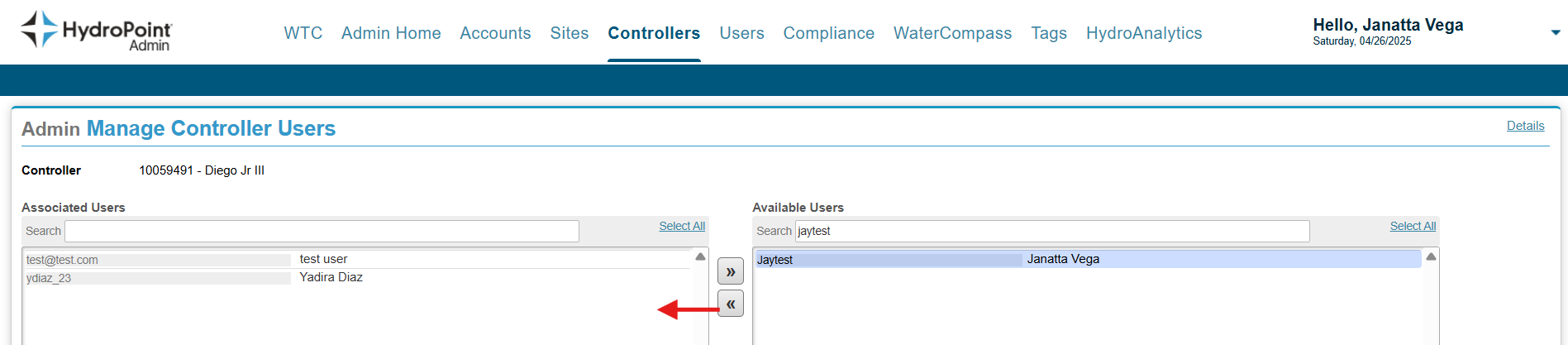
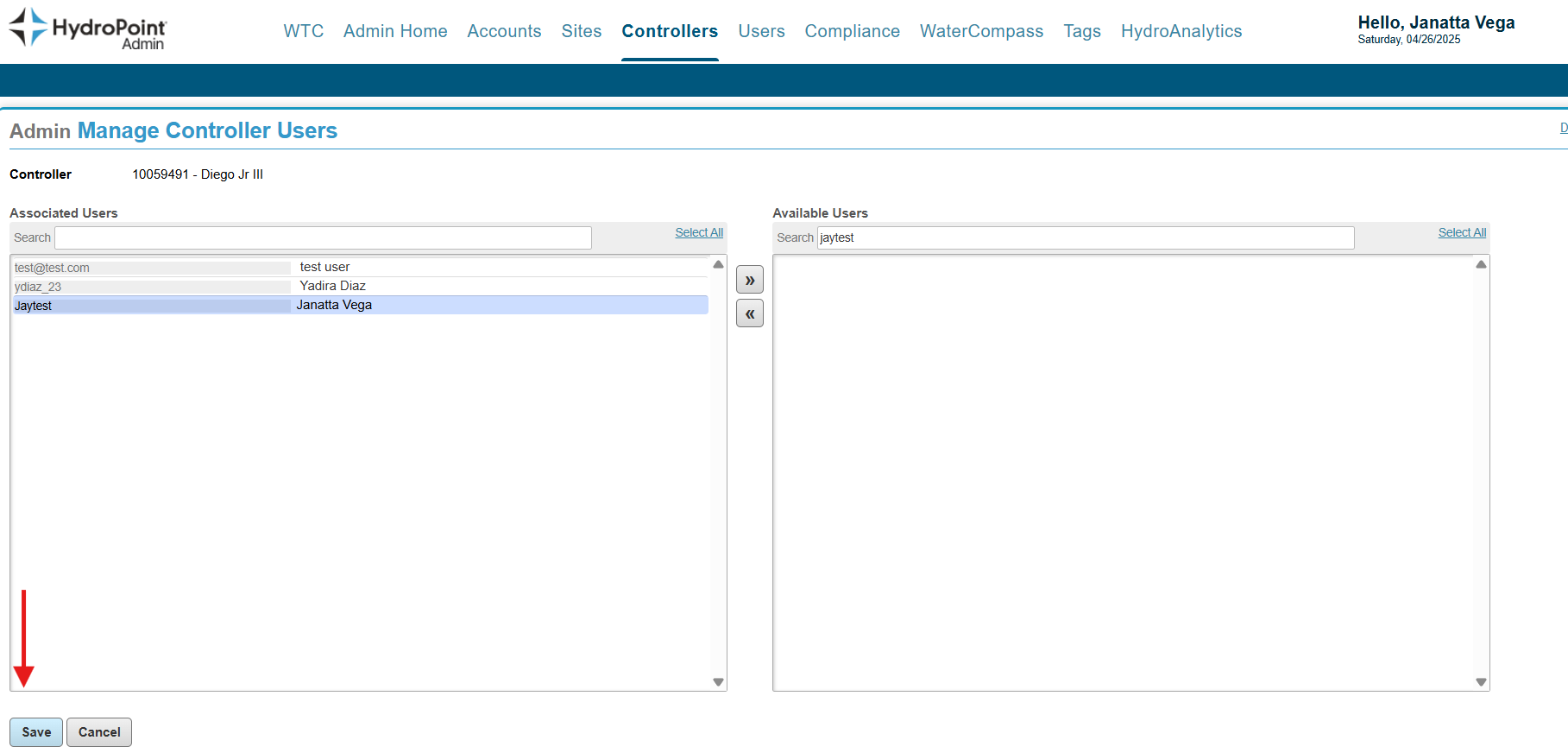
Controller access
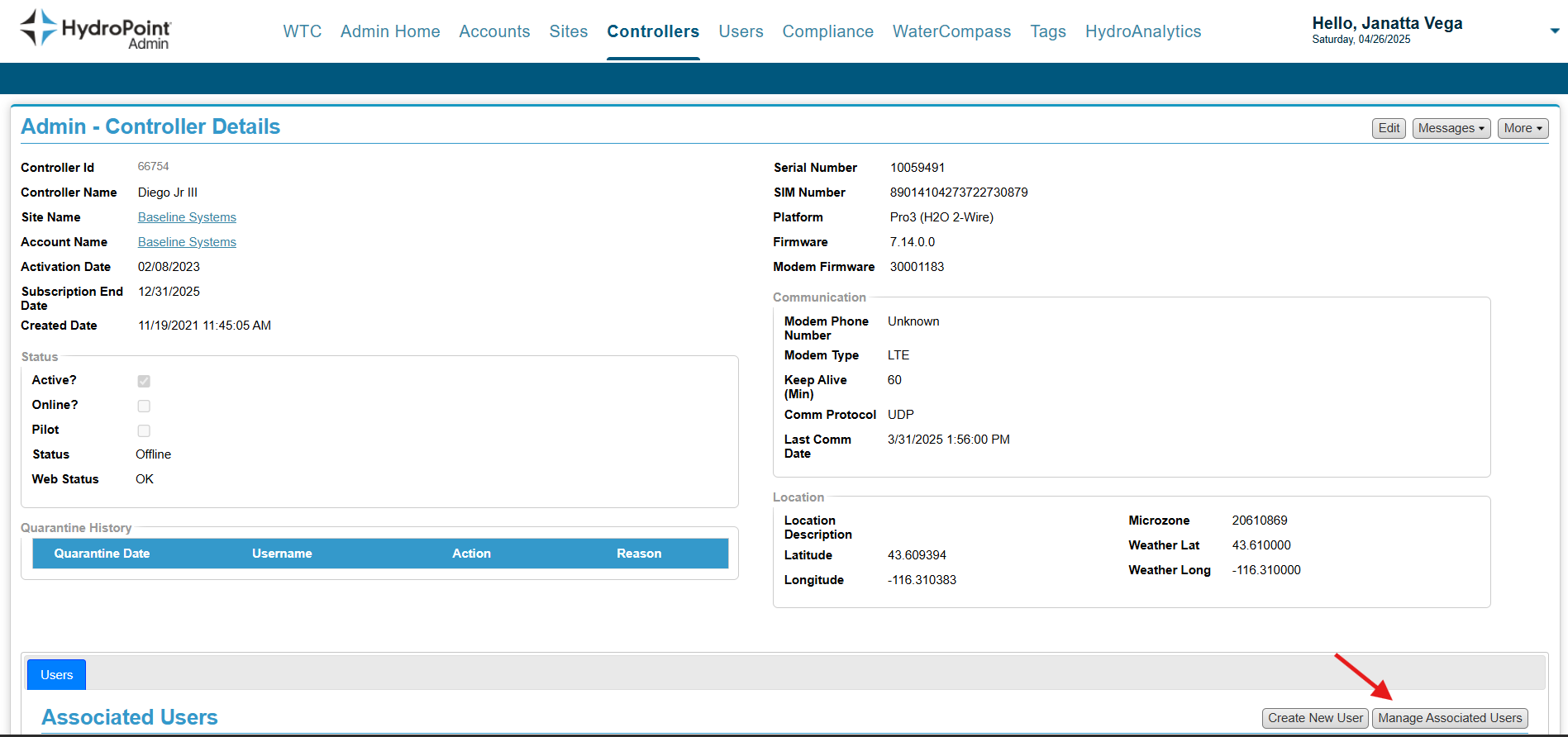
Access for only 1 Controller OR request to add multiple users to the same Controller?
- Go to the Admin Tool, then
- the Controllers tab
- Find the Controller serial number
- Click View in the Details column of the serial number
Select Manage Associated Users
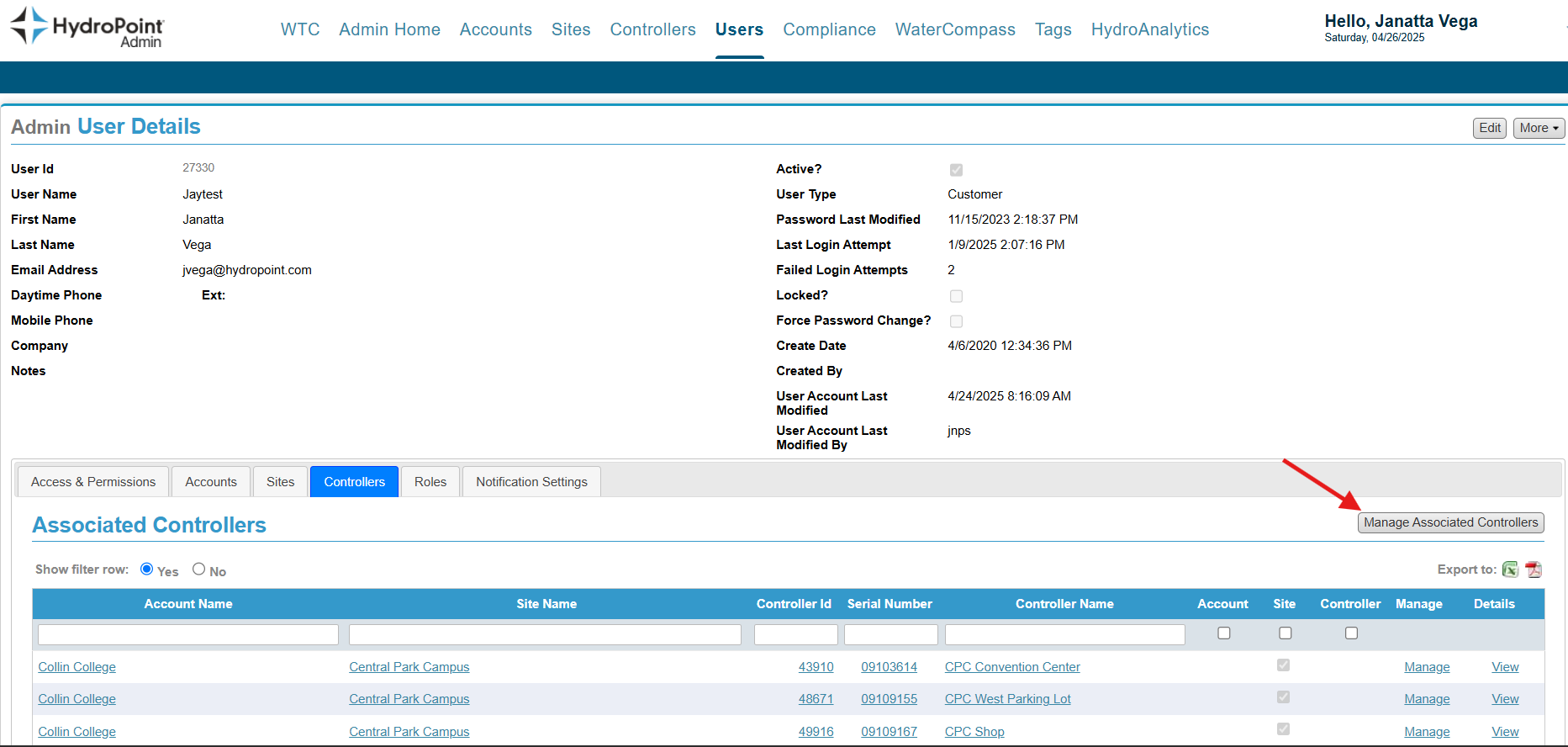
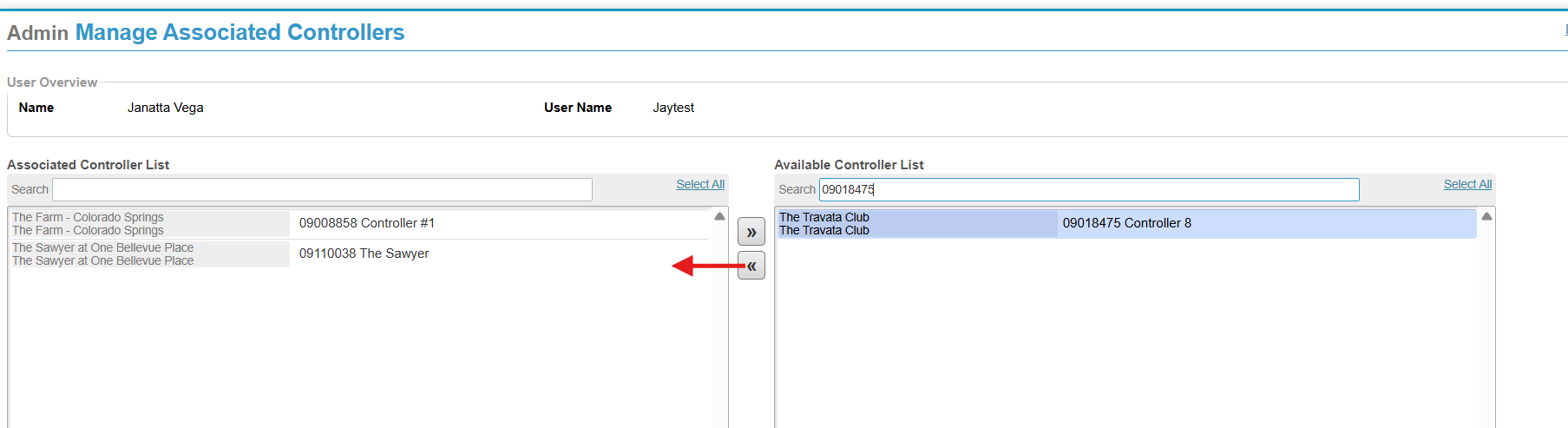
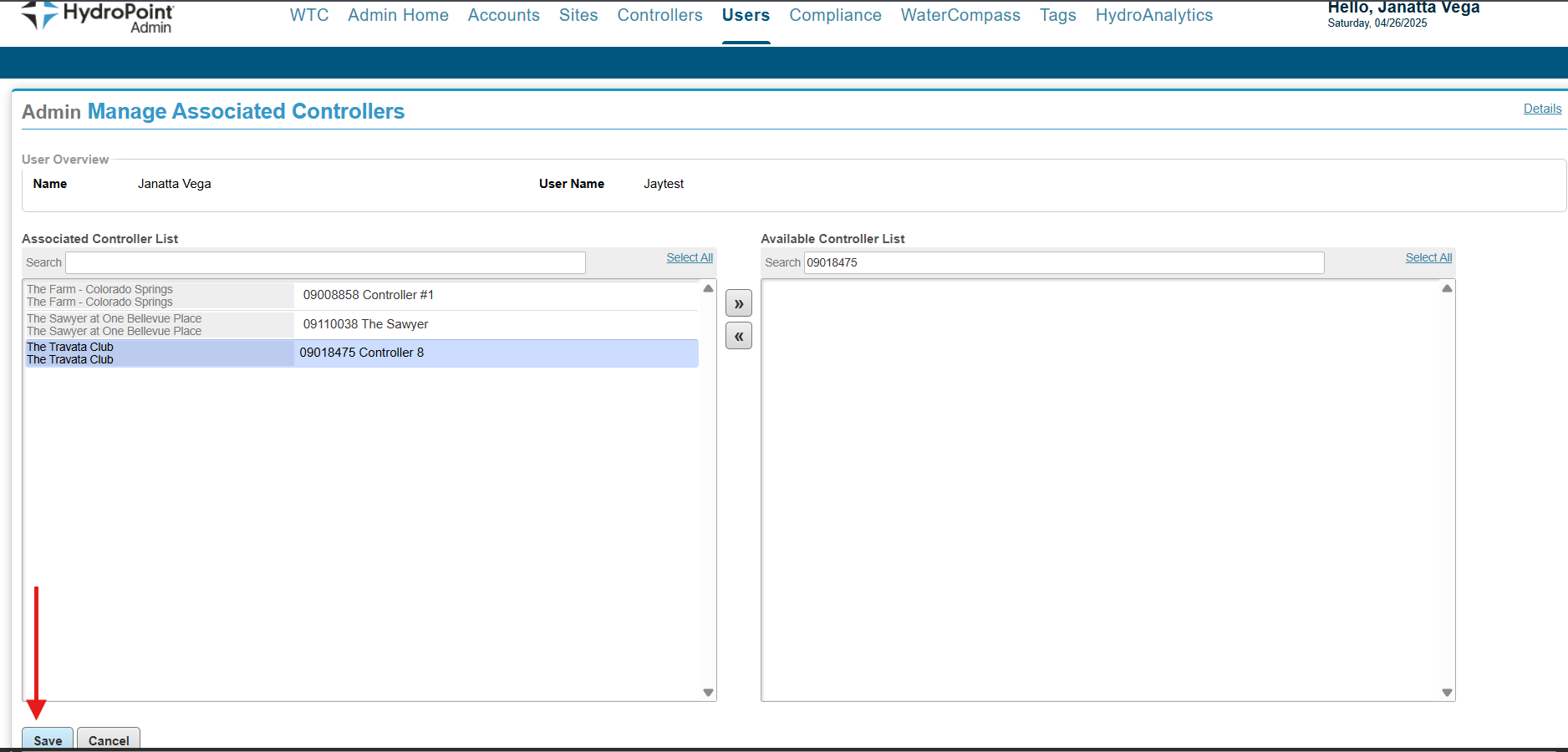
Access request for multiple Controllers under different Sites for the user?
- Go to the Admin Tool, then
- the Users tab, and
- find the User
- click View in the Details column of the User
Select Manage Associated Controllers
Site Access
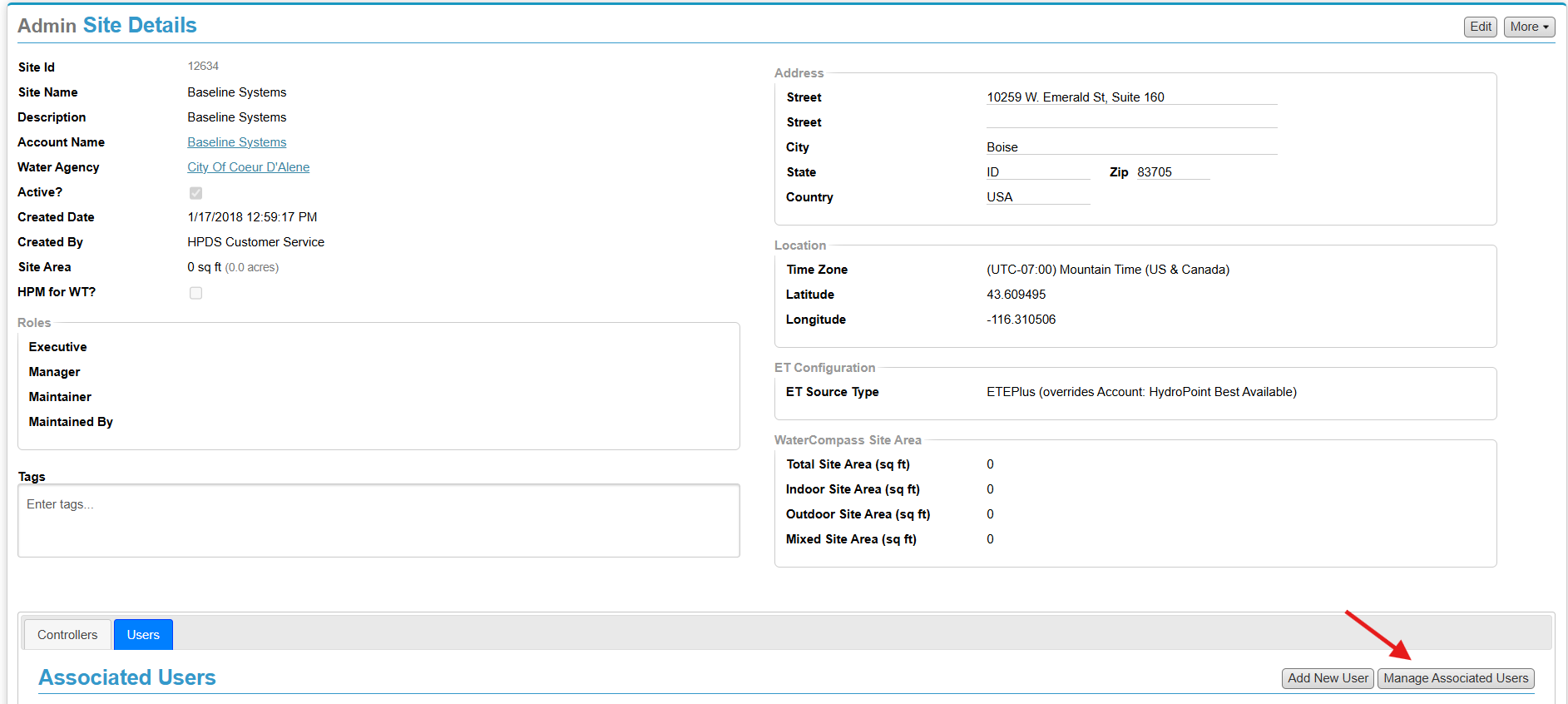
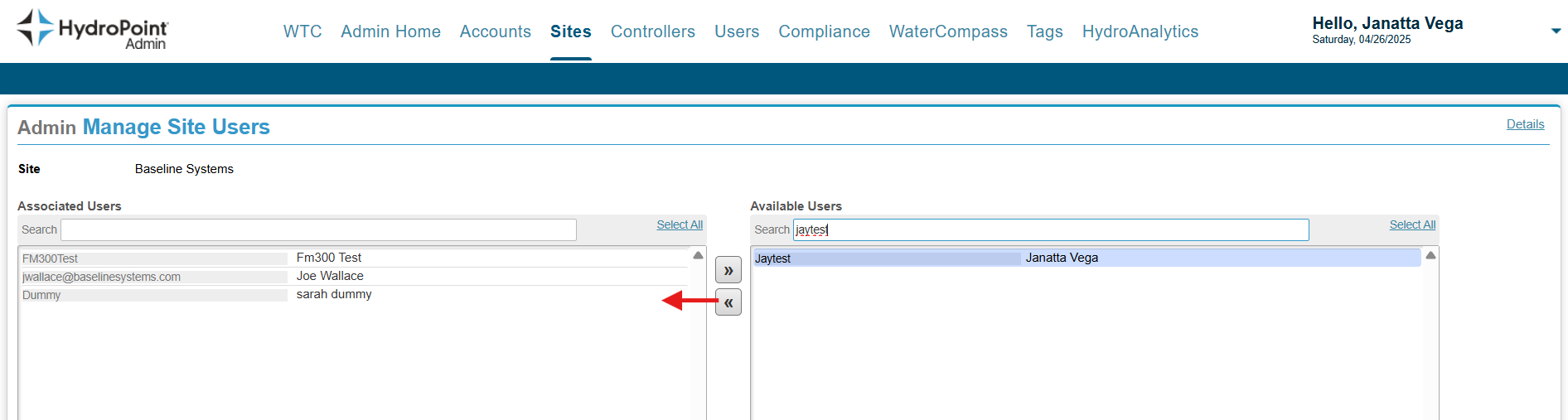
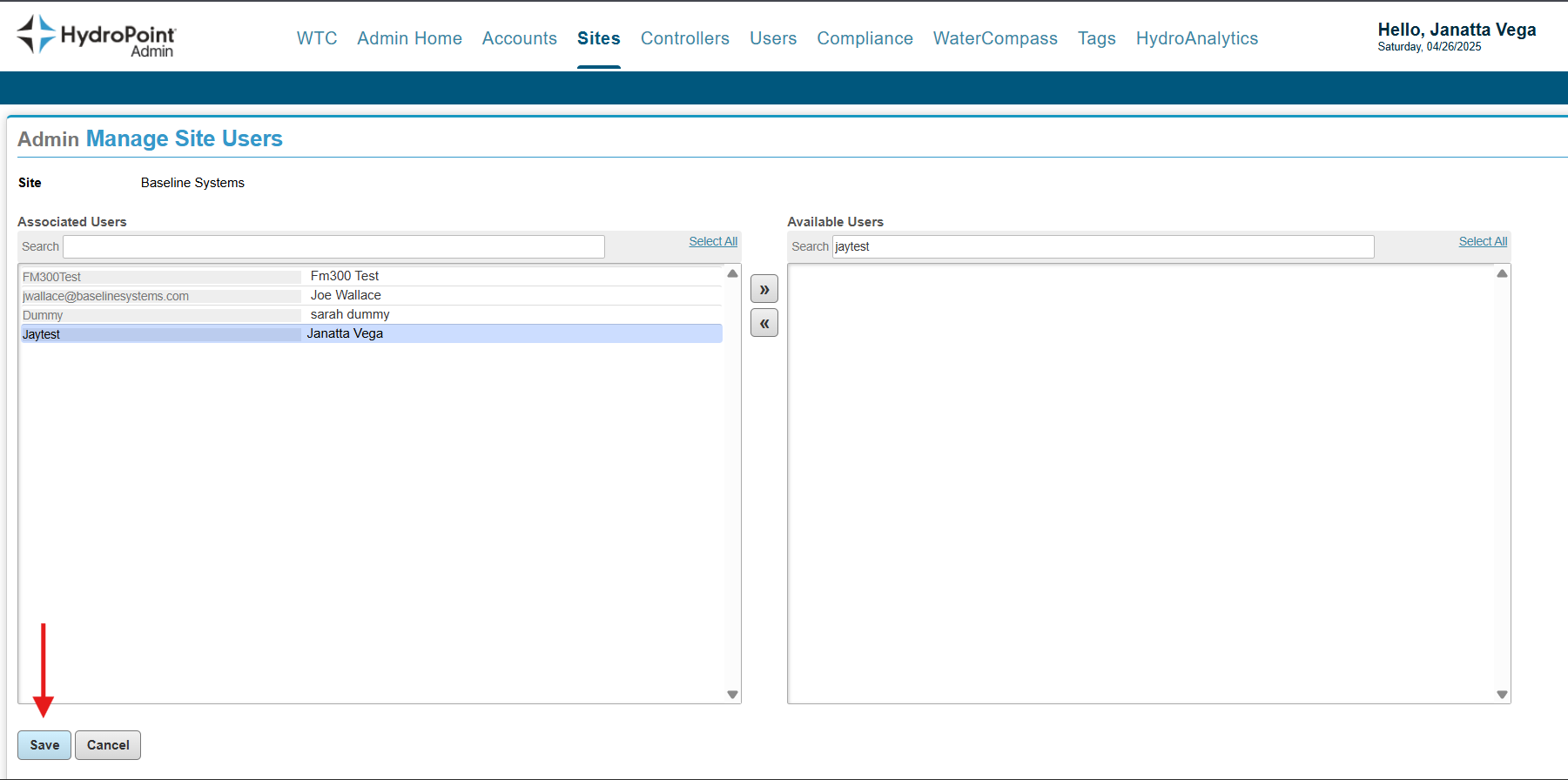
Access for only 1 Site OR request to add multiple users to the same Site?
- Go to the Admin Tool, then
- the Sites tab
- Find the Site name
- Click View in the Details column of the site
Select Manage Associated Users
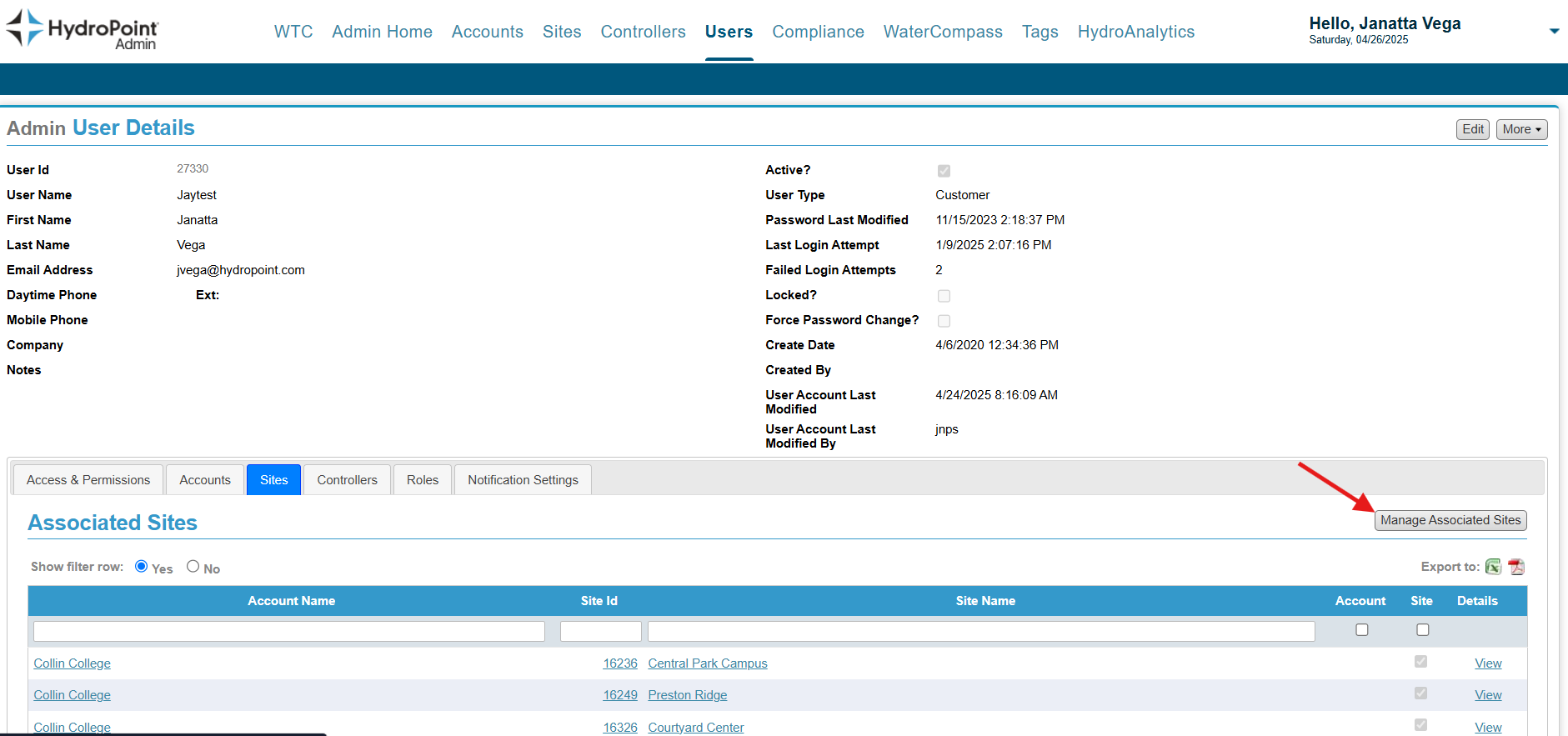
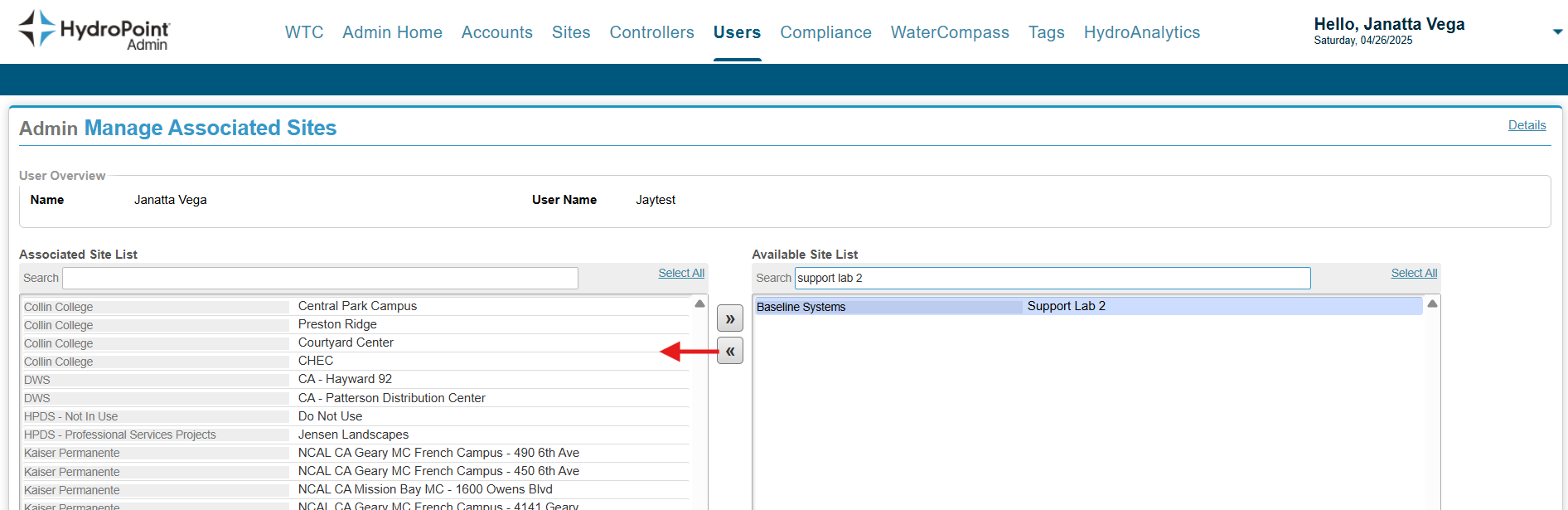
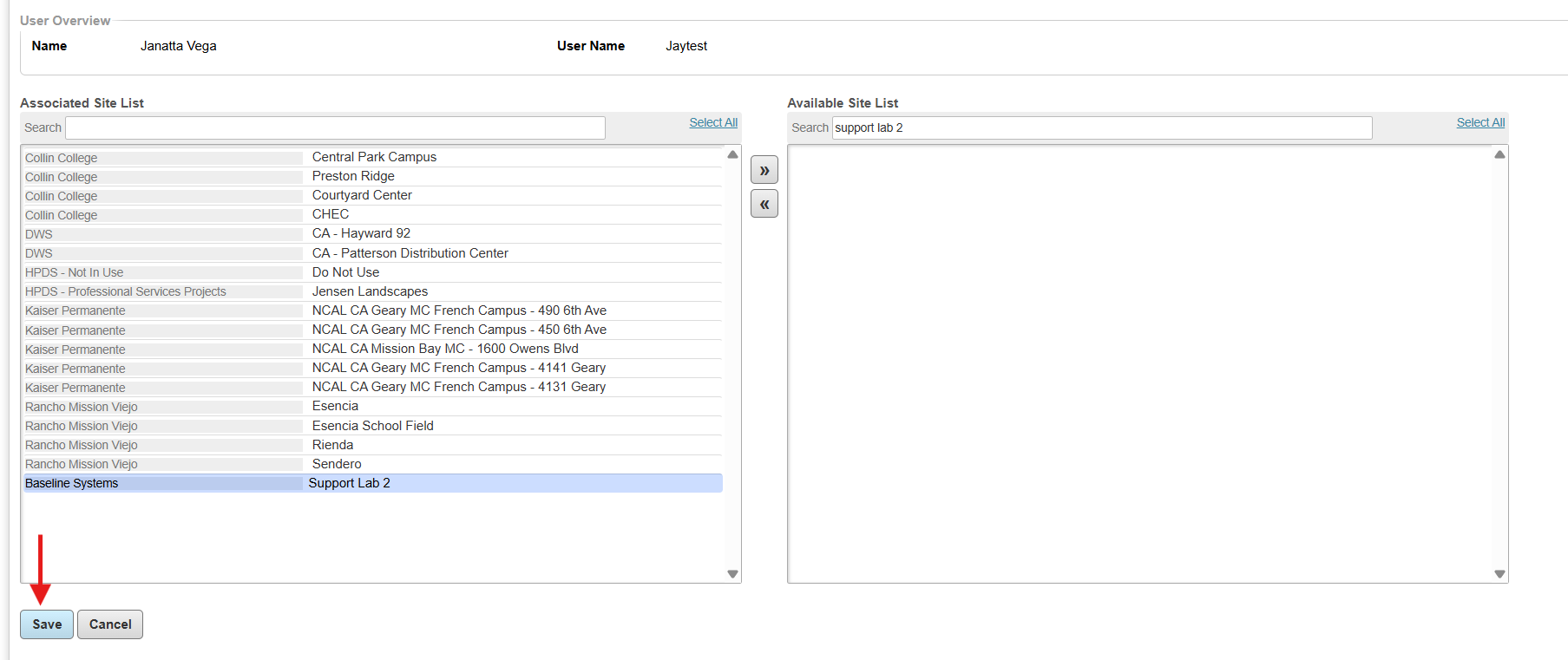
Access request for multiple Sites under different Accounts for the user?
- Go to the Admin Tool, then
- the Users tab, and
- find the User
- click View in the Details column of the User
Select Manage Associated Sites
Account Access
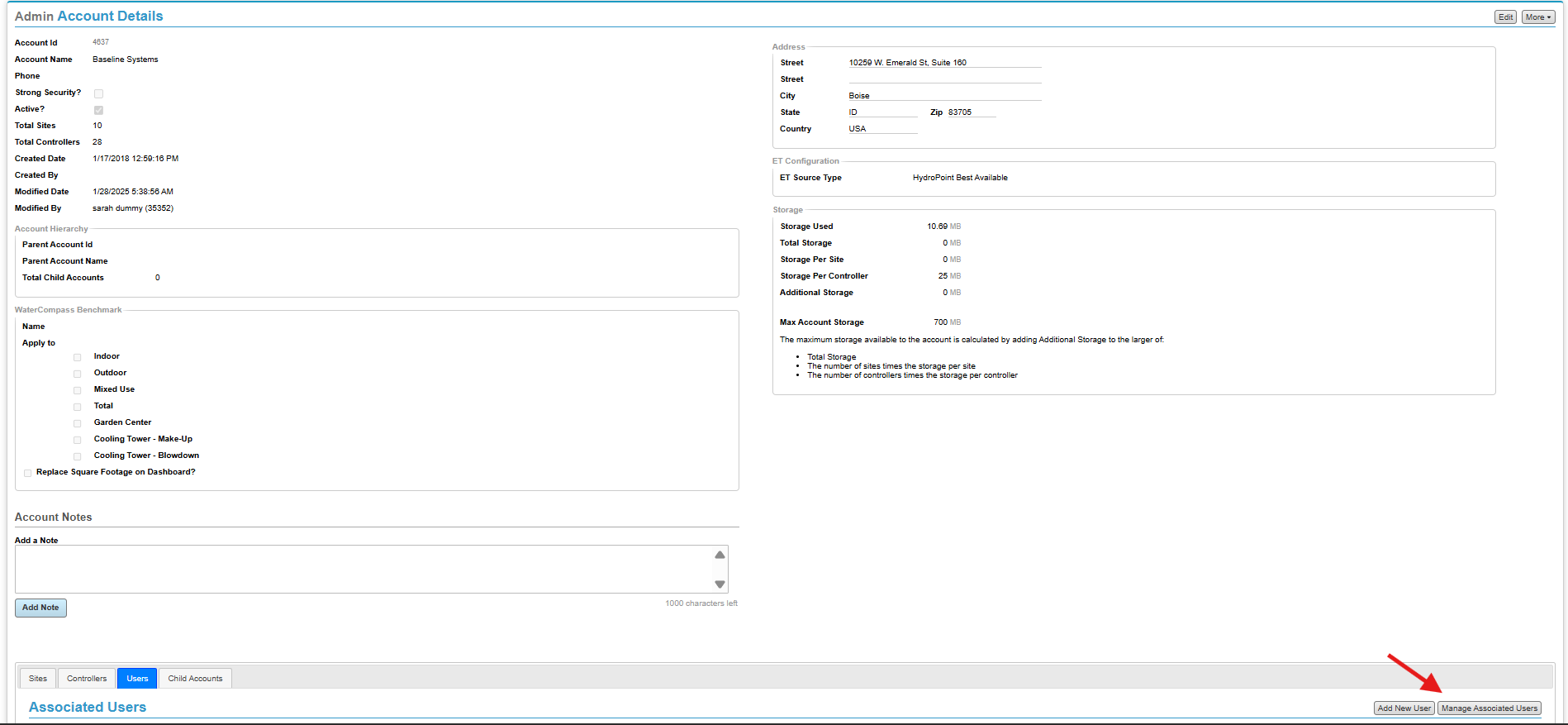
Access for only 1 Account OR request to add multiple users to the same Account?
- Go to the Admin Tool, then
- the Accounts tab
- Find the Account name
- Click View in the Details column of the account
Select Manage Associated Users
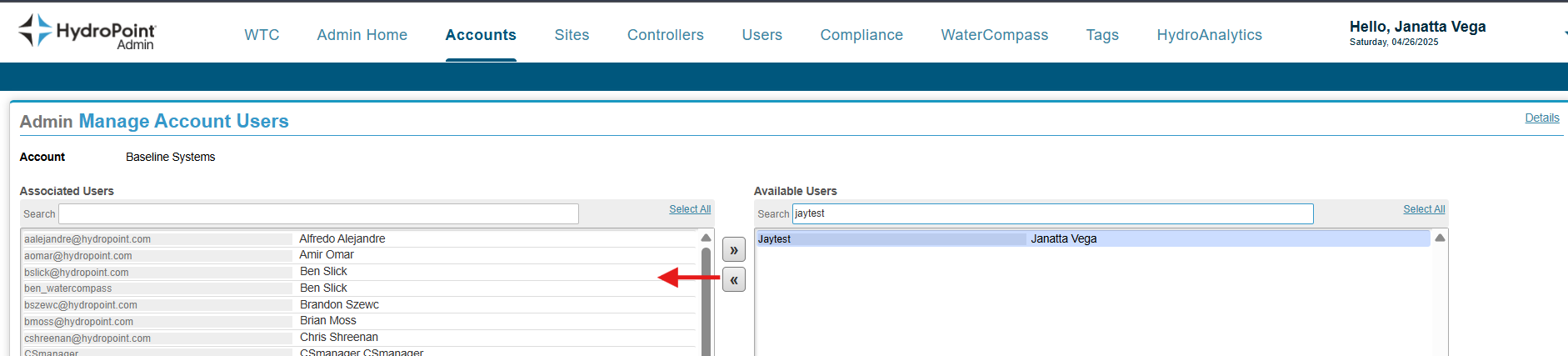
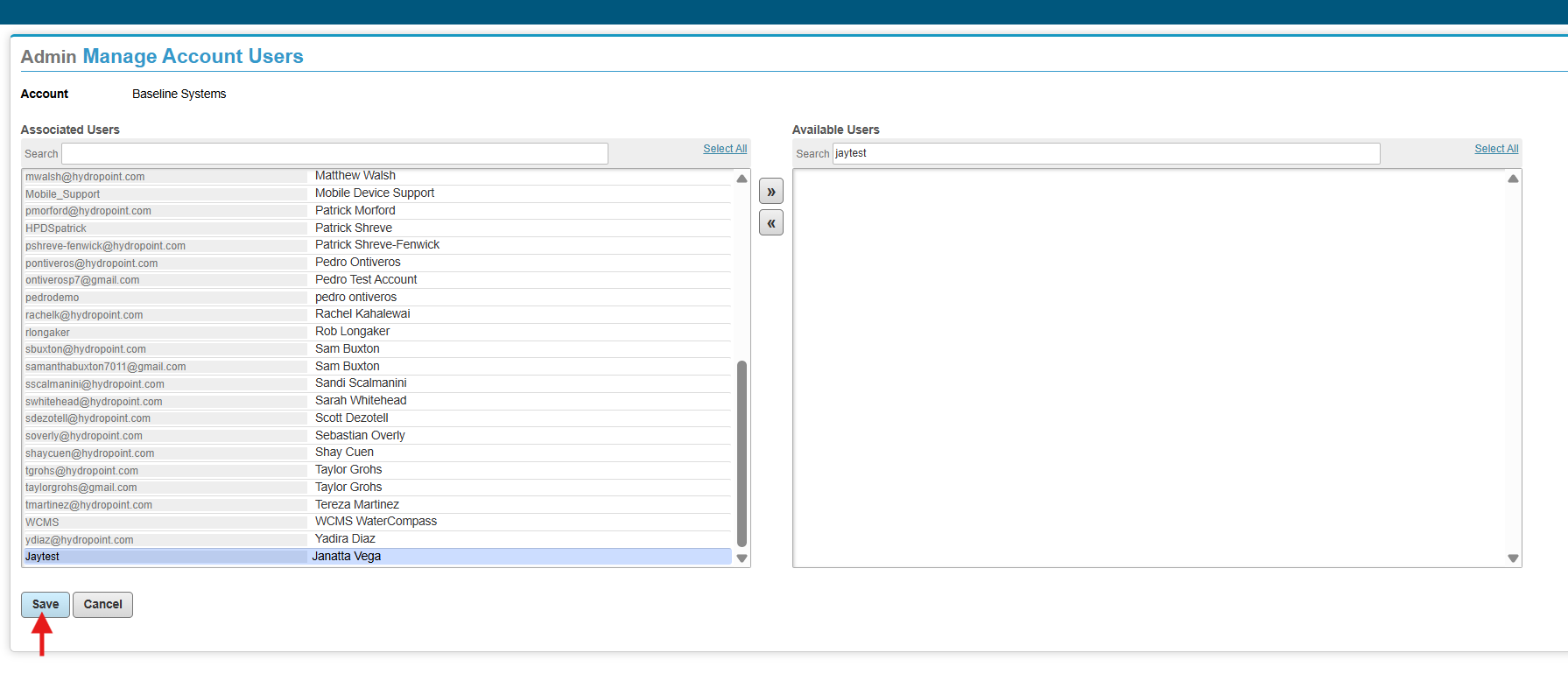
Access request for multiple Accounts for the user?
- Go to the Admin Tool, then
- the Users tab, and
- find the User
- click View in the Details column of the User
Select Manage Associated Accounts
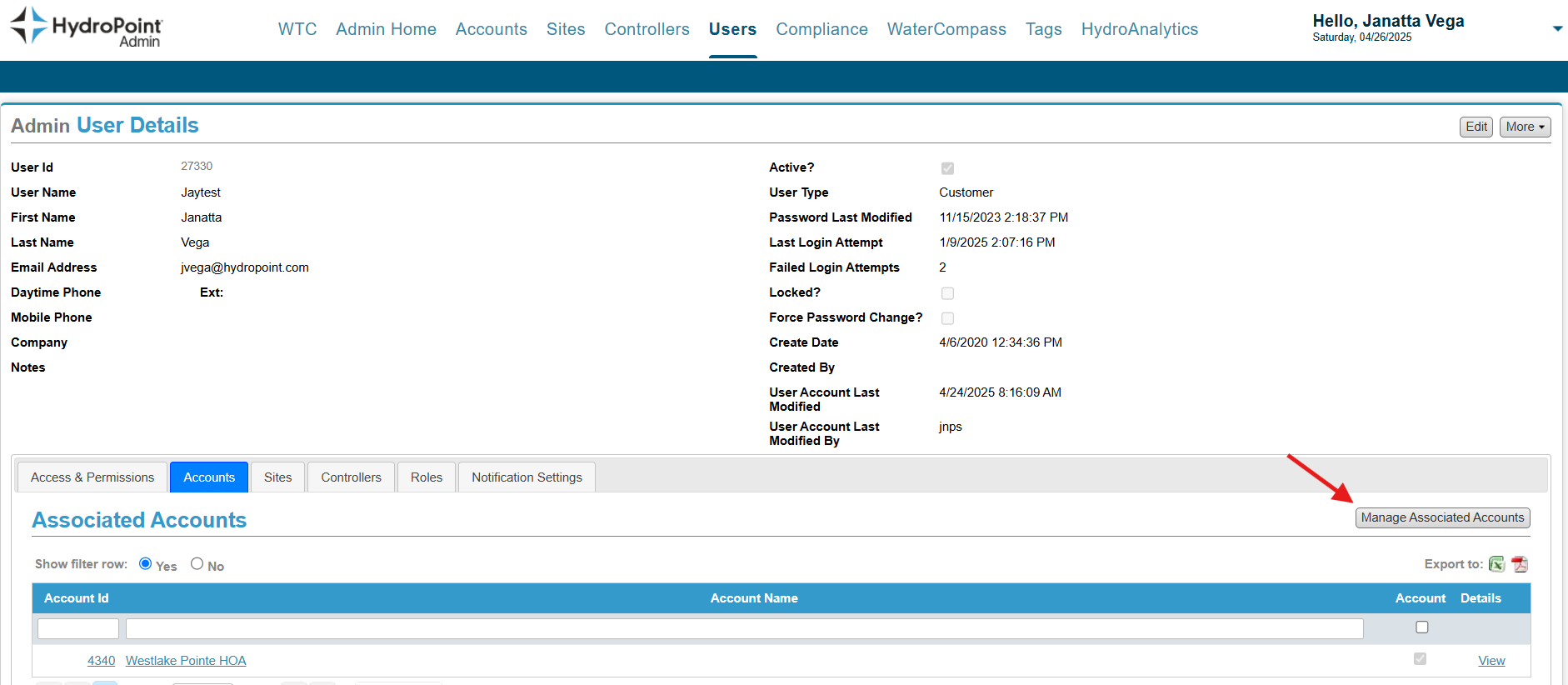
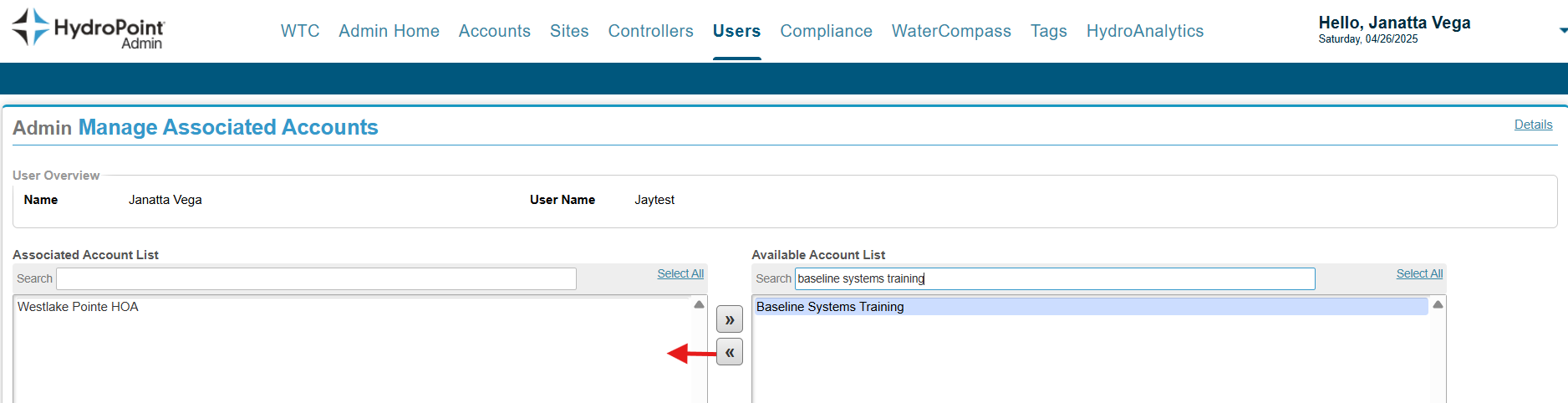
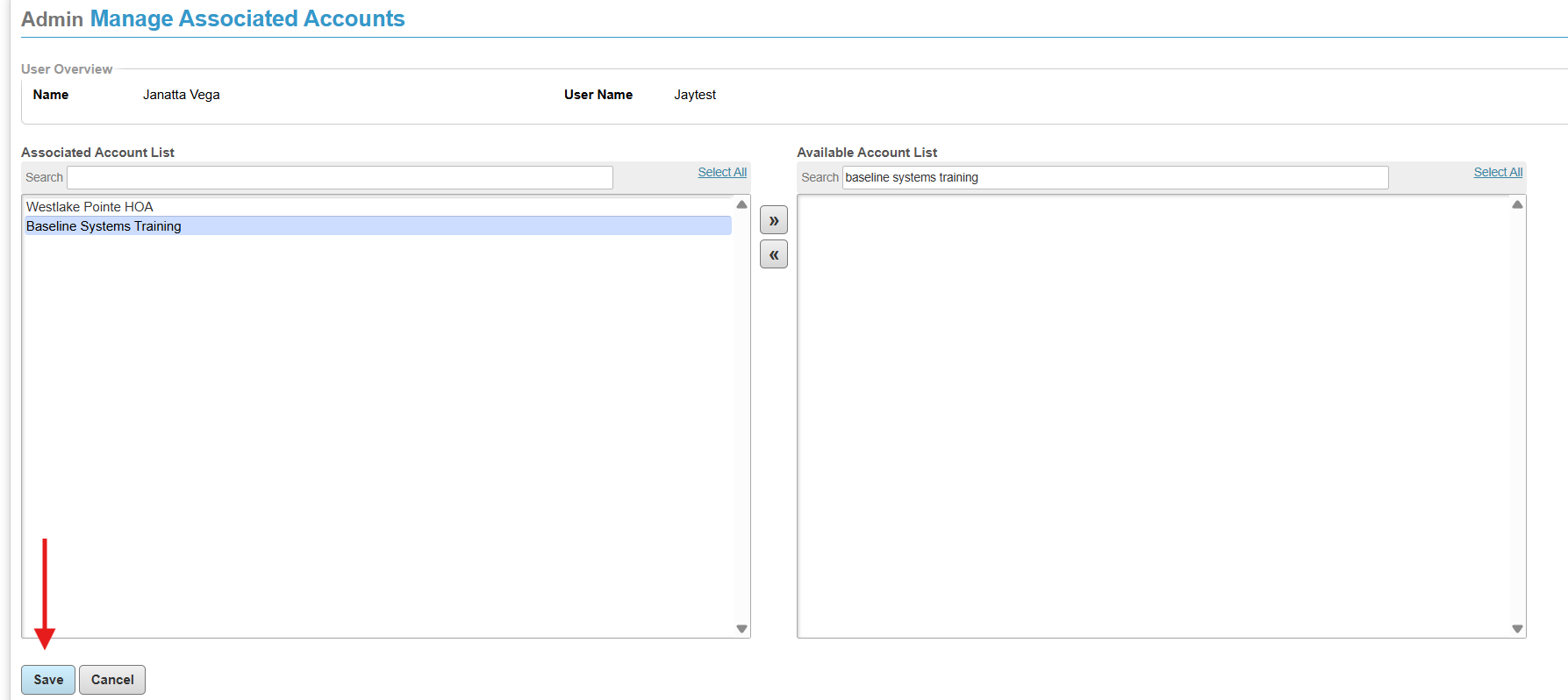
The best way to view what is associated with an existing User is to:
- Go to the Admin Tool, then
- The Users tab, and
- Find the User
- Click View in the Details column of the User.
Once on the User Details page, click the Controllers tab to see exactly what the user has associated. This is the best way to view the big picture in one glance. The Account, Site, and Controller columns reveal exactly what they are associated with.
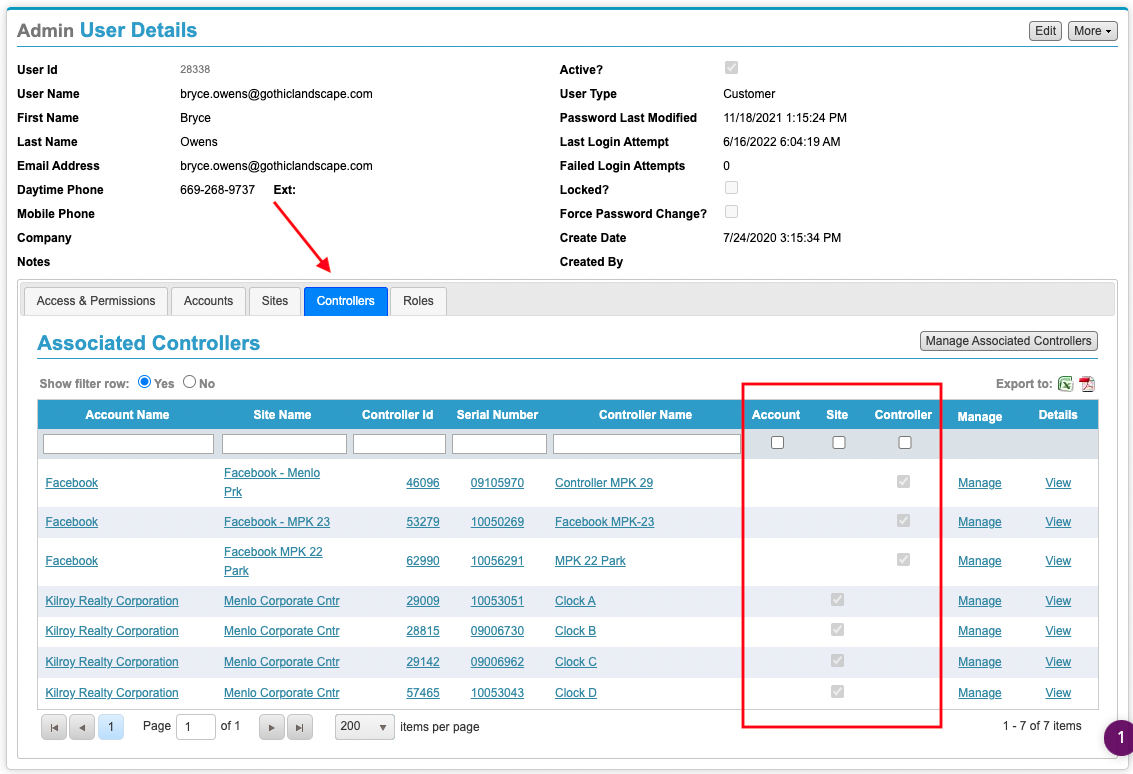
Controller Association
When a User is associated with only Controllers, their experience with WeatherTRAK Central and Mobile is limited. Even if they are associated with every Controller on the Site, they will be missing functionality.
Limitations:
- Manage Site page is not available for the Site the Controller(s) are located on is not available in WeatherTRAK Central.
- Site Map is not available in WeatherTRAK Central or Mobile for the Site the Controller(s) are located on. They will not be able to reference or place assets in Mobile.
- OptiFlow is not available in WeatherTRAK Central.
- Site Compliance pages are not available in WeatherTRAK Central.
- Budget pages are not available in WeatherTRAK Central.
- Station High Flow Alert test will not be available in Mobile.
Scenarios:
- Typical: A customer that manages a Site with many Controllers has a User that they only want to have associated with a specific Controller. This might be a Coach that wants to water a field or a maintainer that only tends to a single area on a much larger Site.
- Not Typical: A customer that manages a Site with many Controllers has a User that they want to have associated with every Controller at the Site, but not the Site.
- Not Typical: A customer that manages a Site that has only a single Controller but requests that everyone is associated with the Controller and not with the Site.
Alternative option:
If the customer is concerned about access, it is likely they do not understand the limitation of the Controller-only association. Instead, they can grant their Users Site level associations but have Mobile-only access and permissions to prevent the User from logging into WeatherTRAK Central and gaining access to areas like OptiFlow. In many cases, this is a better option. Simply uncheck Web Access when editing the Access & Permissions for each Account, and the User can enjoy all of the Mobile access but not have access to WeatherTRAK Central.
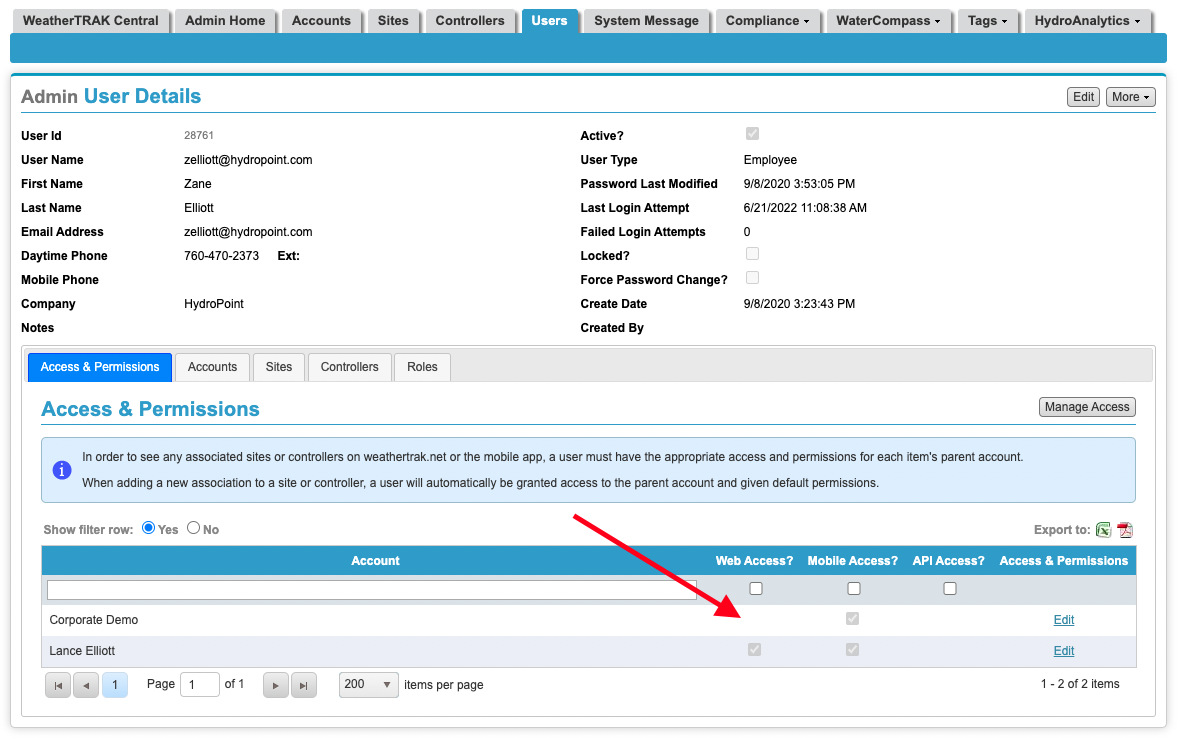
Site Association & Account Association
If a User is associated with an Account, they will have access to all of the Sites linked to that Account and subsequently all of the Controllers on each Site. This is common for the Users managing all of the Sites within the Account.
If a User is associated with a Site under an Account, they will have access only to all the Controllers on the specific Site. In many cases, this should be the association for all Users.
ℹ️There are no significant feature differences between Account and Site associations for a user.
Access & Permissions
The Account level permissions is another good option for defining what Users can and can't access in WeatherTRAK Central. This, in combination with what is mentioned above, can be a better alternative than associating only Controllers with a User.
Access and permission levels can be set for WeatherTRAK users to allow access to features available on the WeatherTRAK controller. Users will need to be granted access to one or more of the following:
- Web Access: Provides access to WeatherTRAK Central
- Mobile Access: Provides access to WeatherTRAK mobile
- API Access: Provides access to API Commands. (Requires special approval, consult with T2)
In the WeatherTRAK admin tool, you can adjust the availability of site map features to the user by adjusting the “Asset Manager” permissions. There are 4 permission levels for the Site Map: None, Reader, User, and Admin. The default permission level is User.
Important! - Granting Admin Access
If a user requests to have admin access, we should find and contact the account manager for the account that the controller(s) are under and review with them. They should be the one who decides who to grant admin access to.
If someone requests help learning how to use admin access - reach out to the WT training manager (Ben Coffey) and request that they train the contact on their request.
*Admin access should not be granted to users, only internal employees should have this permission unless approved
After granting access, you can set restrictions on what users can or cannot do while on the site by changing permission levels. There are 4 different permission levels: None, User, Reader, and Admin.
Changing User Permissions
To learn how to set access and permission levels, see this article: Changing Account Permission Levels.
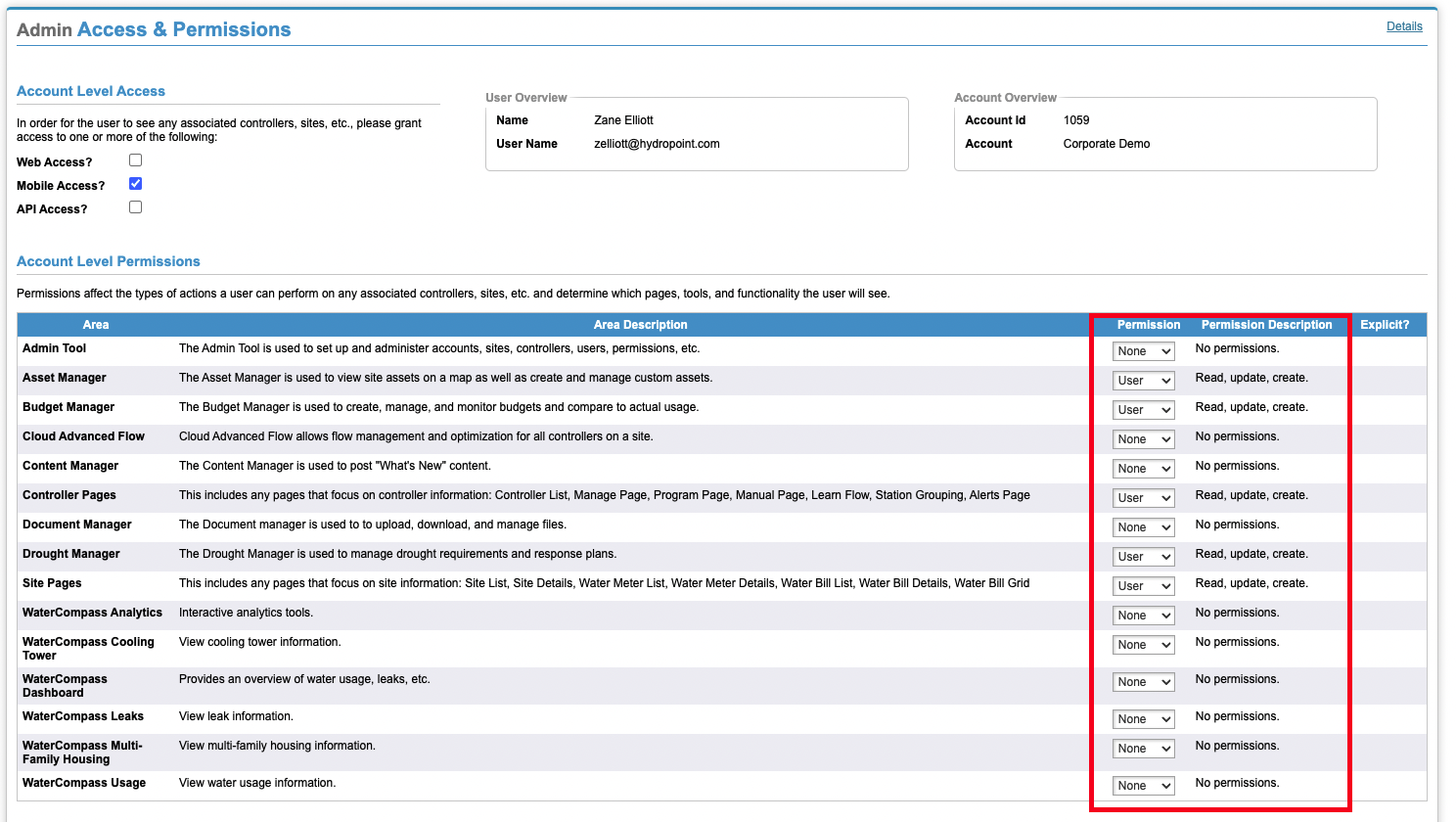
Access and permission levels can be set for WeatherTRAK users to allow access to features available on WeatherTRAK central and the app.
Permission levels affect the types of actions a user can perform on associated controllers and sites. Below is a chart explaining the different permission levels.
| Permission Level | Description |
|---|---|
| None | No permissions or access |
| User | User can read, update and create content |
| Reader | User can read, set a MV Override, Rain Pause, change controller mode and manually irrigate but not update programming. |
| Admin | User can read, update, create, and delete content |
User can read, update, create, and delete content.
| Feature | Description | Options |
|---|---|---|
| Mobile App | Access to mobile app functionality | None, User |
| Controller Pages | Includes any pages that focus on controller information: controller list, manage page, program page, learn flow, station grouping, alerts page. | None, User, Read Only |
| Site Pages | Includes any pages that focus on site information: site list, site details, water meter list, water meter details, water bill list, bill details, water bill grid. | None, User, Read Only |
| OptiFlow | OptiFlow allows flow management and optimization for all controllers on a site. | None, User, Read Only |
| Asset Manager | The asset manager is used to view site assets on a map as well as create and manage custom assets. | None, User, Read Only |
| Budget Manager | The budget manager is used to create, manage, and monitor budgets and compare to actual usage. | None, User, Read Only |
| Document Manager | The document manager is used to upload, download and manage files. | None, User, Read Only |
| Drought Manager | The drought manager is used to manage drought requirements and response plans. | None, User, Read Only |
| Admin Tool | The admin tool is used to set up and administer accounts, sites, controllers, users, permissions, etc. | None, User, Read Only |
| API Access | Access to API commands. Requires special approval. | None, User |
| Cloud Advance Flow | Allows flow management and optimization for all controllers on a site. | None, User, Read Only |
| Water Compass Analytics | Interactive analytics tools. | None, User, Read Only |
| Water Compass Cooling Tower | View cooling tower information. | None, User, Read Only |
| Water Compass dashboard | Provides an overview of water usage, leaks, etc. | None, User, Read Only |
| Water Compass multi-family housing | View multi-family housing information. | None, User, Read Only |
| Water Compass Usage | View water usage information. | None, User, Read Only |