
Teams Computer Audio
Teams meetings audio work well when using built-in mic and speakers. You can also use a Jabra Headset with headphones + mic which works exceptionally well. One thing to be aware of when using a built-in mic and speakers is that you don’t want your speaker volume too loud otherwise it can cause audio feedback.
Note
If you ever mute your Teams mic, you’ll want to UN-MUTE before talking again. All of our laptops should have good audio. Desktop/workstation towers may not have adequate sound and may need an additional sound card.
Teams Conference Bridge Dial-In
If you use the Teams Conference Bridge dial-in number and you dial this on a physical phone (e.g. one in your office or the conference room), you’ll want to turn OFF your computer mic and speakers.
Note
Even though you use a Teams Conference Bridge number, you don’t need to dial this for yourself to have audio in the meeting; you can use your computer audio instead. All other inbound callers (remote) will automatically connect to the meeting audio by entering the meeting ID.
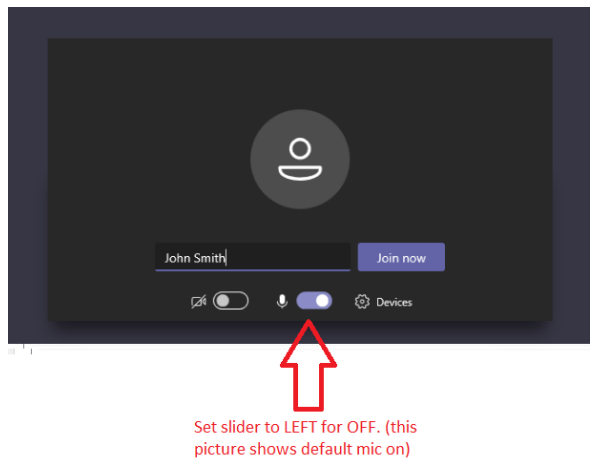
How to Turn Teams Mic Off Using Teams Audio Bridge Number
When joining a Teams meeting, you’ll be prompted to turn the camera ON or OFF and turn the mic ON or OFF.
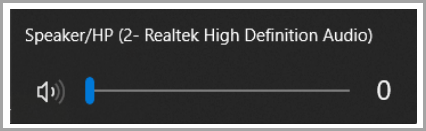
Each computer is a bit different, but here is an example of speakers that are all the way down/off.
Teams Computer Camera
We are moving towards video meetings; you’ll have the option of turning ON the camera when joining a Teams meeting. Just be aware of your surroundings (e.g what’s behind you, etc) when using your camera.
Background Blur
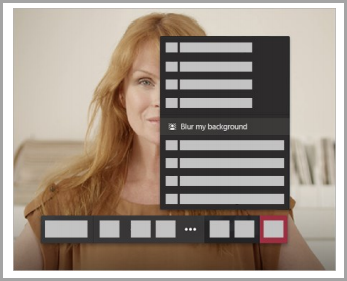
To start a meeting with background blur, move the blur slider—the one to the right of the video slider—to the right on the Choose your audio and video settings screen when you’re joining the meeting. FYI, this only works for scheduled meetings.
To turn on background blur during a meeting, click More options > Blur my background.
Note
Most of our laptops have a camera on them. Larger workstations/desktop towers do not.
Adjust your view in a Teams meeting
Teams try to anticipate what you’ll want to see in a meeting. When someone starts speaking, we show them. When someone shares content, we show that. But when you'd rather see something else, there are a few ways to tell Teams.
- Switch between people and content: When someone's sharing a presentation, you can switch between viewing that content and watching the people in the room by simply clicking on the video you're interested in. Try this when there's a presentation taking place in a meeting room and you want to see who's talking and note their body language.
- Pin a video: To focus on a particular video, right-click and select Pin. The video will be pinned to your view regardless of who's talking. You can pin as many videos as will fit on your screen. If you change your mind, right-click again and hit Unpin.
- Reframe a video: Teams crops some videos to make them fit your screen better. If you want a different view of a particular video—for example, if someone’s cropped out of the video or it only shows part of their face—right-click and select Fit to Frame to see the entire video.Select Fill frame to see a closer, cropped view