
Teams Computer Audio Only
If a meeting is in a conference room with multiple individuals in the same room (e.g. Archimedes) on laptops joining the Teams Meeting, it’s very IMPORTANT that anyone other than the meeting presenter turns their audio off (mic and speakers). Failure to turn off audio (mic and/or speaker) will cause audio feedback.
If you are the Teams meeting presenter make sure your computer audio is at a reasonable level (too loud could cause feedback). Your computer will be responsible for carrying the audio (mic/speaker) to the room. Most laptops can do this adequately.
Teams Conference Bridge Dial-In
If you use the Teams Conference Bridge dial-in number and you dial this on a physical phone, all attendees in a conference room (e.g. Archimedes) with laptops joining the Teams meeting (including the presenter) will need to turn their AUDIO off (mic and speakers). Failure to turn off audio (mic and/or speaker) will cause audio feedback.
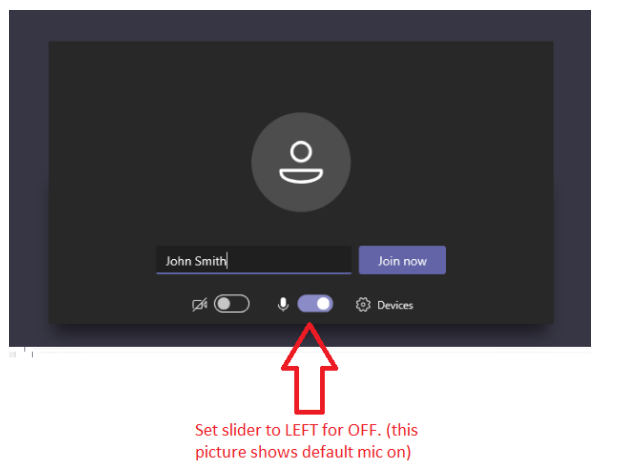
How to turn Teams mic off when there is a Teams meeting lead or using the Teams audio bridge number:
When joining a Teams meeting, you’ll be prompted to turn the camera ON or OFF and turn the mic ON or OFF.
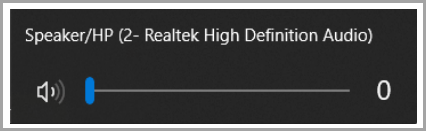
Each computer is a bit different but be sure your computer speakers are all the way down or off.
Mute the noisy attendees.
Tired of hearing a dog barking? In large meetings (> 5 people), anyone who joins after the meeting has started will join as muted thereby reducing noise in the meeting. Further, if you notice any noise from others, you can mute that person, or mute everyone, easily from the roster. If someone has been muted, they'll get a notification letting them know. They'll be able to unmute themselves if they need to be heard.
If you ever need to mute all the other participants in a meeting, head to your meeting roster and select Mute all. Everyone will get a notification and be able to unmute themselves should they need to.