
The Cooling Towers dashboard on WaterCompass.net provides visibility into makeup and blowdown water usage, cost tracking, and Cycles of Concentration for your cooling tower systems. Before this data appears on the dashboard, the cooling tower system must be configured in the Admin Tool.This guide walks you through the full setup process: selecting Cooling Systems in the Admin Tool, creating a new cooling tower system with the correct meter assignments, and verifying that the configuration is reflected on the WaterCompass.net Cooling Towers dashboard.Setup typically takes a few minutes per cooling tower. Once complete, makeup-to-blowdown ratios and Cycles of Concentration will begin populating automatically as the assigned meters report data.
Requirements
To set up the Cooling Tower dashboard, the following must be in place:
- Both a Make-up water meter and a Blowdown water meter associated with the cooling tower must be monitored using a WaterCompass device.
- Both meters must already be configured and active in the Admin Tool under the correct account and site.
Note: The Cooling Tower dashboard cannot be set up with only the Make-up water meter. Both the Make-up and Blowdown meters are required.
Step 1: Select Cooling Systems
- Log in to the Admin Tool.
- In the Admin Tool menu, locate the WaterCompass section and select Cooling Systems.
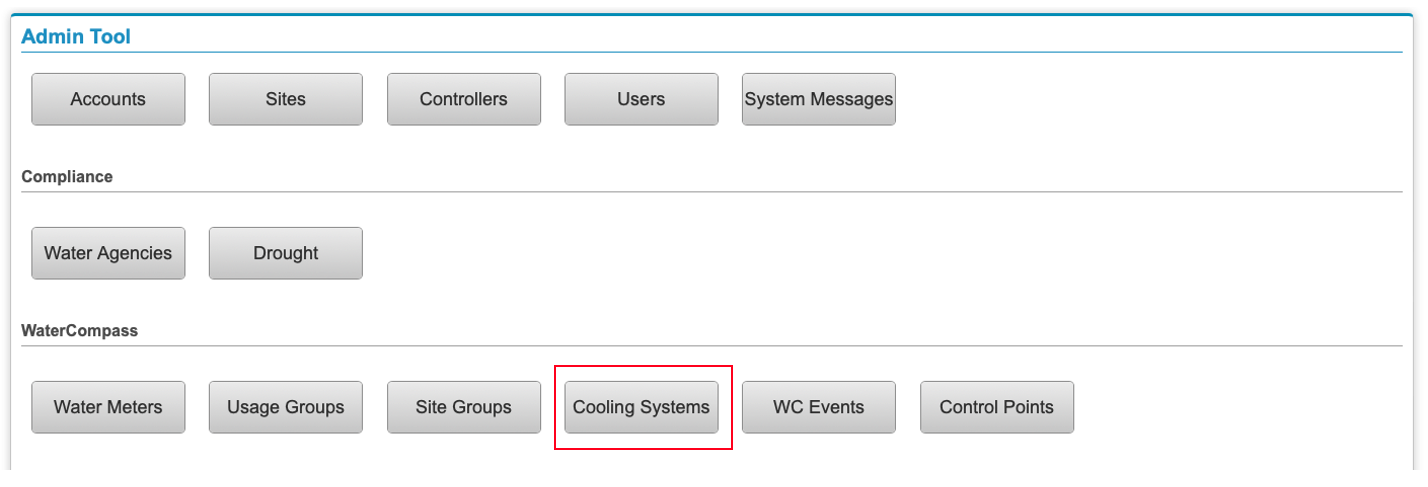
This opens the Cooling Systems List, where you can view existing cooling tower configurations and add new ones.
Step 2: Cooling Tower Setup
- Select “Add Cooling System” from the top right corner

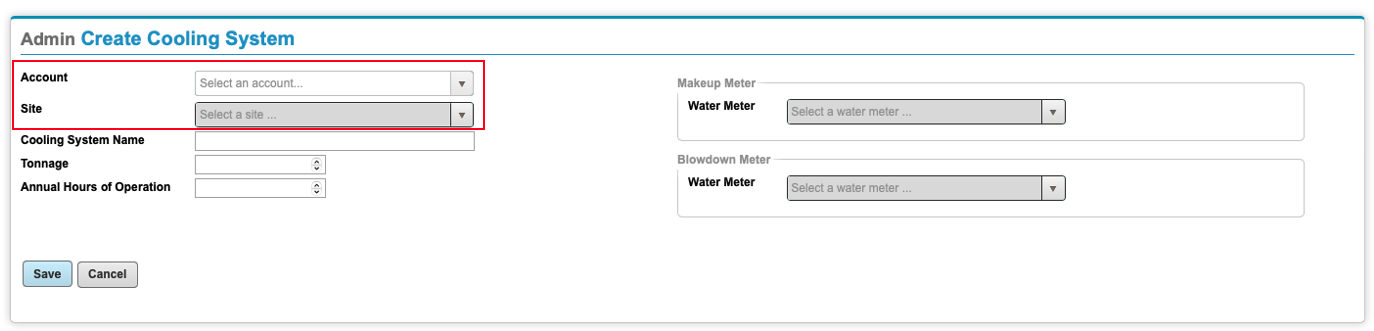
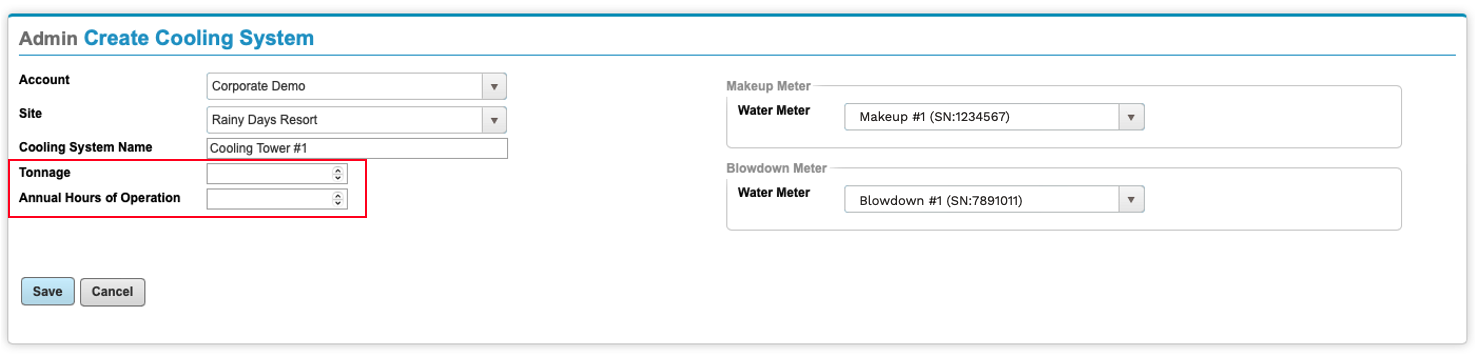
- Assign the account and site. Select the account and site from the available dropdown menu.
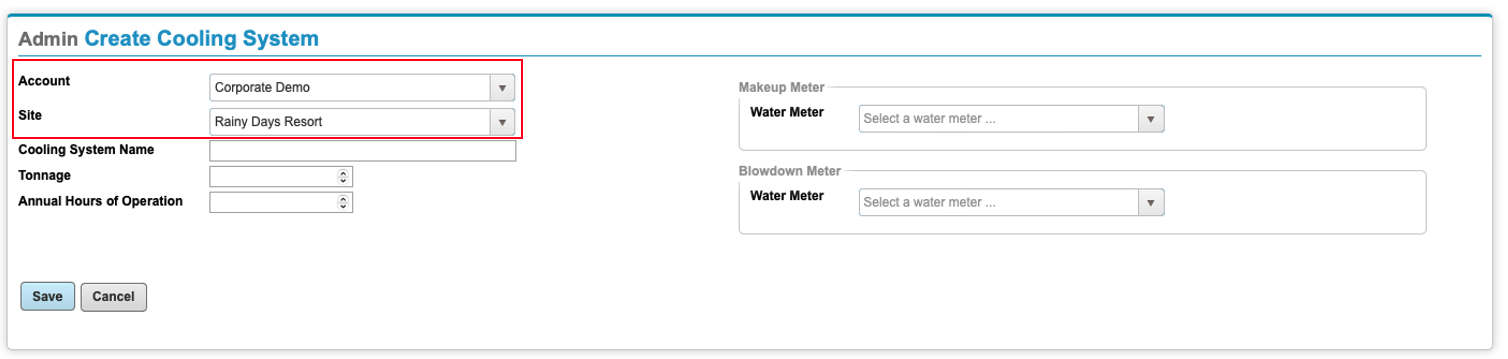
- Provide a name for the Cooling Tower Setup
- To ensure clarity and ease of use for customers accessing the cooling tower dashboard, please assing a unique number to each cooling tower at a site if there are multiple towers.
- This naming convention will be displayed on the dashboard and visible to the customer.
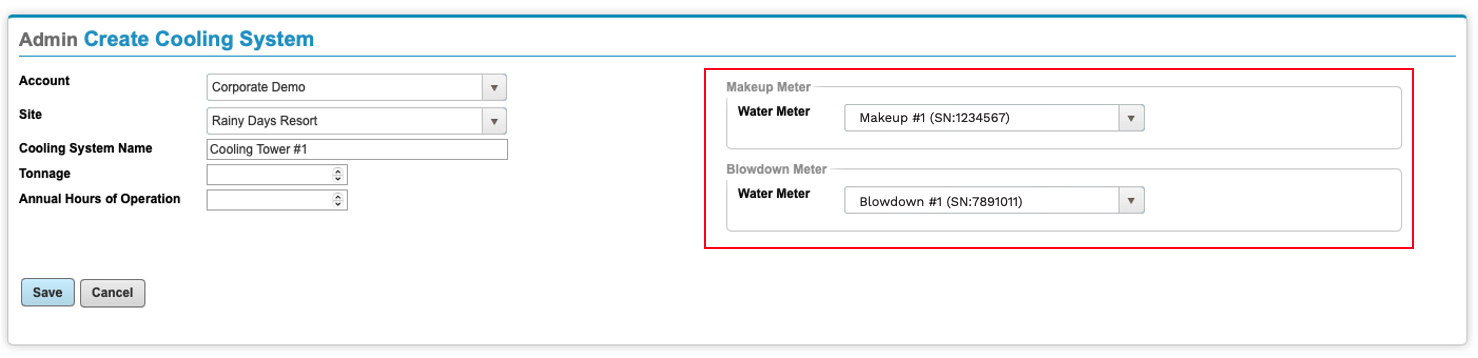
- Assign the Make-up and Blowdown meters
- You can select the Make-up and Blowdown meters from the available dropdown menu.
- Input Tonnage and Hours of Operation
- Please provide the Tonnage and Hours of Operation for each cooling tower, if available. This information will be used to optimize the performance of the cooling towers and improve the accuracy of the data displayed on the cooling tower dashboard.
- Save and Verify Cooling System settings
- Save all settings
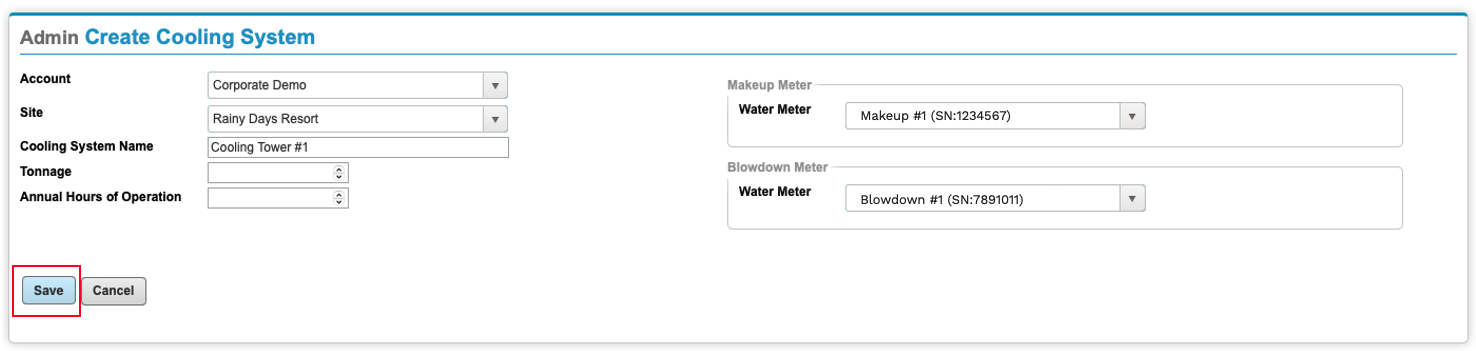
- Verify the Cooling System was added to the list

Step 3: Verify setup on WaterCompass.net
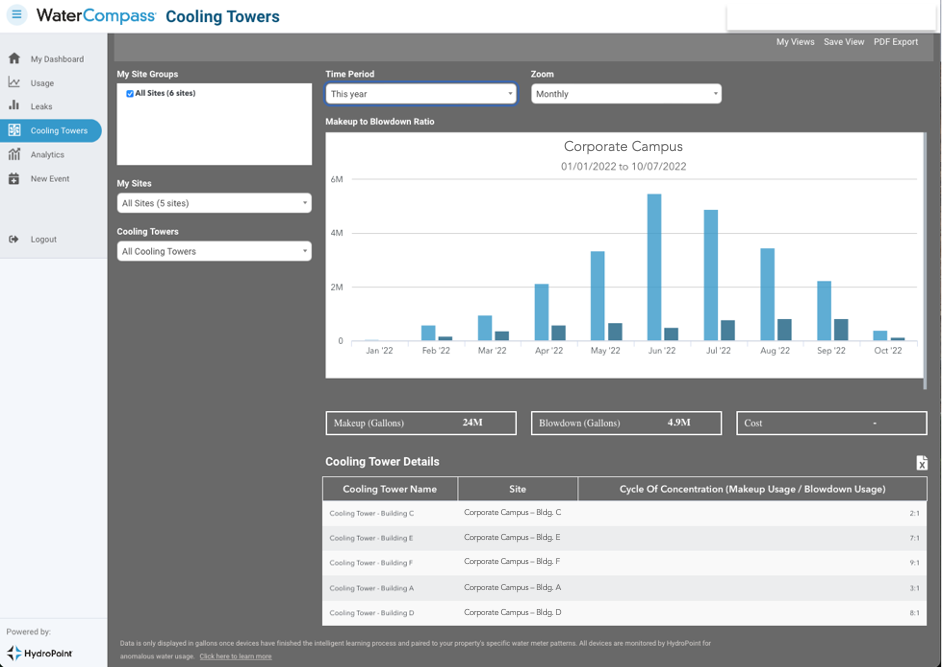
Access the Cooling Tower tab for the Account and Site on WaterCompass.net
- Verify the Cooling Tower is accessible not the dashboard.
- Verify the data for the Make-up and Blowdown are available.
- Confirm the Cycles of Concentration is calculation on the dashboard.

© Copyright 2026 HydroPoint Data Systems, Inc. All rights reserved. HydroPoint, the HydroPoint logo, and WaterCompass are either registered trademarks or trademarks of HydroPoint, Inc. Other trademarks may be held by their respective owners.