
Joining the API Beta Program
Customers should be invited into the Beta Program by Customer Operations and/or Sales.
- Invite a customer to join the program by sharing the link and password to the API Program:
- API Beta Program Portal - Click here to access the API Portal
- Portal password: ACAPI1720
- The customer must sight the API License Agreement, which is available on the Beta Program webpage.
- Once the customer has signed this document, it need to be countersigned by HPDS CTO.
- HPDS CTO may ask to meet with the customer to inquire about their API use cases.
- When the CTO has countersigned the license agreement, he will forward it to the Finance department for record keeping and notify Customer Operations that the customer can be given API access.
How to Set Up API Access
Once the license agreement is completed, the customer will need a special login for the API. This is because any changes to the API login can create problems with the customer software. Please follow the naming convention below:
Username |
First Name |
Last Name |
|
| Convention | <Account Name> API |
<Account Name> |
API |
| Example | LowesAPI |
Lowes |
API |
This login will require a customer email address so you can send the welcome e-mail from the Admin tool. That person will act as the "API Lead" for the customer and can share/change the information for this new login as needed.
To allow API access, you must give this login access to the specified account, and check the "API Access" box.
Step 1: Navigate to the Users Tab in the Admin Tool
- Select the Users Tab

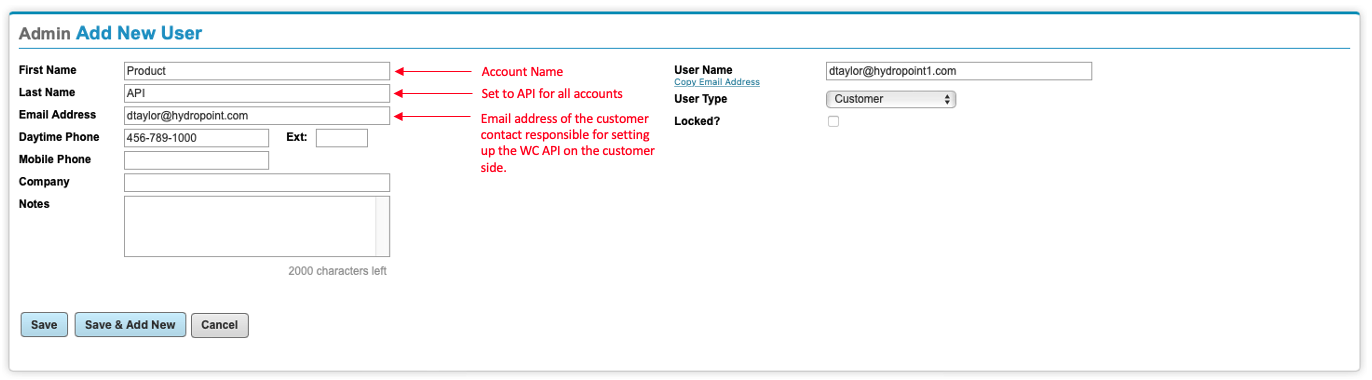
Step 2: Create a New User
- First Name should be the <Account Name>
- Last Name should be API
- Email Address should be the Customers API Lead contact
- Save Settings
Step 3: Update Access and Permissions
- Select Edit from Access & Permissions
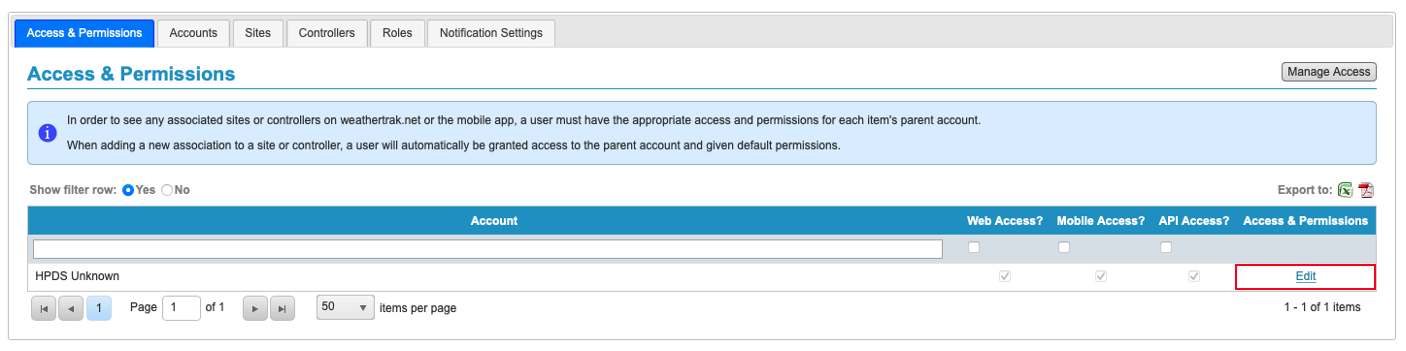
- Flag API Access? with a check mark to provide the customer with access to the WC API

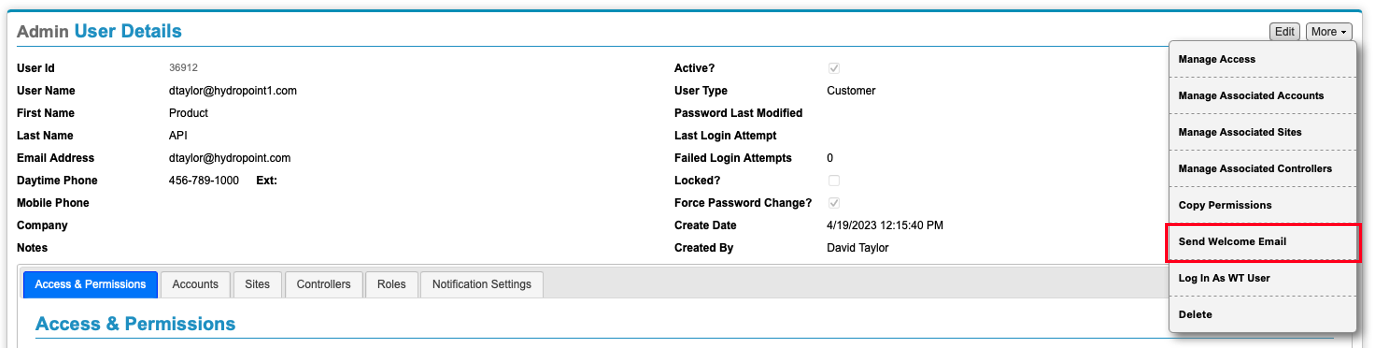
Step 4: Send the API Lead a Welcome Email from the Admin Tool
- Select "More" in the top right corner of the User Details profile
- Select "Send Welcome Email" to the API Lead
- Select Send Welcome Email
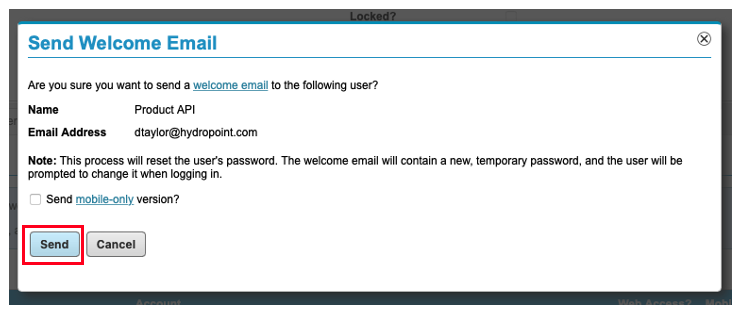
Note: HydroPoint should never change the password for the API login as it will disrupt the customer's API implementations.
API Functionality
As of 09/30/2019 API release:
Supported |
Not Supported |
|
|
API Support
Customer Operations is providing support so we can track API cases and assist with common user error. Do not hesitate to escalate difficult or technical issues to the engineering department.
| Customer Operations may be able to resolve: | Engineering may be required to resolve: |
|
|
More Information
Detailed information can be found in Confluence here: WaterCompass API Beta Program

© Copyright 2023 HydroPoint Data Systems, Inc. All rights reserved. HydroPoint, the HydroPoint logo, and WaterCompass are either registered trademarks or trademarks of HydroPoint, Inc. Other trademarks may be held by their respective owners.