
Ethernet Setting on 3200 WalkThrough
When setting up an Ethernet on a controller there are some initial questions to ask:
- "Is it Private or Public network?"
- “Is this a new set up or existing?”
- “Do they have specific information they need to use for a Static (IP address protocol) or are they going to use DHCP(IP Protocol)?”
DHCP SETUP
- Turn the dial to Network
- Press Enter on Communication Setup/Ethernet
- It is different based on Firmware versions.
- Comm Type Needs to be set to Ethernet
- You can change this by making sure its Highlighted and pressing the Plus + button till you see Ethernet
- Now Press the Next Arrow until IP Setup is Highlighted
- This will show if the IP Address Mode is set to DHCP or Static
- If it is not set to DHCP the please press the plus + button till it shows DHCP
Static Setup
- These instructions should be the same for DHCP BUT instead of having it set to DHCP you set the IP Address Mode to Static.
- This will show the rest of the information below as zeros till filled in.
- This information should be provided by the network admin/ IT department controlling the network settings.
*Once These spaces are connected then you can go to BaseManager Server Setup and connected*
Troubleshooting Ethernet
Issue: A controller will not connect to an ethernet connection or will be connected and not have internet connectivity.
- When troubleshooting Ethernet, it is important to verify all relevant settings.
- Start by Verifying the information.
- If its suppose to be DHCP or Static.
- Verify that the Ethernet Cable works
- (Try a known good) Verify by plugging the Cable into another Ethernet capable device like a Laptop and open a web page.
- If this doesn't work we know that the issue lies within the cable, modem, or ethernet source itself.
- (Try a known good) Verify by plugging the Cable into another Ethernet capable device like a Laptop and open a web page.
- Some times the Preferred DNS Server information doesn't work in the controller
- when that happens we can try the generic google DNS
- For Example:
- when that happens we can try the generic google DNS
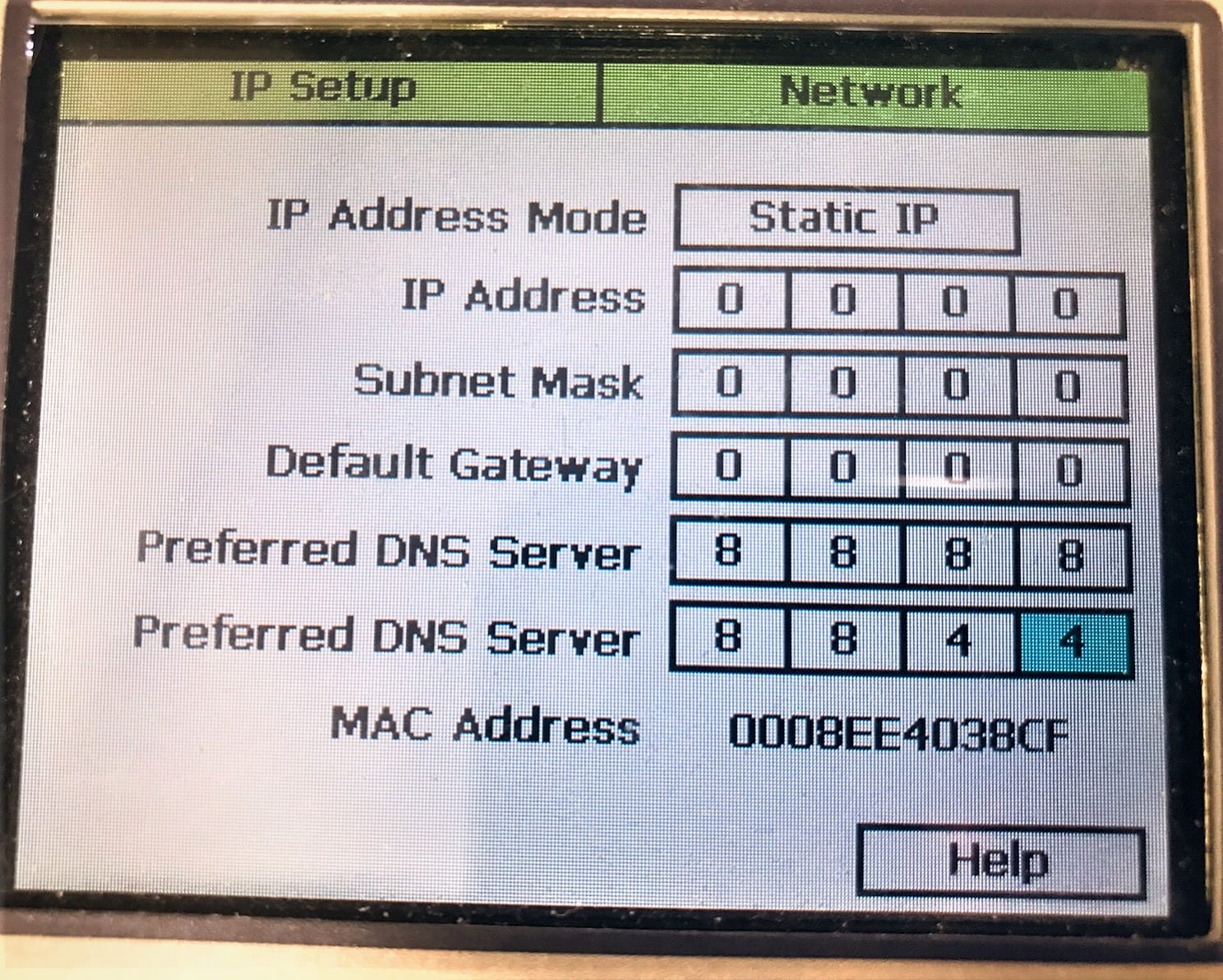
- Confirm the BaseManager server IP Address.
Instructions how to view IP Address:
Windows 7
- Click the Network Connection icon and select “Open Network and Sharing Center.”
- Double-click “Wireless Network Connection” or “Local Area Connection” for wired connections.
- Click “Details” and your IP address will appear.
Windows 10
- Open the Command Prompt. a. Click the Start icon, type command prompt into the search bar and press click the Command Prompt icon.
- Type ipconfig/all and press Enter.
- The IP Address will display along with other LAN details.
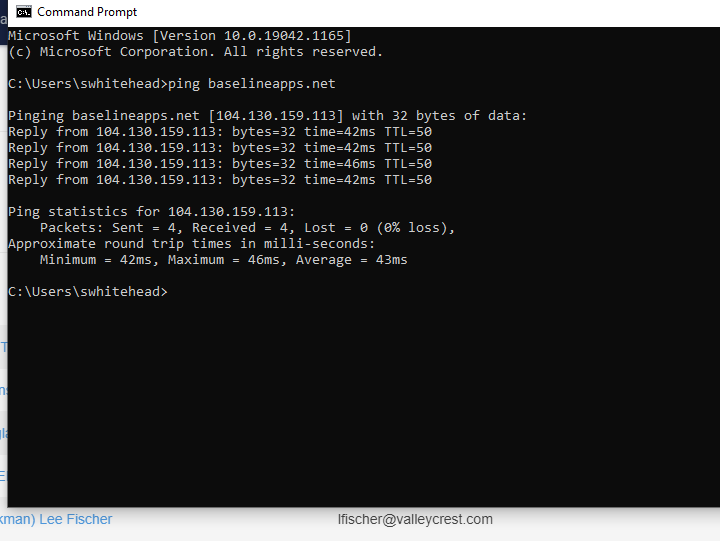
That line: pinging baselineapp.net [104.130.159.113] is our IP Address for BaseManager
It may be necessary to provide the customer site or company network admin/IT support with the Port information needed.
Baseline uses Generic Ports:
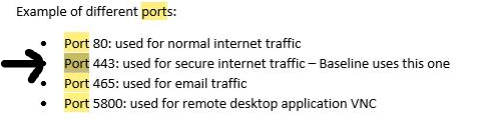
We only provide access through port 443.
*Remember the controller can only do as it is told so if there are issues connecting to Ethernet and our equipment works then we have isolated the issue to their network conditions