Logging support cases accurately and completely
It is critical to everyone's success that Salesforce cases are logged appropriately and completely. Incomplete/Vague information negatively impedes how quickly/ easily an issue can be resolved, as well as create downstream effects to other departments within the company. Support case records can sometimes be the only evidence or record of an interaction with a customer or contact. As a general rule, "if its not in the case, it didn't happen", so be sure to document all pertinent information and relevant interactions within the services record.
Important Note
As of January 2023, Hydropoint Support team has transitioned from "classic" to the "Lightning" version of sales force. The ability to use "Classic" ends by February 2023.
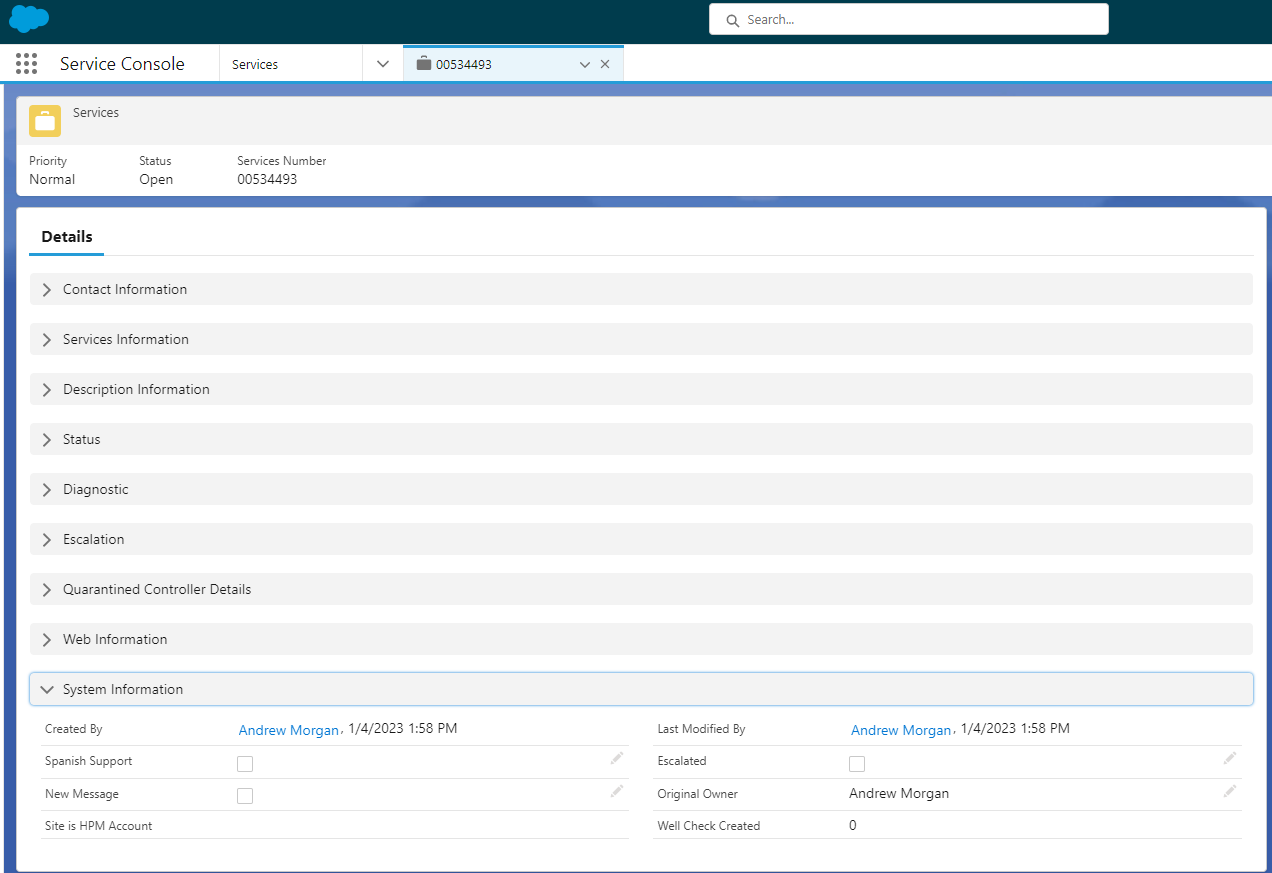
Details
Each section in a services details area has a drop-down arrow that allows you to hide unwanted or unused detail areas.
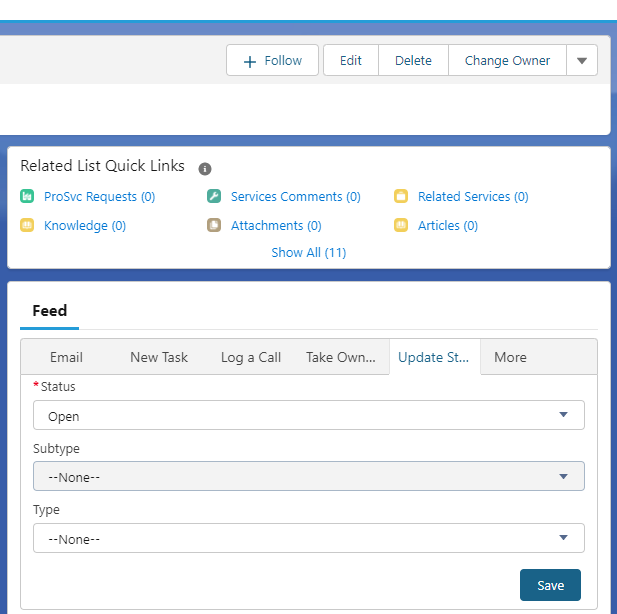
Feed
The Feed section allows us to edit the same information that is in the Details section. This may be easier or more efficient for some users.
Contact information
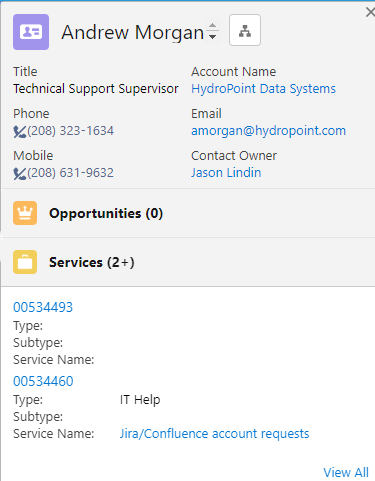
If a contact record exists in Salesforce, we enter it into the corresponding field shown below. It will automatically fill in the other relevant info in the case if it is attached to the contact record. If a contact record does not exist, one should be created and then added to the case - Ensure the correct details are entered. All cases require a contact record for proper tracking and workflow notifications.

Tip
Hovering your mouse overtop of applicable entries can reveal valuable information to help us save time and understand a holistic situation. For example, hovering over a contact shows relevant info including cases that are connected to that contact.
Services Information
Whichever controller is associated with the issue we are helping with should be the serial # (WeatherTrak) or MAC Address (Baseline) we enter in the Asset field. (This will also populate historical and other important info like Warranty status in the right window pane.) Note: Some Baseline devices may not be in the system yet.
We will also make sure there is an appropriate Service Name in that field but only if it's blank.
The Service owner, like most other line items, can be changed as needed by clicking the pencil button. All other info connected to a controller, like HPM details, will fill themselves in when entering an asset. (Important note: If an asset is associated with a customer success rep, we should consider updating them on what happens with the support case.)
This is also one of several locations that allows us to change the current owner of the case.
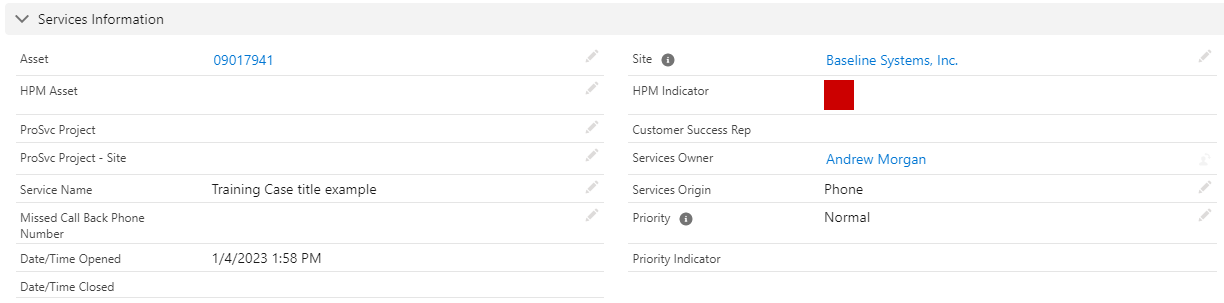
Description Information
We will not enter or change any info in the description information. This is information initially provided by the customer if any is provided via email for example. We should not use this section for your case notes. Updates in this field could be sent to the customer, causing unwanted confusion.

Status
This area is one of the most important when it comes to using historical reporting info. When we accurately pick the TYPE and SUBTYPE it allows support to make improvements and track trends based on what is being worked on in cases. Every case should always have a line of business, type, and subtype. When the case is resolved, the resolution method should also be populated.
These status fields also help us maintain follow-up actions and resolve cases in a timely manner.

Diagnostic
Entering diagnostic section information is dependent on the case scenario and isn't necessary as long as service//case notes are sufficient. We can utilize this section if desired.

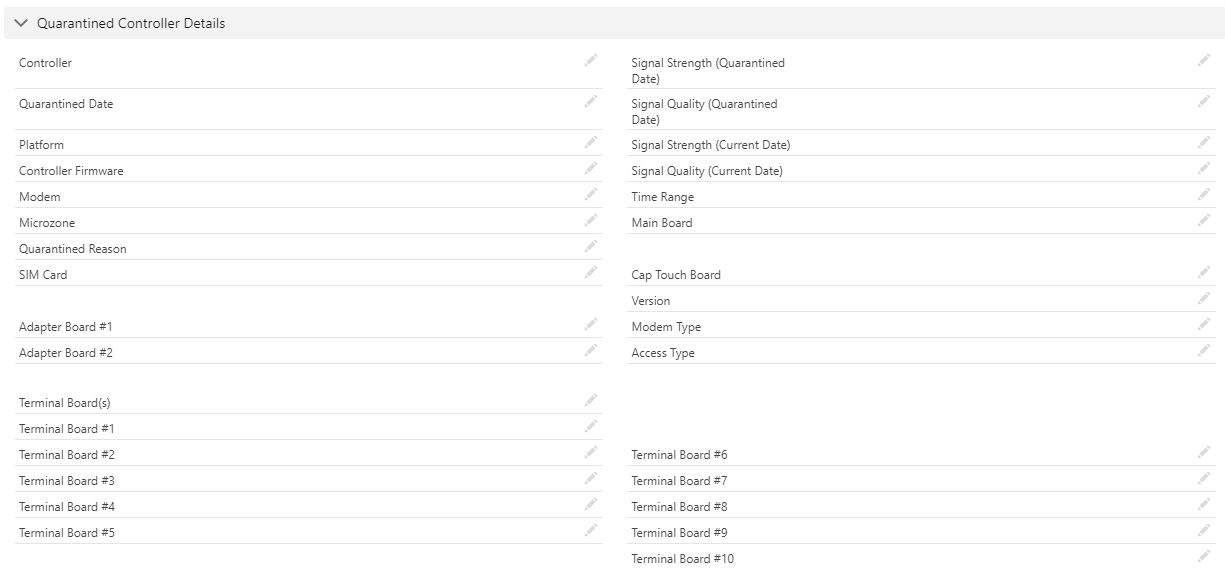
Quarantine Controller Details
This area would be auto populated by what are called "Smart alert Cases". The procedure for handling those can be found here.
Escalation
Escalation information would only be populated if Tier 2 and Tier 3 work together to escalate a case and create a JIRA ticket for it. See the case escalation process for more details.

Web Information
In the Web information area, we can see the record type and change it if we need to (example: Change it from Customer Success to Customer Support.) We can also see web details if there are any that apply based on how the case originated.

System Information
This area provides more investigative information that can be useful depending on the situation.

Services Comments (case notes)
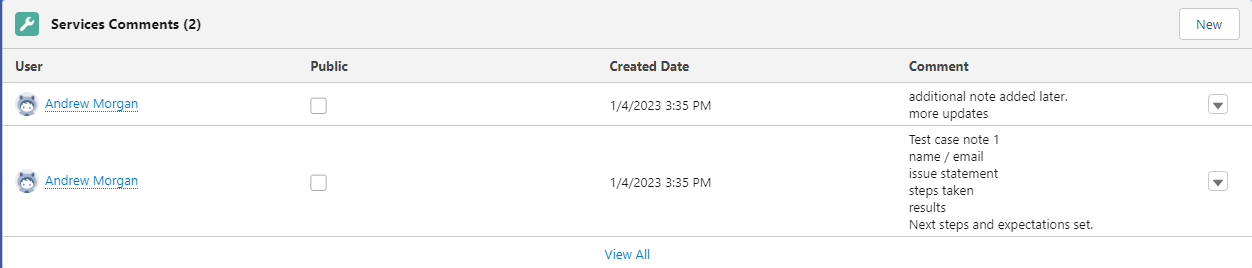
There are several ways (pictured below) to view and edit case notes aka Service comments.
Service comments or "case notes" are critical and must be entered every time using the template below. Some information may be not applicable and some information may already exist in another location in the case - as long as all of the information lives in the case somewhere is what matters. Troubleshooting information and details of interactions are vital in a support case, especially if they are escalated to the highest level of support (engineering). It is therefore necessary to document all pertinent information related to the problem statement, steps taken, resolution, etc., and keep an accurate record in the comments of every case.
- Contact info (if different than what the sales force contact contains.)
- Full name
- Phone #
- The Company the contact works for.
- Their Role (if necessary)
- Base Manager / WeatherTrak info
- Company/Account name
- Site name
- Controller model / Serial Number (Mac address if Baseline)
- Summary Detail
- Do they already have a case #? (If so, we should search for and link it to a parent case or make it the parent case.)
- What is the problem statement? (Description of the issue) additionally, what is the customer trying to accomplish?
- Did you validate and see the issue happening? (Use pictures, AppManager, WeatherTRAK Central, a teams meeting, devices in office etc.)
- Steps you have followed and their results. (This should reflect resources/articles.)
- What’s the Urgency? (Can they water if needed?)
- Next Steps: Expectations/plan set with the customer if not resolved. Example - Researching/reproducing issue. Calling customer with update or to continue troubleshooting on 3/15/22 around 1 pm. (This should be discussed and agreed upon before disconnecting.)

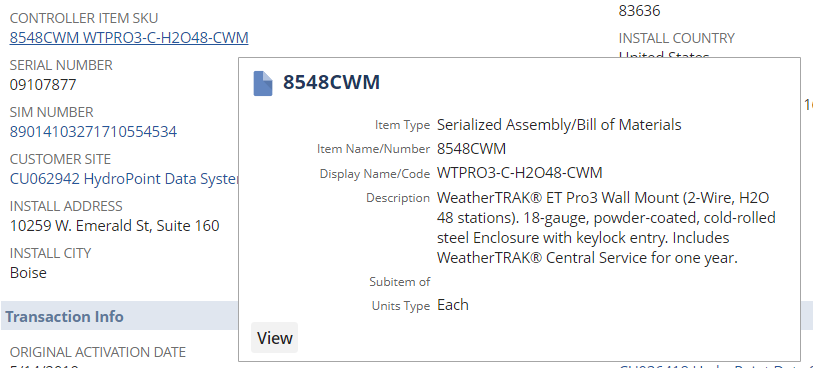
Note: for WeatherTrak devices, Use the serial number to validate the exact configuration in NetSuite by hovering over the SKU and in salesforce to validate correct troubleshooting steps are taken. It can be important to include this info in a case depending on the scenario.
Other Case related information
The remaining fields in a case would be used only if applicable or to provide additional information/context for the case.
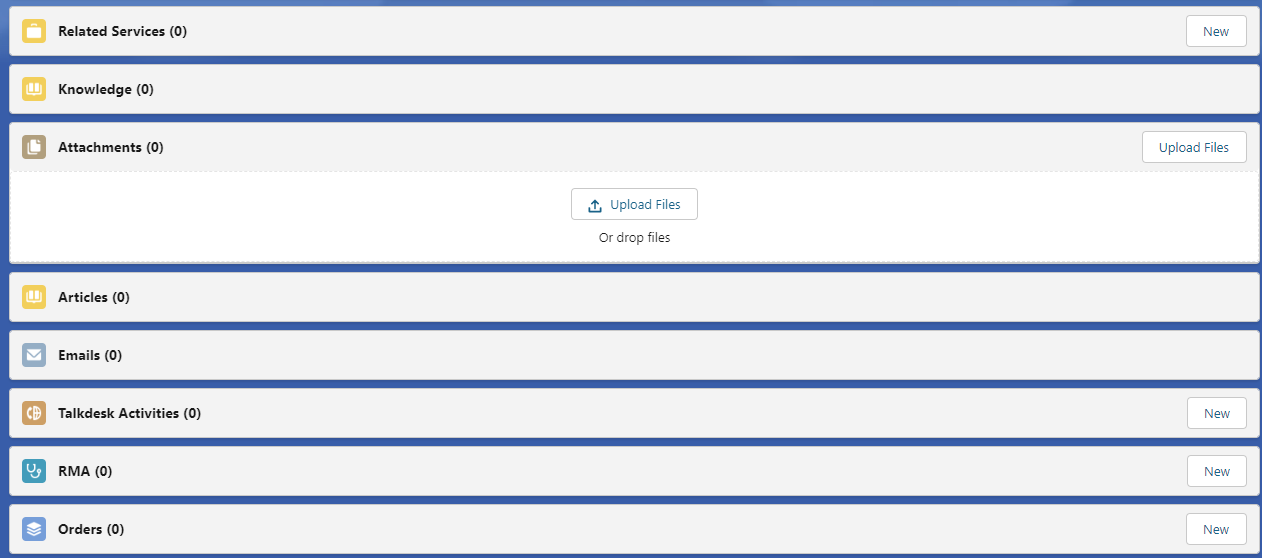
For example, email interactions should always be done out of the case in the "Emails" section. When used properly, this section will also record and display a complete history of the related email correspondence. This can also be accessed in the FEED area.
We can manually attach files and view items already attached by others in the "Attachments" section. Anything relevant should be attached.
The "Related Services" section will show linked cases identified by the parent/child relationship process. You also have the option here of opening a new related service from the current record.
The "RMA" and "Orders" sections will contain information related to warranty replacements and their orders if there are any.
The "Knowledge" and "Articles" sections allow for the attachment of related help articles and training information. - This may see updated functionality as we progress into the future. Currently Our knowledge base does not integrate with SalesForce.
The "Talkdesk Activities" section will display a record of related phone interactions and call notes. This requires the proper use of the Talkdesk/Salesforce integration.
Tips
- Always consider everyone that should be on an email update. Ask yourself, "would someone else follow up to see if this got taken care of?". If in doubt, it's best to overcommunicate and err on the side of caution.
- For escalating cases, use this article.
- To view an email thread more easily. Click the email subject line in blue, then, click "view in HTML"
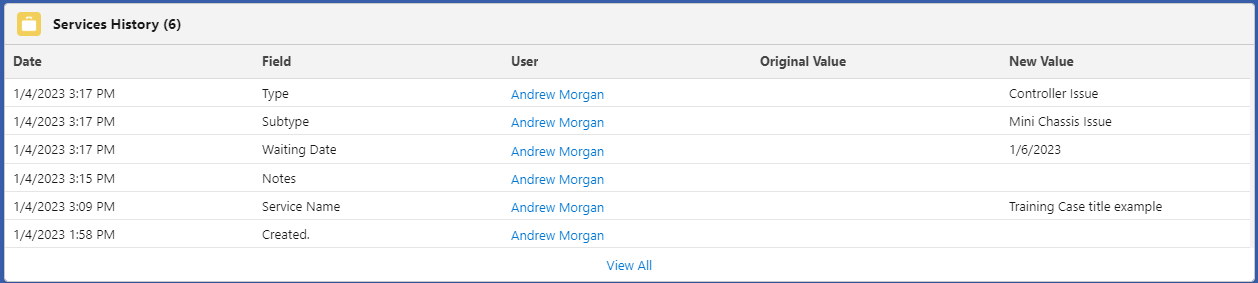
Services History
This field can be valuable if we want to see the history of a case and how it evolved over time.