
Escalating Support Cases within Salesforce
Important Notes: The escalation path is Tier 1 > Tier 2 >Tier 3 > Engineering. If a customer does not want to speak with another level of support and instead requests to speak to a supervisor, fill out the case and alert your supervisor.
This process is used by all Support personnel to escalate cases within Salesforce. This process is to be used when it is necessary to elevate an issue to the next level of Support for either a deeper technical review or for the purposes of creating a new escalation case for Engineering.
All case escalations should be accompanied by a “warm transfer handshake” between the person elevating the case and the person receiving it. This will ensure a smooth transition between owners and allow for the proper exchange of information. It's important that even if the new owner can't resolve or work on the issue, they still maintain contact with the customer for setting expectations.
Potential reasons to transfer ownership of a case to the next level of support. (These are guidelines, not definitive reasons to escalate.)
- A customer has had their case open with no progress for more than 3+ days.
- A customer has worked with more than 3 or more Tier 1 agents and is still without a resolution on the same issue.
- A customer requests to work with the next level of support.
- A WeatherTRAK case issue that includes a controller being quarantined more than once. (See the appropriate process resource.)
- A Baseline case issue includes a BACnet or standalone server issue.
- Tier 1 has exhausted all relevant troubleshooting with no resolution.
- Tier 2 has exhausted all relevant troubleshooting with no resolution.
- Tier 1 has a case that requires a level of technicality and depth that requires more than 45 minutes to over an hour of troubleshooting.
- You cannot gain agreement with the customer despite proper process or troubleshooting.
Escalating to Tier 2
1. To escalate a case in Salesforce, First complete a "warm transfer" to the new Tier 2 owner. Locate your existing case. From the Case, select Escalate.
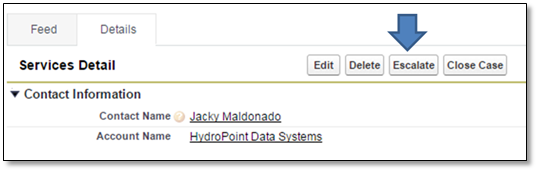
Salesforce will automatically reassign the case to our Tier 2 Escalation Team inbox and flag the case for easy tracking (indicated by the red arrow):
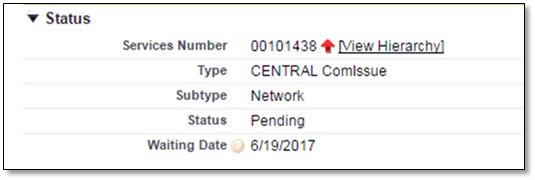
The Tier 2 Escalation Team will review the original case and determine if the issue can be solved using available resources, is related to an existing escalation, or if it needs to be opened as a new Engineering Escalation case in Salesforce and JIRA.
The case should be classified by Tier 2 using the appropriate TYPE and SUBTYPE selections within Salesforce.
2. The following information is required for ALL cases. Please make sure to document and provide these details in your case before escalating any issues:
- Contact info (if different than what the sales force contact contains.)
Full name
Phone #
The Company the contact works for.
Base Manager / WeatherTrak info
Company/Account name
Site name
Controller model / Serial Number (Mac address if Baseline)
Summary detail
Do they already have a case #? (If so, we should link it to a parent case or make it the parent case.)
What is the problem statement? (Description of the issue) additionally, what is the customer trying to accomplish?
Did you validate and see the issue happening? (Use pictures, AppManager, WeatherTRAK Central, a teams meeting, devices in office etc.)
Steps you have followed and their results. (This should reflect resources/articles.)
What’s the Urgency? (Can they water if needed?)
Next Steps: Expectations/plan set with the customer if not resolved. Example - Researching/reproducing issue. Calling customer with update or to continue troubleshooting on 3/15/22 around 1 pm. (This should be discussed and agreed upon before disconnecting.)
Creating a New Engineering Escalation Case Type in Salesforce
This process is used only by the Escalation Team personnel to escalate from Tier 2 to Tier 3, and link cases from Salesforce to JIRA. Engineering escalation is to be used when it is necessary to escalate an issue to Engineering for either a deeper technical review, or for the purposes of creating a new formal JIRA escalation case for Engineering.
Note
This SalesForce functionality and JIRA access is restricted only to members of the Escalation Team.
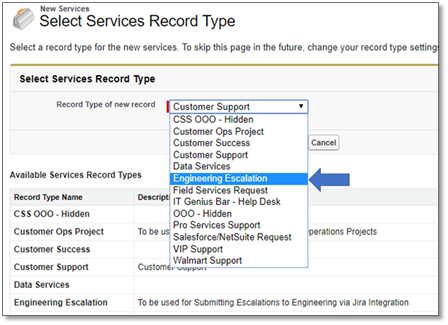
1. When the Escalated customer support case needs to be escalated to Tier 3 / Engineering, the Tier 2 Escalation Team will start by creating a New Service from the existing case, making sure that the Engineering Escalation record type is selected.
2. In the Services Detail section, complete the following fields:
- Escalation From
- Type
- Service Name
- Subtype
- Line of Business (defaults to WeatherTRAK)
- Priority
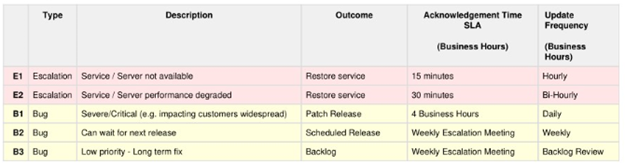
- Operations Priority (defined by Escalation Process – see below)
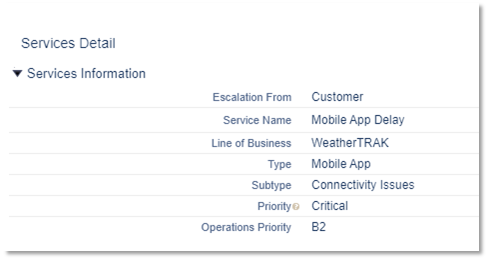
Operations Priority Overview:
3. Error Details Section. While these fields are not required to create a case, this information provides some of the required data for JIRA:
- Is the Problem Reproducible?
- Model of Controller
- Time/Date of Issue
- Version of Firmware
- Asset/Serial Number
- Escalation Notes
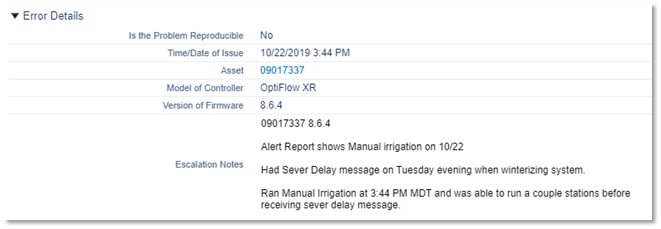
4. After pressing save you will notice that the values entered in the Error Details section map to the Jira Note Section.
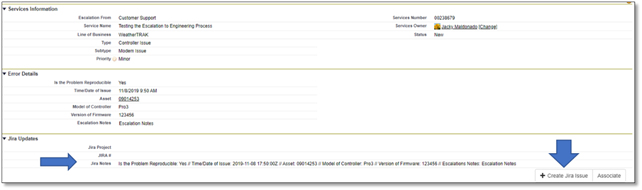
Check to ensure that the JIRA notes section contains all require details from the original Salesforce case, as well as any additional actions that have been taken to replicate and/or resolve the issue. This should include (but is not limited to) specific customer/HW/SW data points, all associated troubleshooting steps and outcomes, any relevant reports or examples/screenshots, and any related cases.
Once the Engineering case has been reviewed and a "warm transfer" has been completed, Tier 2 will assign the case to the appropriate Tier 3 owner for next steps. The originating linked Support case will remain with Tier 2 for proper tracking and follow up as needed.
Detail Summary Items
The following detail summary items are required for all Salesforce Engineering Escalation and JIRA cases.
1. Complete the following information indicated in the bullet points below. These main bullet points must be in the description of ALL JIRA cases. This data is expected for the weekly Escalation review meeting and Salesforce status dashboards:
- Issue overview (Clear problem statement)
- All stake holders (Contact information for all external parties should be provided)
All troubleshooting performed and results of that troubleshooting
All hardware involved and that hardware’s firmware version
- Expected behavior (how it should work)
- Customer Impact (what problems does the customer experience)
- Scope of Issue/Impact (how widespread is the issue)
- Customer reported (Y/N – if yes provide details)
- Recurring (Y/N – if yes provide details)
2. After entering in as much detail as possible, press the Create Jira Issue button. Salesforce will pop up a window starting the integration process.
Note
The fields listed here indicate the types of data push/pulls that have been set up – DO NOT CHANGE.
3. Press the Review & Create button:
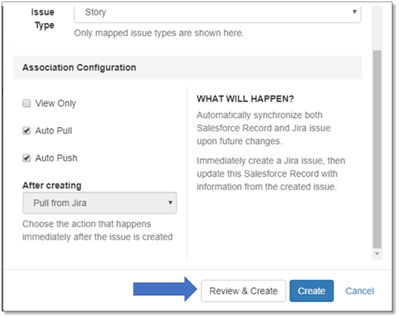
4. Review the details that have been entered, from the Jira Notes map to the Description section.
5. After review, press the Create button.
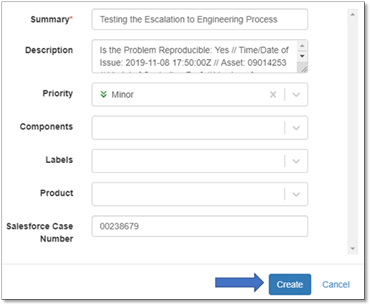
Salesforce will send details to Jira and automatically create a new ticket. Once Complete, Jira will write back with the Jira Project AND Jira number.
As the Jira case moves through the Escalation process as defined in the Escalation Process document, all updates (both status and comments) will be auto-populated in Salesforce Engineering Escalation Case which can also be used to present as a dashboard view to all Salesforce users.
Attaching Escalated Cases to Existing Escalations
If an existing Engineering Escalation case exists, the Escalation team will populate the Parent Services field in Salesforce with the open Engineering Escalation case number:

Adding the Engineering Escalation case number into the Parent Services field on the Customer Support case will add the Escalated Customer Support case to the Related Case List on the Escalation case. This will allow the Escalation Team to keep track of all related “child” issues in a single location on the “parent” case. Once the overall escalation has been resolved, the Escalation Team will update and close the case accordingly.