
WT WFWW 3G Sunset Support Playbook
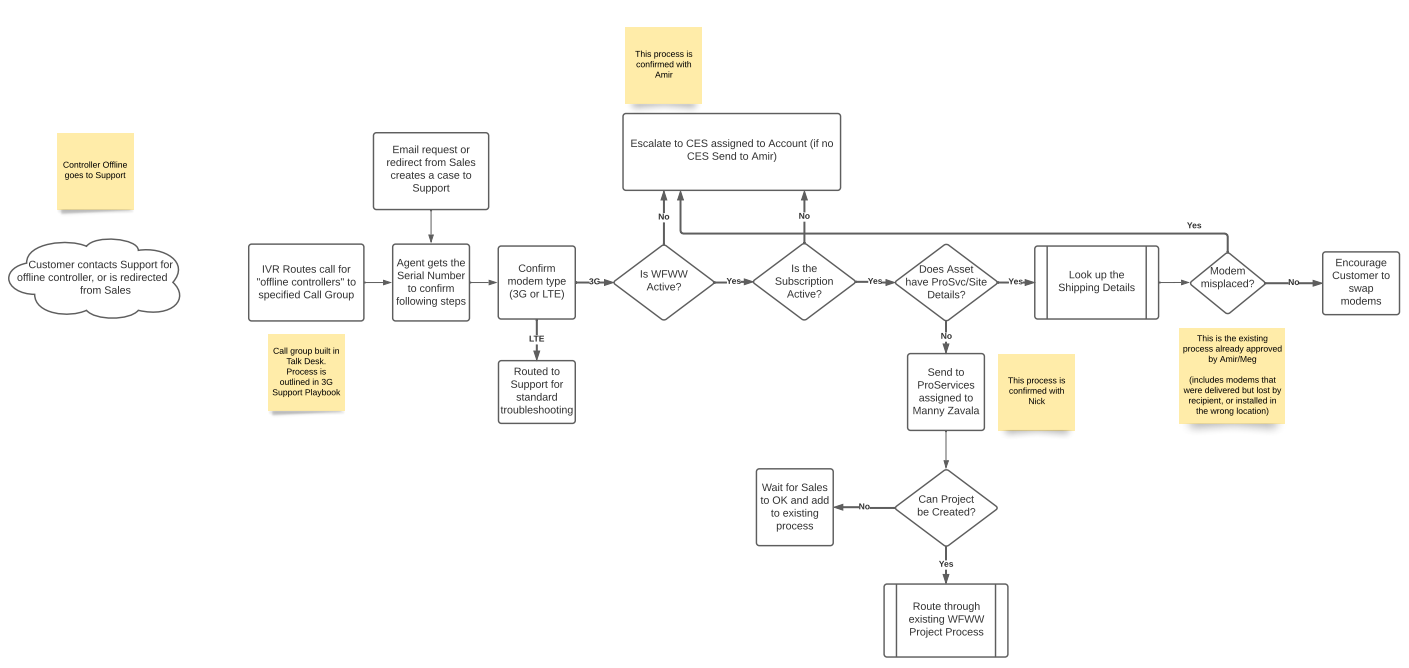
Expectation is that a phone call will be the typical contact path. This same process flow will also apply to email requests and/or redirected requests from Sales.
Answer inbound call and gather basic information to get started.
Greeting – “Thanks for calling Hydropoint support, this is __<your name>_____. How can I help you today?”
Information to gather to determine next steps.
Contact info (if different than what the sales force contact contains.)
Full name
Phone #
The Company the contact works for.
WeatherTRAK info
Serial Number (SN asset information is the most critical piece of data to gather)
Company/Account name
Site name
Summary detail
What is the problem statement? (Description of the issue) additionally, what is the customer trying to accomplish? (If this issue does not pertain to being offline due to needing to upgrade a 3g modem, gather the rest of the info below and warm transfer to Tier 1 unless a callback can be scheduled.)
Did you validate and see the issue happening? (Look up the serial number in salesforce to see WFWW status, and WeatherTRAK.net to see it’s status and or modem type. Pull a Hardware report)
What’s the Urgency? (Can they water if needed? This may determine how and who you transfer the call/case.)
Next Steps: Expectations/plan set with the customer if not resolved. Ex: Researching/giving the contact tasks like needing to be on site before continuing. This should be discussed and agreed upon before disconnecting.)
Scheduling a callback – See Index.
Go over auto case creation, searching in Salesforce, reassigning ownership,
Important!
First, we must determine if the upgrade in question is for a Wal Mart or a Sam's club.
If it is for a Wal Mart, follow this process. If it is a Sam's club, find the Sam's club note inside the same process article.
Step 1: Confirm the Modem type
Enter the SN in WeatherTRAK and confirm the controller information is valid (compare to asset record details in Salesforce if needed)
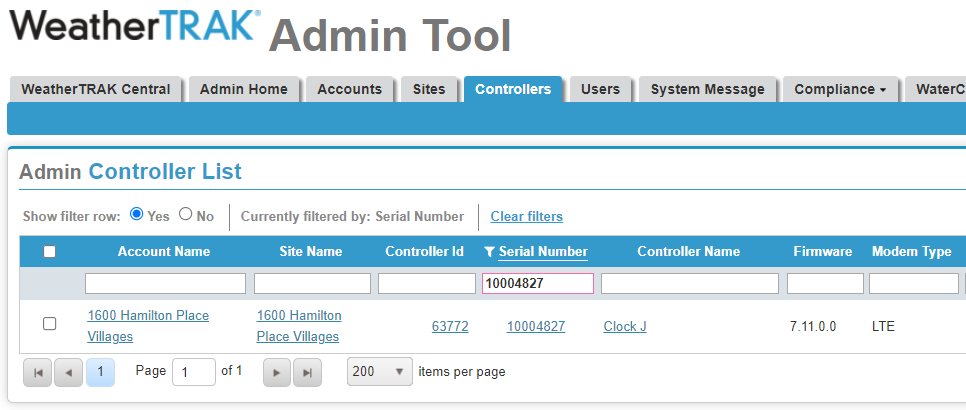
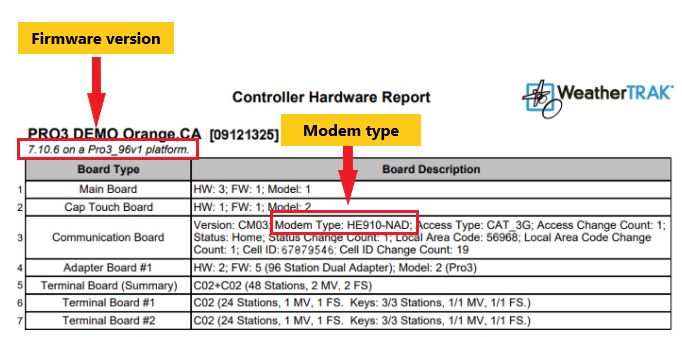
Run a Hardware Report on the controller (from the Reports tab) to confirm the last registered modem type from the controller.
Instructions on how to run a hardware report can be found online in our knowledgebase here:
Verify the firmware version and modem type shown on the hardware report:
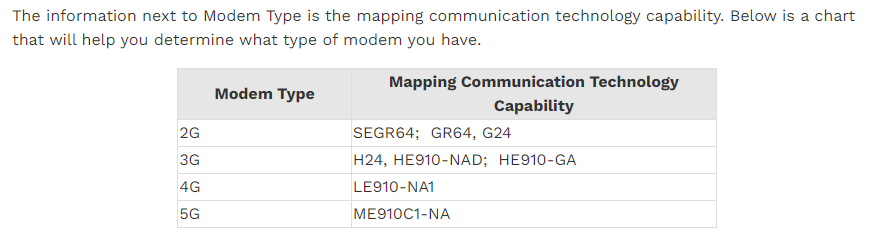
If the installed modem type is 3G based on the key above, proceed to Step 2.
If the installed modem type is 4G or 5G based on the key above, the case will need to be reassigned to the Support Team (refer to reassignment instructions in the Index)
Step 2: Verify if the Worry-Free Wireless Warranty (WFWW) is valid
Enter the serial number in the Salesforce search bar

Click on the Asset record
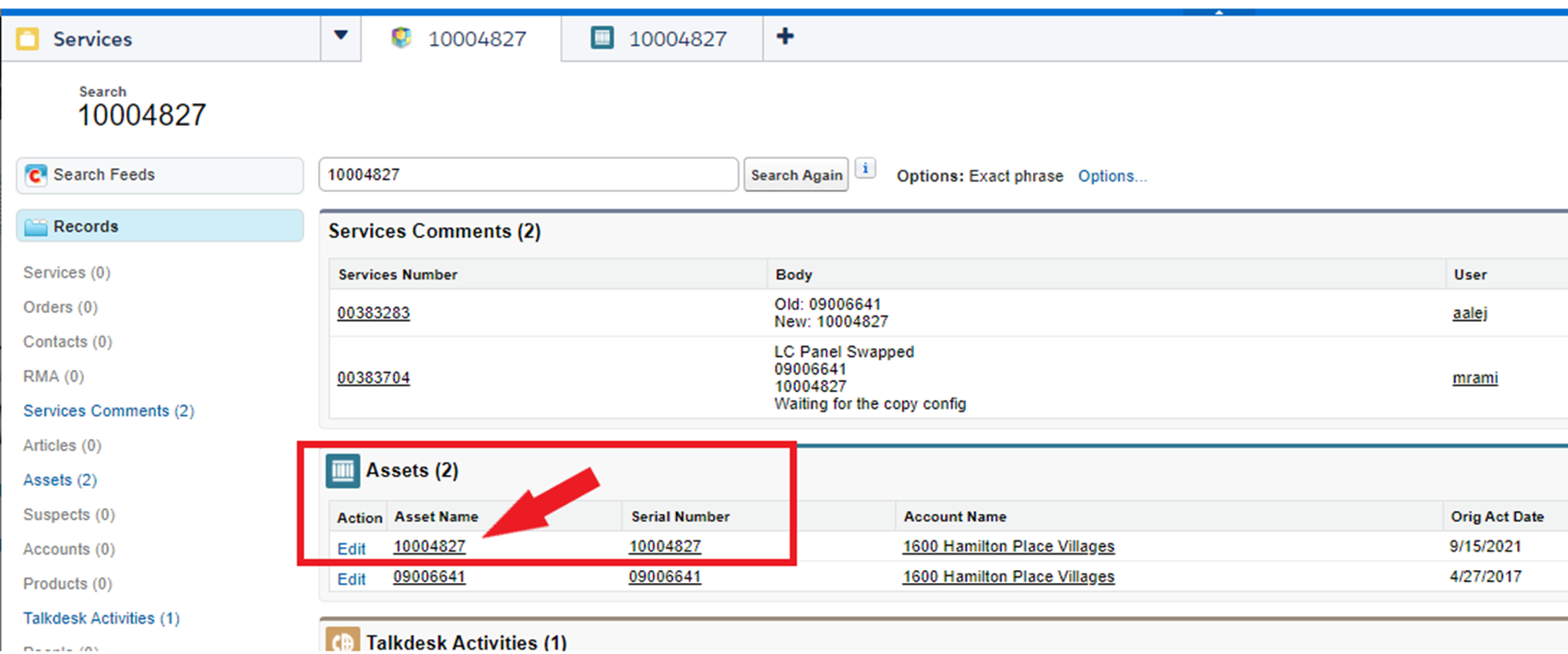
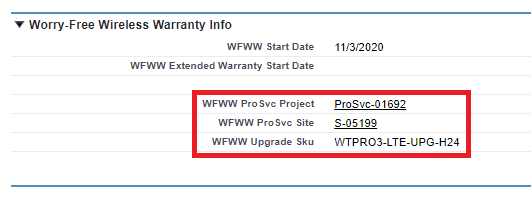
Check the Worry-Free Wireless Warranty Info section and confirm validity

If the WFWW is valid, proceed to Step 3.
If the WFWW is NOT valid, the case will need to be reassigned to the Customer Engagement Specialist (CES) Team (refer to reassignment instructions in the Index)
Step 3: Verify if the Subscription is active
Enter the serial number in the Salesforce search bar

Click on the Asset record
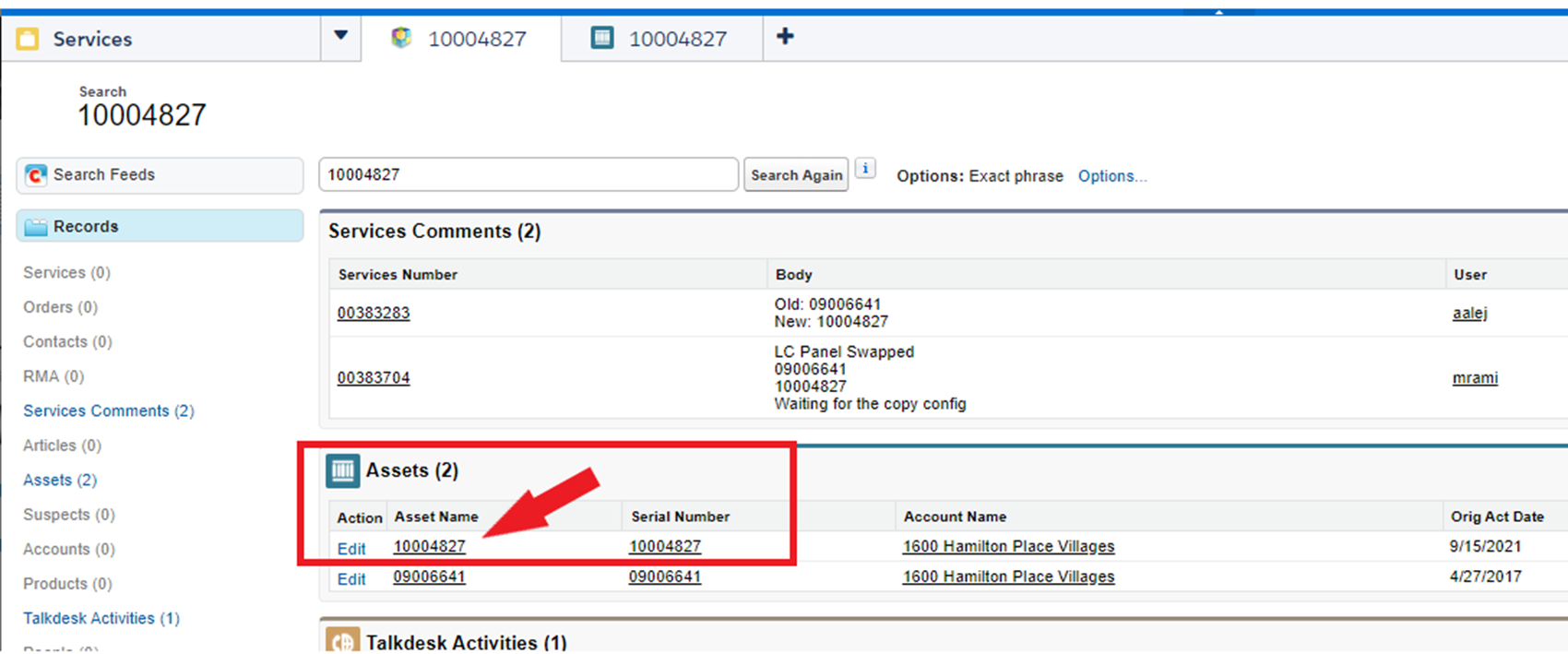
Check the Subscription Info section and confirm validity

If the Subscription is valid, proceed to Step 4.
If the Subscription is NOT valid, the case will need to be reassigned to the Customer Engagement Specialist (CES) Team (refer to reassignment instructions in the Index)
Step 4: Verify if the Asset/serial# is part of an existing Pro Services Site/Project record
Enter the serial number in the Salesforce search bar

Click on the Asset record and validate one of two ways (C or D)
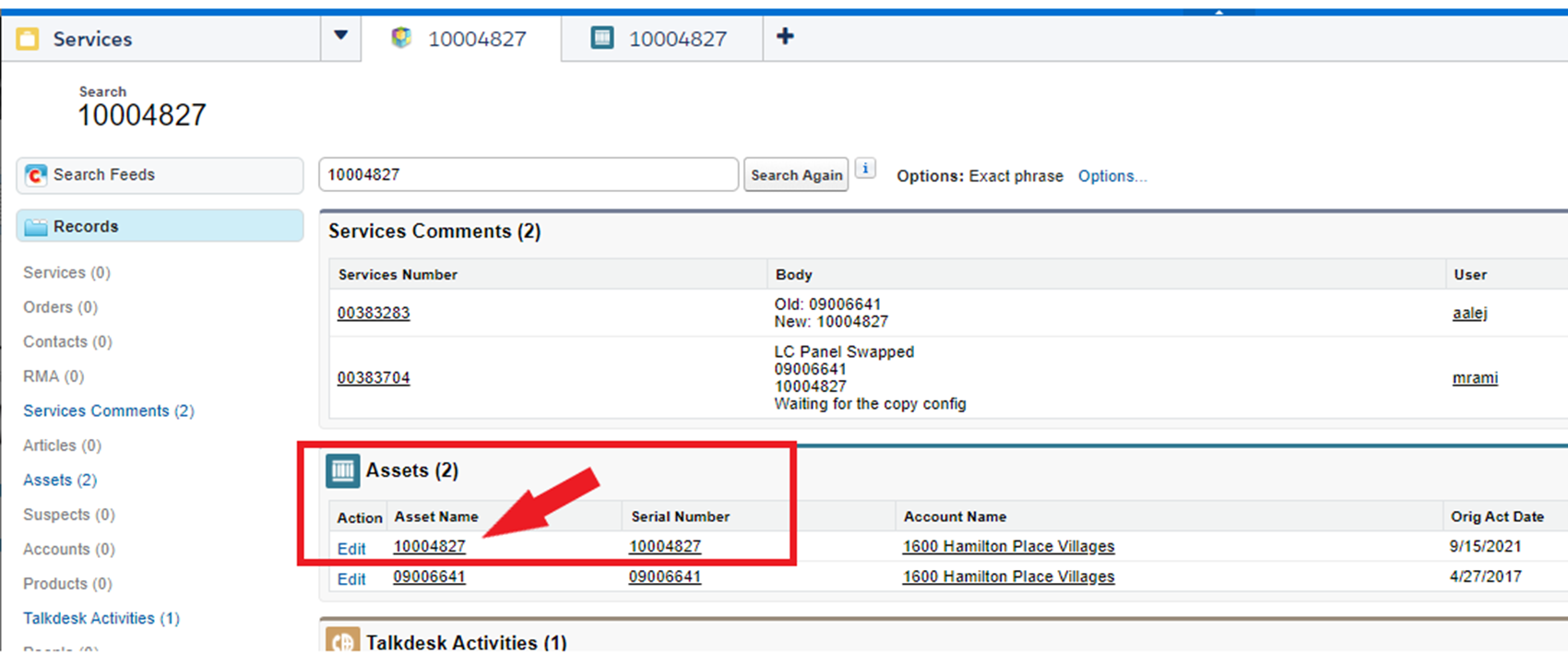
Check the Worry-Free Wireless Warranty Info section and confirm if there are Pro Svc Project and Site record details populated
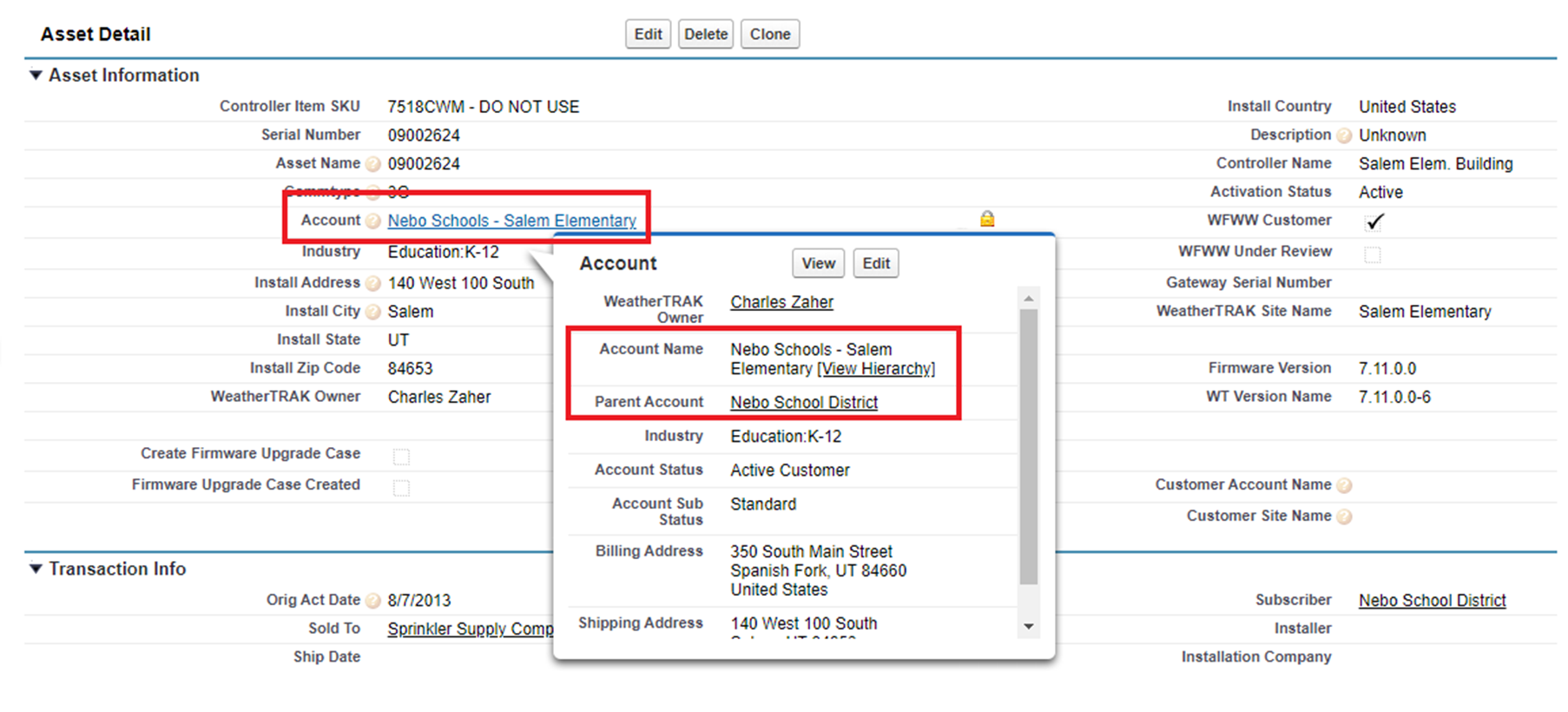
Or, if the section above is not viewable in your profile, check the Asset Detail section and confirm the associated Account and/or Parent Account. Use the search bar to look up the associated Account and/or Parent Account keyword

Check the ProSvc Requests section to see if there is an associated project for WFWW Upgrade

Use the ProSvc project record to verify associated Sites and Serial Numbers for WFWW Upgrade
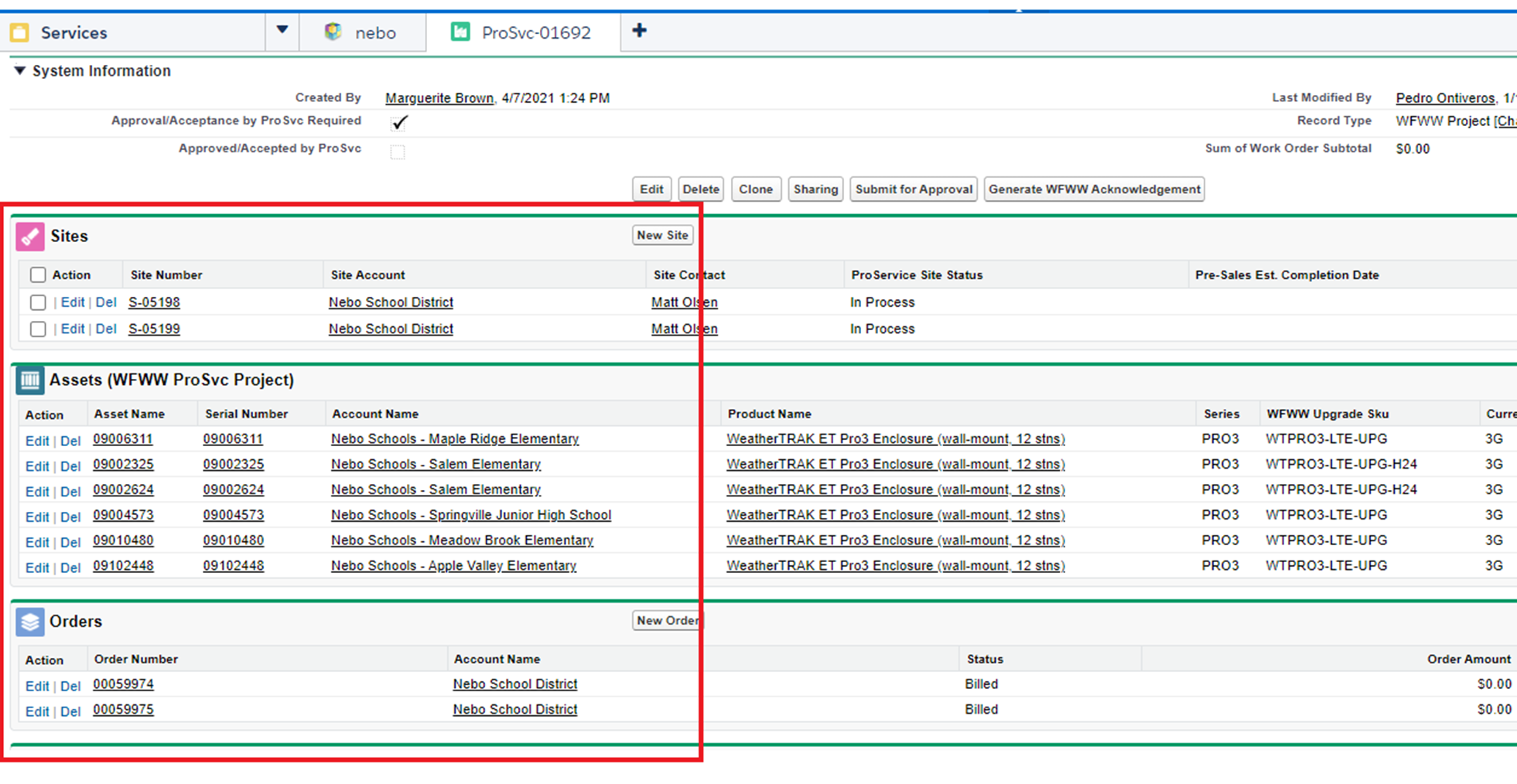
If there is a valid Project and Site record already created, proceed with standard process to confirm receipt and schedule/confirm modem upgrade in accordance with the WFWW Upgrade Project efforts.
If there is NOT a valid Project and Site record already created, the case will need to be reassigned to the Pro Services Project Team (refer to reassignment instructions in the Index)
Step 4: Confirm the shipping details.
Use the Site record Order section to confirm tracking numbers.
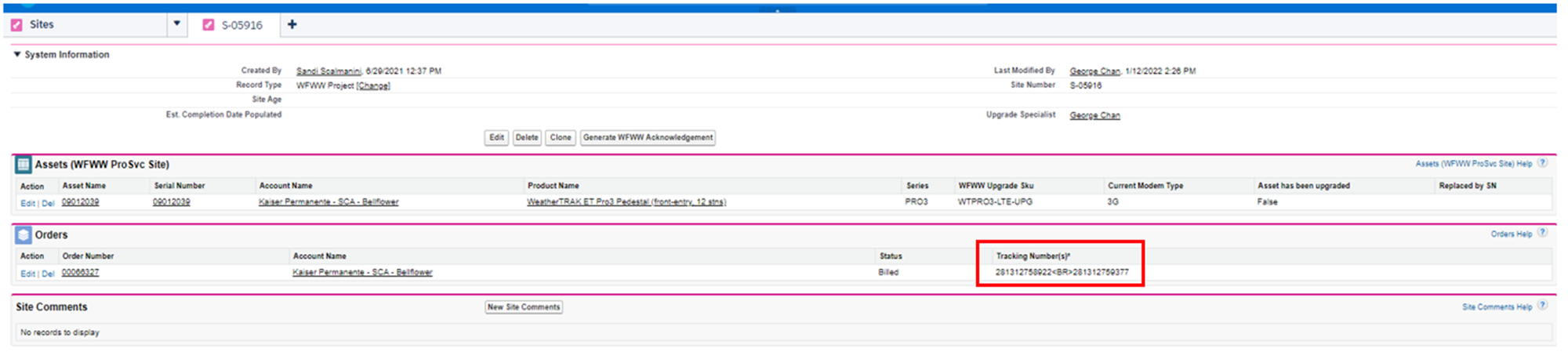
If the tracking info shows pending delivery: Set the appropriate expectations.
If the order is still pending and there is no tracking info yet: Set the appropriate expectations that we’ll see those once it ships just as the order, contact should receive correspondence when the tracking numbers become available as well.
If the tracking shows delivered: Confirm when, where, and who it was delivered to (signed for by). If they can determine where it was delivered and speak to who signed for it – encourage them to communicate and confirm before determining it’s lost. If it was successfully delivered but claimed misplaced, or installed in the incorrect location – transfer to CES team.
If a package has been delivered but possibly contains the wrong parts or missing parts – have Support team confirm – transfer to Support team
If the modem delivery is confirmed, encourage install to be done ASAP.
If the tracking info yields no information or we need more specific details, reach out to Tammy Svara.
INDEX: Appendices
Important Resources
Modem upgrades install instructions link
MAIN GO TO LANDING PAGE to find out which controllers are impacted
How to find the Firmware version of a controller
Other 3G & WFWW Landing Pages
Information about 3G Cellular Connectivity: https://www.hydropoint.com/3g-faq/
This describes the situation high level, information about how to determine what type of modem they have, and what happens if they don’t upgrade their modem. This page includes a link to the AT&T notice of shut down date.
CTAs on this page email SUPPORT directly.
Worry-Free Wireless Warranty Promotion – with reference to end of 3G: https://www.hydropoint.com/wfww-3g/
This page is the go-to for Sandi to use with her outreach and promotion to purchase WFWW for the exact purpose of 3G end of life.
CTAs on this page email SANDI directly.
Logging the Salesforce Case Types and Subtypes
Use the following “Type” to log all cases related to 3G sunset:
3G Offline
Use the following "Subtypes" based on the scenario:
No WFWW
No Subscription
Needs Project
Modem Delivered / Not Installed
Modem Delivered / Lost
Modem Installation Issue
Shipping Issue
Modem Replaced / Online
Transferring Ownership to Support
Warm transfer (speaking with the agent who is taking over.)
Set the expectation and determine the best option.
EX: “Customer/contact, now that we have determined your situation requires technical support, I’d like to transfer you over to them.”
If the contact cannot water and expresses a need for an urgent resolution - Reach out to the Teams group chat to request whoever is available, take a warm transfer. If you do not get a response within 1-2 minutes, tag the supervisor in chat via @.
Once you have confirmed a team member will take ownership, click the “change” option to enter their name and reassign ownership of that case. If a warm transfer takes place but after the customer disconnects the call, ensure the support agent has the details necessary of when and why to reach out to that contact.
Cold Transfer (not speaking with who is taking over.)
Set the expectation and determine the best option.
EX: “Based on your current situation, your best options are …”
If the contact can wait and doesn’t need immediate attention, they can contact the support team when they are ready via info in this link.
You can organize and detail all necessary info into a newly created salesforce case and assign it to the overall WeatherTRAK support inbox que. (Note: this is where cases are autogenerated and live when someone emails WeatherTRAK_Support@hydropoint.com.)
Scheduling a callback. This option is available for when one of the above options warrant it.
Create an outlook calendar event in your personal calendar. Place the case number in the subject line, copy paste summary/next steps set from case into the body of the event. (If support needs to do the callback and you cannot due to scope of the situation, make sure that is detailed in the event and add the supervisor to the invite so it can be delegated.)
Additionally, you can put all pertinent details in the case notes and assign case ownership to our "WT SUPPORT QUEUE"
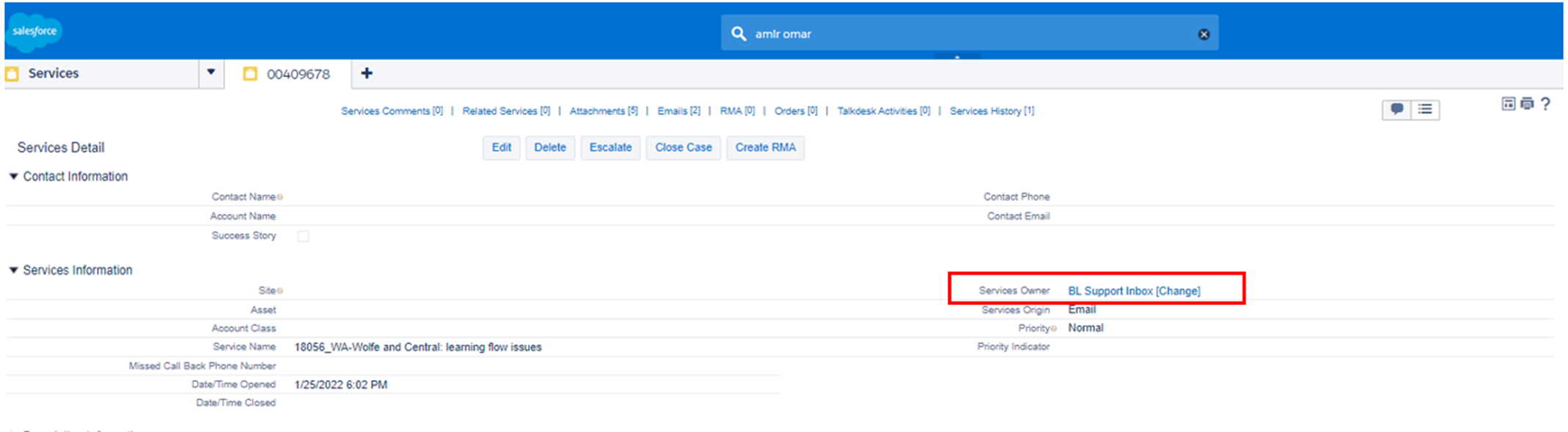
Transferring Ownership to CES team (Customer Engagement Specialists)
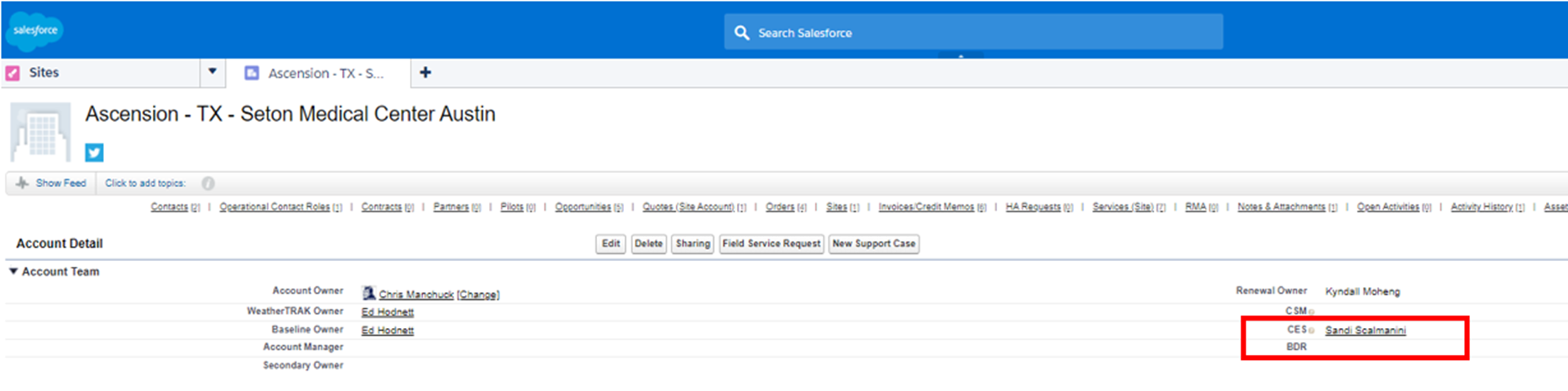
First, Identify and open the account that is associated with the project/site/controller.
If it does not have a CES rep associated with it, it will go to Amir Omar. (CES reps include Sandi Scalmanini ad Doug Sagon.)
- Warm Transfer (when possible) It is ideal to reach out to Doug or Sandi via teams message if we see they are online. If they are busy and do not respond in a timely manner, set the appropriate expectations that they will reach out as soon as they can.
- Hovering over a contact's image in teams shows us their status.
Transferring Ownership to Pro Services Team
Change the Services owner MANNY ZAVALA