
This document provides a general protocol to troubleshoot an Offline or No ET alert. It details the alerts the customer will see, how Support remotely diagnosis the controller will the help of an onsite maintainer and ultimate troubleshooting activities required. This does not include network issues from known HydroPoint outages or server maintenance issues.
Canada Customers
Note: As of now, Verizon service is not an option for Canadian customers, only AT&T.
Check to see if the controller is Quarantined first!
Please refer to WeatherTRAK Quarantined Controller Overview for escalated paths (AT&T/ Verizon escalation or purchase of accessory devices for signal amplification).
What is an Offline controller?
When an Offline Alert occurs, it means the affected controller has not made recent communication with the WeatherTRAK Central server. Unless the power is off, the controller will continue to irrigate as scheduled based on current stored programming. The offline controller will not, however, be able to receive ET messages or synchronize with the central server. The affected controller will not have access to the mobile app or web browser to be remotely managed. Until the controller reconnects to the network, the Customer will be receiving 'Controller Offline' Alerts if subscribed to that notification (we recommend maintainers configure this alert type).
Possible Causes:
- The controller has lost power or controller power has been turned off.
- Hardware or network configuration settings are incorrect.
- The two-way phase integrities are low.
- The two-way controller is set to one-way in the ADVANCED menu.
- Expired WeatherTRAK subscription
- Missing or deactivated SIM card/Physical SIM card issue
- Controller has been quarantined by our system due to excessive messages.
- Cell tower/signal quality issues or discontinued cellular service.
OFL/ CM Process Flow
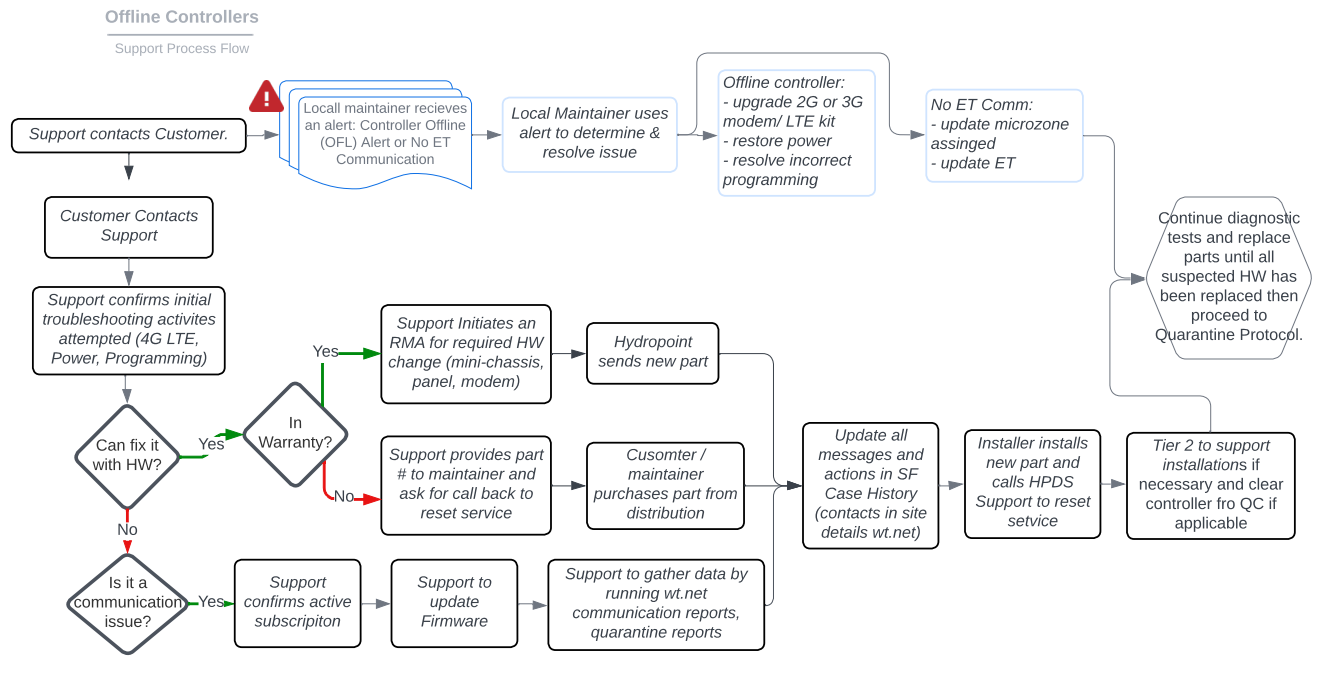
What does the Customer See?
Communication Alerts
- Controller Offline Alert messages explain possible causes and initial resolution steps, alongside a link to a video tutorial.
- (OFL) Controller Offline or (CM) NO ET Communication - provides links to reset the modem, upgrade 2G/3G, update ET or Microzone, verify active subscription.
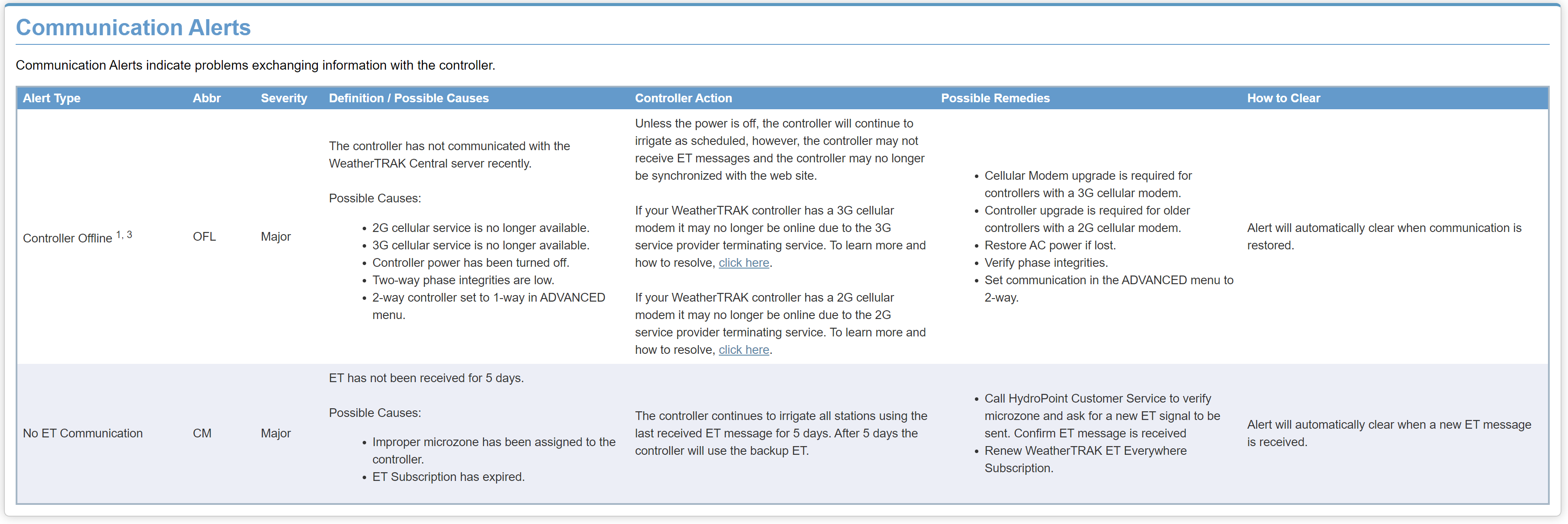
Offline Controller Alert Text
|
Controller Offline (OFL) CLICKHERE TO SEE HOW TO RESOLVE THIS ALERT Severity Major Definition / Possible Causes The controller has not communicated with the WeatherTRAK Central server recently. Possible Causes:
Controller Action Unless the power is off, the controller will continue to irrigate as scheduled, however, the controller may not receive ET messages and the controller may no longer be synchronized with the web site. If your WeatherTRAK controller has a 3G cellular modem it may no longer be online due to the 3G service provider terminating service. To learn more and how to resolve, clickhere.
If your WeatherTRAK controller has a 2G cellular modem it may no longer be online due to the 2G service provider terminating service. To learn more and how to resolve, clickhere. Possible Remedies
How to Clear Alert will automatically clear when communication is restored. |
Review Existing History, Update Account Details
Typically, a customer will call if experiencing an offline or no ET controller. Unlike quarantine controllers or HPM customers, CSS does not proactively notify customers of offline controllers.
Is it a Walmart or Sam's Club Controller? Walmart Responsibilities
Prior to performing any steps with the customer, first understand what actions have already been attempted. This will accelerate how quickly we identify/ rule out the issue. There have been several times where the controller had multiple issues, and we weren't able to see other underlying issues until the first problems were resolved. To review the actions already performed:
1. Does the customer understand the basic troubleshooting steps? No - send/direct them to (OFL) Controller Offline article and instruct them to watch the embedded training videos but first get their data (step 2). While they teach themselves troubleshooting steps, check salesforce case history/ active account/ controller firmware/ quarantine.
2. Get all required information from the Customer:
What information do we need from the Customer?
We need to start training the customers to provide this data any time they experience communications issues that aren’t related to a known outage or problem on our side.
Collect the following REQUIRED information for logging in our Support case
- Date and time of occurrence
- Serial number(s)
- Contact information
- HW and Modem type/ associated communication capability.
- Firmware version
- GPRS status
- Controller signal strength and quality (from COMM 02 menu screen)
- Network configuration settings (APN, Domain and IP Port Number)
- Troubleshooting steps and results
- Subscription / SIM Status
Please have the customer provide the following details when onsite:
- Was it working properly before? If yes, what may have changed recently?
- Is there any visible damage?
- What troubleshooting steps have they performed? What were the results?
- Where is the controller installed? Are there any environmental variables that may be causing problems? Get details on the physical location and surrounding area (pictures are recommended)
Use the Controller's Serial Number to look at it's alert in WTC and troubleshooting history in SalesForce.
Confirm the role paths are correct in WTC while viewing the site details. This is our 'global path' to find proper site managers and controller maintainers when needed.
Make sure to keep contact information up to date in SF and log any actions you’ve taken. Missing contact owners or a lack of historical notes continues to slow things down. Documenting past actions helps guide future troubleshooting and avoids repeating work. It’s also essential to have this information in place in case the issue needs to be escalated.
3. Verify Active Subscription
- In NetSuite, verify active subscription status by opening the Controller's Install Base Record to view details.
-If the customer does not have active subscription and wants one, send them to renewals.
- Check the SIM Status: use NetSuite Device Activation to see if current and previous SIMs are active in the AT&T, Verizon or iBasis Portal. Do not deactivate an old SIM because there have been times the old one was still in the problem controller. Do not have Customers toss old SIMs.
- If SIM is active, then confirm the SIM # matches the one installed in the controller.
- Verify the SIM card data plan and communication plan are correct. (WeatherTrak Sim activation steps.)
- Inspect the SIM card connection history and audit trail to see what details they tell us.
On-Site Diagnostics
The sequence of these diagnostic steps is extremely important to follow as they help to isolate (through process of elimination) the root cause of issue. Because we can't communicate with an offline or no ET controller, we are unable to connect with it to remotely determine what's going on.
Follow the troubleshooting steps below while the customer is onsite
1. Check if controller is on: Verify Power to the Controller
2. Reset Modem and correct Comm Options.
Reset Modem and "COMM" Menu Diagnostic Testing
COMM menu will help determine where the potential problem is if any of the following steps don't progress. (This is like resetting your modem at home.)
Pay Close Attention to each step in the process to note which one fails or loops.
- The following steps will cycle in order.
- Initializing Hardware │ Resetting Modem │ Starting │ Detecting Modem Type │ Initializing Modem
- If the process loops through these steps, the modem hardware itself is generally the issue.
- If it stops at "Detecting Modem", "Detecting Modem Type and "Resetting Modem" then there is likely a Hardware issue with the modem. First confirm visually and reset all connection between the modem, antenna, display, etc. - need more information on specific connections
- If the process continuously loops through these steps and does not stop on a particular step, there may be a problem with the modem or display hardware.
- Detecting SIM Card: If the process stops on detecting SIM card, ensure the sim is activated, set up and installed correctly. Confirm visually that all connections were reseated and intact.
- Detecting Network: If the process stops here, and all prior steps are confirmed, and properly installed and activated, then we know the local communication signal isn't strong enough to detect it.
- Activating Network: If the process stops here, we know the network has been detected but there may be a poor/weak signal preventing it from moving to the next step.
- Finding HPDS Server: This step confirms it has connected to the HPDS servers. Failure analysis shows that if the reset only gets this far, it could be caused by sim card modem contacts being damaged or the modem model in an LE910 (only capable of 4G) vs a ME910 (capable of 4g AND 5G LTE). Some locations may not have enough 4G coverage vs 5G - This is carrier based and out of our control.
- Connect to Network: Online and working.
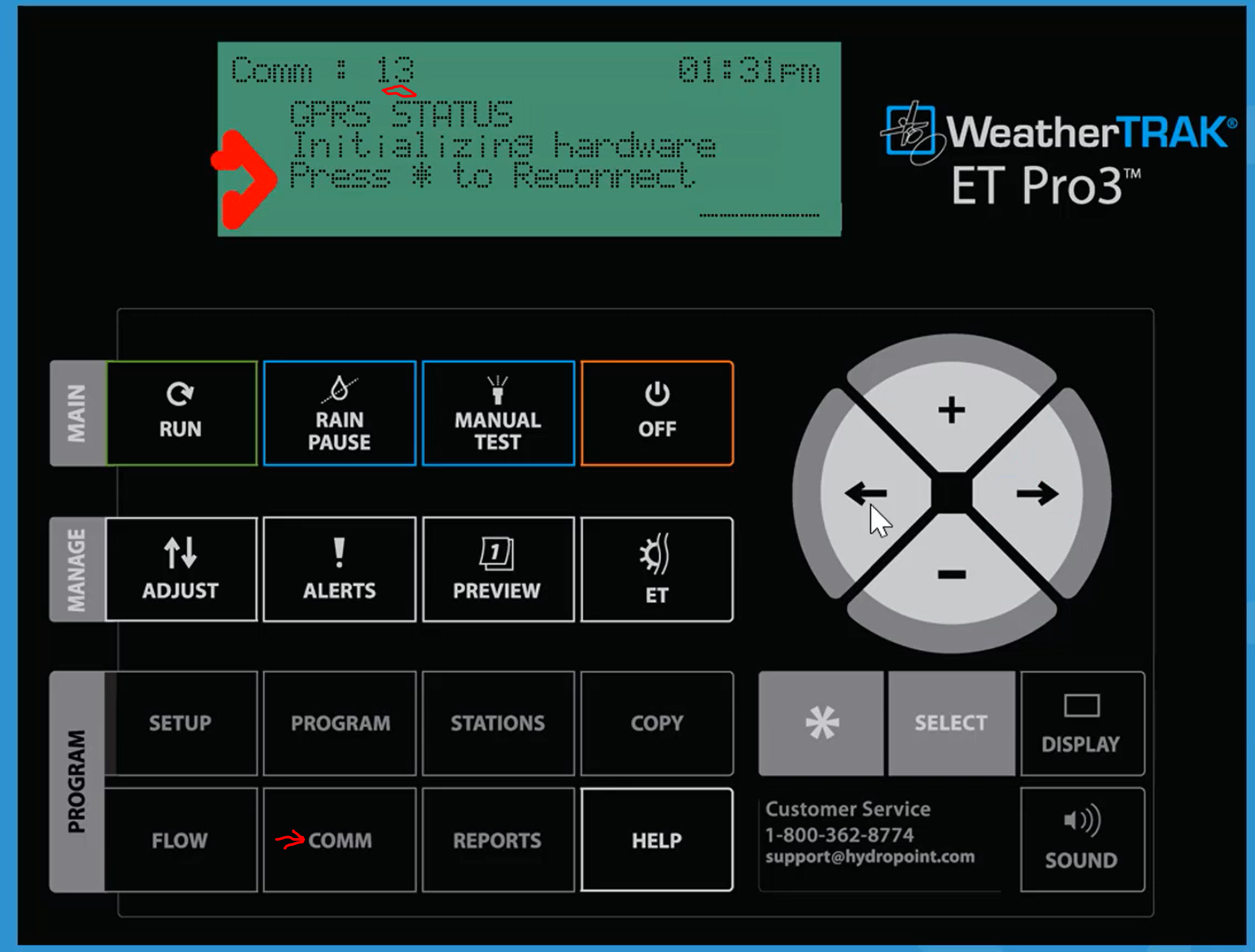
Press

. Press

until the GPRS STATUS (COMM 13) screen displays. If the controller is online, the GPRS status should say online, meaning it is connected to the server and communicating properly. Press the star to reset the modem from here.
Additional "COMM" menu items
If any of the following do not match what is listed, correct them. (note: ensure there are no blank spaces before or after these characters.)
- COMM menu page 2 : Signal quality and strength
- COMM menu page 18: APN = pro.wtdata.com
- COMM menu page 21: Domain = link.wtdata.com
- COMM menu page 22: IP Port Number = firmware viersion7x (05550) firmware version 8.x (05551)
- COMM menu page 29 ESIM ONLY: Cellular Network = defaults to Auto, which will display the carrier the controller is currently connected to. To manually select another carrier, press + to force the connection, then reset the modem. NOTE: if the controller loses power this step will NEED to be repeated.
APN Info If the controller detects that the SIM card has changed, it will automatically change the configured APN:
- “pro.wtdata.com” for the AT&T network - SIM Number starts with 8901
- “wthrtrk5g.vzwentp” for the Verizon network - SIM number starts with 891
- "prs-wtdata-com.swir" for the Semtech - SIM number starts with 8933
Modem Types
Modem ME910C1-NA: Available bands B2, B4, B5, B12 and B13
NEW! Modem ME910G1-WW: Available bands B1, B2, B3, B4, B5, B8, B12, B13, B14, B17, B18, B19, B20, B25, B26, B28, and B66.
Bands per Carrier
- AT&T: B2, B4, B12, B13, B14, B17 and B66
- Verizon: B2, B4, B12, B13, B14, B17 and B66
- T-Mobile: B2, B4, B12, B13, B14, B17 and B66
3. Where is the controller?
If the site is known to have interference—such as heavy environmental obstructions (trees, buildings, or other signal-blocking structures) or if the controller is located inside a metal enclosure, it is recommended that the customer purchase an outdoor omni antenna (ANT-OMNI). Installing the antenna on the roofline or outside the enclosure and connecting it with one of our cables (ANT-CX-CBL-#, available in 10', 25', 50', or 100') should improve communication. Especially if the phase integrity was low.
Customers can also confirm the sites signal strength by performing a Site Cell Survey with a LTE Signal Test Kit to help determine which carrier is best around the controller.
- Cell signals can penetrate plastic, but not metal. If placing a controller inside a metal enclosure, be sure to install an external antenna.
RSRP and RSRQ
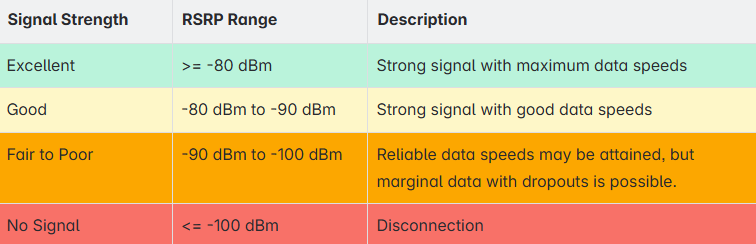
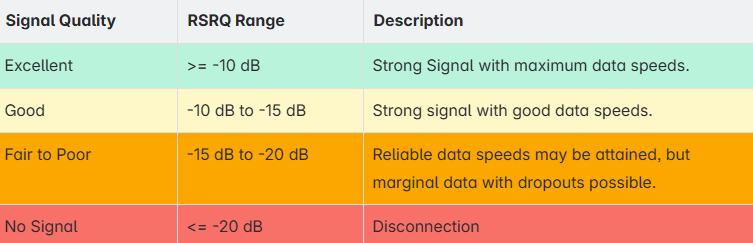
When using "COMM" menu page 2
The “Strength” number is technically known as “Reference Signal Received Power” (RSRP). The Telit module returns this value as a number from 0 to 31.
0 |
-113 dBm or less |
| 1 | -111dBm |
| 2 | -109dBm |
| 31 | -51 dBm or greater |
So, for “Strength”, big numbers are better than small numbers. Our code interprets the numbers as follows:
0-6 |
Poor |
7-16 |
OK |
17-31 |
Good |
99 |
No Signal |
The “Quality” number is technically known as “Reference Signal Received Quality” (RSRQ). The Telit module returns this value as a number from 0 to 7.
| 0 | -3dB / -4dB |
| 1 | -5dB / -6dB |
| 2 | -7dB / -8dB |
| 3 | -9dB / -10dB |
| 4 | -11dB / -13dB |
| 5 | -14dB / -15dB |
| 6 | -16dB / -17dB |
| 7 | -18dB / -19dB |
So, for “Quality”, small numbers are better than big numbers. Our code interprets the numbers as follows:
| 0-3 | Good |
| 4-6 | OK |
| 7 | Poor |
| 99 | Unknown |
4. Try the “known good method”:
If it does not cycle normally, we can more quickly diagnose the problem by guiding them through how to swap antennas, SIMs, modems, and cable connections with a neighboring controller to help isolate which specific part is causing the issue. Only do this if the customer has other working controllers on-site and they are willing/capable.
Remote Diagnostics
If Controller 'COMM' Menu cycles normally:
1. Verify Latest Firmware Version
- To see existing controller firmware go to
- WT.net > controller admin page > admin tab > hardware report.
- Customer can go to How do I find the firmware version of my controller?
- Firmware version required for LTE/4g functionality = 7.10.5.
- Update FW if applicable.
- OTA is not possible while a controller is offline. Send or have Customer purchase (depends on warranty) a USB Cloud Update Key if the controller is running an older FW version (7.8 or less).
- Update FW for Customer: Updating Controller Firmware with WeatherTRAK.Net: Over the Air (OTA)
2. Verify 4G/5G modem
Upgrading to a 4G / 5G plus LTE modem from 2G/3G modems
Upgrades to 4G / 5G plus LTE from 2G/3G
- Confirm Modem type by running Controller Hardware Reports in WeatherTRAK Central to view modem type. Review corresponding communication capability to see if new 4G/5G modem and LTE upgrade kit required.
- Visual confirmation can also be obtained from an onsite contact.
- Before upgrading modem, Verify Site Area has 4G, 5G, LTE coverage.
- before issuing a LTE antenna upgrade kit, consult the C2M Project One AT&T Internal Coverage Map to validate LTE coverage is available in the area (internal HPDS access only; requires logon)
- This vendor tool can be used to understand what type of cellular coverage is available at the controller site location: AT&T Internal Coverage Map
- If LTE coverage, use LTE Antenna Upgrades Kits to help select correct antenna upgrade kit (vary by modem type) for customer.
- before issuing a LTE antenna upgrade kit, consult the C2M Project One AT&T Internal Coverage Map to validate LTE coverage is available in the area (internal HPDS access only; requires logon)
- Send customer link to LTE Modem Installation Guides to verify modem is properly installed and activated.
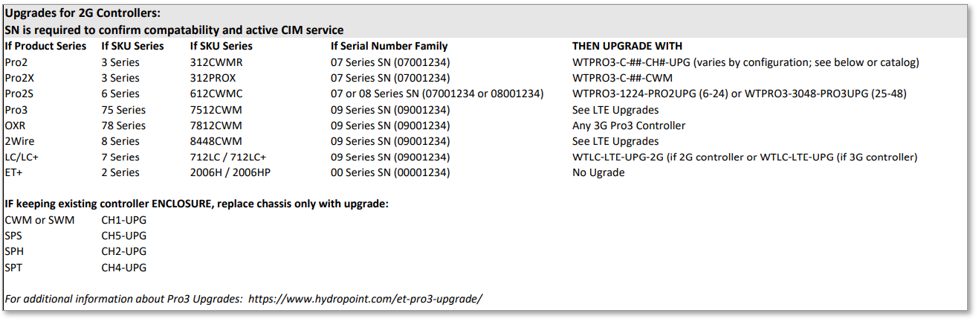
Recommended upgrade paths/ upgrade compatibility:

3. Update ET
- refer to (CM) NO ET Communication
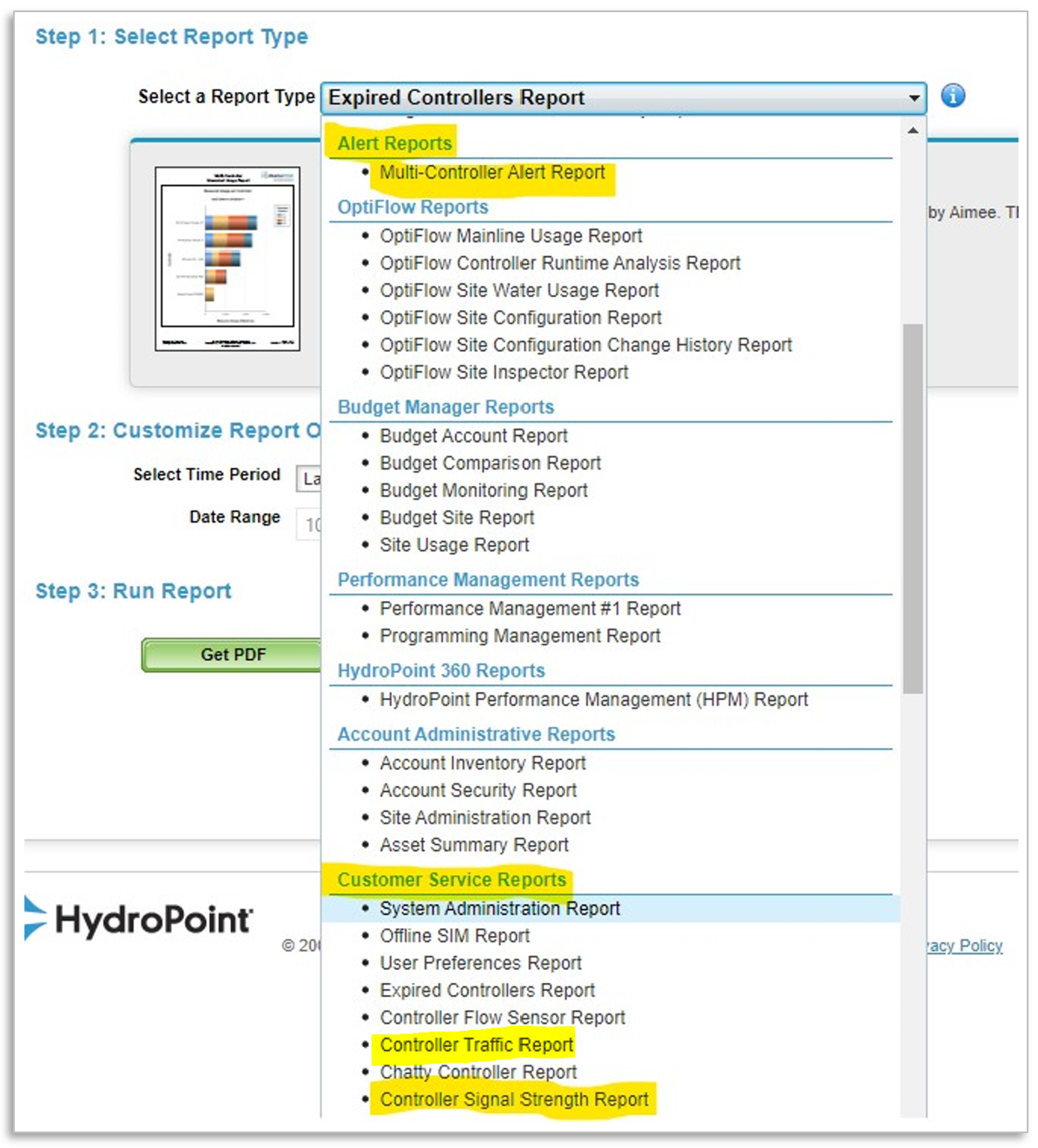
4. Run several reports in wt.net:
WT.net Communication Issue Reports
Check for trends or behaviors that indicate root of connection issue:
- Controller Signal Strength: is the controller continuously going on/ offline (indicated network issue) vs one that goes/ stays offline (indicates hardware issue)
- Controller Traffic Report: to get an idea of how many hours controllers were offline in a given timeframe.
- Alert History Report: Can give historical reference to all cleared alerts including offline alerts.
Issue an RMA
- Find part # to replace defective part: see Product Warranty Questions
- Confirm customer and part in warranty. In warranty: Hydropoint RMA Processes. If not in warranty, give customer part# and direct them to nearest distributor for purchase.
- Can use the following emails to issue replacement parts. Be sure to customize ☓ √ to customer only including reasonably suspected causes/ required actions. Provide a complete list of past and future actions to the customer to set their expectations.
- Make sure to tell the customer they will need to wait (5 min) after swapping in the new part to confirm the controller is able to remain online until the alerts clear. Tell them to call back in once the replacement has occurred, or during it if they need assistance.
Example Emails
If in Warranty
Dear ____,
Thank you for your continued support in helping us resolve the connection issue with controller [___]. A warranty replacement for [part(s)] has been processed; please refer to RMA-__.
Once the new [part(s)] arrives, please contact [__] to complete the activation(if applicable). If the site is known to have poor 4G/5G/LTE reception, we strongly recommend purchasing a signal booster, amplifier, and/or omni antenna. Taking this step may help avoid unnecessary hardware replacements in the future.
Please don’t hesitate to reach out if you have any additional questions.
If not in Warranty
Dear ___,
Thank you for your continued support in resolving the connection issue with controller [_#_]. As your controller is no longer in warranty, please order the following parts through your local distributor to resume connection to our server:
• <part #> for new <part>
Once it has arrived, please reset the modem by going to Comm 13 (GPRS Status) > * and contact support if you run into any issues reconnecting to our network.
If HPM, not in warranty
If the controller is under HPM/CSM and out of warranty, alert the customer success rep associated to that account. They will decide whether to grant an OOW exception.
Replace Defective Part
- Once an RMA Order is issued, the customer will have to wait for the hardware/modem to be shipped. Replacement modems are NOT sent with a new SIM card, the customer MUST swap the SIM card from the old modem to the new modem.
Appendix
Q: What has our success rate been with HW and antenna solutions? Our resolution path takes us from the most common to least common causes of OFL/CM issues. This has been difficult to track, but our rough estimate is 75% success rate with engaged contractor/customer.
To understand controller communication protocols, reference the page.