3200 to SubStation setup using IOT
Conceptual steps:
- Install devices & activate
- Connect SubStation to iOT server
- Direct to 3200 to the correct SubStation
Required hardware:
- BaseStation 3200
- SubStation
- Cloudgate cell modems
Initial steps:
- If new account, fill out BaseManager form and submit
- Activate cell modems
- Install 3200, cell modems, SubStation
- Check firmware on 3200 & SubStation for most recent version
- 18.2 & 2.4, 17.3 & 2.3, 17.0 & 2.0
- Ensure both 3200 and SubStation are in BaseManager
Steps at Substation:
- Navigate to Setup/Communication Setup
- Communication type is Ethernet (select CN Cell if Cloud network module modem)
- back
- Navigate to Setup/Network Setup/iOT Server Setup
- Select ü Use iOT
- Back
- At iOT Server Info, press OK to connect, wait for it to say connect
- Use onscreen activation PIN to add SubStation to BaseManager, via BM Company Admin (found in BaseManager)
- Navigate to Setup/Network Setup/BaseManager Info
- Take a photo of or record both the MAC address and IP address
Steps at 3200
- Navigate to Network/Communication Setup
- Communication type is Ethernet
- back
- Navigate to Network/SubStation Setup/SubStation 1 or appropriate SubStation when mult SubStations
- Select ü Use iOT
- Enter the MAC and IP address
- Press enter to connect
- Verify the SubStation is connected to the 3200 on the run screen or at SubStation Setup
- Assign and program at 3200
3200 to SubStation Setup LAN IOT
Conceptual steps:
- Install devices & activate
- Connect SubStation to iOT server
- Direct to 3200 to the correct SubStation
Required hardware:
- BaseStation 3200
- SubStation
- LAN/local area network connection
- Laptop w ethernet cable
Initial steps:
- If new account, fill out BaseManager form and submit
- Verify RJ45 port is live with an ethernet cable and laptop. Can they connect to the internet?
- Install 3200, connect with ethernet cable
- Install SubStation, connect with ethernet cable
- Check firmware on 3200 & SubStation for most recent version
- 18.2 & 2.4, 17.3 & 2.3, 17.0 & 2.0
- Ensure both 3200 and SubStation are in BaseManager
Steps at Substation:
- Navigate to Setup/Communication Setup
- Communication type is Ethernet
- back
- Navigate to Setup/Network Setup/iOT Server Setup
- Select ü Use iOT
- Back
- At iOT Server Info, press OK to connect, wait for it to say connect
- Use onscreen activation PIN to add SubStation to BaseManager
- Navigate to Setup/Network Setup/BaseManager Info
- Take a photo of or record both the MAC address and IP address
Steps at 3200
- Navigate to Network/Communication Setup
- Communication type is Ethernet
- back
- Navigate to Network/SubStation Setup/SubStation 1 or appropriate SubStation in a group
- Enter the MAC address
- Press enter to connect
- Alt, enter IP address to connect if required
- Return to run screen to verify the SubStation is connected to the 3200
- Assign and program at 3200
3200 to SubStation Setup, LAN Static IP
Conceptual steps:
- Install devices & activate
- Connect SubStation LAN
- Connect 3200 to LAN
- Direct to 3200 to the correct SubStation
Need to know, via network admin. Cannot proceed without this info.
- Assigned IP address for SubStation
- Subset Mask
- Default gateway
- Preferred DNS Server
- MAC address of 3200 & SubStation (provided by LMC)
- Ensure port 443 is open and can transmit/receive to IP address 104.130.246.62
Required hardware:
- BaseStation 3200
- SubStation
- LAN/local area network connection
- Laptop w ethernet cable
Initial steps:
- If new account, fill out BaseManager form and submit
- Verify RJ45 port is live with an ethernet cable and laptop. Can they connect to the internet?
- Install 3200, connect with ethernet cable
- Install SubStation, connect with ethernet cable
- Check firmware on 3200 & SubStation for most recent version
- 18.2 & 2.4, 17.3 & 2.3, 17.0 & 2.0
- Ensure both 3200 and SubStation are in BaseManager
Steps at Substation:
- Navigate to Setup/Network Setup/Communication Setup
- Communication type is Ethernet
- IP setup, deselect DHCP to allow for a static IP address
- Navigate down to IP Address, Mask, etc & input the static IP address & related info that came from the IT dept
- back/back
- Network Setup/BaseManager Setup/BaseManager enabled ü
- back
- Navigate to Setup/Network Setup/BaseManager Info/OK to connect, wait for it to say connected
- Use onscreen activation PIN to add SubStation to BaseManager (requires BaseManager access)
Steps at 3200
- Navigate to Network/Communication Setup
- Communication type is Ethernet
- back
- Navigate to Network/SubStation Setup/SubStation 1 or appropriate SubStation in a group of SubStations
- Enter the IP and MAC address from the info provided by IT Dept
- Press enter to connect
- Return to run screen to verify the SubStation is connected to the 3200
- Assign and program at 3200
Warning
If a 3200 is connected to a substation correctly but still will not be recognized by the 3200, follow this process. Example: Searching for and assigning substation zones in the 3200 settings will not populate or be possible.
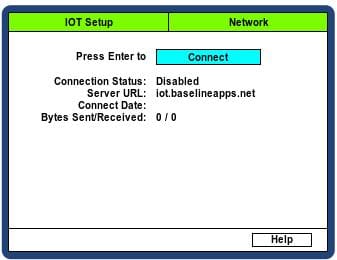
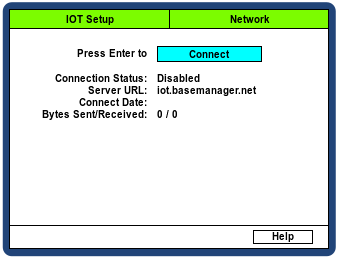
Issue Summary: Controllers will not connect to IOT server due to incorrect IOT address.
How to prove this issue is present: Turn dial to Network, go into IOT Server Setup menu and record and record server URL in case.
- Server URL iot.basemanager.net is WRONG
- Server URL iot.baselineapps.net is CORRECT
If Server URL is iot.basemanager.net, and you are reading this after 3200S FW 19.4 is available, please update the customer controller to 19.4 then remove and re-add an IOT SubStation in AdminManager per normal process. If reading this before 19.4 is available, consult Tier 2 Support to engage Engineering.
If Server URL is iot.baselineapps.net, no special process is required. Troubleshoot SubStation connection as usual.