
Preparing Program Backup for the BaseStation 1000 and a FlowStation
Important:
· Create a folder in your documents folder and name it as the current serial number of the destination controller

· From Basemanager go to

then click on Administration and then Administration and the Basemanager Administration tool will open
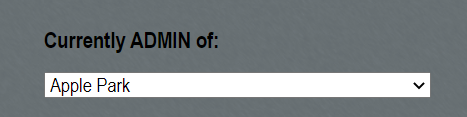
· From there select the company where the customer’s controller resides on.
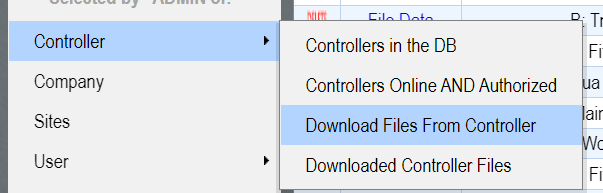
· From there select Controller and then Download Files From Controller
· Select the Controller that you wish to download the program backup from.

· Select the Download File from the Controller button

· After a few moments the file will download, and you will be able to save it to your computer
· Go to
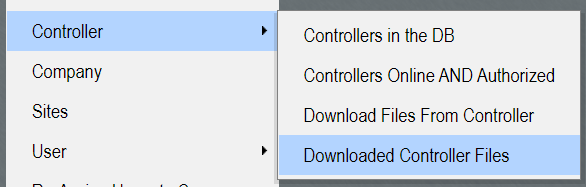
· To download the file, click on File Data and that will save it to your computer.

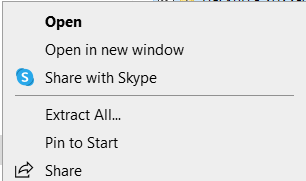
· Right Click on the zip folder and select extract all
· The Select a Destination and Extract Files window will come up
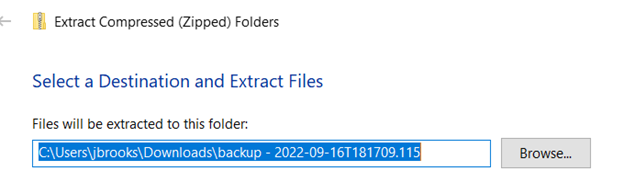
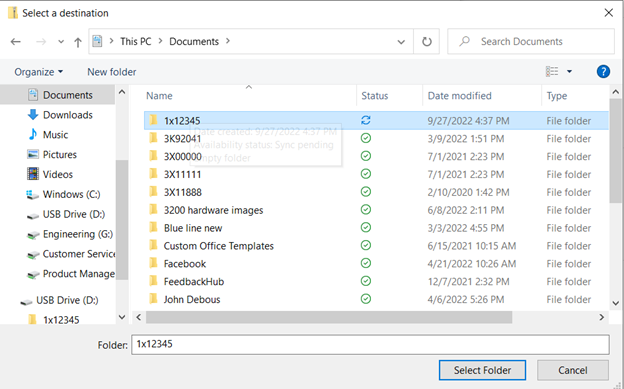
· Select the Browse button and a window will come up for you to select a destination location
· Select the folder you created in your documents file
· Press the Select Folder option and then, press extract
· A new window will come up with a Backup.txt file

· Right-click on that file and select rename
· Rename the file to Backup.csv

· Now we prepare the folder to send to the customer via email from your Salesforce case
· Go back to your Documents file and right-click on the folder that you created and select Send to Compressed zip folder
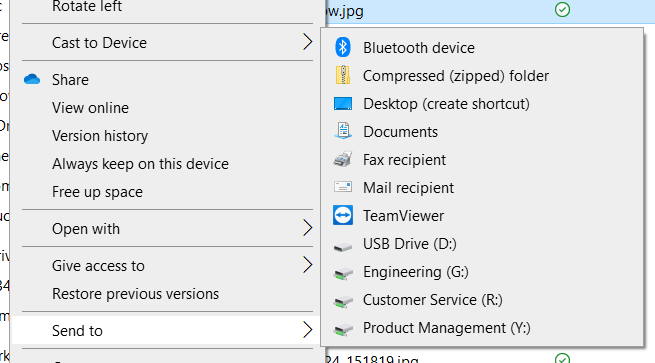
· Start a new email in Salesforce and attach this folder to the email
· Once the customer receives the zip folder the file needs to be placed on a USB device
· Prepare the USB device by having the customer first format the device Make sure that there is nothing saved on the device that the customer wants to be saved. Have them save any content to another location
· Have the customer open File Explorer and locate the USB device that is plugged into the computer (Make sure they have it plugged in) and right-click on the device name and select format
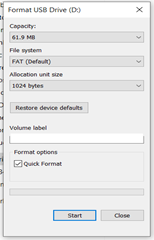
· Make sure the file system is set to FAT and the quick format option is checked, then select start
· Now they can download the zip folder to their computer and have them extract the folder containing the backup file to their USB device by following the same extractions steps above
· Once completed, eject the device from the computer and have the customer take the device to the controller
· Have the customer plug the USB device into the controller and select System Setup>Backup and Restore>USB Restore
· If all steps have been completed properly, the customer should see the date that the program file was backed up from
· Make sure that the backup date is highlighted and press ok
· Note: There are times that the controller does not see the device and will show Insert USB Drive. If this happens, press the back button one time, and select USB backup. If it says Insert USB Drive, the controller is not able to see the device. This may mean that the USB port on the controller is faulty and an RMA may be required. Prior to creating an RMA reboot the controller with the USB plugged in and check if the controller detects the device again.
· If it shows that there are EMPTY slots available in the USB backup option, then the process was not done correctly, and the customer will need to go back to a computer and start the process again.