
Circumstantial Situations Only
Please Consult with Tier 2 or Tier 3 before doing this
PLEASE CONSULT BEFORE DOWNGRADING FROM HIGHER FIRMWARE
Reasons to Downgrade
- To add program that was taken from 12.34 to a controller that is on 16.6 or higher
- To fix a bug
- MUST have permission for this one
- Customer request for specific Firmware
- Please still consult with this one
Steps to Downgrade
with approval
To go to 12.34 from 16.6 or higher
*You need to get 12.34 from the Engineering shared file- May need to go to Tier 2 or 3 for this*
- 12.34 should be on a USB
- Unplug controller then plug it back in
- While screen is loading plug in USB
- once loaded please go to advanced > system settings and check to see if it took
*If for adding program from old firmware do those steps then follow the steps below*
- In Advanced > System Settings press the previous arrow till you have highlighted the Blank Rectangle below the Serial Number
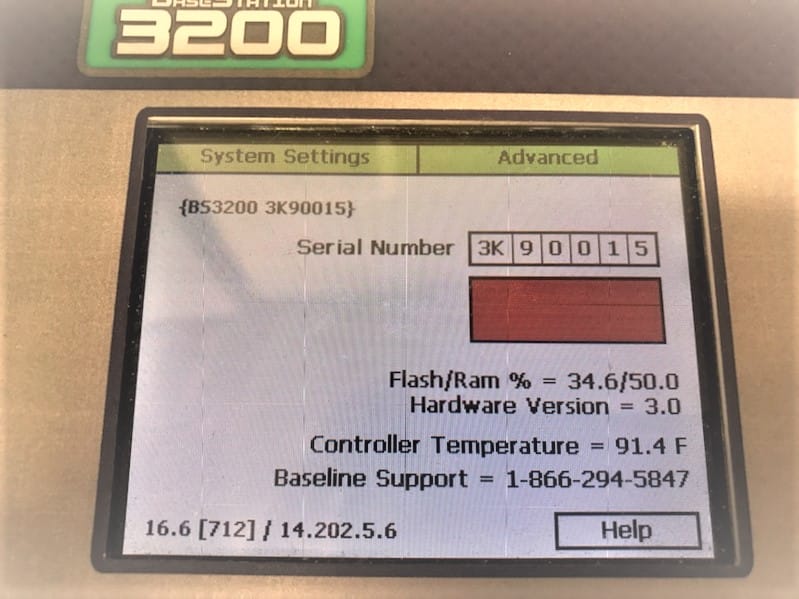
- Once your controller looks like this hit the minus button till you see Factory Reset then press enter.
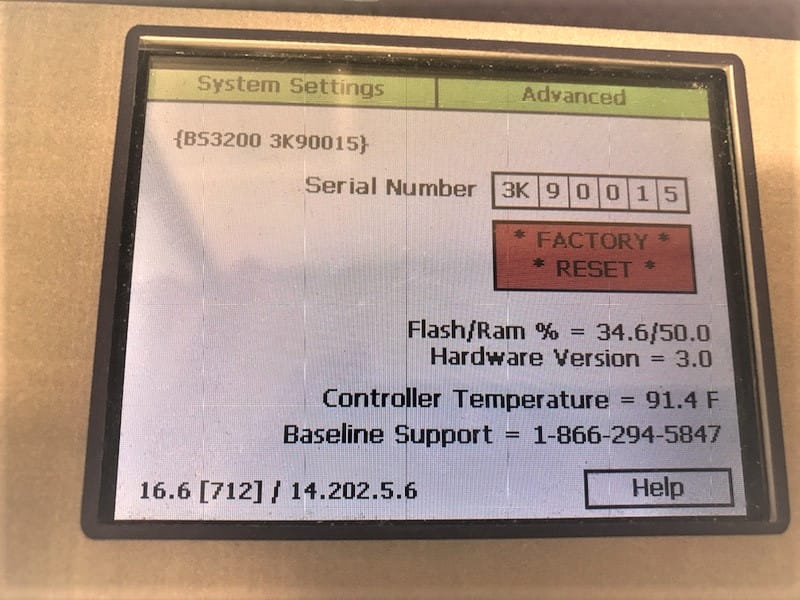
*This will reboot the controller and clear the controller and MUST happen after Downgrading to add old programming the controller*
- Once the 3200 is done rebooting you can Restore the Programming you desire and Update the Firmware from there if need be
Update Firmware
Basics
Firmware Update Instructions are also available to the Public
Before updating the firmware on a BaseStation 3200 irrigation controller, you must check the hardware version. If the hardware version is 2.0 or lower, you can update to V16.6, but no higher.
To check the hardware version on a BaseStation 3200 irrigation controller:
1. On the BaseStation 3200 controller or in LiveView, go to the Advanced dial position.
2. Choose the System Settings option.
3. Find the hardware version number as shown in the illustration below.
If the controller's Hardware Version is 3.0 or Higher than they can go to 18.0 without issues, but please verify that before starting.
-First Downloading the Firmware
- First take a Backup from the 3200
- Always take a backup before updating the Firmware
- Find the V16 Firmware Update, and then click the button to download the firmware
- When prompted, choose the Save File option, and then click OK. The file is automatically saved into the web browser’s Download directory.
- When the download is complete, open Windows File Explorer and navigate to the Download directory.
- Find the .zip file, and then double-click the file. The Update folder displays in a new window where you can extract the files
- On the toolbar at the top of the window, click Extract all. A pop-up window displays the location for the extracted files.
- Perform one of the following options:
- If the file location is acceptable, click Extract at the bottom of the pop-up window. The extracted Update folder displays in a new window.
- If you want to choose a new file location, click Browse and navigate to your preferred directory. Click Extract at the bottom of the pop-up window. The extracted Update folder displays in a new window
- Plug an empty USB drive into a USB port on your computer
- When Windows prompts, click the option to open the folder and view the files. A Windows File Explorer window opens and displays the contents of the USB drive
- In another Windows File Explorer window, find the extracted Update folder
- Right-click on the Update folder, and then click Copy.
- Go to the Windows File Explorer window for the USB drive.
- Right-click in the file pane, and then click Paste. The Update folder (along with its contents) is copied to the USB drive. Ensure that the Update folder is not copied into another folder on the USB drive.
- Close the Windows File Explorer window for the USB drive.
- In the System Tray area of your Windows Desktop, click the option to Safely Remove Hardware and Eject Media.
- When the Safe to Remove Hardware message displays, unplug the USB drive from the computer.
-Controller steps for Updating
- On the BaseStation 3200 controller, plug the USB drive that has the Update files on it into the USB port.
- Turn the dial to the Advanced position.
- Press the Next button to move to the Update Firmware option, and then press the Enter button. The Update Firmware screen displays.
- In the Source of Update field, verify that USB displays. Verify that the expected firmware version is shown as available next to the ENTR: Update field.
- Press the Next button to move to the ENTR: Update field.
- Press the Enter button to start the firmware update.
- After the controller has restarted, unplug the USB drive from the port
*If this does not work and the controller does see a USB then Unplug the controller then while it is booting up plug the USB in and it will take the Update*
Please Note that 17.0 and 18.0 are BIN files