How to find the MAC Address at the 3200S
- Go to Network then to Communication Setup
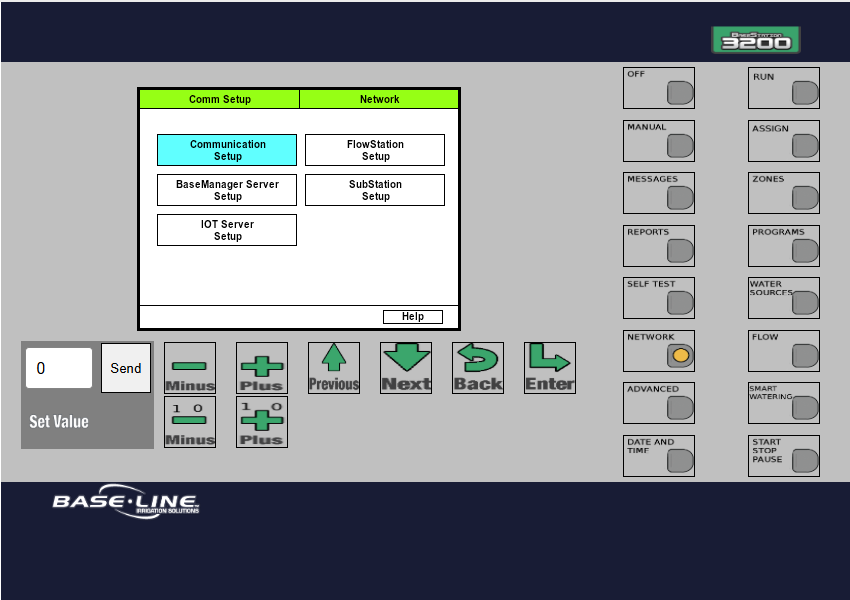
- Communication Type Ethernet will show the MAC address
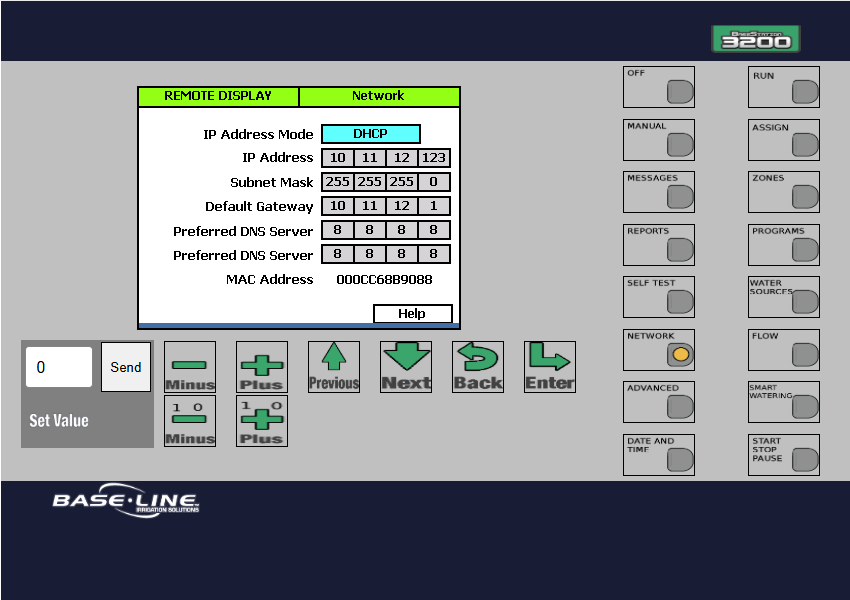
How to find the MAC Address at the 3200
This is the same way for controllers on firmware 16x and 17x
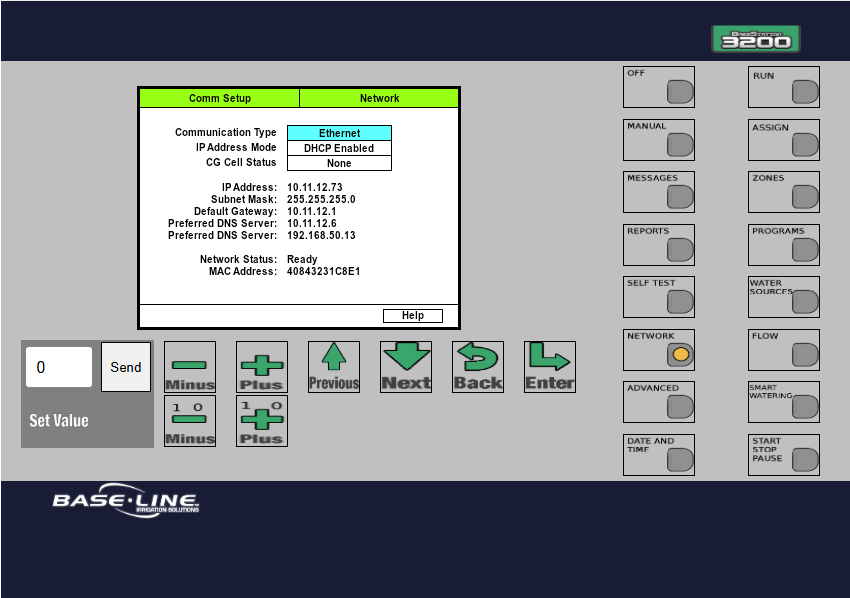
- Go to Network then to Communication Setup
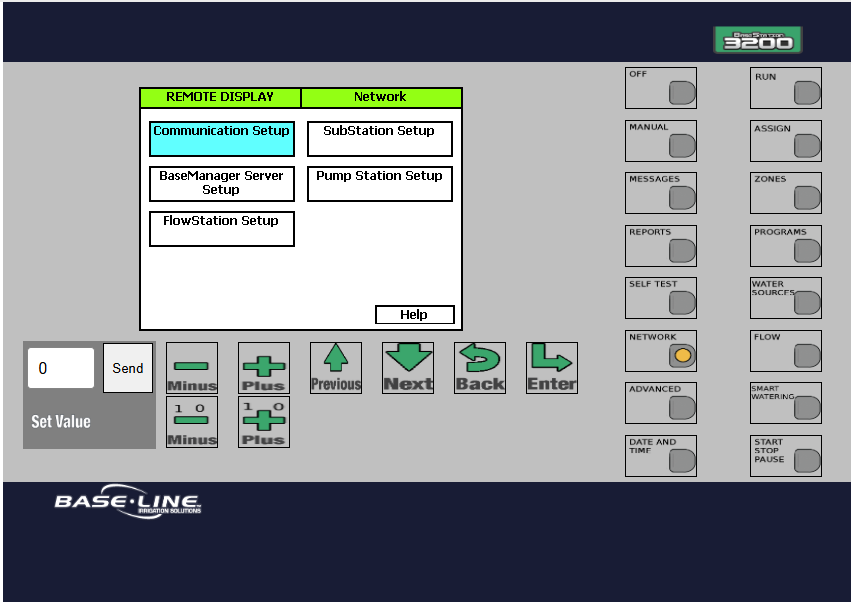
- Make sure Comm Type is on Ethernet and then go to IP Setup (this is only to get to the MAC address, as it's not under the other comm types)
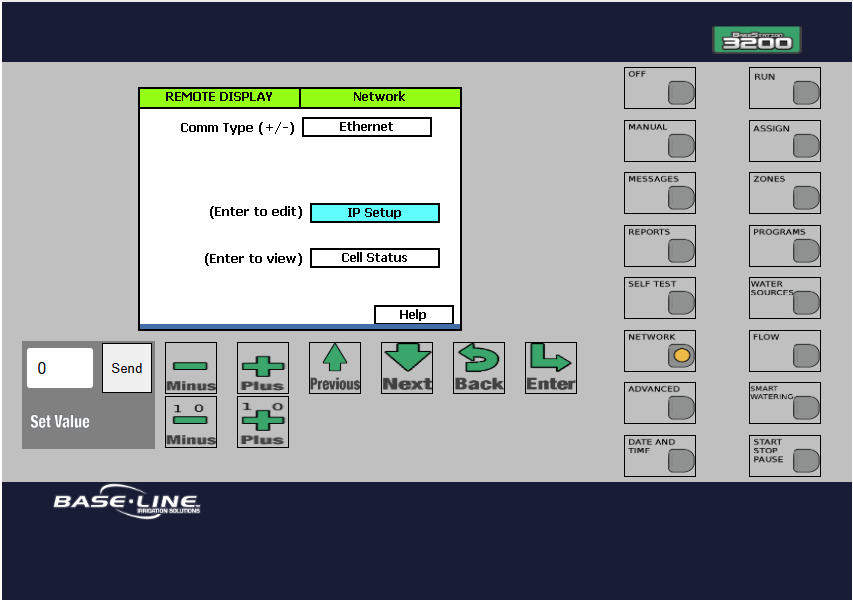
- At the bottom of the screen will show the MAC Address
How to find the MAC Address at the 1000
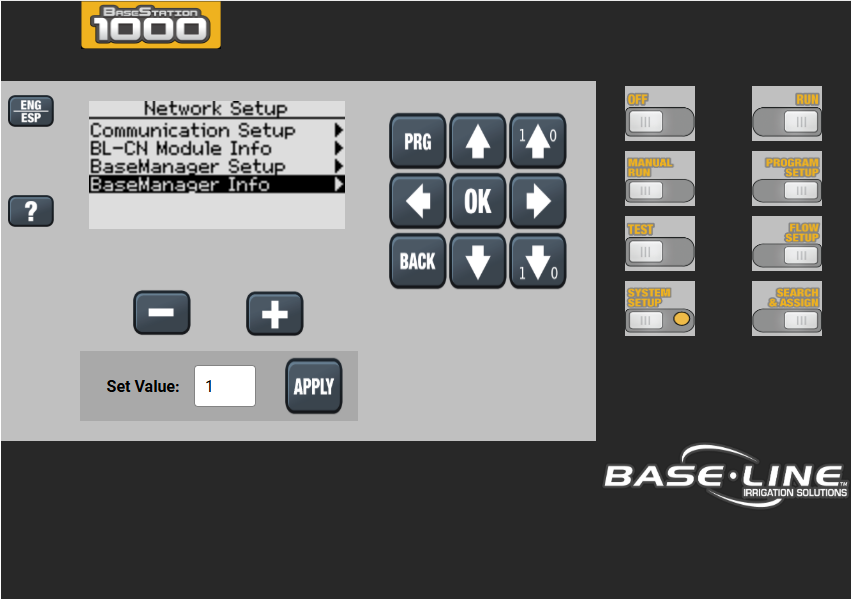
- Go to System Setup then to Network Setup
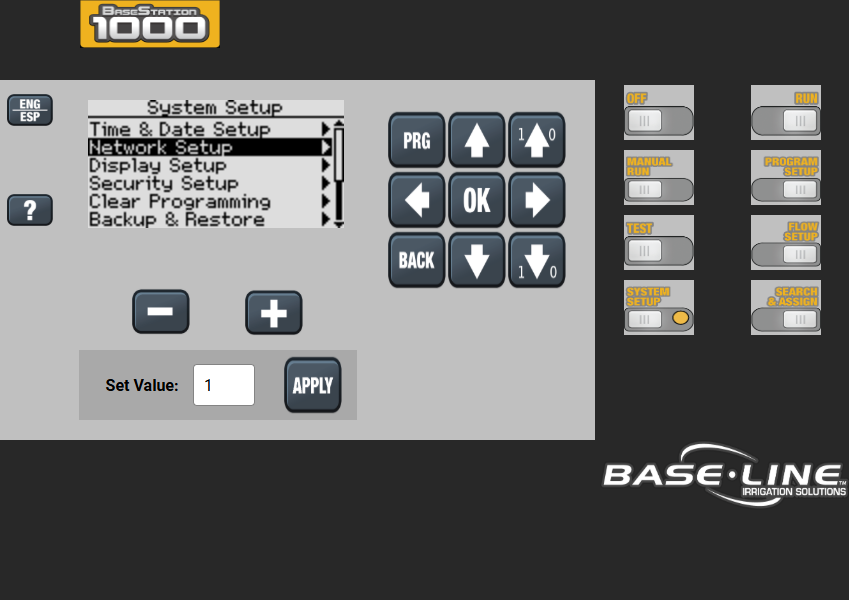
- Go to Communication Setup
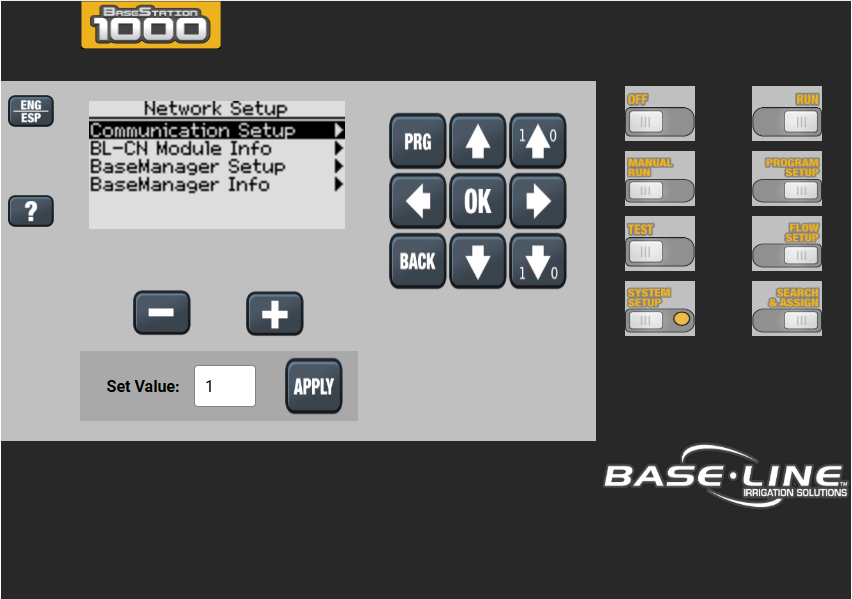
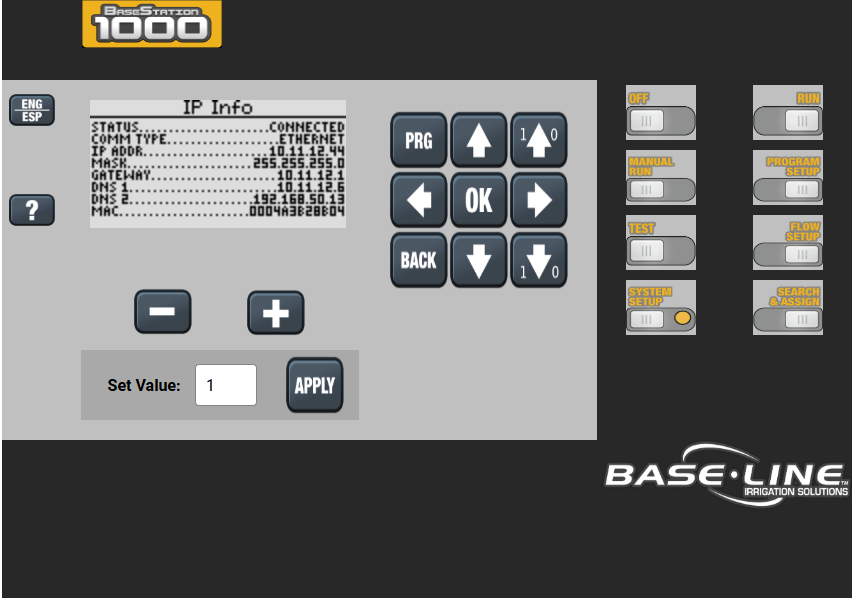
- Make sure Comm Type is on Ethernet and then go to IP Info
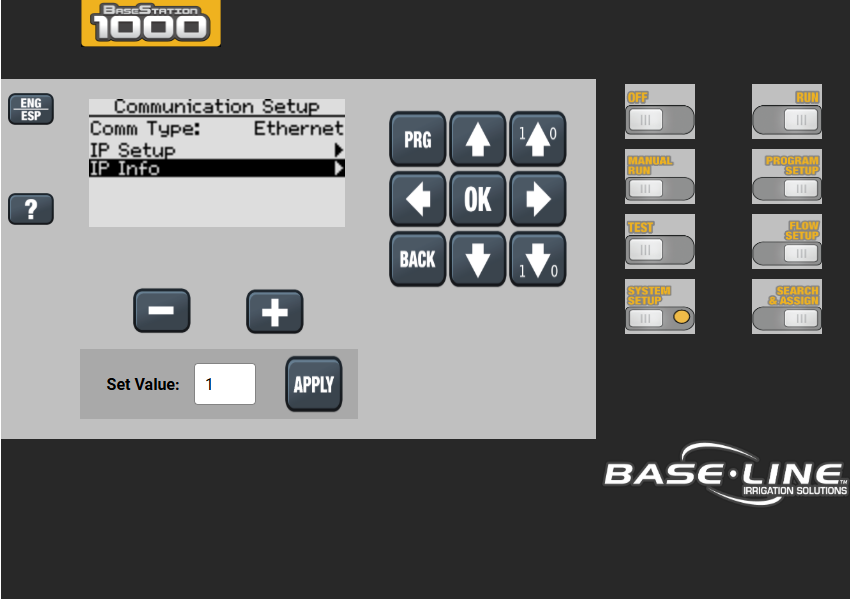
- You will see the MAC address at the bottom of the screen
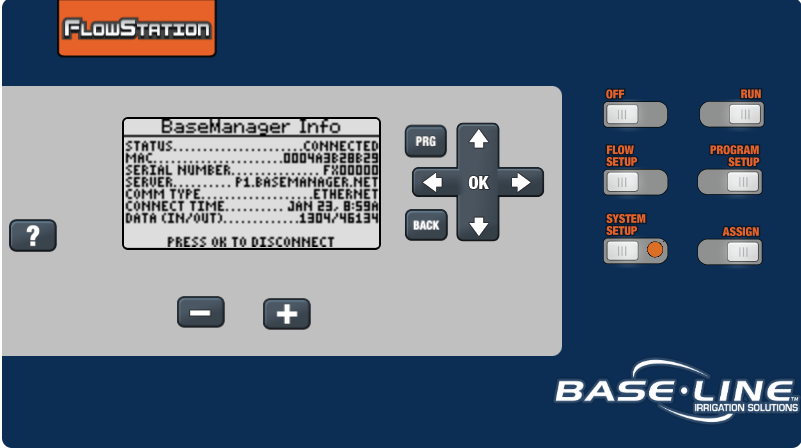
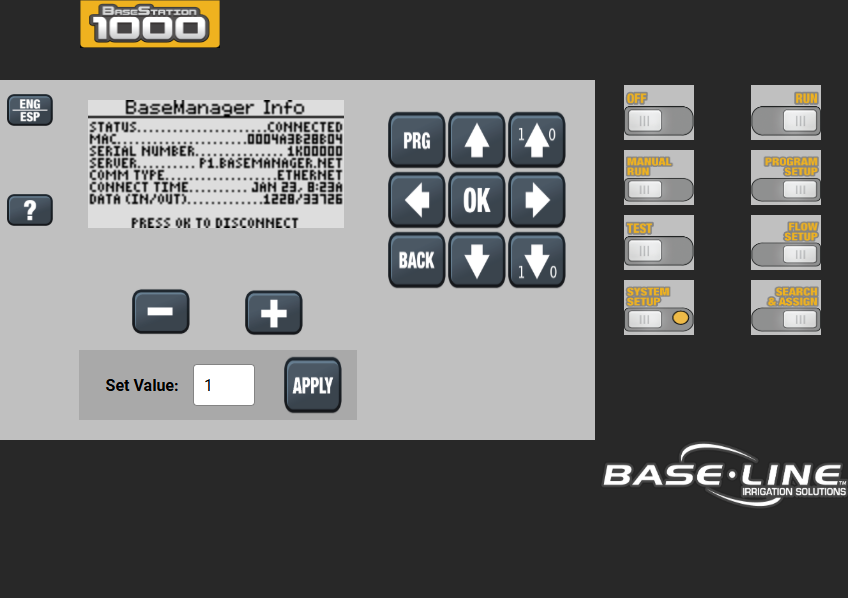
- Another way to find the MAC address in Network Setup, is by going to BaseManager Info
- You will see the MAC Address second line from the top
How to find the MAC Address at the SubStation
- You will go to Setup then to Network Setup
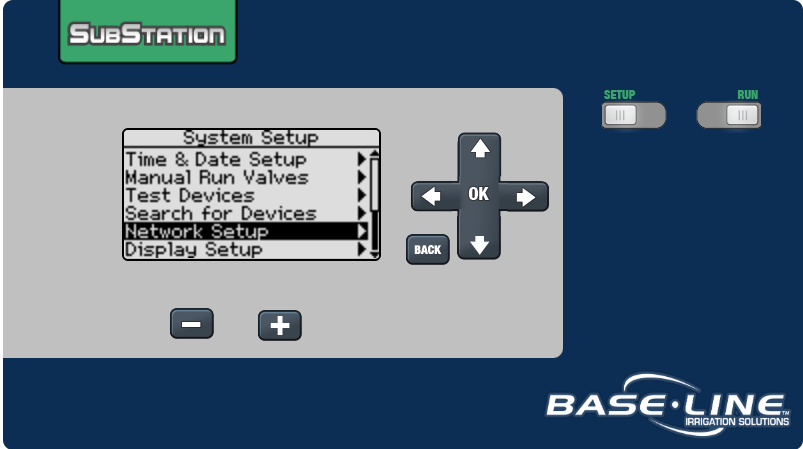
- Make sure Comm Type is on Ethernet and then go to IP Info
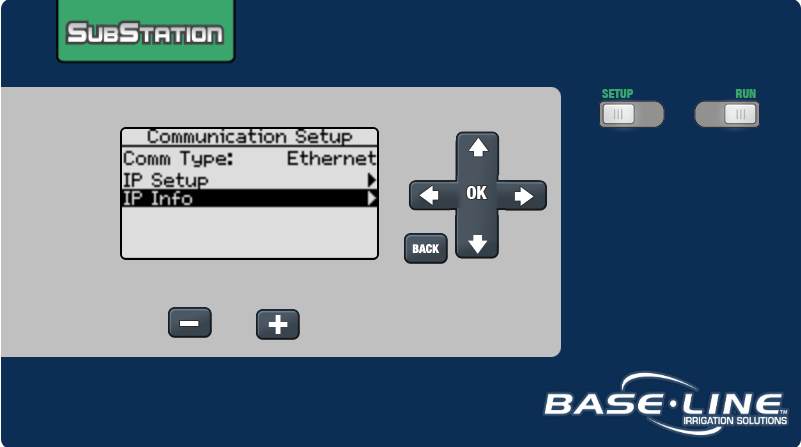
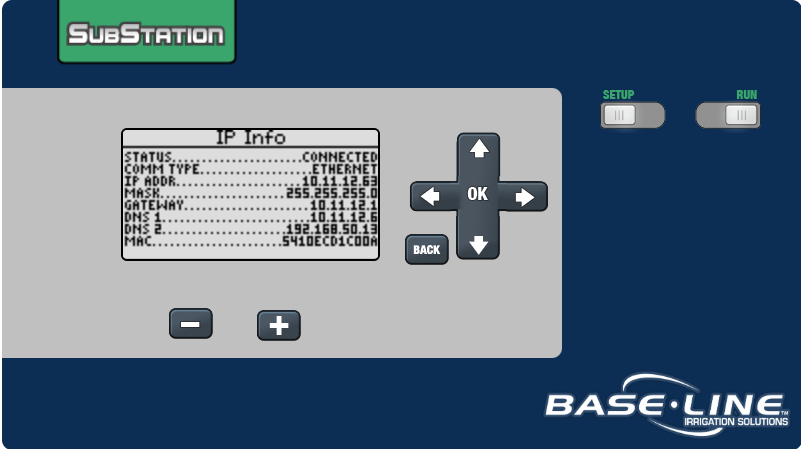
- You will see the MAC Address at the bottom of the screen
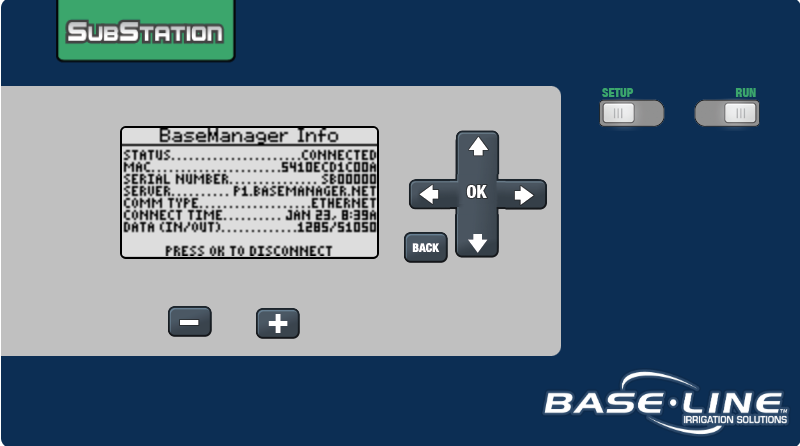
- Another way to find the MAC address in Network Setup, is by going to BaseManager Info
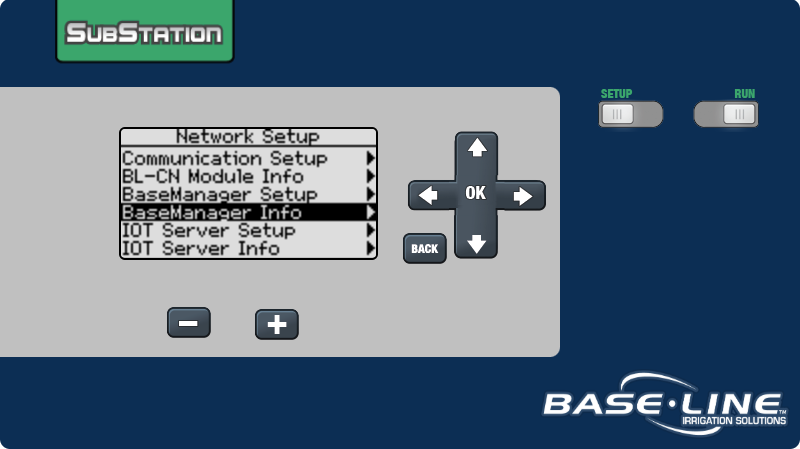
- You will see the MAC Address second line from the top
How to find the MAC Address at the FlowStation
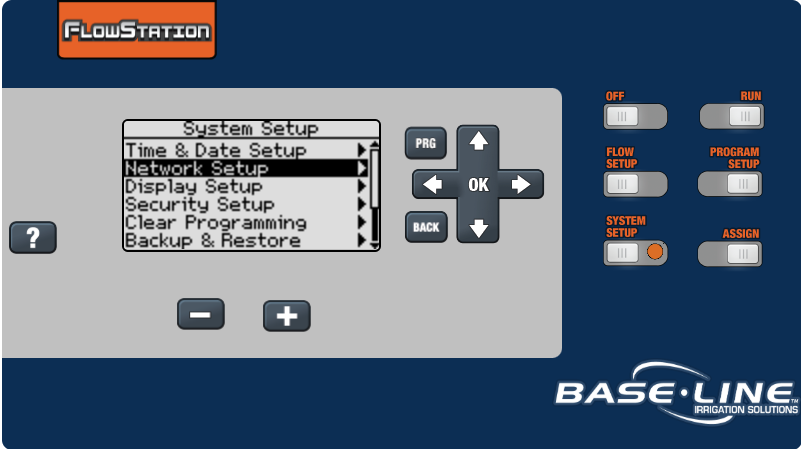
- You will go to System Setup then to Network Setup
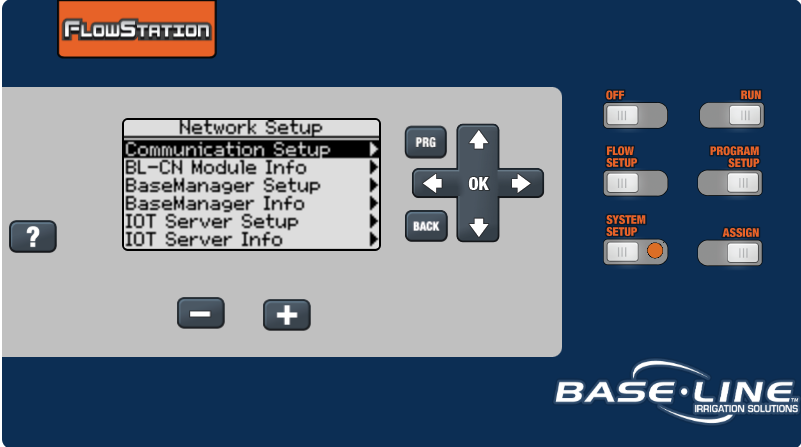
- Go to Communication Setup
- Make sure the Comm Type is on Ethernet, then you will go to IP Info
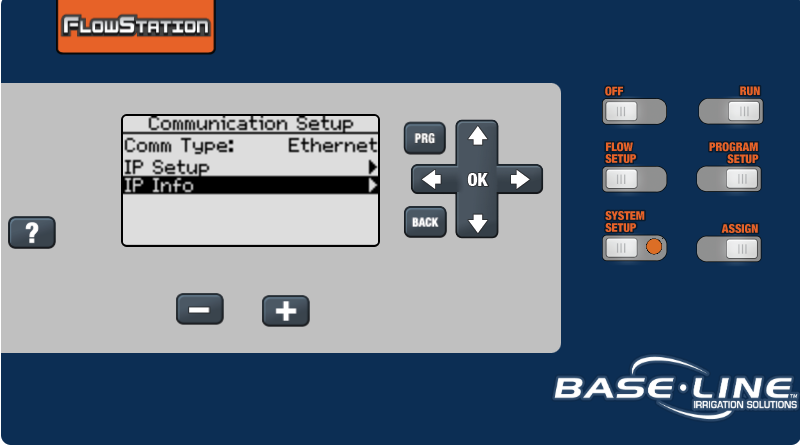
- You will see the MAC Address at the bottom of the screen
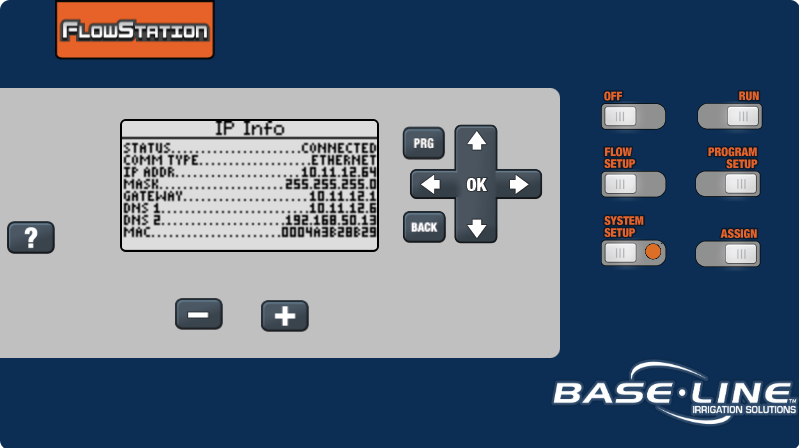
- Another way to find the MAC Address in Network Setup, by going to BaseManager Info
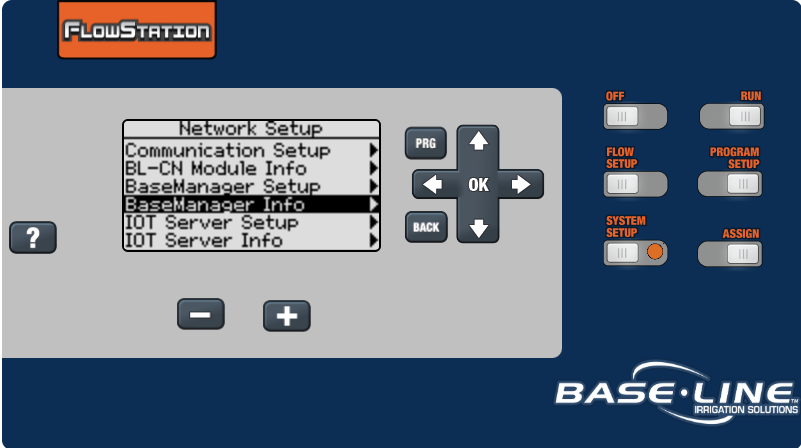
- You will see the MAC Address second line from the top