
Update
Table of Contents
Data Services Request ProcessNotes
Data Services provides data from our databases in Salesforce, NetSuite, WeatherTRAK, and WaterCompass. Data Services can also help with cleaning data.
Cleaning data includes:
- Sorting data
- Matching data between systems
- Fixing data (e.g. if you have an excel that has a full address in a single cell, and you want it separated out into separate cells, address, city, state, zip, etc.)
- Performing data transfers or uploads
We can also help with clarifying and understanding data that you currently have.
To get started, you will need to submit a request by following the instructions below.
Data Services Request Process
1. First, determine if your request is generic related, specific related, or service related.
Generic: A generic request is a request for data that is not related to anything specific.
Specific: A specific request is a request for data that pertains to opportunities. For example, a sales opportunity that is not currently implemented.
Service: A service request is a request that pertains directly to a customer.
- For generic requests, create a new service in Salesforce.
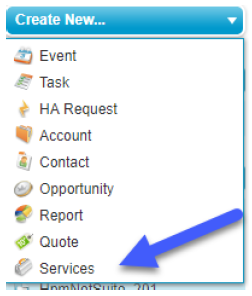
- For specific requests, you will need to link the request with the case in SalesForce.

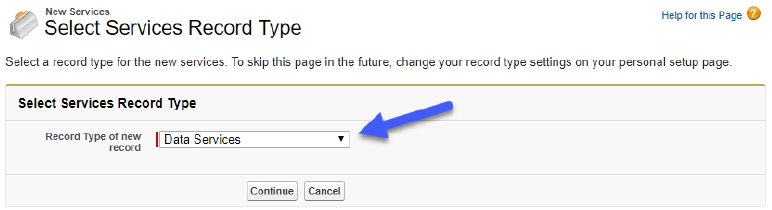
2. In the New Services field click the dropdown tab and select Continue.
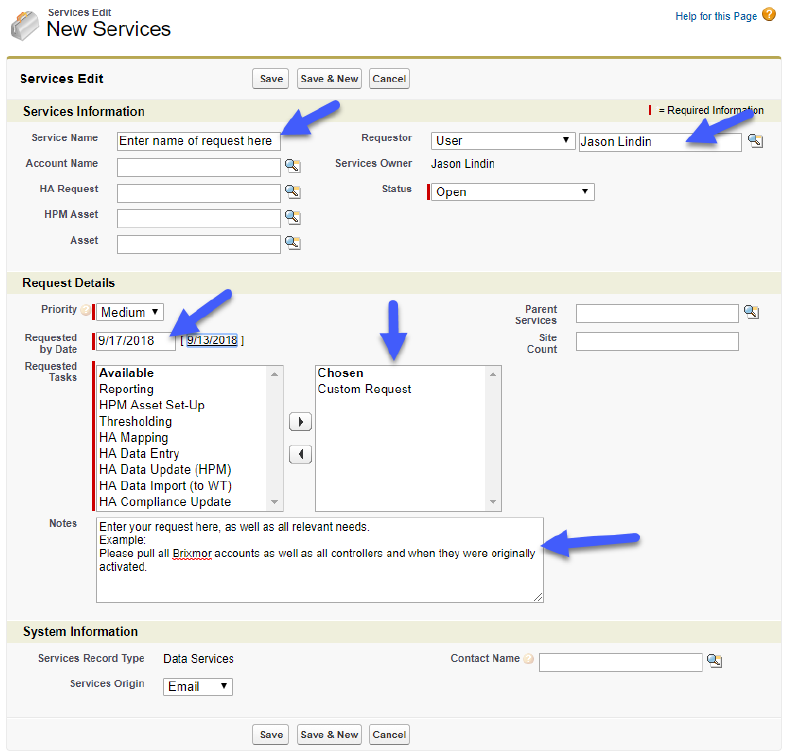
3. Complete the following required fields:
- Service Name – Enter the general title of what you are requesting
- Requestor – Enter your name, the generator of the request
- Priority – Set a priority for the urgency of your request
- Requested by date – Select a date when you need this finished by
- Requested Tasks – Select the type of task(s) required in your request and click the right arrow to bring them under the Chosen box. If you don’t see the specific type of Available task you need, then select Custom Request. If your type of request becomes more regular or recurring, we will add it to the list so that you do not need to fill out as much in the notes area each time.
- Notes – Enter the details of your request here. Include what you want, specifically what type of data, and how you would like to see it (this is more about which fields you need in your data rather than output like Excel, PDF, PowerPoint, etc.) These other options are possible in the future if it is determined they are needed].
4. Click Save. Your request has now been received and will be worked on it in the order received, or by priority of urgency.
5. To attach a file for us to look at or work with, you will add it after you have created the request by clicking Upload Files.

Notes
After completing the request, you will receive an email letting you know the request was received as well as a link back to the request. Any relevant notes related to your request will be entered into the Services Comments section.
If we have edited your data, a new version of the file will be uploaded to the original request as an attachment.