
The BaseStation 3200S irrigation controllers track all actions such as programming changes, water times, moisture levels, and other internal actions that occur on the controller. These actions are recorded in an event file on the controller.
Note
This document describes event files generated by the following controller firmware versions: BaseStation 3200S version 19.7.1 or newer.
How to Download an Event File
There are 2 ways to download an event file.
Downloading an Event File through BaseManager
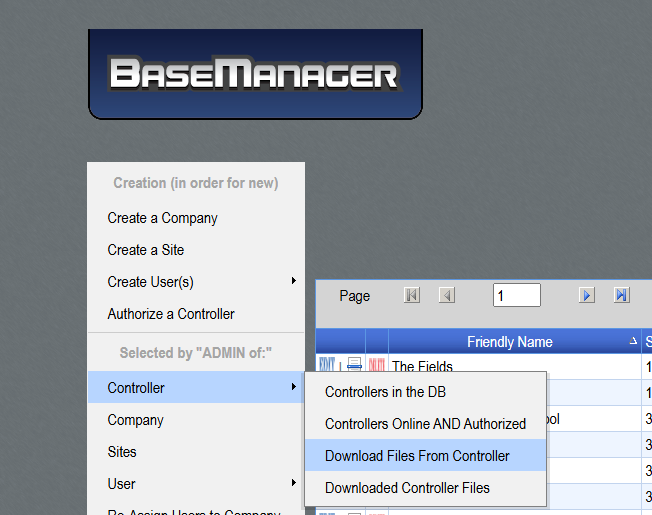
- From BaseManager under the Controller tab select the “Downloaded Files From Controller” option.
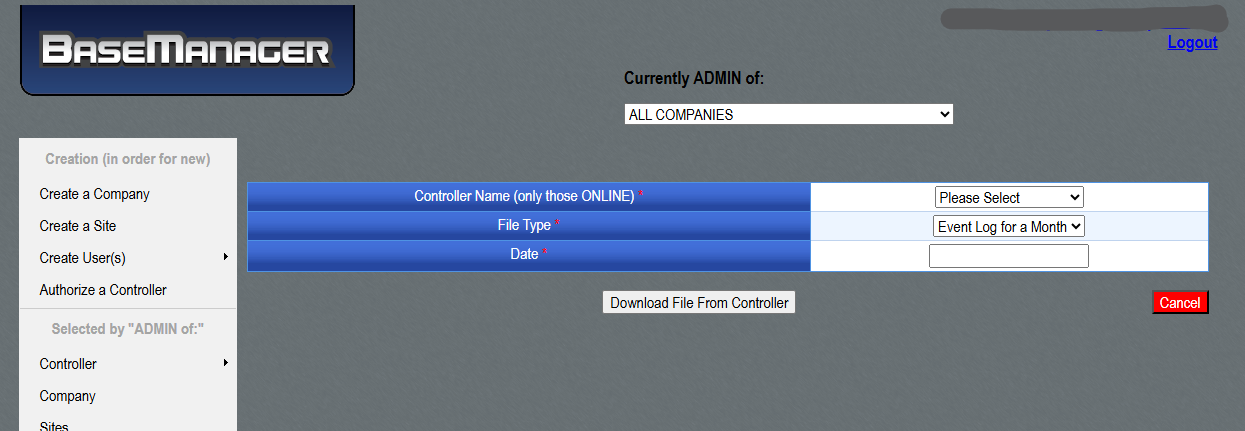
2. Select the appropriate company, select the controller the Event File is needed for and change the File Type to “Event File for a Month” and the date you need the Event log for.
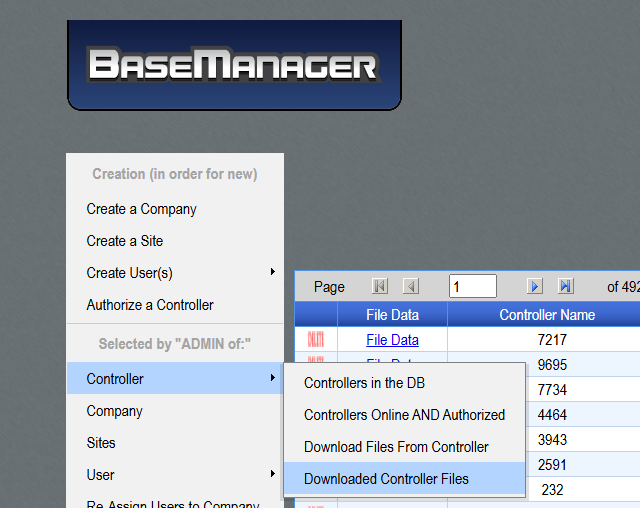
3. Go back to the controller tab and select the “Downloaded Controller Files” option. The Event Log can be downloaded by selecting the “File Data” link.
Downloading an Event File through AdminManager
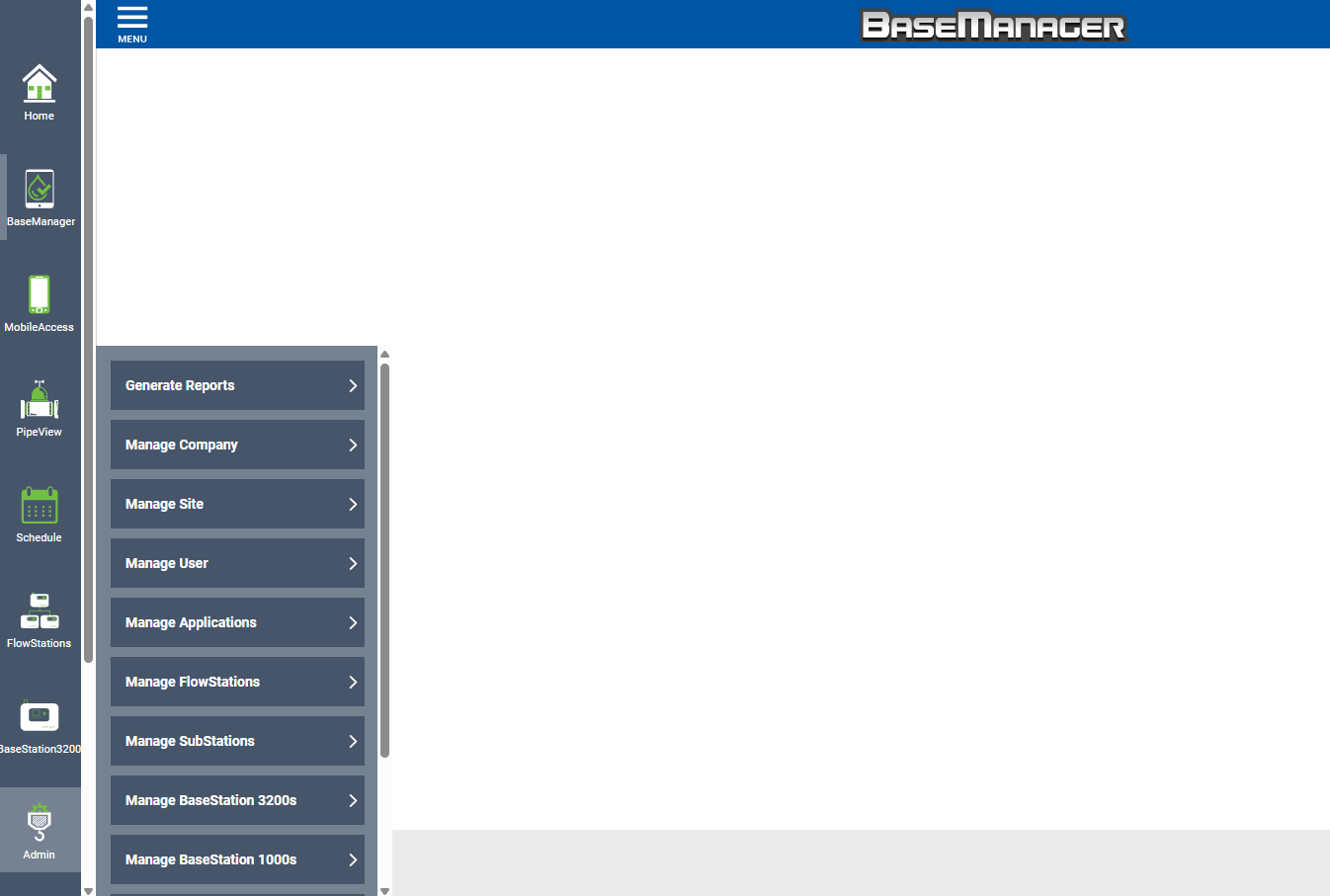
- Select the “Admin” tab in AppManager on the low left, then select “Manage FlowStations” “Manage SubStations” “Manage 3200s” or “Manage 1000s” depending on the device you're working with.
2. Next select the Menu on the top left and select the Company that device is on.
3. After the company is select the device you need the event file for and a window will appear on the right hand side of the screen.
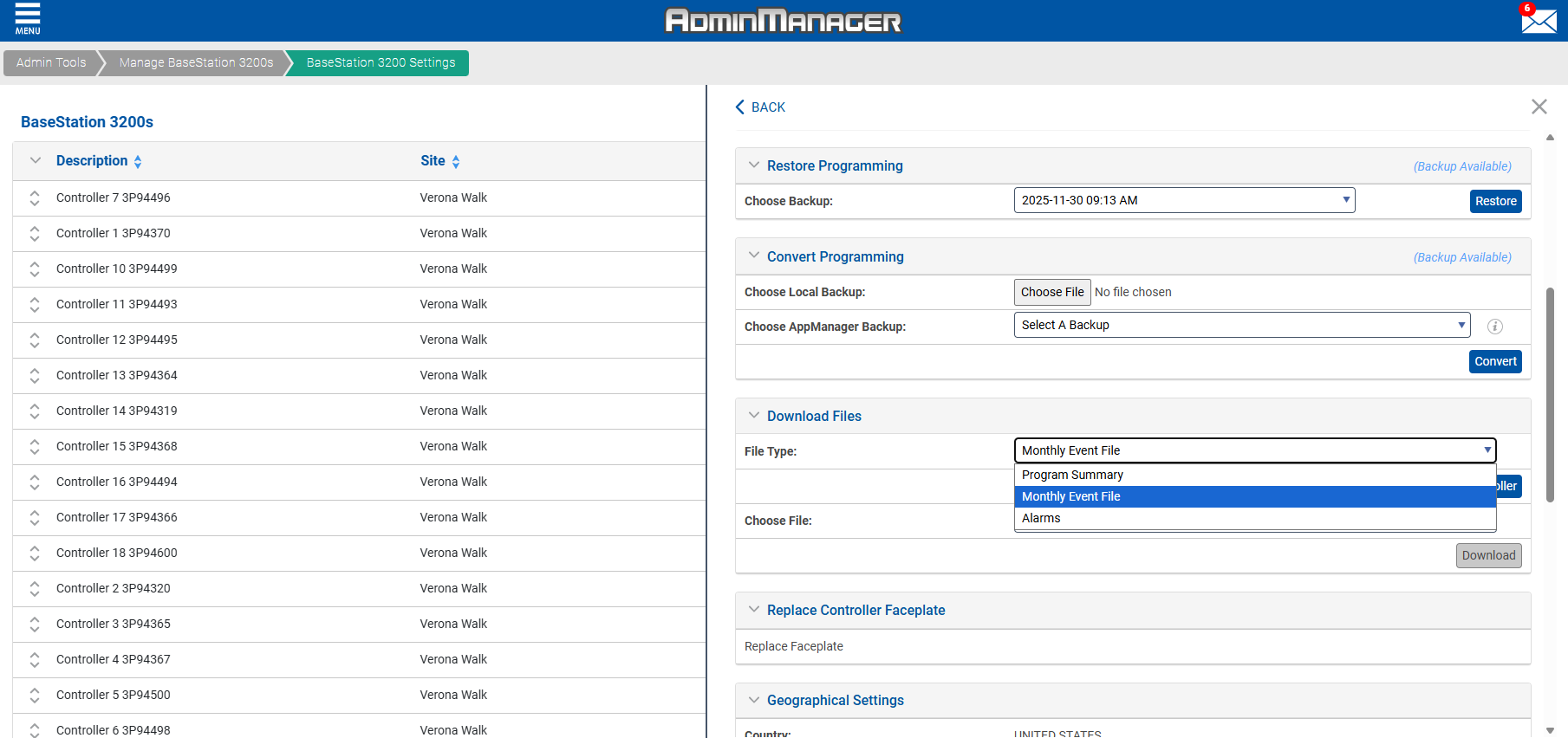
4 . In the new window, scroll down to the “Download Files” section, select the “Monthly Event File” option and click “Get Latest From Controller” and the file will download to your computer.
Event File Example
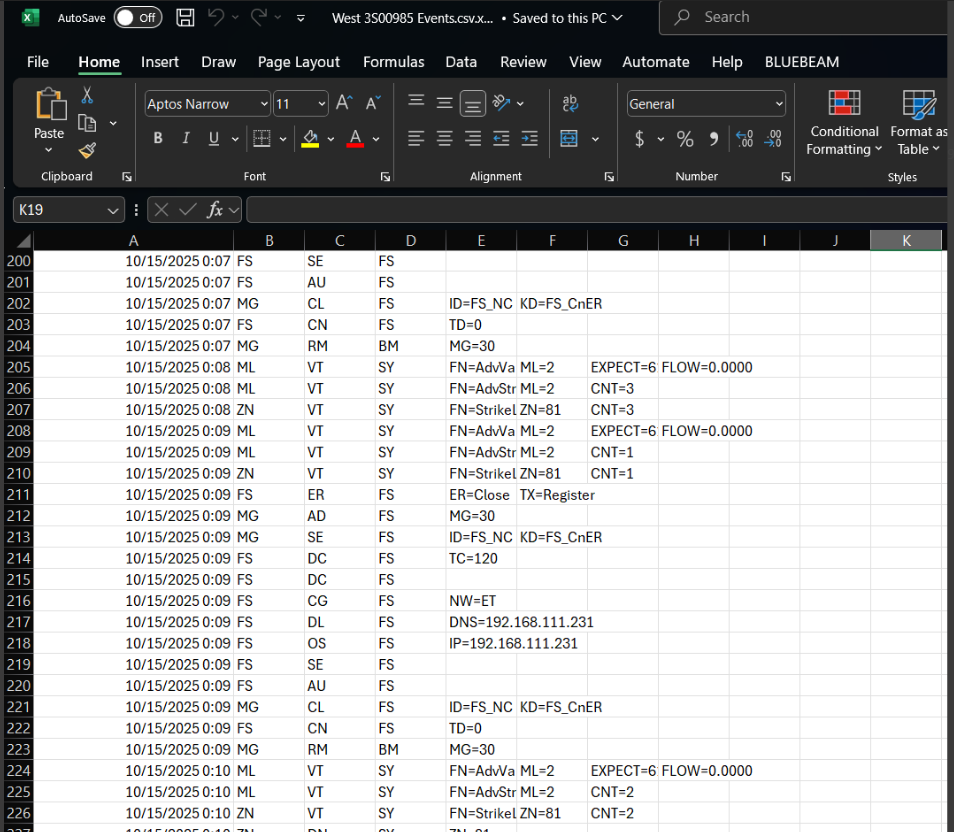
An example of an Event File export is shown below with an explanation of the third row.
The third data row records the following event:
On October 15, 2025 at 12:07 am, The controller got a message indicating that their FlowStation had a FlowStaion ConnectError”
Interpreting the Data
Even after the event file data is properly displayed in the worksheet rows and columns, you probably won’t be able to read the content. The following information will help you interpret the data.
When interpreting the data in event files you will want to use the 3200S ERS Object Definitions (linked below) along with context clues from the file itself and from the controller (i.e. controller messages, controller programming, connected devices, etc.)
Column F contains message details that the 3200S ERS Object Definitions can help clarify as well.
3200S ERS Object Definitions
https://hydropoint.atlassian.net/wiki/spaces/HDW/pages/2463498260/3200S+ERS+-+Object+Definitions
Data Columns
The event file columns contain the following data (from left to right):
- First column (column A) – date/time when the action occurred – the time uses the 24-hour clock convention
- Second column (column B) – the subject of the entry. For example, alarms, moisture sensor
- Third column (column C) – the action that occurred. For example, the configuration was changed
- Fourth column (column D) – what triggered the action. For example, a program started because a Day/Time (DT) start occurred
- Remaining columns – the result of an action (where applicable)