
Purpose
This article contains all the activation process articles necessary to successfully activate a new controller, activate a controller that's replacing another one, reactivate a controller, deactivate a controller, and complete the transfer and replace process in NetSuite and WeatherTrak.net.
Important!
Depending on the activation scenario you are working on, you will need to use multiple if not almost all of the articles in this resource. Use the decision tree below to assist you. If you are not sure, don't guess, reach out to Tier 2 or your supervisor.
It's critical that we confirm every bit of information entered is correct and copied in both WeatherTrak.net and NetSuite as multiple teams within the company will utilize it for many important processes. It also effects the integrity of the controller's data, who can access it, and it's warranty.
Activations for "The Church of Jesus Christ Latter-day Saints" aka "The Church": Scott Dezotell (account manager) Or Michelle Lorimer (contact for UTAH Churches ONLY.) Have specific naming convention requirements and user acct. access standards. Please consult with Scott on any new activation naming uncertainties.

Is this a New Activation or a Replacement Activation?
New Activation
Replacement Activation
Neither, it's a Reactivation or Deactivation
Open the New Controller Activation article and follow all of the steps. Review the controller in NetSuite and WeatherTrak.net once more to ensure process completion.
Proactively discuss potential controller access needs with the contact/customer.
Ensure the "ASO" button has been pressed - ASO article
I am not able to activate the controller
Which issue is preventing the controller from being activated?
I am not able to activate the SIM Card
I am not able to locate an Install Base Record
I have activated the controller but it won't go online.
I don't have all the necessary information.
Ensure that step 1 in the new controller activation article above, have been completed correctly.
If the SIM is not in the system, first ensure it has been typed and provided to us correctly.
Follow the Missing Install Base Record article.
Follow the offline troubleshooting steps in This Article.
As the activation article explains, this requires us to hold the submitter responsible for providing all the necessary information. Assure the contact that the integrity of this data is important to the controllers warranty, inventory data, access features and more that could affect the experience for them and the owner.
This content will be shown (depending on) when button above is clicked
IMPORTANT: Before starting the Transfer and Replace Process, first ensure the new controller sim card is activated. Additionally, ensure the NetSuite install base transfer has been completed first. (This ensure the 2 controllers are at the same location to do the copy config.)
Open the New Controller Activation article and follow it entirely.
Then choose the next appropriate option below.
The above step has been completed, what's next?
I am not able to Activate the Controller
Follow all the steps in the (Netsuite Install Base Transfer) Copying Data from an Existing Controller in NetSuite Article.
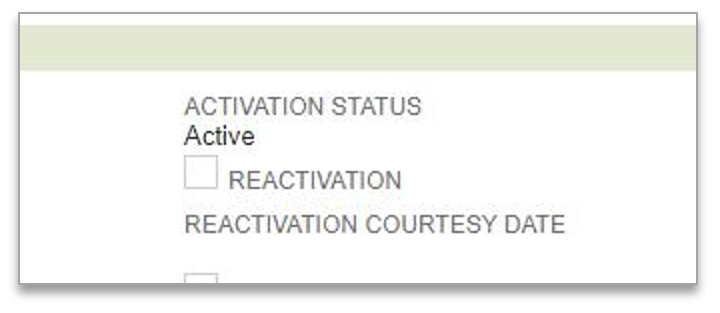
Once completed, check if the Subscription End Date is past due. If it is, check off the reactivation box in the install base record, and send an e-mail to Account renewals <Renewal@hydropoint.com> to let them know so they can follow up with the customer.
Ensure that the ASO button has been clicked - ASO article
The above step has been completed, what's next?
Return to the New Controller Activation Article and complete step 4. Ensure that the destination controller is online before continuing.
Next, follow the steps in the Transfer and Replace Procedure Article.
The above step has been completed, what's next?
Follow the Activation Sales Order Process article.
Then, Follow al the steps in the NetSuite Device Deactivation Process article. Lastly, double check the devices in both Netsuite and WeatherTrak.net to confirm process completion.
Type Button Text
This content will be shown (depending on) when button above is clicked
Button Text
This content will be shown (depending on) when button above is clicked
Which issue is preventing the controller from being activated?
I am not able to activate the SIM Card
I am not able to locate an Install Base Record
I have activated the Controller but it won't go online
I don't have all the necessary information
Ensure that step 1 in the new controller activation article above, have been completed correctly.
If the sim is not in the system, first ensure it has been typed and provided to us correctly.
Follow the Missing Install Base Record article.
Follow the offline troubleshooting steps in This Article.
This content will be shown (depending on) when button above is clicked
As the activation article explains, this requires us to hold the submitter responsible for providing all the necessary information. Assure the contact that the integrity of this data is important to the controllers warranty, inventory data, access features and more that could affect the experience for them and the owner.
This is typically due to a delinquent subscription. Open the Reactivation and Deactivation Article and follow all of the steps in this article based on the scenario at hand.
Additionally, review the NetSuite Device Deactivation article to confirm if any of it applies to your scenario.