
Activating a controller’s SIM card is needed for the controller to communicate with our servers through the cellular network. This is a necessary step for us to provide our basic subscription services and charge for renewals.
Devices need to be set up consistently across platforms using accurate customer data so we know important information such as which device belongs to which customer, where it is installed, and who to bill for renewals.
The customer begins the process by filling out a Jot form online. If we receive a P.O. with a Verizon SIM SKU, we will require a controller serial number. A case is created in Salesforce which initiates the activation process.
There are two types of SIM cards: Verizon and AT&T. Each type gets activated a bit differently because you will be using a different portal for each. Choose the correct type before proceeding.
- Verizon SIMS start with 8914
- AT&T SIMS start with 8901
- Semtech SIMs start with 8933
For WT Controller
All WT controllers go out with a preactivated AT&T SIM card (unless specifically requested otherwise).
See Updating a WT Controller to Verizon for Instructions.
For Baseline
The activation form is emailed to support@baselinesystems.com and to accounting@baselinesystems.com.
AT&T Activations (Baseline & WeatherTRAK)
Note: If you are unable to find the SIM number for AT&T accounts: 1. Check with the customer/contact to ensure the correct SIM number was provided 2. Create an AT&T support case.
1. Log in to the AT&T Portal:
https://iotcontrolcenter.att.com/
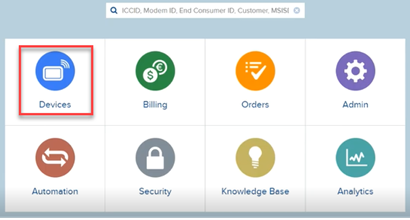
2. Select Devices.
3. Reference the JOT form for the SIM card number.
4. Search for the SIM in the AT&T portal and Click Edit.
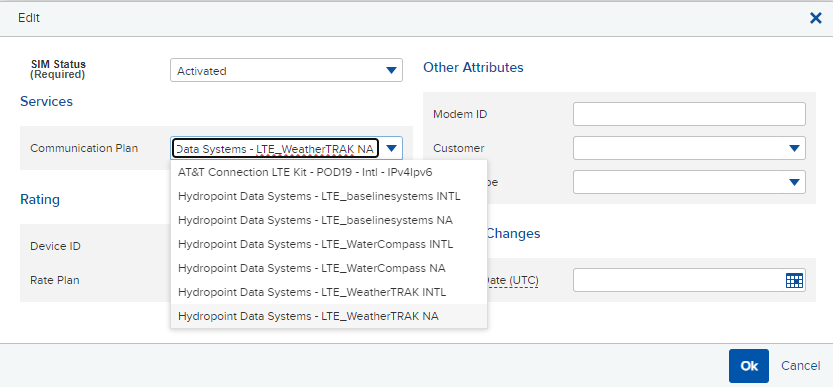
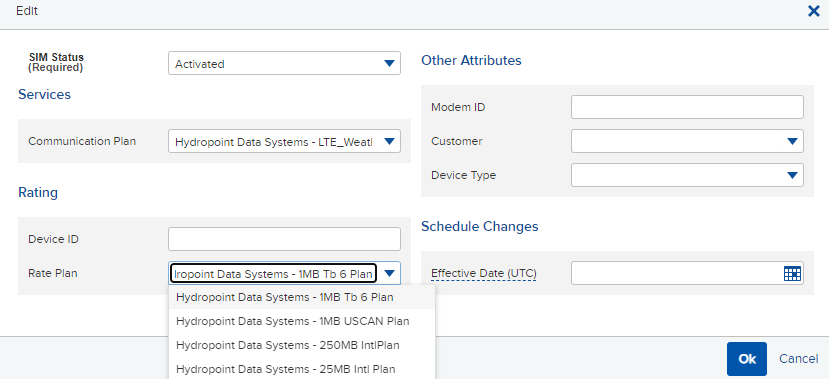
5. Validate that the SIM status, the Communication Plan, and the Rate Plan fields are populated:
(The “NA” plan is for North America and Canada.)
WaterCompass: (not ultrasonix/nex-gen)Rate Plan: Hydropoint Data Systems - 1MB Tb 6 Plan
Communication Plan: Hydropoint Data Systems - LTE_WaterCompass NA
Baseline: Rate Plan: Hydropoint Data Systems - 1MB Tb 6 Plan
Communication Plan: Hydropoint Data Systems - LTE_baselinesystems NA
WeatherTRAK: Rate Plan: Hydropoint Data Systems - 1MB Tb 6 Plan
Communication Plan: Hydropoint Data Systems - LTE_WeatherTRAK NA
NOTE: Plans that include INTL are for international devices. These examples may be rare. Example: Air Force Base in Spain. For international device rate plan, choose “250MB IntlPlan”
6. For the activation date, if no date is used, the current date will be used which is why it is grayed out.
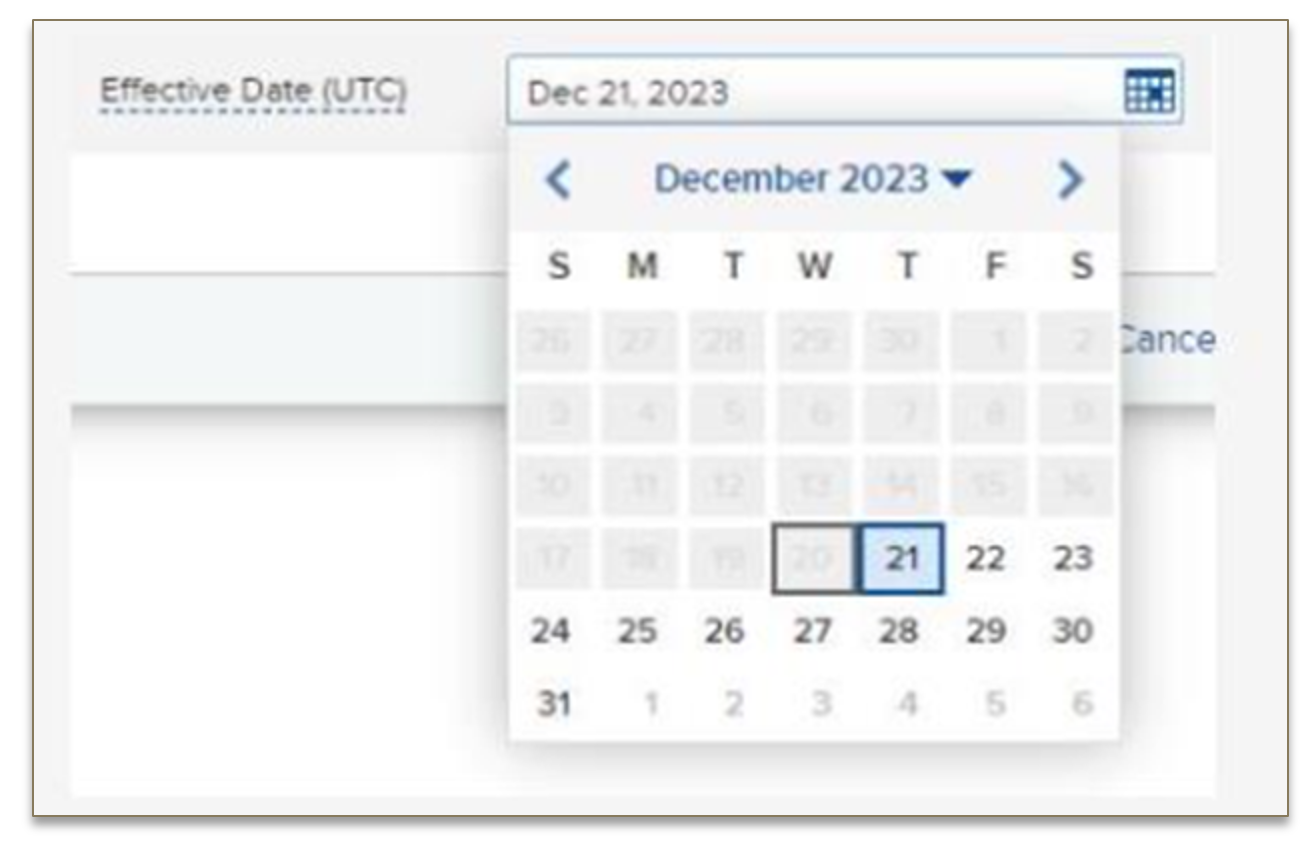
7. Click “OK” to Activate the SIM.
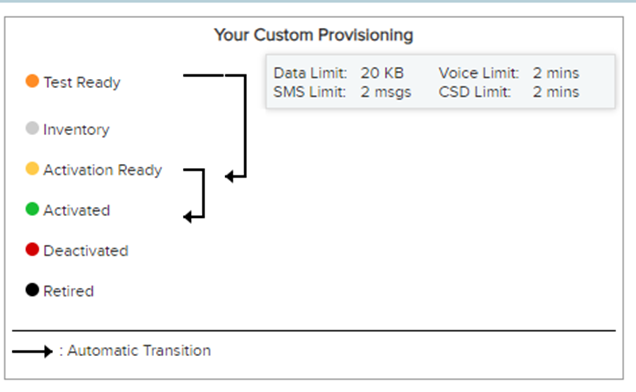
Semtech Activations for WeatherTRAK & Baseline
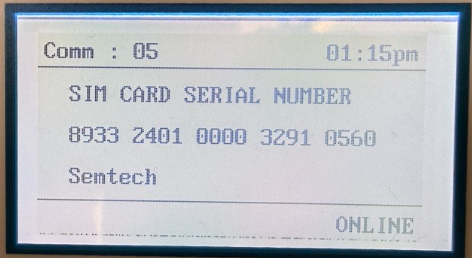
- Start off by validating the sim card serial number for WT Controllers. This can be done following sub steps.
- Have the customer press the COMM button.
- Have the customer Press the right arrow to submenu Com:05.
Have the customer Press the right arrow to submenu Com:05.
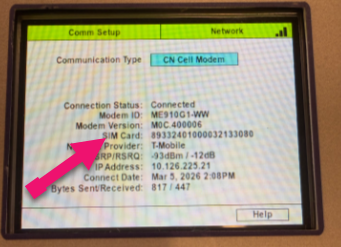
- For Baseline Controllers using a Cloud Network Module.
- Turn the dial to Network
- Press Enter on Communication Setup
- Comm Type should be on CN Cell Modem
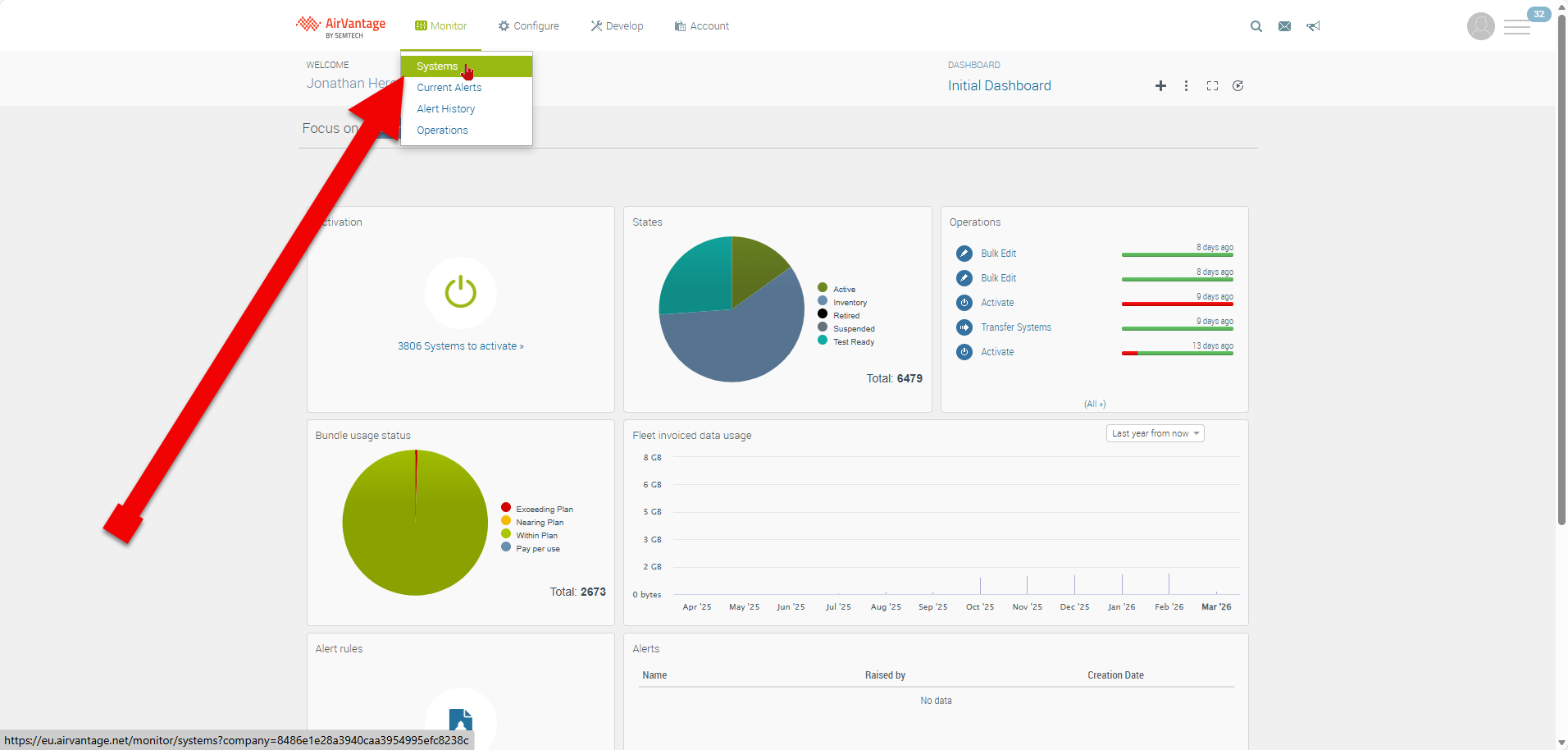
- Use the AirVantage portal (click on this button to be routed to the portal).
- Enter your AirVantage Credentials.
- Click on Monitor then Systems.
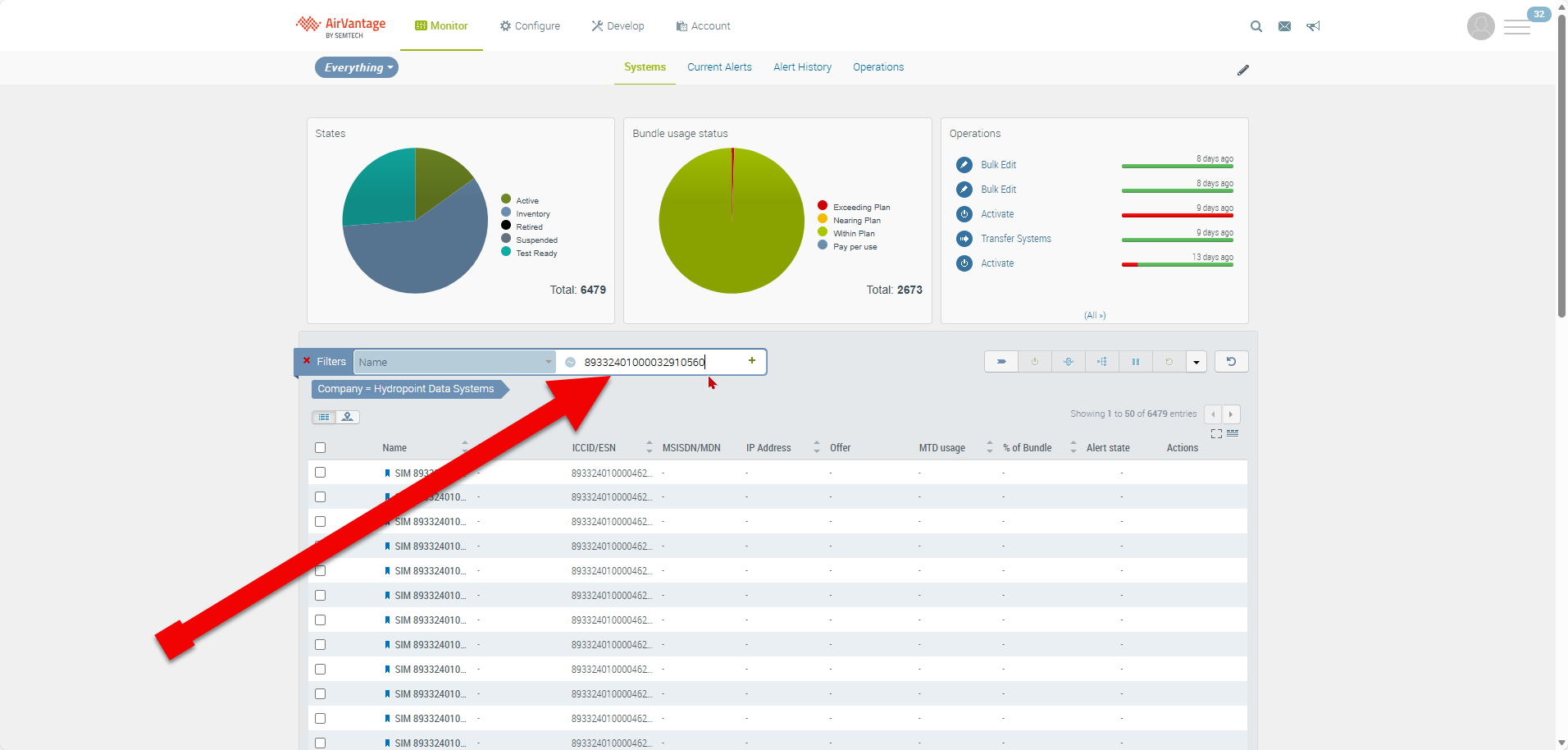
- In the lookup filed enter the sim card number hit enter.
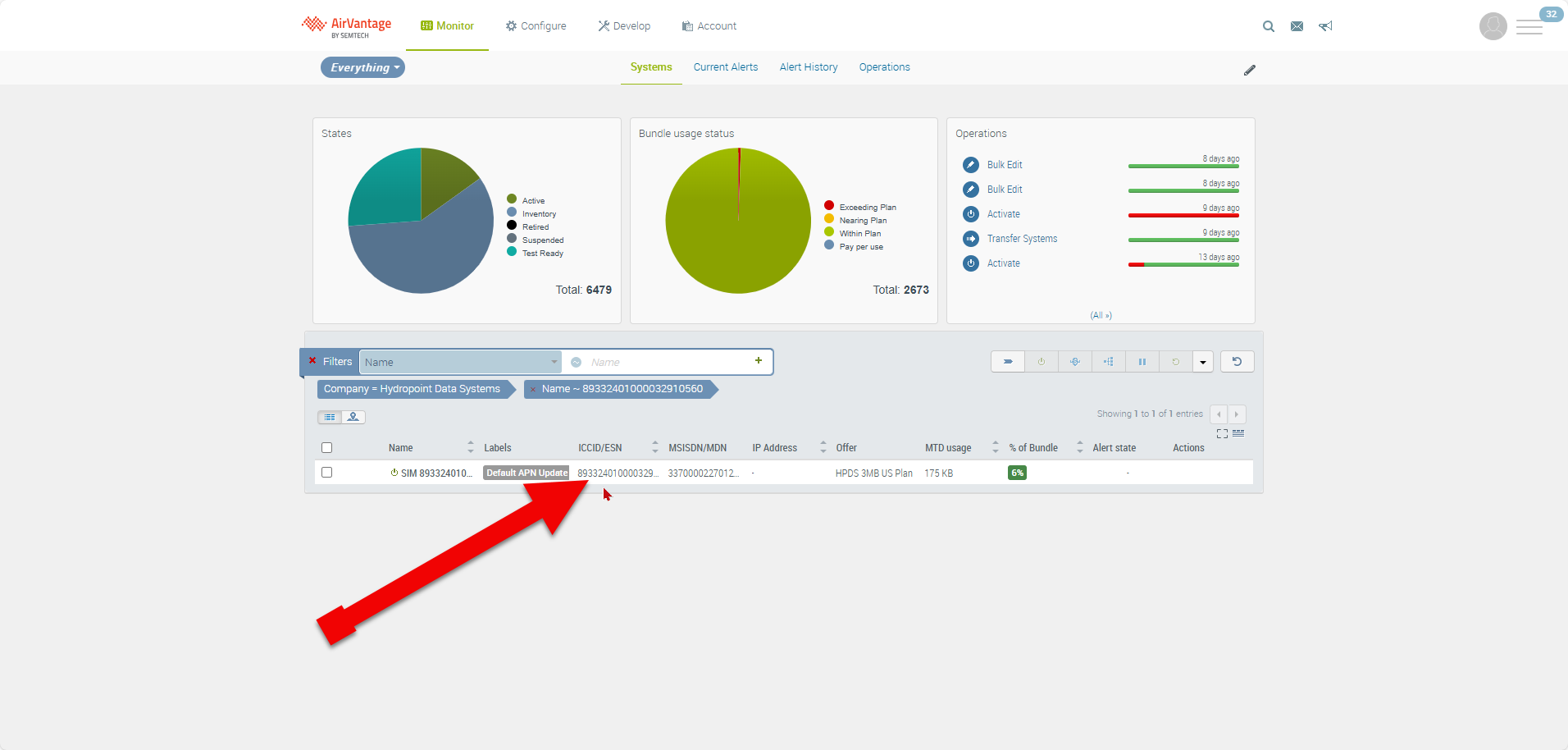
- Click on the ICCID.
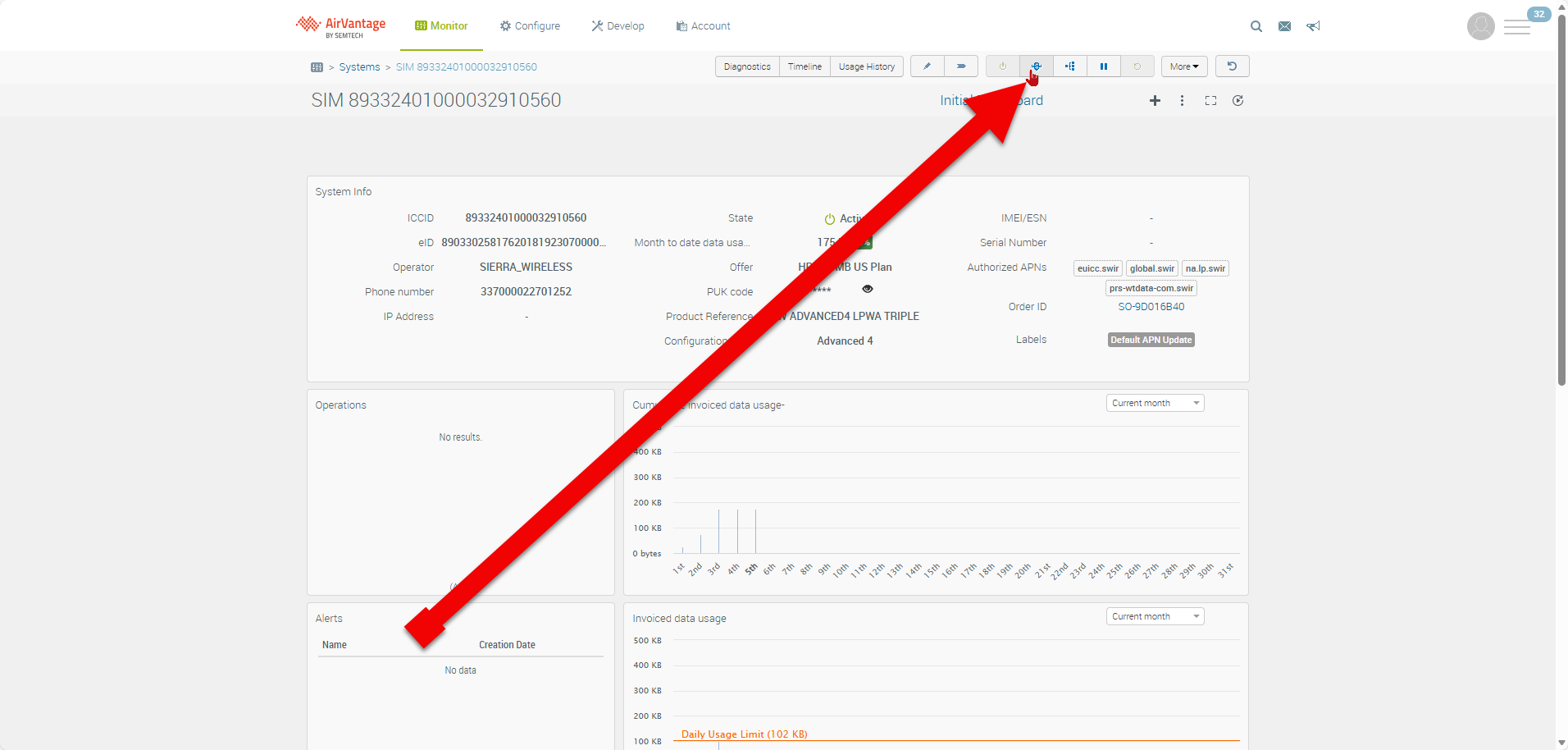
- Click on Change Offer.
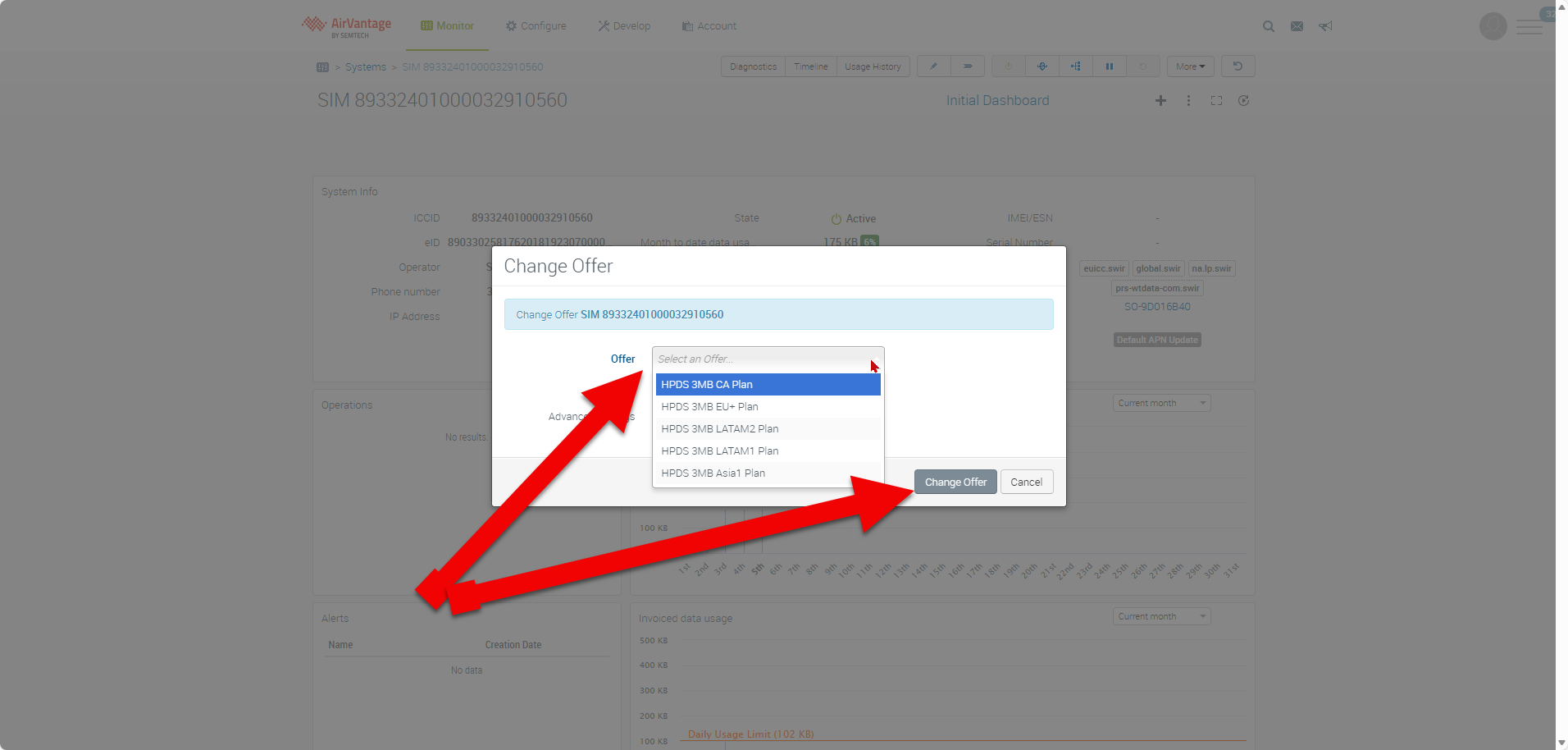
- Select the HPDS 3M US PLAN.
- Click on Change Offer.
Notes:
- Remember that all Semtech cards should have been shipped pre-activated.
- There are 4 phases to a Sim card once activated.
- Test: This means that the sim card will need to use 20KB of data before it is in the “Active” state.
- Active: Once the 20KB of data have been used the Second state will be set to ACTIVE. This just tells us the sim is allowed to communicate “Activated”.
- Suspend: This means that the communication has been suspended. The sim card is not allowed to communicate; this will be due to customers no longer using the WT/BL subscription.
- Terminate: This will kill the sim card indefinitely and can no longer be reactivated. Never set a sim card to the Terminated State.
Verizon for Baseline Activations
Note: If you are unable to find the SIM number in the carrier portal scroll to bottom of this Article.
1. Log in to the following address: https://mblogin.verizonwireless.com/amserver/sso/login.go?goto=https://b2b.verizonwireless.com:443/sms/amsecure/landing/overview.go&appGroup=VZW#/overview
- Note: we have separate user accounts for BL and WT. Once logged in, choose "Thingspace" in the upper left hand corner. Then choose the devices button on the top left.
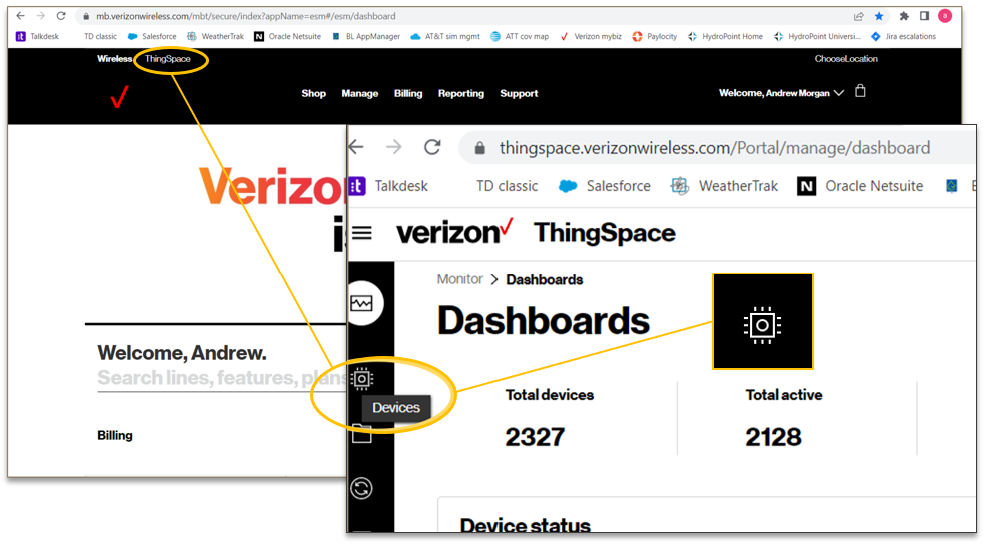
2. Search for the SIM card number from the JOT Form. Enter the SIM number into the search bar on Verizon and run search.
- If you are not able to find the sim in the search, reach out to the customer and have them send a picture of the sim number, either on the modem or the activation card that comes with the modem.
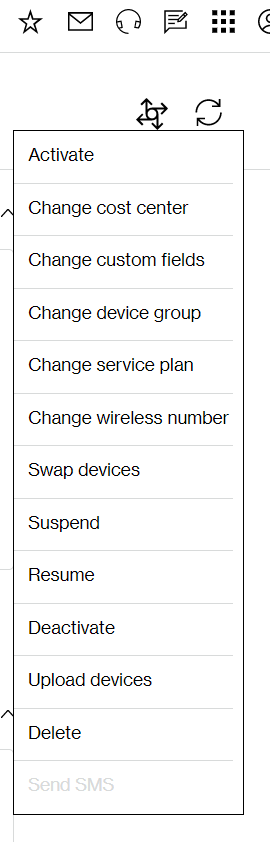
- The action button will open the menu that contains the activate, suspend, deactivate and other relevant options.
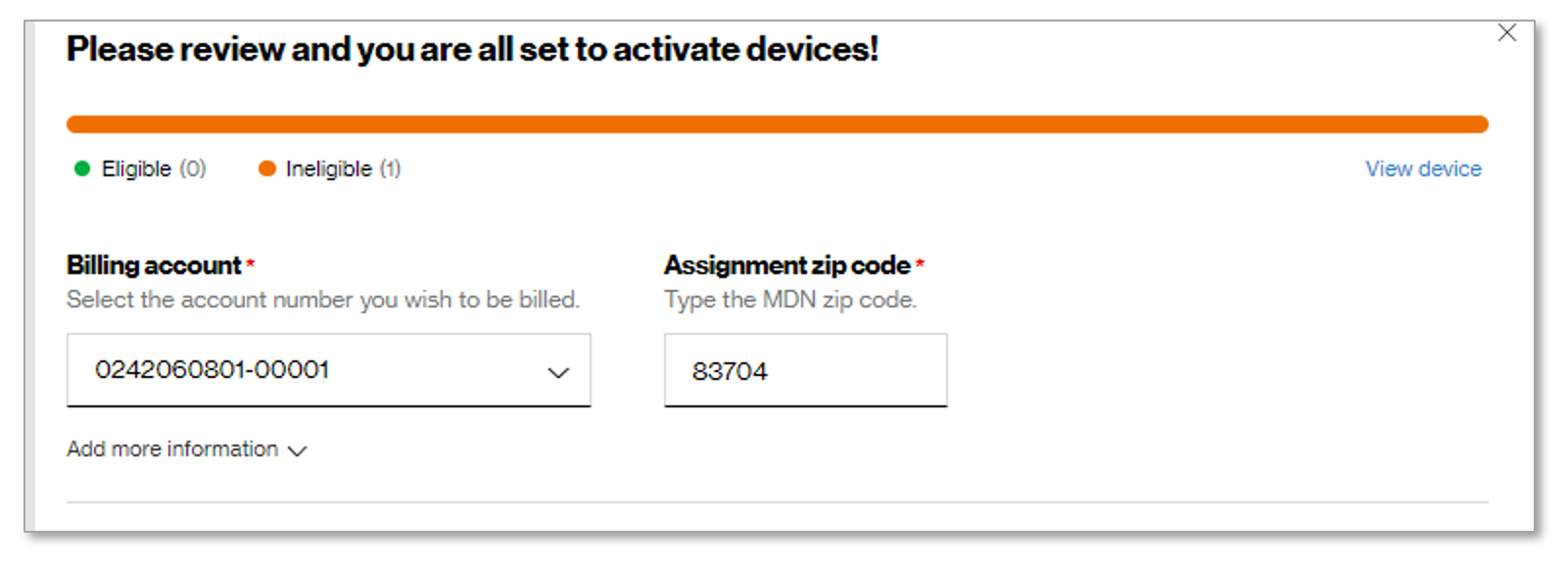
3. Make sure the info matches the screenshot below. For the "Add more information" dropdown. use the custom fields to enter customer information form the jot form. (Address, company, name etc.) The reason: The custom fields may be the only editable fields.
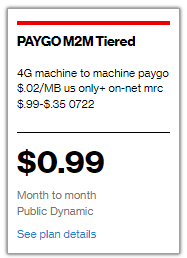
Service plan should be:
4. Reply to the original email letting the customer know that their modem is active. Use or create your own salesforce templates when possible.
5. Resolve the case in Salesforce.
Verizon for WeatherTRAK
Process for when WT Customer moves to VZ
Note: we have separate user accounts for BL and WT Verizon portal.
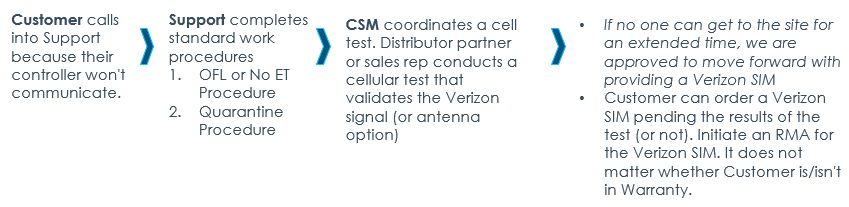
Zero-cost SIMs are provided only For customers with documented issues with communication and Verizon is required to resolve the communication issues. If a customer simply wants Verizon because they prefer that service provider, they will be charged for the Verizon SIM. Price: $89. We prefer a cell signal test to validate Verizon will even work. The test may determine using an accessory antenna will provide a better connection.
- SIMs will not be pre-installed at the factory. Customer receives controller and a Verizon SIM for installation. The SIM is auto-activated from HPDS.
- Old AT&T SIM can be “discarded in an environmentally friendly manner.”
- The AT&T SIM will be decommissioned after 30 days.
- Tell Customer: "Hey Craig, it looks like you put a WT-SIM-VZ line item on this P.O. We strongly recommend you confirm Verizon works at controllers' location before we send out the SIM. The controller will still ship but it's very important you perform a cellular test if you have not done so already as switching providers is no guarantee of connection to our network. Thanks!"
Part numbers for Verizon SIM replacement for existing controller or for a controller coming out of Distribution inventory:
For Order processing, Verizon SIMs require the associated controller's serial number. SIMs can be ordered using standard part/SKU number: WT-SIM-VZ. (Example: WTLC-C-06-PL, WT-SIM-VZ). LTE SIM Card to support Verizon are:
- LC+ Controller WTLC-SIM-VZ. Includes USB Update Key, Verizon SIM, and Installation Instructions.
- ET Pro3 Controller WTPRO3-SIM-VZ. Includes USB Update Key, Verizon SIM, and Installation Instructions.
- OptiFlow XR WTOXR-SIM-VZ Includes USB Update Key, Verizon SIM, and Installation Instructions.
If the controller detects that the SIM card has changed, it will automatically change the configured APN:
- “pro.wtdata.com” for AT&T
- “wthrtrk5g.vzwentp” for Verizon
- "globaldata.iot" for Semtech
Other Notes
If you are unable to find the SIM number for Verizon accounts or you are unable to resume service on a sim card:
Adding a Verizon SIM to the Database
In some rare circumstances we may need to add a SIM to the Verizon account in ThingSpace in order to locate and activate it. This is typically a result of some provisioning error and is not standard practice, but this article will help show you how to do so if required.
DO NOT ATTEMPT TO PROVISION OR REPROVISION ANY SIMS WITHOUT PROPER REVIEW & APPROVAL
Before proceeding with any of the steps below, we must ensure that we have performed a complete review and have all necessary information to address any provisioning errors. Consult with a Team Lead (Alfredo or Janatta) or Manager (Chris or Iryna) before making any changes in the portal system.
1. Identify the Verizon SKU that correlates with the modem that the SIM is being used with. It is important that the modem type matches the SIM SKU in order for it to work properly.
Here are the corresponding SKUs and their modems:
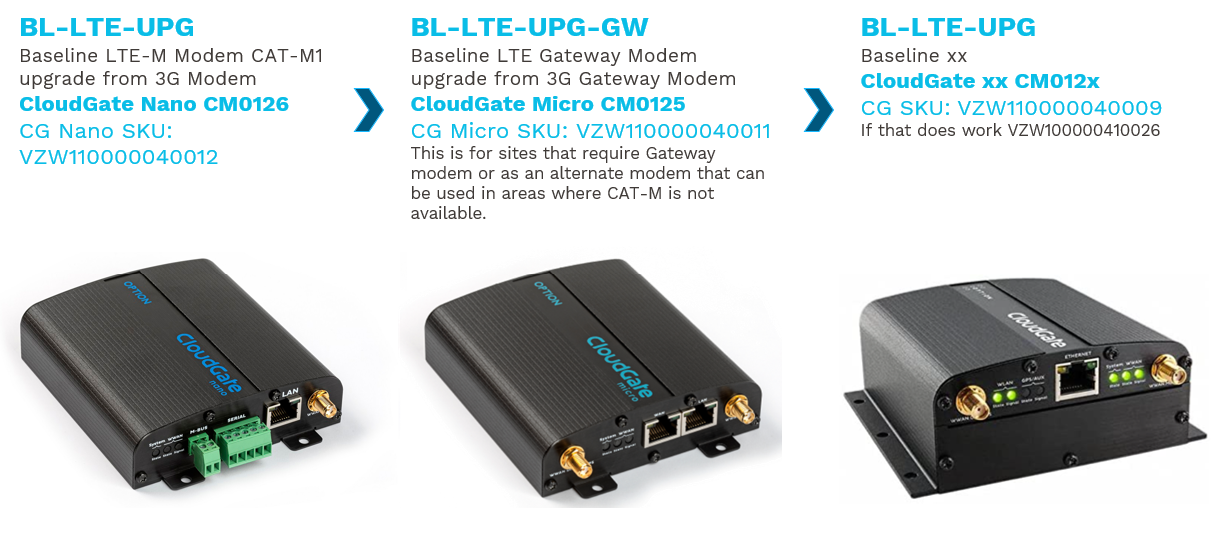
CG Nano VZ SKU: VZW110000040012
CG Micro VZ SKU: VZW110000040011
CG VZ SKU: VZW110000040009. If that does work VZW100000410026
Cloud Network Module VZ SKU: VZW210003040001
2. Next, log into the Verizon portal, then choose and login to ThingSpace.
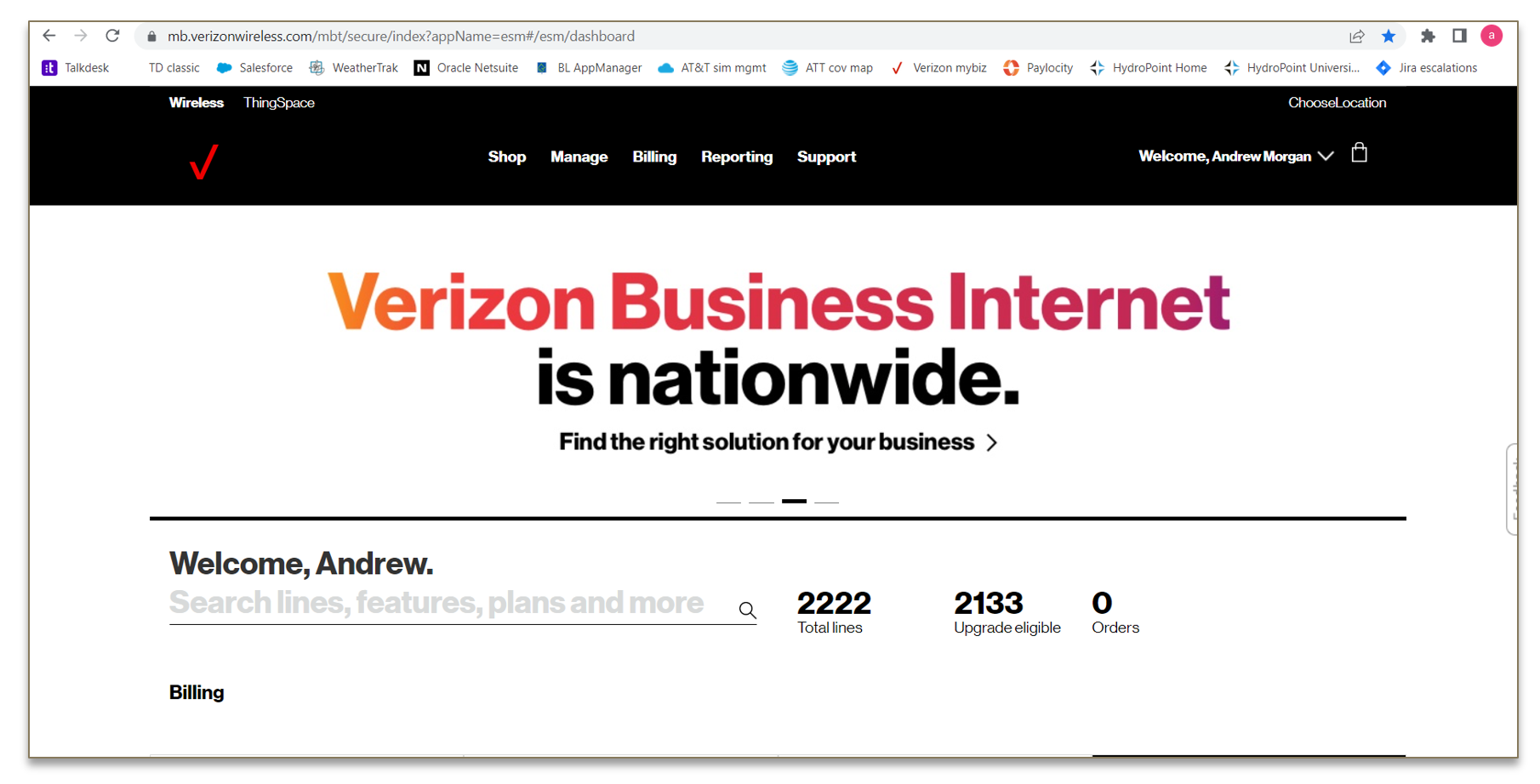
3. Select the device button in the top left.
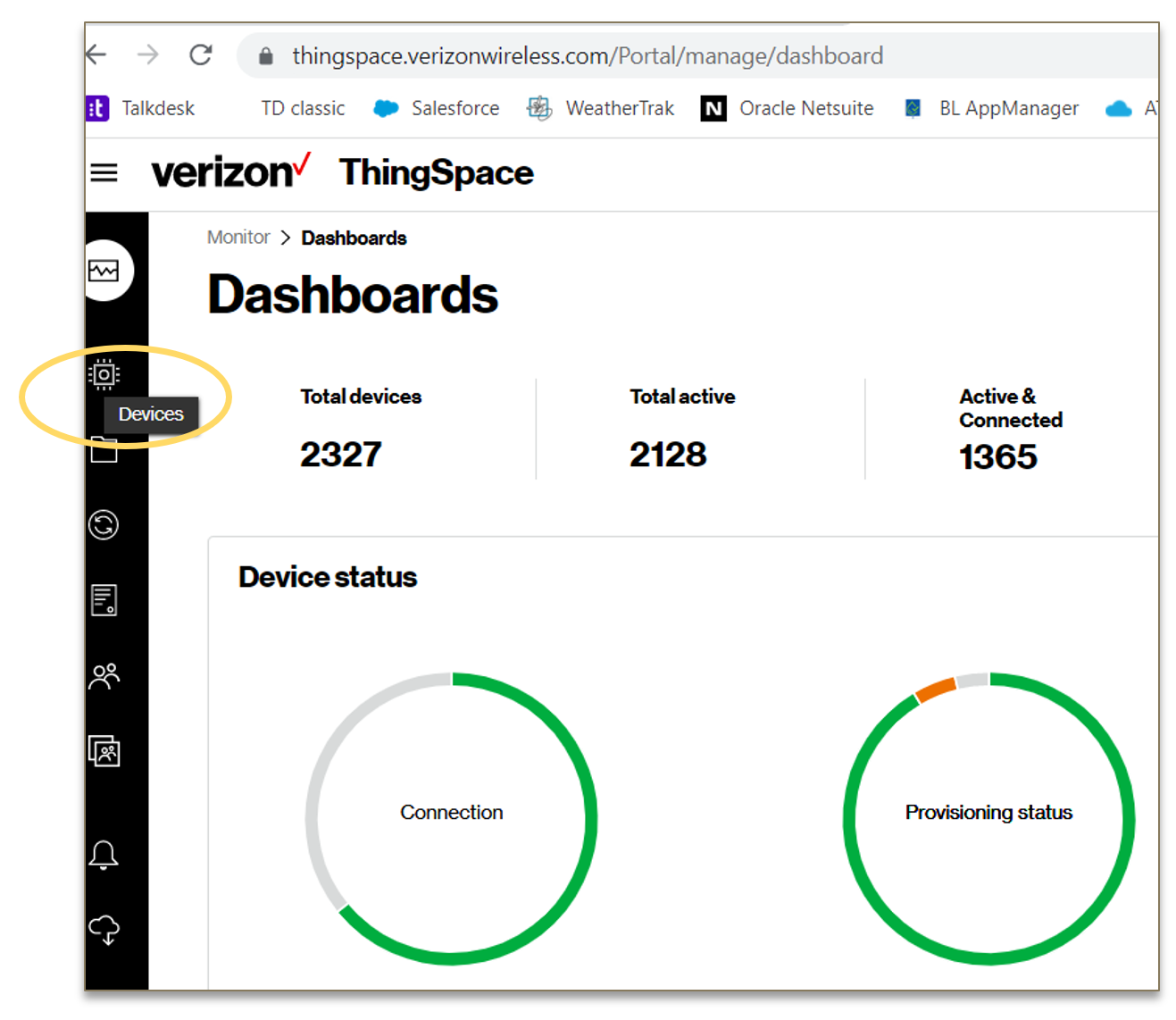
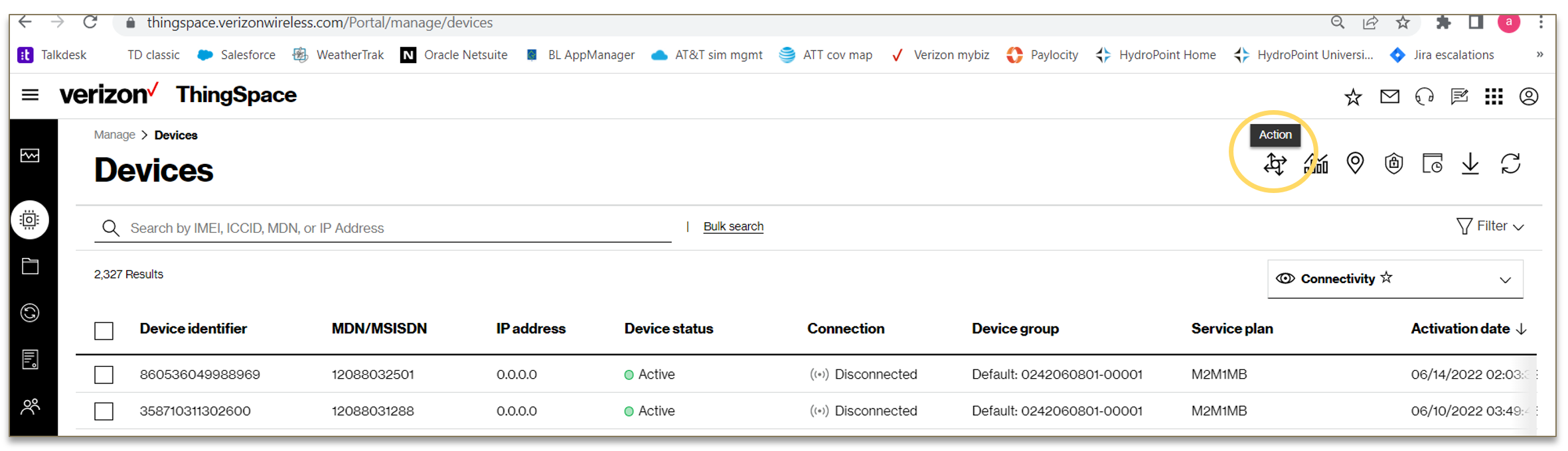
4. Select Action Button in the top right and choose ‘activate’.
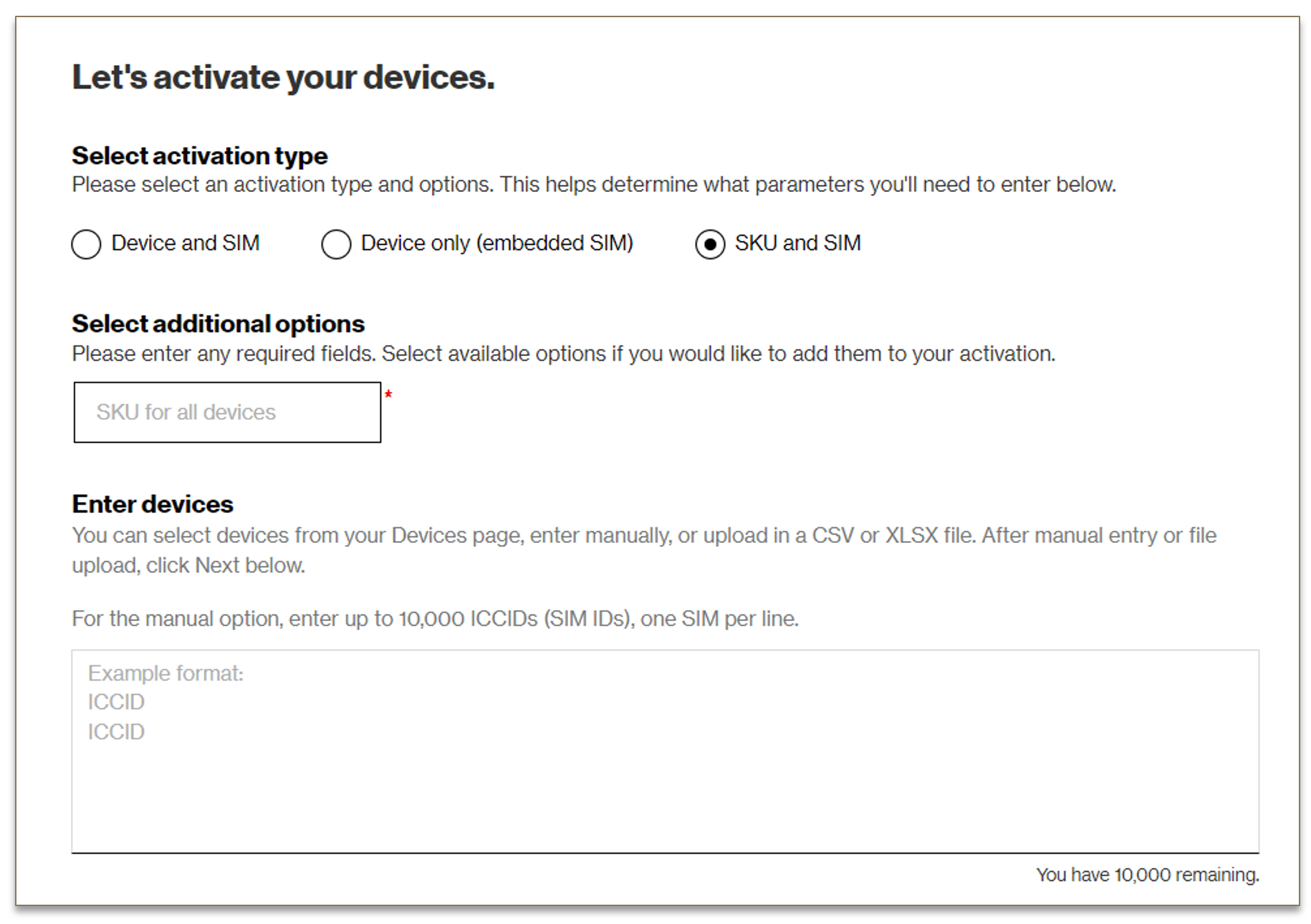
5. Choose ‘SKU and SIM’ and enter the SKU then SIM in Enter devices section. It should allow you to active the SIM within minutes. If you still have issues, escalate to Tier 2 or your supervisor.
6. If you still cannot add the Verizon SIM or are unable to resume service reach out to your Supervisor (Andrew), Iryna, or Chris Mendiola.
After Verizon is installed, how do we test the SIM? The controller firmware will recognize the SIM card type and configure the ME910C1-NA appropriately. The SIM card type is determined by the SIM card serial number:
Will we provide Verizon SIMs (~1-50) to installers as safety stock?
- In general, no. We do not want to have large quantities of SIMs "out in the wild." Also, the SIMs will deactivate automatically after 90 days. This would become a call-driver.
- Some Professional Services / Distribution Partners will have Verizon SIMs on-hand (SIMs are shut off after a given amount of time). We will provide Verizon SIMs to trusted distribution partners on an approval basis.