
Overview
When an IBR is activated in NetSuite, an Activation Sales Order (ASO) is created automatically. No manual ASO creation is required. This applies to WeatherTRAK controllers, WaterCompass devices, and HPM Assets.
How It Works
- Set the IBR Activation Status to Active.
- Ensure Ready to Create Activation Sales Order is checked.
- Save the IBR.
- Allow approximately 2 minutes for the automation to run.
- Verify the ASO was successfully created before proceeding.
The same process applies to activations completed through CSV imports, provided the required fields are updated during the import.
Important Notes!
New Activations
A new ASO is created automatically and establishes the customer contract for future subscription renewals.
Replacements or Upgrades Not Sold With Service
A new ASO is not created. Instead, the existing contract is updated with the new Serial Number and/or SIM information
If ASO Creation Fails
Review the red error banner at the top of the IBR. The error message tells you exactly what needs to be corrected.
Before Retrying
Verify the following fields are accurate:
- Original Sales Order
- Subscription Line ID
- Serial Number
- SIM
- Subscription Term
⚠️Most ASO failures are caused by one or more of these fields being missing or incorrect.
Most Common Errors
Original Sales Order Is Blank
The IBR is not linked to the original sales order. Enter the correct Original Sales Order and save again.
Subscription Line ID Is Missing
The subscription line cannot be identified. Verify the Subscription Line ID is populated and valid.
Item Not Found on Original Sales Order
The referenced subscription line no longer exists on the original sales order. Verify the subscription line is still present.
No Qualifying Line Item
The device was not sold with a subscription or service plan. Hardware-only sales do not generate an ASO.
Permission, Configuration, or Closed Period Errors
These require assistance from CRM/ERP Help. Include the exact error message when submitting your ticket.
Retry Steps
- Review the error message.
- Correct the identified issue.
- Verify Ready to Create Activation Sales Order is checked.
- If already checked, uncheck it, save, then check it again.
- Save the IBR to rerun the automation.
- Confirm the ASO was created successfully.
Need Help?
If the issue cannot be resolved through data correction, submit a CRM/ERP Help (CRM-ERPhelp@hydropoint.com) ticket and provide:
- IBR number
- Error message
- Original Sales Order
- Device Serial Number
Legacy ASO Process
The Activation Sales Order (ASO) button is located in the Install Base section of Netsuite. When pressed, it triggers actions related to renewals generation and financial reporting that are very important to the business.
1. Click Activation Sales Order.
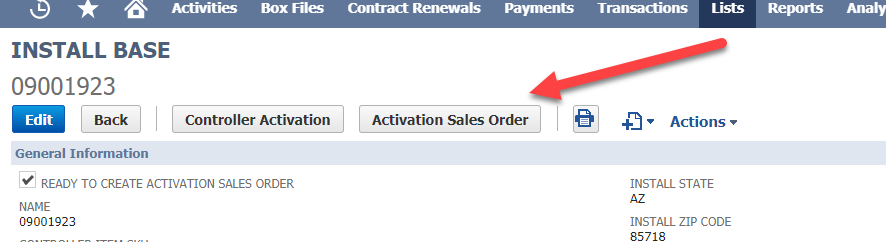
2. NetSuite will re-route you to a new Sales Order Record.
3. Click refresh so that NetSuite will trigger all scripting and workflow rules. Click Save.
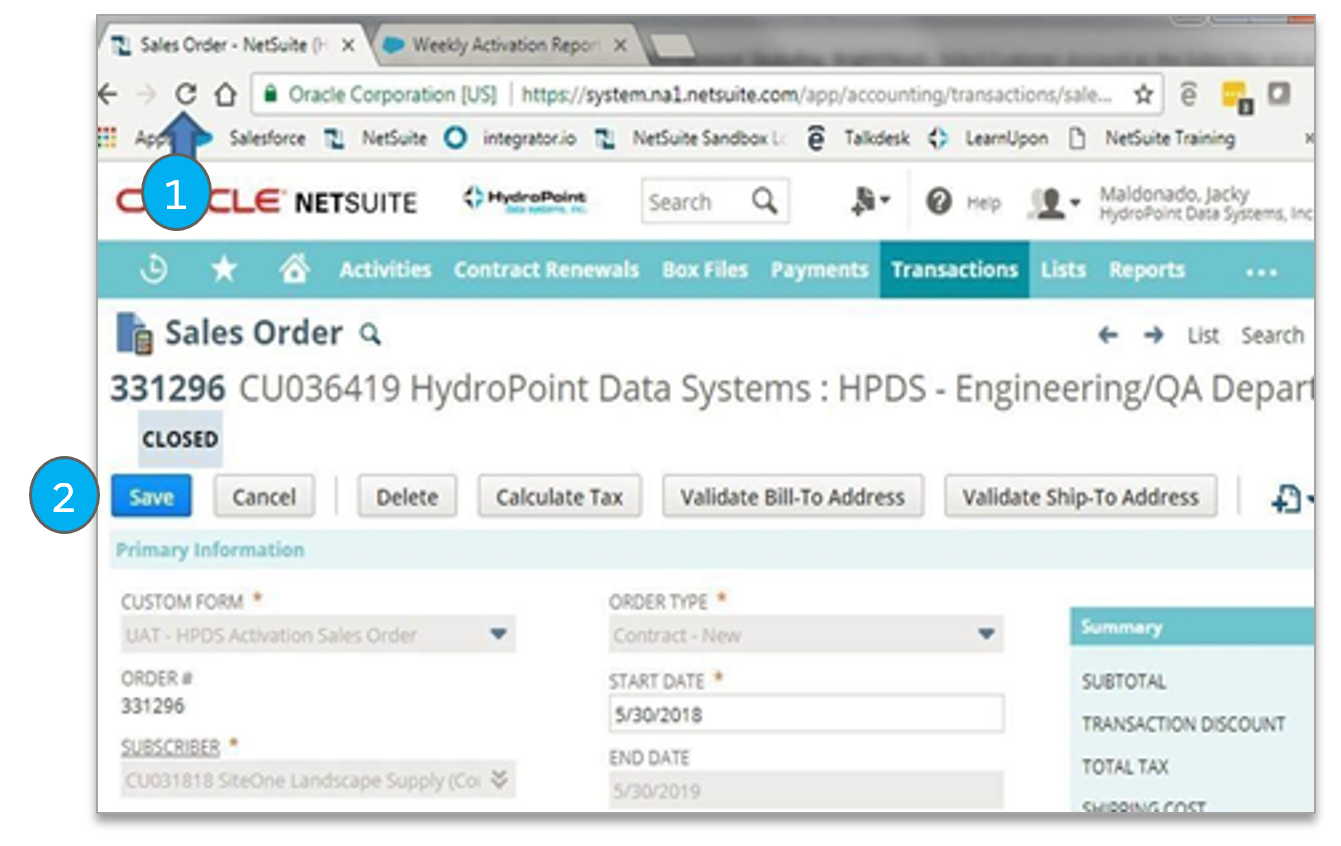
Depending on account type, pressing the ASO button will trigger:
- Ensure you are correct when selecting the sales order type and entering the serial numbers / SIM as these factors affect the accuracy for active/future renewals.
- New Activations ASO button will set up the customer contract and items for renewals based on what was originally sold on the order.
- Replacement Panels and UPG not sold with service ASO button allows the “old contract” of the replaced device to be updated with the new Serial Number/ SIM of the replacement device.
- When pressing the ASO button the screen will not change. Instead, the screen will flicker back and forth as it processes the information it needs.
- (we are working to see if a flag can be added to ISB to indicate ASO has been pressed).
- Example: 07008169 EOS 12/31/21 was upgraded with 10056095. The contract on the new ISB was updated with the new Serial Number and the EOS remained the same. This is because the UPG was NOT sold with additional service.
- When pressing the ASO button the screen will not change. Instead, the screen will flicker back and forth as it processes the information it needs.
- Replacements where additional services were sold ASO button tells the system to create a new contract which begins one day after the replaced controller’s subscription end date.
- When pressing the ASO button the screen will change to the ASO Sales Order screen. Press SAVE and exit the tab. F
- For example, 10001938 had an EOS of 9/30/21 it was replaced by 10053853 which was sold with 1 year of service and now this device has a new EOS of 9/30/22.
- When pressing the ASO button the screen will change to the ASO Sales Order screen. Press SAVE and exit the tab. F
Note
All activations in Netsuite need to have the ASO button pressed. This includes every device in service (controllers, WaterCompass, HPM, etc.)