
Deactivation Types & Special Handling
Before starting the process steps below, review this section to determine whether additional coordination or restrictions apply.
Ownership Change – Account Manager Involvement Required
When this applies:
- Device, Account or Site ownership is changing. (ex. due to a sale or transfer)
Steps for Support:
- Confirm the request involves an ownership change and not a standard device deactivation.
- Attempt to obtain all new owner information, including:
- New customer/company name
- Primary contact name
- Email address
- Phone number
- Billing or account details (if available)
- When possible, obtain written confirmation:
- An email from the current (old) customer stating they are relinquishing ownership rights
- An email from the new customer confirming they are assuming ownership
- Provide all collected ownership details and any email confirmations to the Account Manager + CC Stephen Roalf.
⚠️ - After Account Manager approval is received, move the controller or site in WeatherTRAK Central ONLY, based on the information available:
- If the new owner is known, move the controller or site to the appropriate customer account.
- If the controller or site has been sold but the new owner has not yet been identified, move it to HPDS – Account Owner Unknown.
Do not make any ownership or account changes in NetSuite.
Downstream handling:
- The Account Manager submits a request to Orders.
- Orders updates the Install Base Record (IBR) in NetSuite once ownership details are finalized.
Key Considerations:
- WeatherTRAK Central is the only system where Support moves controllers.
- Support should always attempt to collect new owner information unless it is genuinely unknown.
- Any ownership information obtained by Support should be shared with the Account Manager, even if incomplete.
- NetSuite ownership updates are handled by Orders, not Customer Support.
For Business process information, read: Customer Accounts; Asset Customer Site Account and/or Subscriber Changes Policy & Process
Site Change under the same account
When this applies:
- The site remains associated with the same customer account
- No account ownership transfer or device ownership change is involved
Steps for Support:
- Confirm the request is limited to a site update and does not involve an ownership change.
- Update the site information as requested in:
- NetSuite
- WeatherTRAK Central
- Notify the Account Manager with details of the site update for visibility and awareness.
- Include any relevant context or customer‑provided details in the notification.
Downstream handling:
- No action is required from Orders for standard site updates.
- The Account Manager retains visibility of site changes for account history and customer context.
Key Considerations:
- Site updates do not require Account Manager approval, but awareness is required.
- Site updates should not be used to process ownership changes or device transfers.
- If a site update raises questions about ownership, billing responsibility, or device reassignment, review the Ownership Change – Account Manager Involvement Required process before proceeding.
- Device associations should remain unchanged unless explicitly requested through a separate, approved process.
Finance‑Requested Deactivations (Non‑Payment / Delinquent)
When this applies:
- Finance explicitly requests deactivation due to non‑payment or delinquent billing
- Customer has unpaid invoices after the invoice generation and payment processing cycle
Important Distinction!!
🚨Finance‑requested deactivations are not the same as non‑renewals
- Non‑renewals are planned contract events handled through Renewals.
- Finance deactivations are enforcement actions due to unpaid balances.
Always verify the source of the request before proceeding. If the deactivation request did not come from Finance due to non‑payment, review the other deactivation scenarios.
Context & Ownership:
- Finance‑requested deactivations are financial enforcement actions, not customer‑initiated requests.
- Deactivation typically occurs after invoicing has completed
- Delays may occur if:
- The customer has requested renewal
- Payment is pending or partially processed
- Finance is allowing a short grace period
- Customer Support does not determine if or when a delinquent deactivation occurs
- Support acts only after Finance explicitly requests deactivation
Steps for Support:
Once a request is received directly from Finance:
- Confirm the deactivation request originated from Finance.
- Locate the device Install Base Record in NetSuite.
- Add an internal note referencing the related Salesforce case number or Finance request.
- Proceed with the standard device deactivation steps.
- Deactivate the SIM card as part of the deactivation process.
- Update the Install Base Record with the following information:
- Status: Deactivated
- Deactivation Reason: Delinquent / Non‑Payment
- Deactivation Date: As provided or effective date of deactivation
Rules & Guardrails
- Support does not notify the customer or negotiate payment status.
- Support does not delay deactivation once Finance has confirmed the request.
- Support should not override or reverse a Finance‑requested deactivation without explicit direction from Finance.
- Any customer questions regarding billing or payment must be redirected to Finance or Renewals
- Reactivation following a Finance‑requested deactivation should only occur with direction from Finance.
Decommissioning / Deprovisioning Requests – Account Manager Involvement Required
When this applies:
- Controller is no longer installed or in use.
- Device is being permanently removed from service.
Steps for Support:
- Confirm the request is for permanent decommissioning and not a replacement or ownership change.
- Reach out to the Account Manager to ensure they are aware of the request and obtain approval to proceed.
(Because this action permanently removes the controller from service, Account Manager review and approval is required before changes are made.) - After Account Manager approval is received:
- Move the controller in WeatherTRAK Central only to HPDS – Not in Use.
Do not make any ownership or account changes in NetSuite.
Downstream handling:
- The Account Manager submits a request to Orders.
- Orders updates the Install Base Record (IBR) in NetSuite to reflect decommissioning.
Key Considerations:
- Moving a controller to HPDS – Not in Use indicates the device has been permanently removed from active use.
- This action initiates a background decommissioning process; no additional steps are required by Customer Support once the move is complete.
- If there is any uncertainty about future use, replacement, or ownership transfer, review the appropriate Ownership Change or Replacement scenario before proceeding.
Using a Previously Deactivated Device (Replacement Only)
When this applies:
- A previously deactivated controller is being reused as a replacement
Steps for Support:
- Confirm the request is a replacement scenario and not a standard activation.
- Verify the controller was previously deactivated and is eligible for reuse.
- Confirm the replacement intent is documented in the IBR and case.
- Ensure the replacement relationship is clearly identified:
- Old (failed) device serial number
- Replacement device serial number
- Follow the Replacement Activation process to activate the reused device.
Do not treat the activation as a standard new device activation.
Key Considerations:
- Controllers deactivated during a replacement activation are not eligible for reuse, as their contracts and subscriptions are assigned to the replacement device.
- Verify details before proceeding if device status, history, or approval is unclear.
Process Summary: Context
Deactivating a controller’s SIM card removes the device’s ability to communicate with HydroPoint systems through the cellular network. This action is required to:
- End subscription services
- Prevent further charges related to renewals or data usage
- Enable downstream teams (Professional Services, Customer Success, Finance, Renewals, and others) to complete project closeout, final billing, and required financial or operational updates
When deactivating a device, follow the appropriate Copy Config and Transfer / Replace procedures as applicable. These processes ensure NetSuite and WeatherTRAK records remain accurate and aligned, preserving a complete and reliable history of devices, contracts, and customer associations.
🚨IMPORTANT: If a deactivation request (not a replacement activation) originates from a team other than Renewals or the Account Manager, ensure they are included and informed before proceeding so any required actions on their end can be completed.
This Process is Triggered by:
Any time that a device deactivation is needed it should be triggered by creating a case in Salesforce:
- When Pro Services is organizing a de-installation for a customer, the Project Manager sends an e-mail to support@hydropoint containing the information needed to clean up the device accounts.
- When a WeatherTRAK controller is removed from service, a deactivation request is submitted via phone, e-mail, or web form, usually by the Renewals Team, or by another authorized requestor in the field or Professional Services.
- When a WaterCompass device (FM200/FM300) or flow monitor installation is decommissioned by the Professional Services group, they will use their de-installation service case in Salesforce to create a related case and assign it to Customer Support.
This Process is a Trigger for:
- Renewals deactivations: Devices must be properly updated and removed in order to prompt subscription removal.
- Professional Services: Need to know that devices were deactivated and cleaned up to mark their project complete.
- Customer Success: Depends on proper device clean up so that they can monitor the devices for customers.
- Customer Support: This group needs devices and records cleaned up properly to provide accurate support, track life cycle history, and process requests such as RMAs, upgrades, etc.
- Sales: This group looks for deactivations to track statistics and verify that projects are completed.
- Customer: If this doesn’t get cleaned up correctly, they may have difficulty using remaining/replacement products and may be charged unnecessarily for payment due on services.
Acceptance Criteria:
- SIM card is activated (WeatherTRAK controllers only).
- Device is associated with correct customer Account in NetSuite.
- Device’s subscription status is set to Active in NetSuite.
- Device is associated with correct customer Account and Site in WeatherTRAK.net (WeatherTRAK controllers only) and NetSuite.
- Purchaser’s name, email and phone number
- Billing information (company name, address, billing contact name, email, phone)
- Location of controller (Street and site name)
- Your controller’s serial number (accessed through the HELP menu)
- Your controller’s SIM card number (accessed through the HELP menu)
🚨IMPORTANT: Deactivation request details should be compared to the existing Install Base Record and WeatherTRAK data to verify all the customer information listed above. If any of the information looks off, verify first with the requestor to ensure the wrong device is not deactivated.
Process Steps
This section describes the standard process for deactivating a WeatherTRAK Controller or WaterCompass Flow Monitor (referred to collectively as “devices”) across the cellular provider, NetSuite, and WeatherTRAK systems.
Before beginning, review the Deactivation Types & Special Handling section to determine whether additional coordination or approvals are required.
⚠️ Note: If the deactivation is the result of a replacement controller, follow the Transfer and Replacement process instead of the standard steps below.
Deactivation Workflow Overview
Customer Support will complete the following steps in order:
- Deactivate the SIM card
(WeatherTRAK controllers only) - Deactivate the device record in NetSuite
- Update the Install Base Record (IBR) in NetSuite
- Verify the device is offline in WeatherTRAK
(WeatherTRAK controllers only)
Step 1: Deactivating the SIM Card
Step 1: NetSuite > Search the controller’s Install Base Record > Locate the SIM number and customer details.
⚠️ The deactivation request should include the serial number for the controller(s) to be deactivated. If this information is not provided, verify the serial number with the requestor before proceeding.
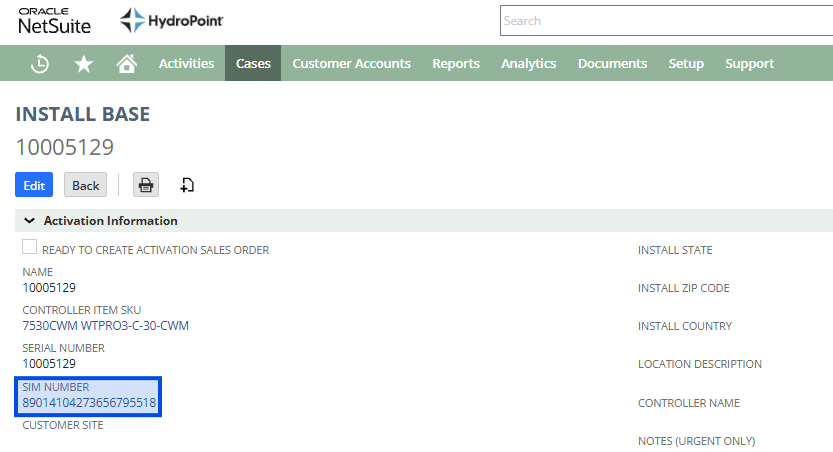
Step 2: Verify the Serial Number, SIM number, and account details by comparing them to the controller’s registered information in WeatherTRAK.
⚠️If any discrepancies are found, follow up as needed with the requestor to verify and confirm the correct device information before proceeding.

Step 3: If all information matches, proceed with deactivating the SIM card.
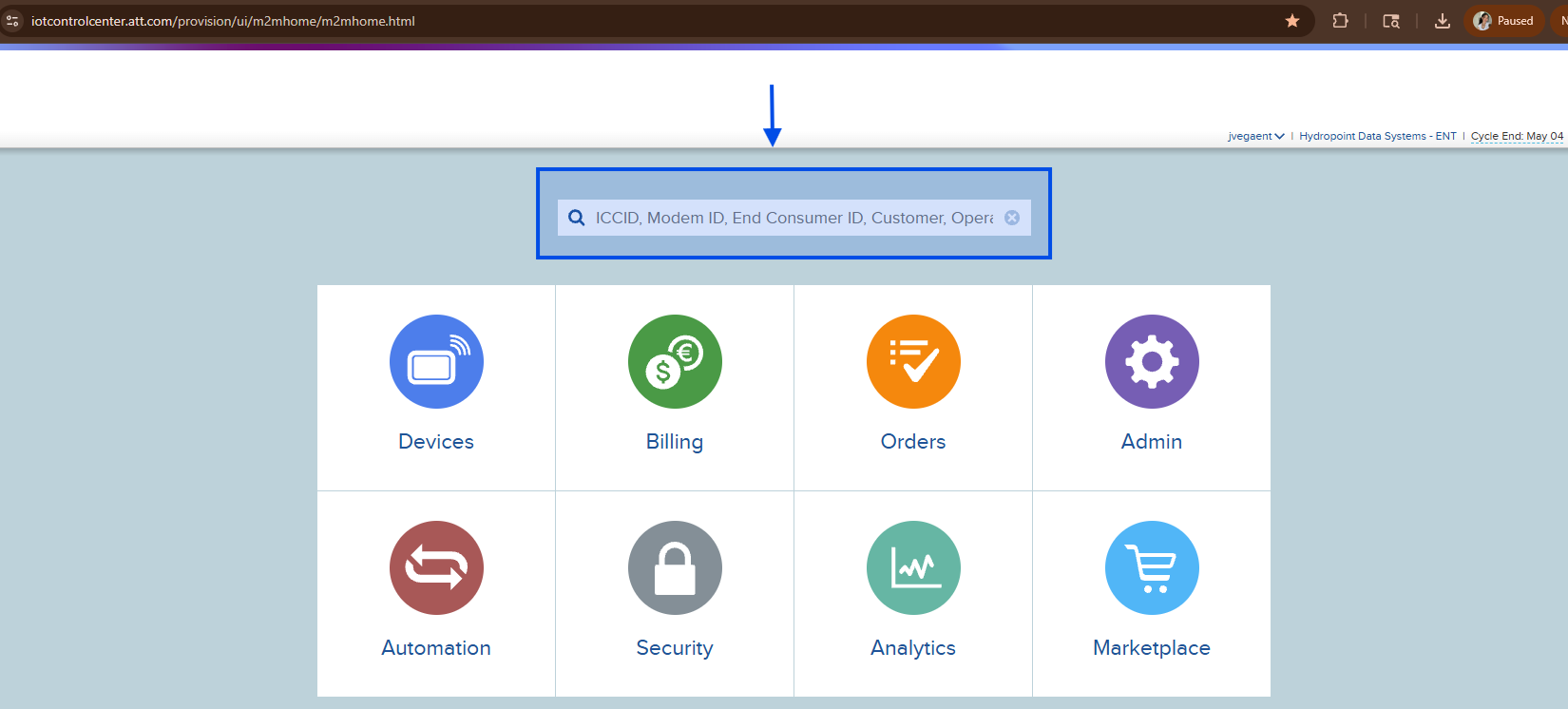
- If the SIM starts with “8901”, it is an AT&T SIM and can be deactivated through the AT&T Portal.
- If the SIM starts with “8914”, it is a Verizon SIM and can be deactivated through the Verizon ThingSpace portal.
🚨Be sure that you complete any necessary actions on the controller before deactivating the communication.
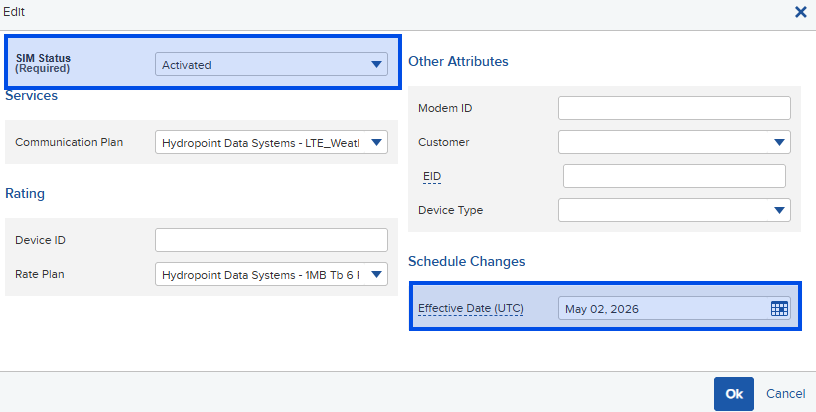
Deactivating a AT&T SIM Card
1.Search the SIM card number
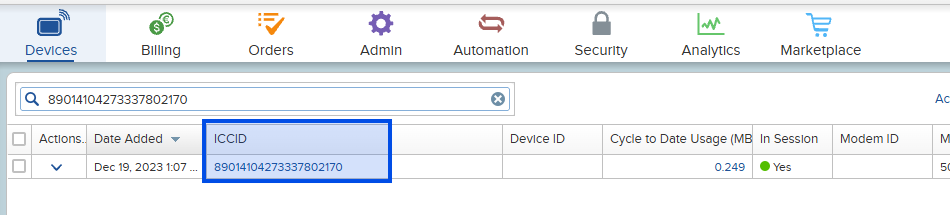
2.Select the SIM Card number
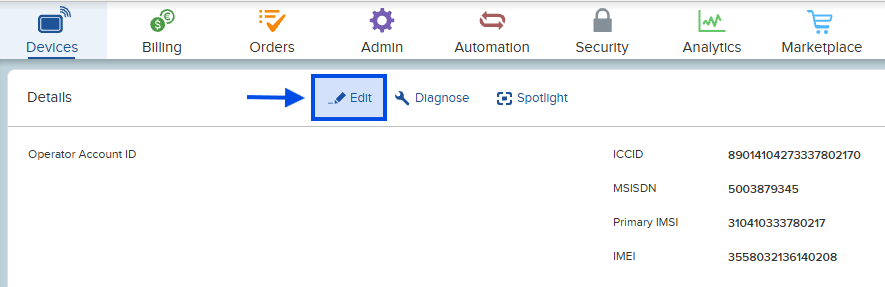
3.Click Edit
4.A pop-up will display. Do the following:
- Change the status from Activated to Deactivated.
- Verify the device information matches.
- Schedule the effective date as needed.
- Click Ok to finish
Deactivating a Verizon SIM Card
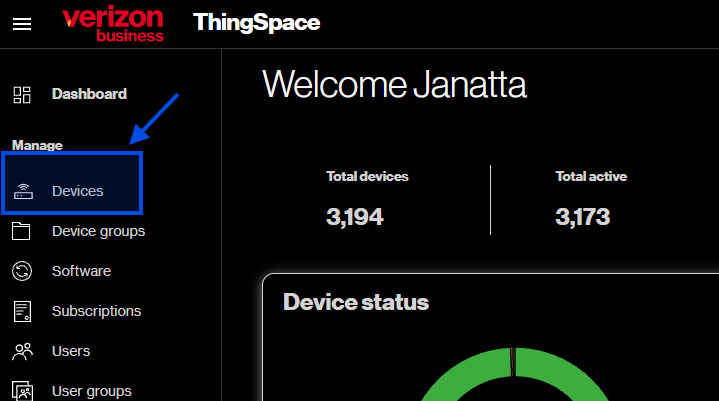
1.Select Devices
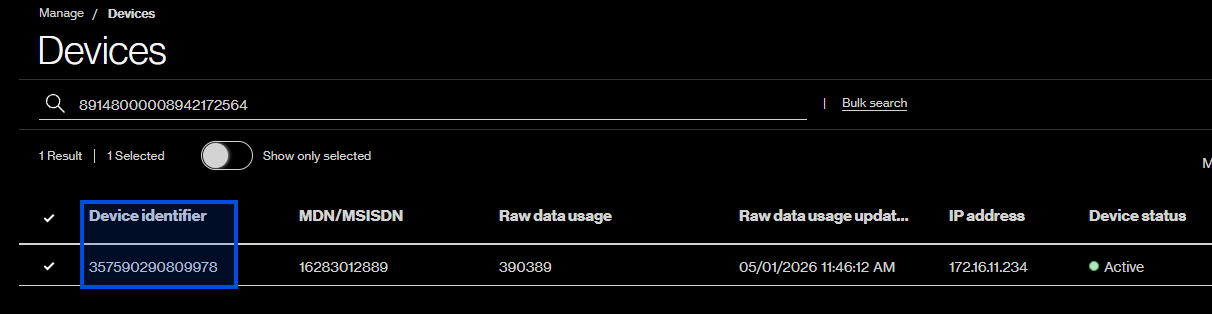
2.Search the SIM card number

3.Select the Device Identifier
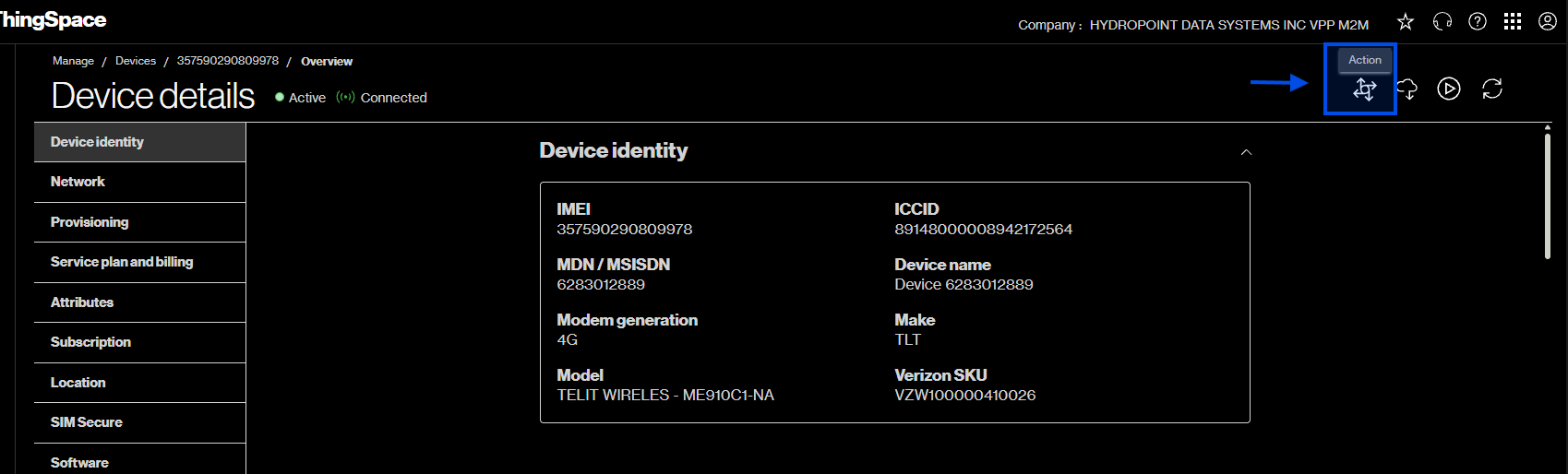
4.Click Action
5.Click Deactivate
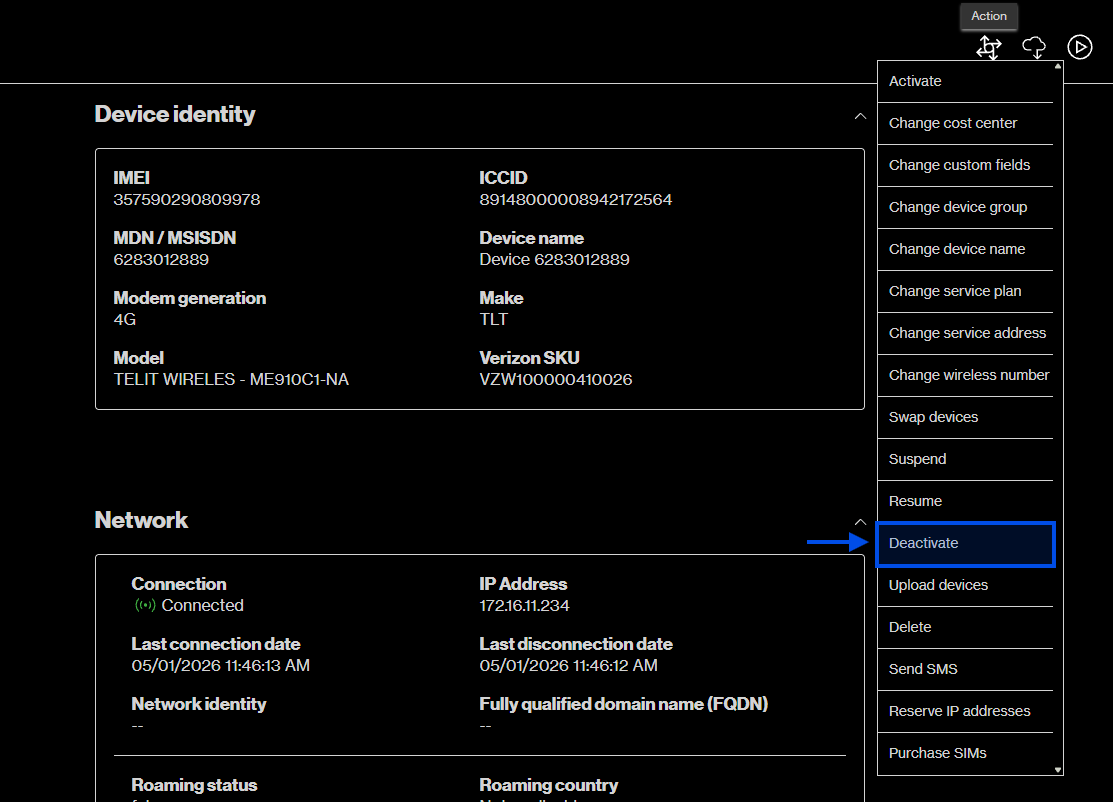
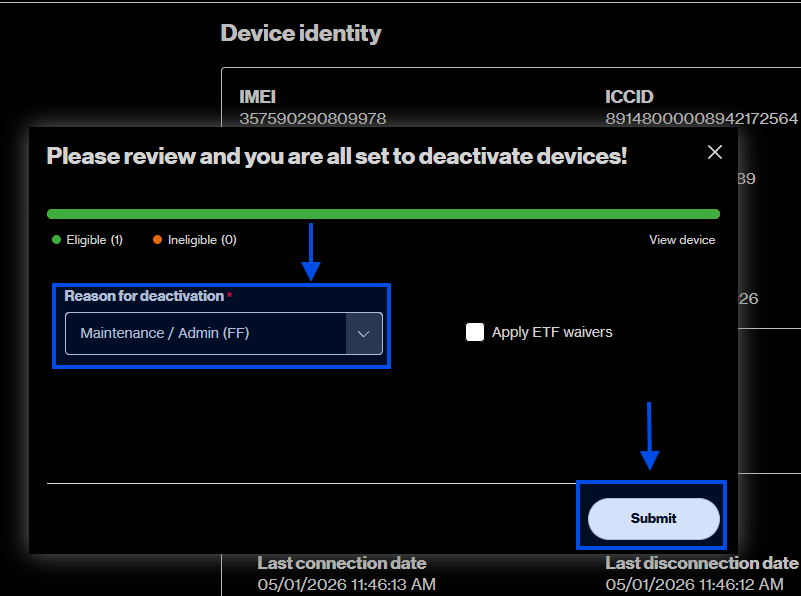
6.A pop-up window will display. Do the following:
- Verify the “Reason for deactivation” is set to Maintenance / Admin (FF)
- Click Submit to finish
Step 2: Deactivating the WT Device in Netsuite
Now that the SIM has been deactivated, update the device status and deactivate the record in NetSuite.
For WeatherTRAK controllers, this step is triggered by a deactivation request (call or email), that is converted into a Salesforce case.
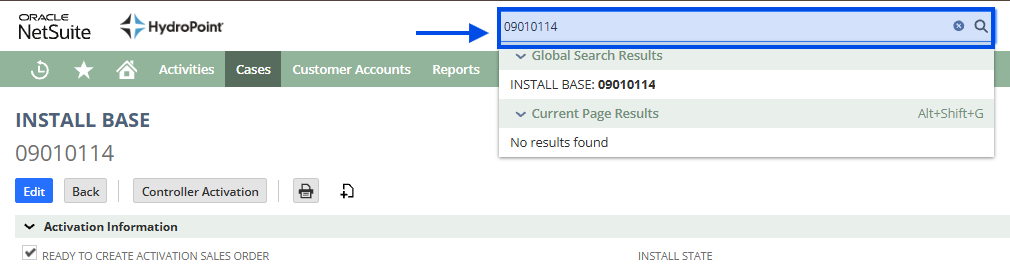
Install Base Record Steps
1. Type in your serial number:
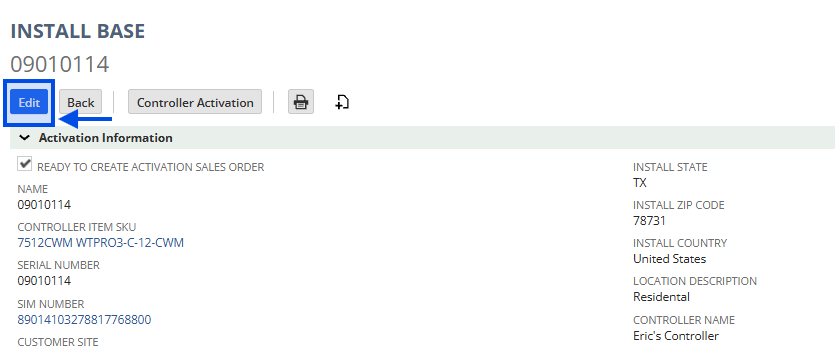
2.Put the Install Base Record into Edit mode
3.Set the “Activation Status” field to “Deactivated”.
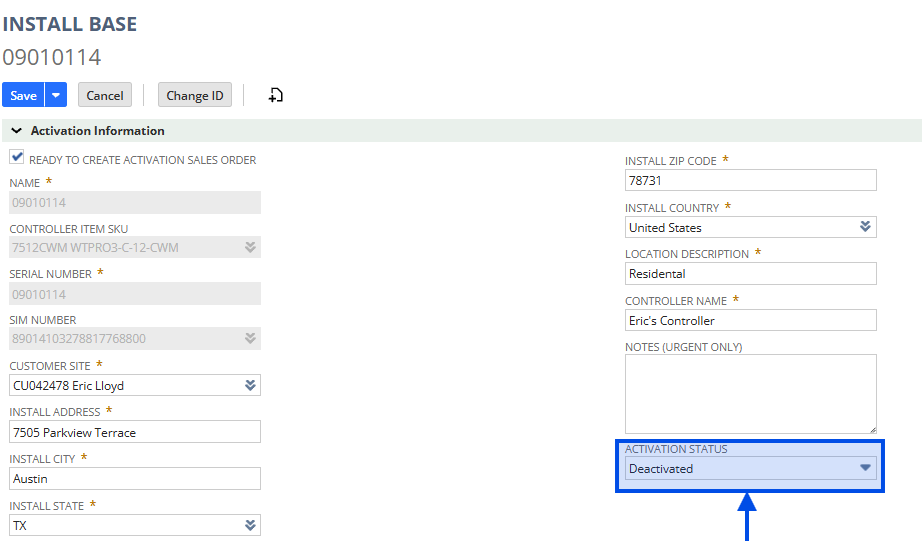
4. Fill in the Deactivation Date and select a Deactivation Reason from the drop‑down menu. (If this is a replacement request, ensure the “Replaced By” information is updated in the Install Base deactivation section.) Otherwise, leave the field blank when performing a standard device deactivation.

6. Once you have verified that all information is updated correctly, click Save.
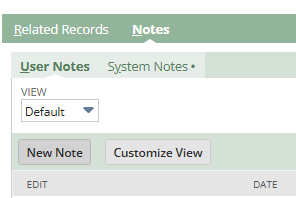
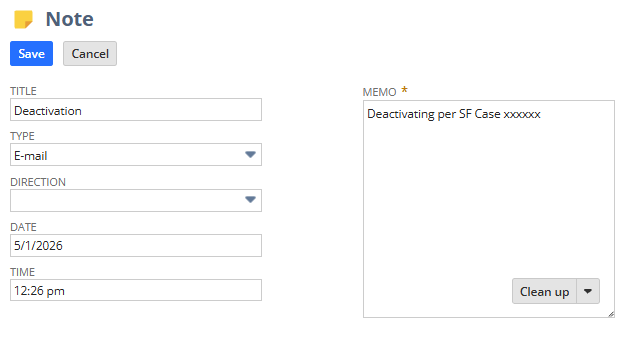
If needed, add a note in the Notes section before saving the record.
Step 3: Deactivating the controller in WT.net
Go to WeatherTRAK.net for final verification. At this point, if you have been performing a replacement request, you should have already verified that the copy/config and transfer/replace processes were successfully completed. Be sure to validate any outstanding activities are finished according to their defined processes.
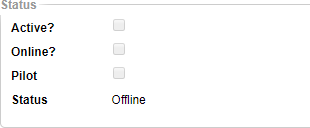
Using the Admin tool, search for the controller you just deactivated. Go to the Controller Details page and ensure the following:
- The controller is not Active
- The controller is not Online
- The controller Status is Offline

Go to the Manage Controller page and ensure the following:
- The Controller Status is Offline
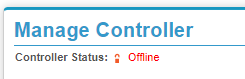
*At this point, you should be done, however in specially requested cases it may be necessary to move the deactivated controller. This next step is needed only if specifically requested.
If you need to move a controller to another account, use the following steps:
In WeatherTRAK.net you can move the site or individual controller(s) if the entire site is not being deactivated to the appropriate HPDS Account:
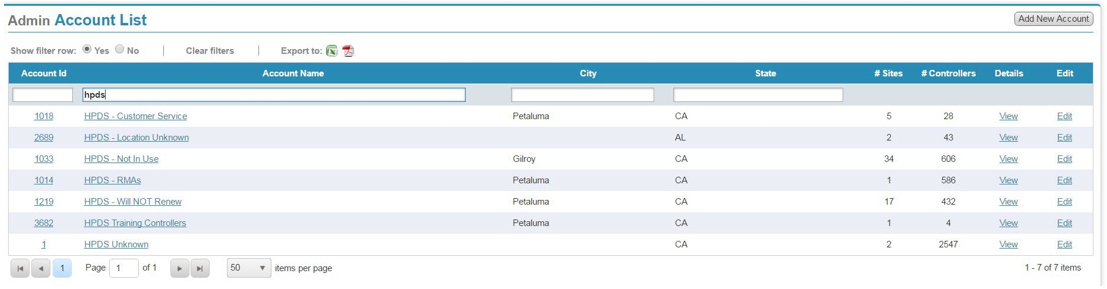
HPDS – Not in Use – for HPDS controllers that are not being used (old demos etc.)
HPDS – RMAs – if the controller(s) was replaced for RMA
HPDS – Will NOT Renew – if the controller(s) is being deactivated due to non-renewal
HPDS – UNKNOWN – the system puts controllers in this Account as they are being shipped
Other:
HPDS – Customer Service – for controllers in use by Customer Service
HPDS – Location Unknown – if the controller is active but we do NOT know who the customer is
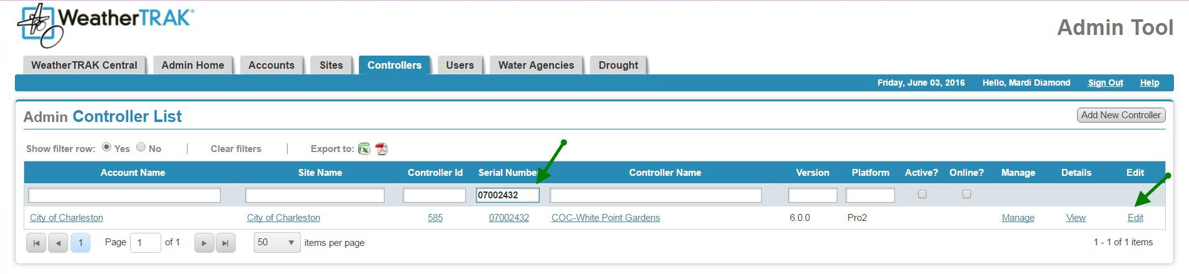
To move a controller, Enter the Serial Number in the box and click on Edit at the far right (or hit enter and then click Edit):
Choose the correct Account – easiest to type hpds and select as shown below:
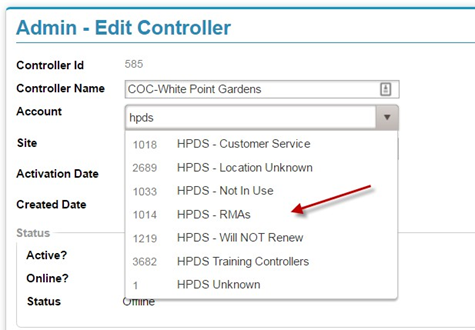
Choose the correct site and hit Save – For HPDS – RMAs it is the same
IGNORE the User Associations message
WaterCompass Deactivations
For the FM200, FM250, FM300 and FM350 WaterCompass flow monitors, the trigger for this step will be an approved Professional Services request, which gets converted into a case in Salesforce.
1. As deactivations are approved, a Service case will be submitted to “Customer Support”.
2. After receiving one of these cases, coordinate with Professional Services to ensure you have the correct information for deactivation. For the most part these follow the same steps for deactivating the Install Base Record in Netsuite, however we do not deactivate WaterCompass SIM cards. Those will be handled by Professional Services to ensure the necessary Water Signal requests are processed, and the necessary project forms are updated. This process never came to fruition or was changed with the implementation of Service Max?
Device Replacements:
- The new WaterCompass device must be activated before the old device can be deactivated in NS.
- The Transaction Information on the Install Base Record must be completed before activating the new WaterCompass device and deactivating the old one.
1. New Device Activation
- Please see the activation process for additional details here.
- Verify Orders has completed the Transaction Information on the Install Base Record.
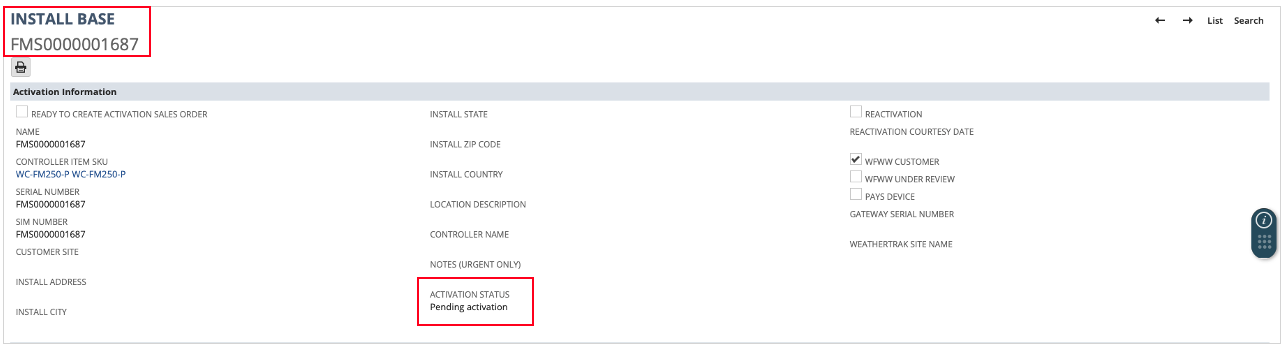
- Activation Information: Select "Activated" from the drop down menu.
- Deactivation Information: Update the following fields on the new Install Base Record:
- Old Install Base Record
- Replaced SN field
2. Old Device Deactivation
- Activation Information: Select "Deactivated" from the drop down menu.
- Deactivation: Update the following fields on the old device Install Base Record:
- Deactivation Date
- Deactivation Reason
- Replaced by SN (SN of the new device)

3. Save Install Base Record
- Salesforce should automatically save your progress as you update the Install Base Record. However, ensure all information is saved at the time of entry.
Device Removals:
1. Old Device Deactivation
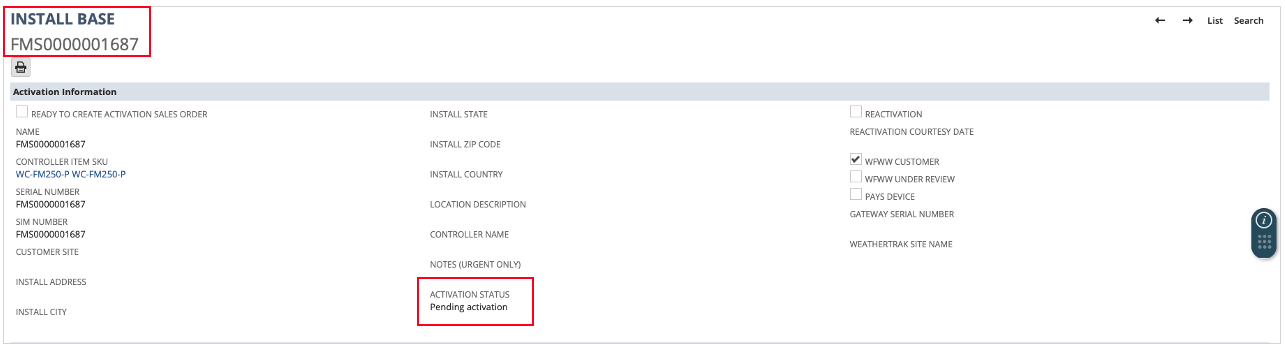
- Activation Information: Select "Deactivated" from the drop down menu.
- Deactivation: Update the following fields on the old device Install Base Record:
- Deactivation Date
- Deactivation Reason
- Replaced by SN (SN of the new device)
2. Deactivation Information
- Deactivation Date
- Deactivation Reason
- Replaced by SN (SN of the new device)

3. Save Install Base Record
- Salesforce should automatically save your progress as you update the Install Base Record. However, ensure all information is saved at the time of entry.