
At times you may want to prevent mobile users or WeatherTRAK Central users from making changes to station programming or other features. To limit or grant access, you edit the user’s controller page access in WeatherTRAK.net.
Important
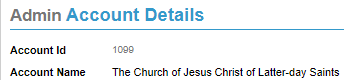
If anyone is requesting access to or to change the permissions for a user account with access to "The Church", in WeatherTRAK central, known as "The church of Jesus Christ Latter-day Saints", consult Scott Dezotell, Michelle Lorimer for UTAH ONLY, unless the request comes from Joe Jackson or Brady Pitcher - they are authorized. If we do not have Michelle Lorimer's contact info, syncing with Scott Dezotell is fine. They have specific account naming and access standards they want to uphold.
To make these edits, you will need to have access to the Admin tab.
1. Log in to weathertrak.net
2. Under the Admin tab, Click Admin Tool. The following page displays:
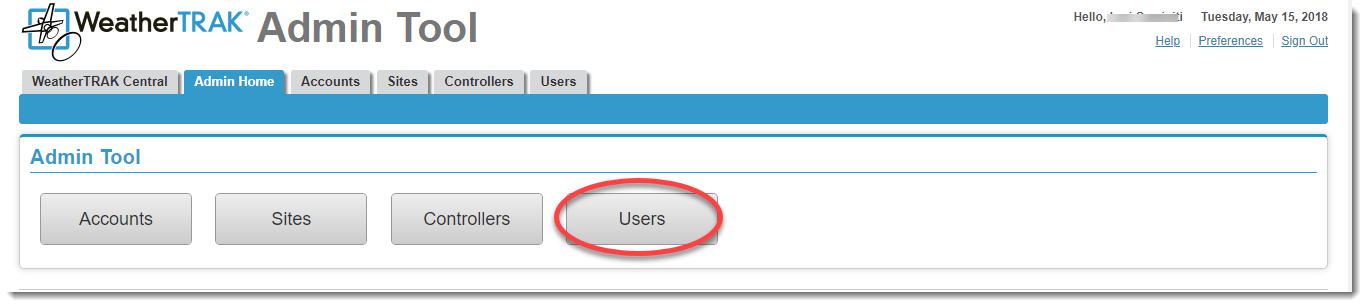
3. Click Users. The User List displays. Find the user you want to change permissions on.

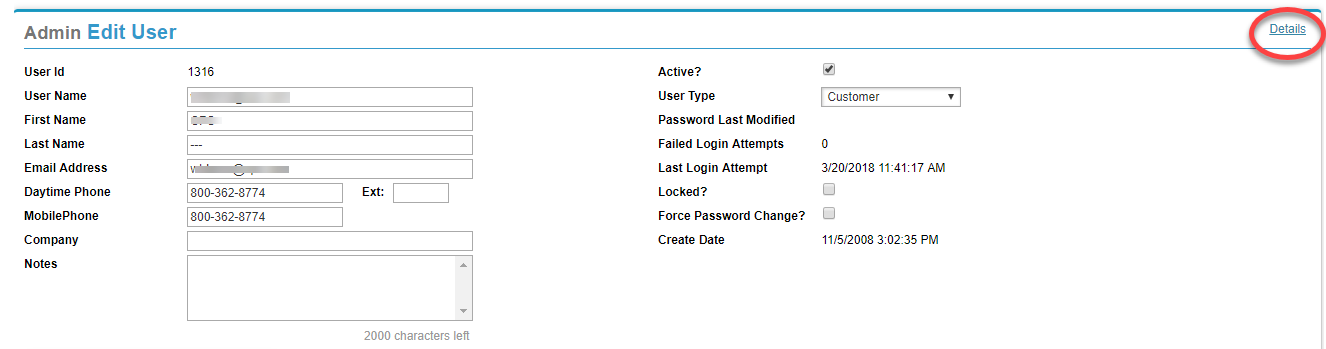
4. Click Edit for the selected user. The Edit User screen displays:
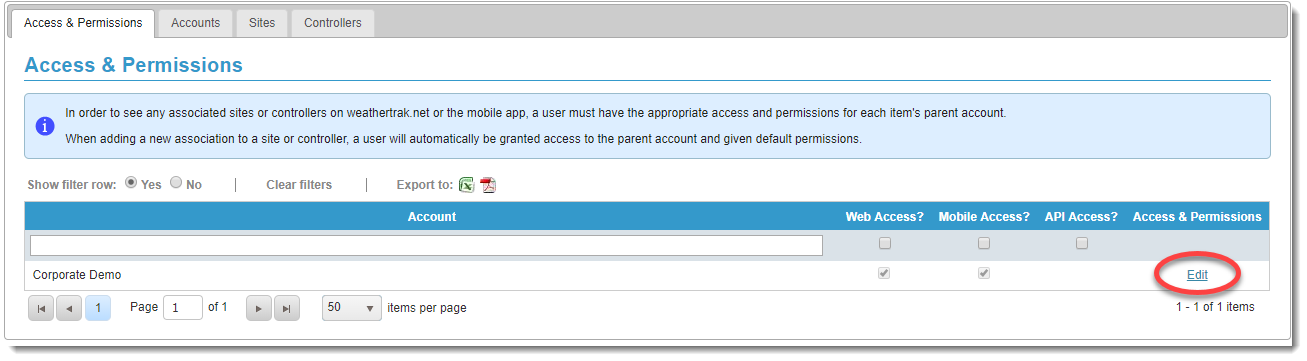
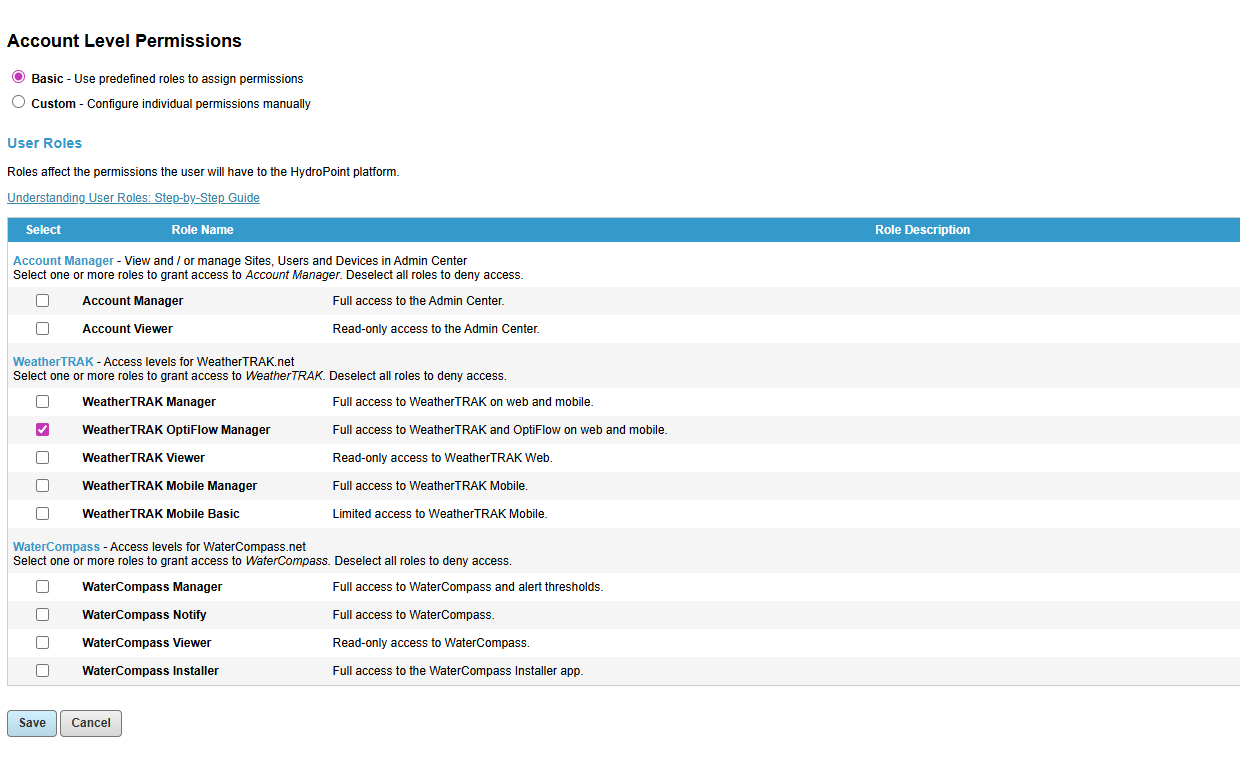
5. The Access and Permission tab contains the individual Permissions described in this article.
Important! Access Removal
In the case of any access removal requests, the proper owner/role/manager of the controller/account needs to approve or make the request. We must gather and document in our notes why they are requesting this. To help with this, these requests must be handled by Tier 2 or a Team Lead.
NEVER action a removal request without gathering 'Why' and 'Who' is making the request.
It is critical to understand and confirm a request to change permissions to do it correctly. Removing a user’s access from an account, site or controller does not remove their access from the other applicable items.
For example:
If we work to remove a user from an account via the account tab, we must also confirm they are removed from those sites and controllers respectively in those tabs. Access must also be removed from the “Access & Permissions” tab
To validate access, we can run the "Account Security Report"
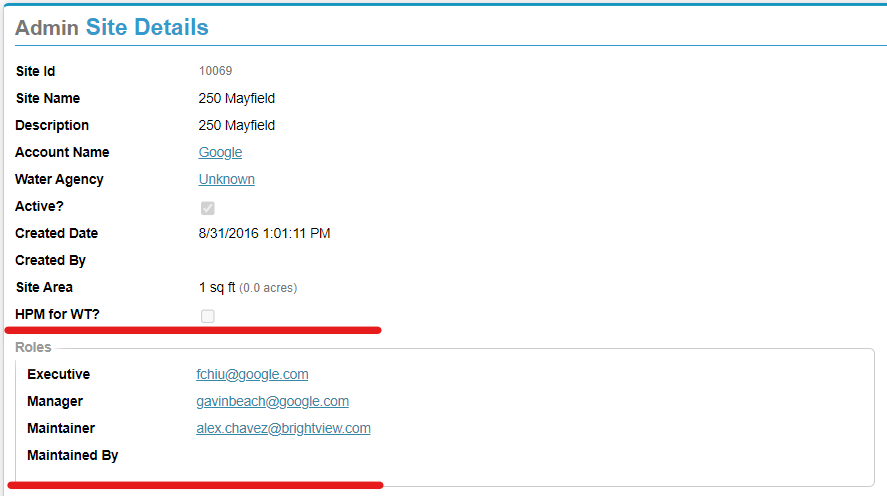
Use the admin site details in WeatherTRAK.net to validate contact roles. If it is blank, continue with validating via phone call that whoever is making the request is verified to do so. Contact the HPDS account manager if in doubt.
To learn how to change account permission levels to read-only for mobile users, read: Changing Access for Mobile Users to Reader Only
Questions on user access levels? -Understanding access levels